Linux servers are widely used for hosting applications, containers, and critical workloads, but data protection is often overlooked until something goes wrong. Manual backup methods like running rsync or tar scripts can work, but they quickly become difficult to manage as systems grow in size and complexity.
Linux backup services solve this problem by automating the backup process, running in the background, and providing consistent data protection across systems. This article explains what Linux backup services are, why they are important, and lists five main types along with explicit backup steps. Now let’s get started!
What Is a Linux Backup Service?
A Linux backup service refers to a type of backup mechanism that runs as a service on a Linux system. It continuously backs up and protects system data through automation, scheduled tasks, or background processes, thereby eliminating the need for users to manually execute commands like rsync and tar.
Unlike traditional backup tools, these services typically offer features such as task management, scheduled tasks, incremental backups, remote backups, and recovery controls, enabling consistent and reliable data protection across multiple hosts or complex environments.
Why Use Backup Services on Linux?
Using backup services on Linux safeguards your critical files, databases, and system configurations against hardware failures, human error, malware, and site-level disasters. A robust Linux backup strategy is essential for the key reasons below:
Manual backups (such as rsync or tar scripts) tend to rely on manual intervention, whereas backup services can be set up to run as scheduled tasks and execute automatically, thereby reducing the risk of human error or oversight.
As the number of servers and the volume of data increase, manually managing backups becomes extremely complex. Backup services often provide a centralized management interface, allowing you to manage backup policies for multiple Linux servers in a unified manner.
Backup services often support checksums, version control, and incremental/differential backups, which can reduce the risk of data corruption or incomplete backups and improve the success rate of recovery.
Compared to manual recovery processes, professional backup services often support one-click recovery, rapid roll-back, or full-system restoration, significantly reducing downtime.
Backup services often incorporate built-in encryption, access controls, and isolated storage mechanisms to prevent backup data from being tampered with or deleted by ransomware or accidental actions.
Modern Linux environments often include Docker, Kubernetes, or virtual machines; backup services are better equipped to handle these intricate structures, rather than merely performing file-level backups.
5 Types of Linux Backup Services
The types of Linux backup services vary based on enterprise requirements, infrastructure, and backup strategies. This section introduces five commonly used backup approaches, including their key characteristics, limitations, and practical implementation guides.
If you’re not familiar with command-line operations or complex backup scripts, Vinchin provides a simpler enterprise backup solution for fast and secure Linux data protection; move to the next section and keep reading.
Comparison of Linux Backup Service Types
Here is a table of comparison which can help you quickly overview the key features of the five backup types.
| Type | Best For | Deployment difficulty | Backup speed | Recovery speed | Real-time protection | Scalability | Typical tools |
| Snapshot-based | Linux servers requiring fast rollback and recovery | Medium | Very fast | Very fast | Yes | Medium | LVM; ZFS snapshots |
| Cloud backup | Offsite protection; hybrid infrastructure | Medium | Depends on bandwidth | Medium | Partial | High | Rclone; Brogbackup; Cloud storage |
| Client-server | Multi-server management | Medium | Medium | Medium | Partial | High | Bacula; Amanda |
| System-level | Small Linux servers | Low | Meidum | Medium | No | Low | Rsync+cron |
| Daemon backup | Frequently changing files | Medium | Fast | Fast | Partial | Medium | Inotify+rsync |
Now let's see each Linux backup type individually.
1. Snapshot-based Backup
Snapshot-based backup is a point-in-time snapshot technology operating at the storage layer or file system level, used to quickly capture the state of data without interrupting system operations.
Pros:
Cons:
Requires storage or file system support
Consumes additional storage space
Not ideal for long-term retention
Best use cases:
Data backup; VM disk protection; high-availability systems
How to perform a Linux backup using LVM snapshot:
Step 1: Create a snapshot
Create a point-in-time snapshot of the logical volume before data changes.
# Check logical volumes first
sudo lvs

# Create snapshot (example)
sudo lvcreate -L 5G -s -n lv_backup_snap /dev/vg0/lv_root
Step 2: Mount the snapshot
Mount the snapshot as a read-only filesystem so it can be safely backed up.
sudo mkdir -p /mnt/snapshot
sudo mount -o ro /dev/vg0/lv_backup_snap /mnt/snapshot
Step 3: Back up the snapshot data
Use rsync or similar tools to copy data from the snapshot to a backup server.
sudo rsync -aAXv /mnt/snapshot/ user@backup-server:/backup/lvm_backup/
Step 4: Unmount and remove the snapshot
After backup is completed, clean up the snapshot to release storage space.
sudo umount /mnt/snapshot
sudo lvremove -y /dev/vg0/lv_backup_snap
2. Cloud/Remote Backup
Cloud or remote backup is a data protection method that involves transmitting data over the network in encrypted form to cloud storage or a remote data center, thereby enabling off-site disaster recovery.
Pros:
Cons:
Best use cases:
Off-site disaster recovery; hybrid cloud environments; multi-region business systems
How to perform a Linux backup using rclone and S3:
Step 1: Install rclone
Install rclone on the Linux server to enable synchronization with cloud storage services.
# Debian / Ubuntu
sudo apt update
sudo apt install rclone -y

# RHEL / CentOS (if available via repo)
sudo yum install rclone -y

# Or official install script (recommended)
curl https://rclone.org/install.sh | sudo bash
Step 2: Configure cloud storage
Run the configuration wizard and connect rclone to the target cloud storage platform.
rclone config
Step 3: Create and authorize the remote storage
rclone listremotes
rclone lsd mycloud:
Step 4: Run the backup task
Synchronize local data to the cloud storage bucket.
rclone sync /data mycloud:backup/data
Step 5: Schedule automatic backups with cron
Open the cron editor and add a scheduled task.
Step 6: Enable encrypted backups (optional)
Use rclone crypt to encrypt backup data before uploading it to the cloud.
rclone sync /data remote:encrypted-backup --crypt
3. Client-Server Backup
Client-server backup is a backup method based on a client-server architecture, which involves installing agents on multiple Linux hosts to centrally back up their data to a central server.
Pros:
Cons:
Requires agent deployment
Depends on network connectivity
Higher maintenance complexity
Best use cases:
Medium to large enterprises; Linux server clusters; data center backup management
How to perform a Linux backup using Bacula:
Step 1: Install components.
# On Bacula server (Director / Storage)
sudo apt update
sudo apt install bacula -y

# On client (File Daemon)
sudo apt install bacula-fd -y
Step 2: Configure the client (file daemon)
sudo nano /etc/bacula/bacula-fd.conf
Step 3: Configure the backup job on the server side.
sudo nano /etc/bacula/bacula-dir.conf
Step 4: Start the backup job.
Step 5: restore data when needed.
4. System-level backup
It’s a lightweight backup method based on system task scheduling (cron) and a file synchronization tool (rsync), and is the most common form of script-based backup.
Pros:
Cons:
Best use cases:
Small Linux servers; development environments; personal systems
How to setup a Linux backup using cron:
Step 1: Create a backup script
Write a shell script that defines what data to back up and where to store it.
sudo nano /usr/local/bin/backup.sh
Step 2: Make the script executable
Grant execution permission so the system can run the script.
sudo chmod +x /usr/local/bin/backup.sh
Step 3: Add a cron job
Schedule the script to run automatically at a specific time using cron.
0 2 * * * /usr/local/bin/backup.sh >> /var/log/backup.log 2>&1
5. Daemon-Based Backup
This type of backup service achieves automation and real-time processing by running backup tasks continuously via a resident background service (daemon).
Pros:
Cons:
Best use cases:
Frequently updated business systems; log backup; small and medium production systems
How to setup real-time Linux backup using inotify and rsync:
Step 1: Install inotify tools.
# Debian / Ubuntu
sudo apt update
sudo apt install inotify-tools -y

# RHEL / CentOS
sudo yum install inotify-tools -y
Step 2: Create a real-time backup script that monitors file changes.
sudo nano /usr/local/bin/realtime_backup.sh
Step 3: Run the script as a background service for continuous protection.
sudo chmod +x /usr/local/bin/realtime_backup.sh
nohup /usr/local/bin/realtime_backup.sh &
Best Enterprise Linux Backup Solution: Vinchin Backup & Recovery
All five Linux backup services discussed above have advantages in specific scenarios. However, they all need separate configuration and maintenance, lacking abilities of unified management. As their operations expand, organizations often require a professional backup platform to enhance the overall efficiency and reliability of data protection.
Under such cases, Vinchin Backup & Recovery, as an enterprise-level backup solution, can help organizations achieve centralized data protection and disaster recovery management. It supports backups for mainstream Linux distributions (such as Ubuntu, Debian, etc.) and provides full-system protection via an agent and snapshot technology.
Besides, Vinchin supports flexible scheduled backup strategies, including full, incremental, and differential backups, along with customizable retention policies and backup verification after recovery. It also enables centralized management of all backup tasks through a web-based console. Additionally, it allows for both local and off-site backups, helping organizations protect data against ransomware, hardware failures, and data center disasters.
How to back up a Linux server with Vinchin?
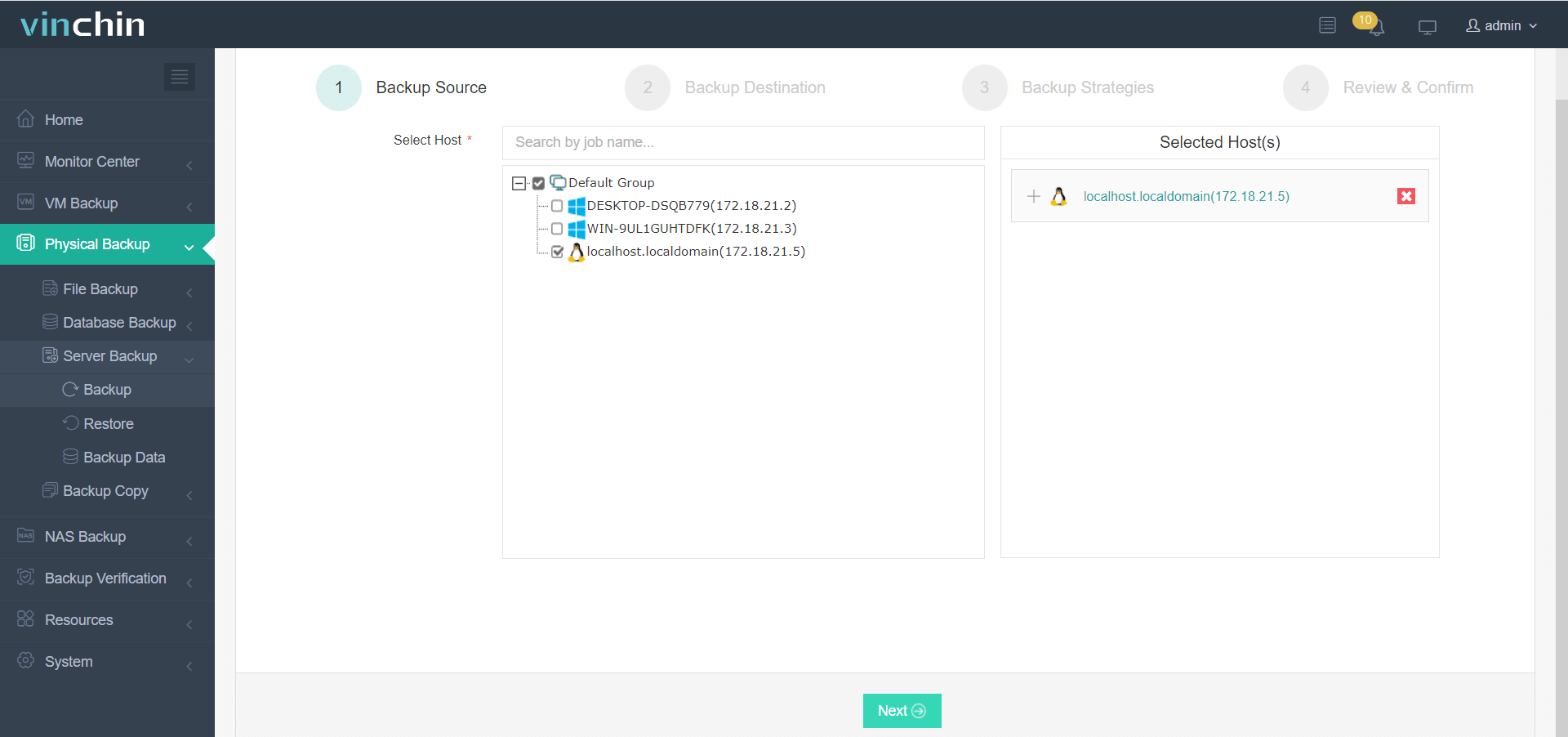
1. Navigate to Physical Backup>Server Backup>Backup and choose a licensed Linux host as the backup source.
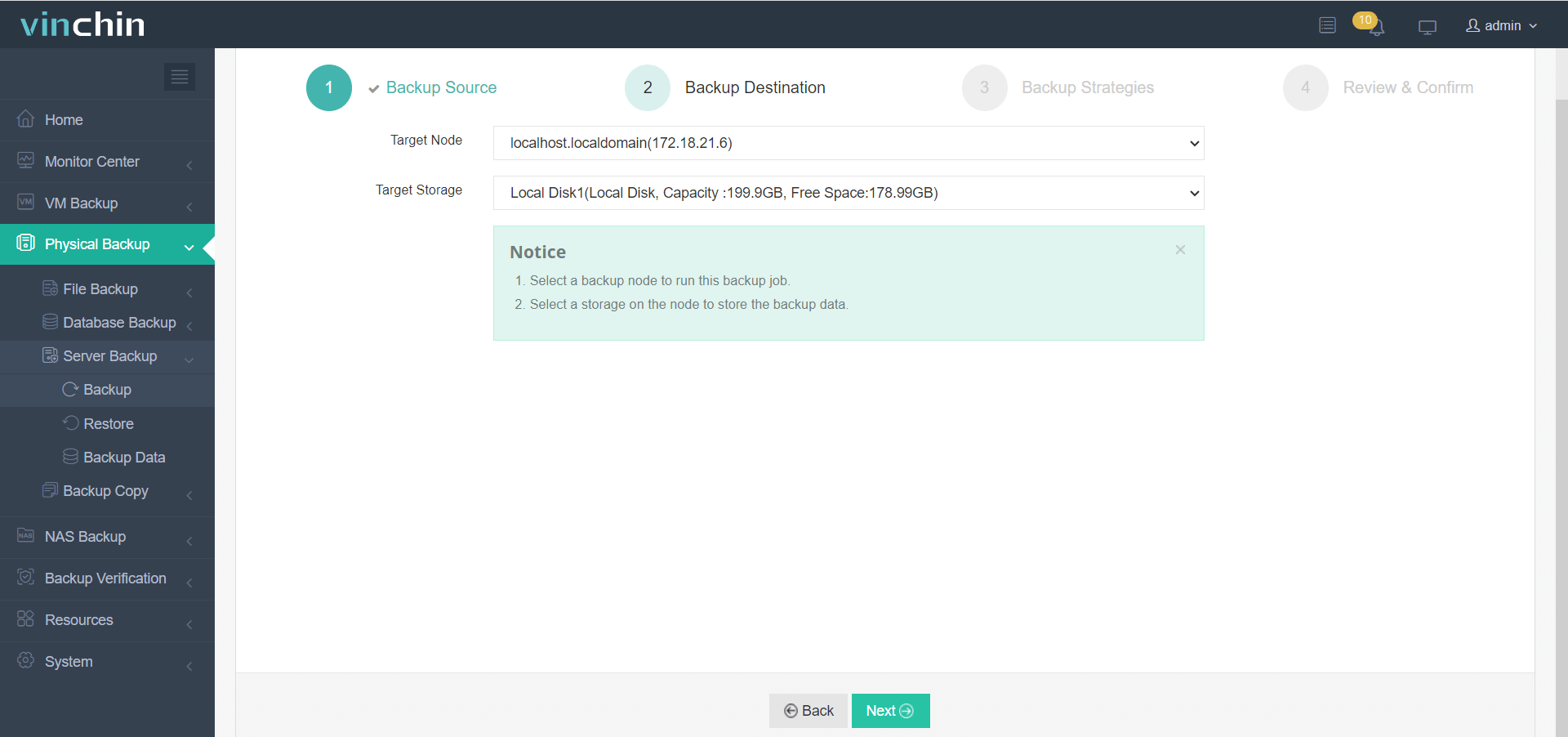
2. Then choose a target node and storage destination from the drop-down lists.
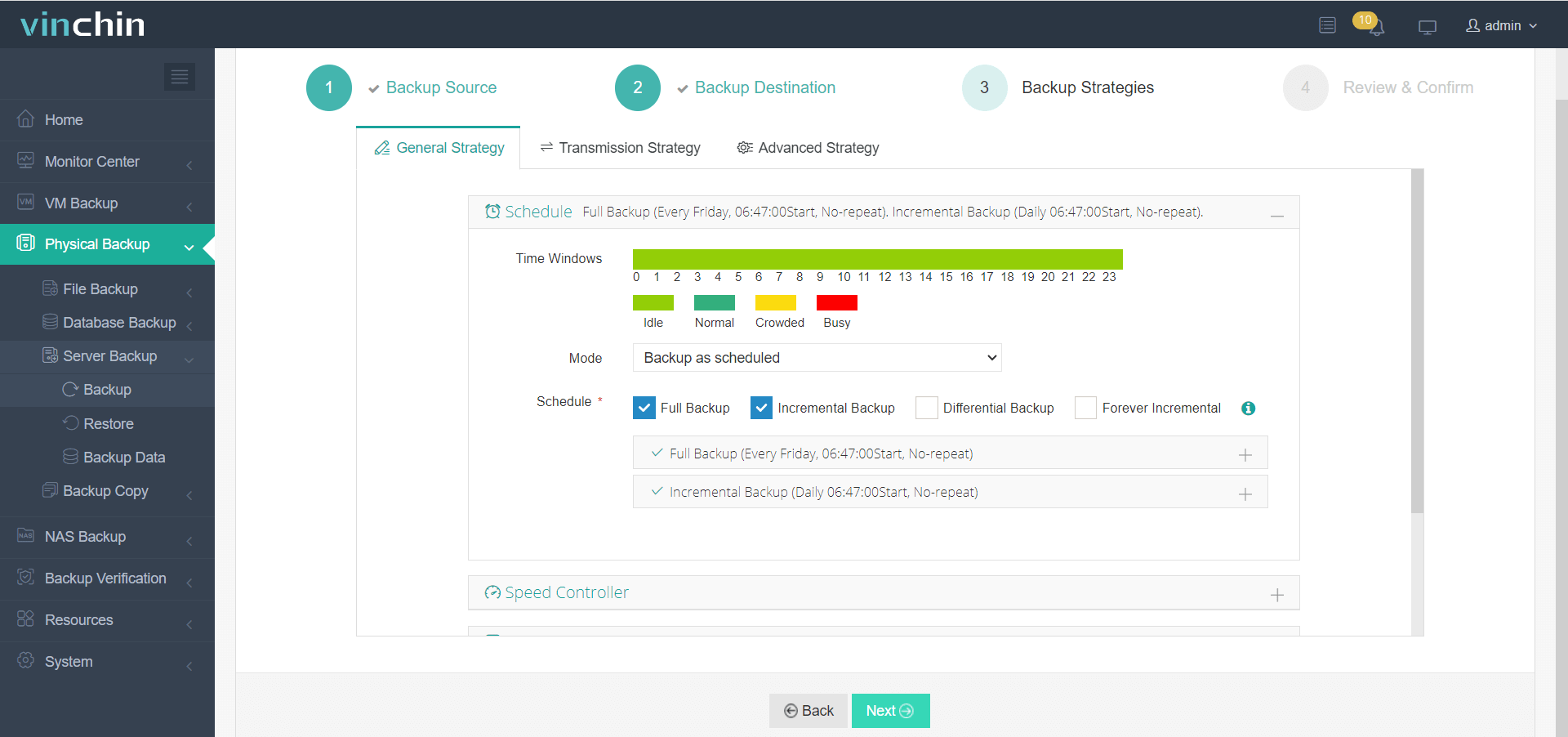
3. Customize backup strategies like time windows, schedules, backup type, and retention policies aligned with your specific requirements.
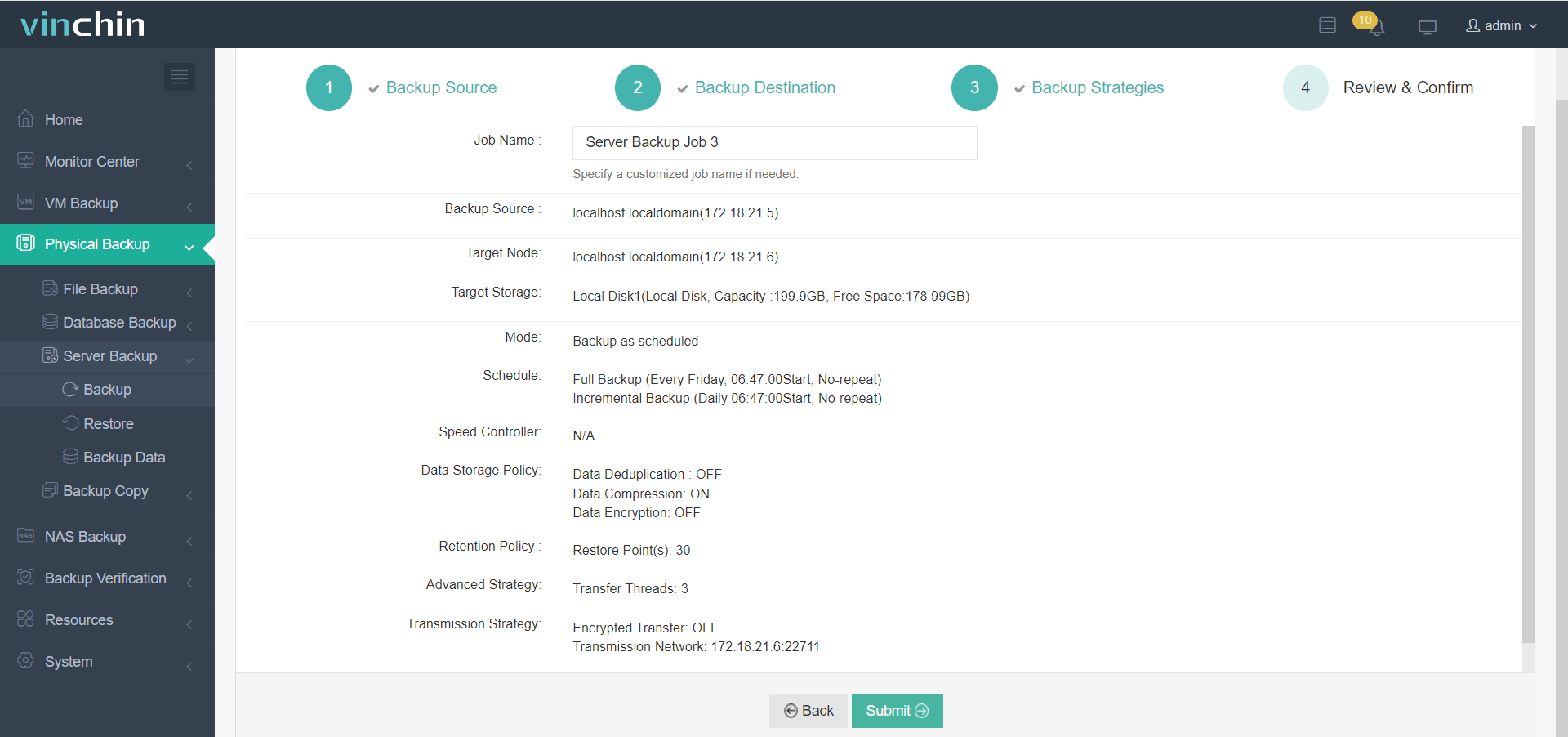
4. Finally, confirm whether the backup details are okay, and click Submit to start the Linux backup task.
Vinchin Backup & Recovery has been chosen by thousands of enterprises, and you can experience this professional backup solution with a 60-day free trial with full features. Feel free to contact us and leave your issues, and you’ll receive a solution provided by our IT teams.
Linux Backup Service FAQs:
Q1: What’s the difference between Linux snapshot backup and traditional backup?
A Linux snapshot backup captures a point-in-time state of a system using file system or storage-level snapshots, while traditional backups copy files to another location over time. Snapshots are faster and ensure data consistency, but require specific storage support.
Q2: How often should Linux backups be performed?
It depends on whether the data is critical. Common practice includes daily incremental backups, weekly full backups, and real-time or near-real-time backups for critical systems.
Q3: What is the best Linux backup strategy for enterprise environments?
The best enterprise Linux backup strategy usually combines multiple methods, including snapshot-based backups for consistency, cloud backups for disaster recovery, and centralized backup platforms for unified management.
Conclusion
Using Linux backup services helps ensure business continuity, minimize costly downtime, and protect against data loss caused by hardware failures, human errors, or cyberattacks. Common backup services, such as cloud/remote backups and snapshot-based backups, provide effective protection for critical data and enable fast recovery when incidents occur.
For organizations seeking a simpler and more automated solution without relying on complex command-line scripts, Vinchin Backup & Recovery offers a user-friendly and enterprise-ready alternative with a 60-day free trial.