Data loss, system failures, or misconfigurations can lead to downtime and service disruption. For this reason, having a reliable backup strategy for Linux servers is essential to ensure data protection and business continuity.
Among different backup approaches, full backup is the most fundamental and comprehensive method. It creates a complete copy of the entire system or selected data, making it easier to restore systems quickly when failures occur.
In this post, we’ll introduce what a full backup is, its benefits, and how to perform full backups on Linux servers using four methods, including an enterprise-grade solution for reliable and secure backups. Now let’s dive in!
What Is a Full Backup on Linux Server?
A full backup is a backup method that creates a complete copy of all selected data, system files, applications, and configurations from a Linux server into a backup repository. It saves all the copies as a standalone backup version, without relying on any previous backup records.
When restoring data, a single complete backup is enough to return the system to its previous state, making the restoring process simple, fast, and low-risk.
Full backups are often required in scenarios such as system upgrades, critical production environments, server migrations, disaster recovery planning, and compliance-driven situations where data integrity and recoverability are essential.
However, as backing up complete data is required every time, full backups often occupy multiple storage spaces, and the backup time is much longer.
Key Benefits of Full Backup
A full backup copies the entire dataset to a single point in time. Its primary benefits are the fastest restore speed and absolute simplicity, since you don’t need to piece together multiple files or wait for incremental backups to merge.
Its key advantages include:
Fastest restoration: Because all your data is stored in a single, comprehensive snapshot, restoring data requires only one step. This reduces downtime during emergencies.
Ultimate simplicity: You don’t need to rely on previous backups to recreate files. As long as the backup medium is readily available, you can quickly restore data.
Reliability: It creates a complete baseline of your system, ensuring that no file, application, or database is missed.
Visible management: The structure of management is simple and visible, as every data is a single version, making it easy to archive, migrate, and audit.
How to Perform Full Backups on a Linux Server?
Since full backups copy all Linux server data and provide fast and reliable recovery, it’s important to deploy an effective backup strategy. Below are four common methods. If you want to avoid complex command lines and manual scripts, the fourth method offers a simpler and faster solution.
When to use each method:
In the following section, we summarize the most ideal use cases of each method listed below, helping you make quick and correct choices tailored to your current situations.
| Backup Method | Best Use Cases | Suitable Scenarios |
| rsync | Flexible file-level backup | Small to medium Linux servers, file synchronization, administrators preferring command-line management |
| tar | Lightweight archive backup | Backing up configuration files, application data, or specific directories for quick manual backup |
| Disk image backup | Full-system and bare-metal recovery | Disaster recovery, full system migration, hardware replacement, critical production servers |
| Enterprise backup software (Vinchin) | Centralized and automated enterprise backup | Large-scale enterprise environments requiring automated scheduling, centralized management, high reliability, and fast recovery |
Now let’s see each method and backup operation steps in detail.
Method 1: Backup Linux Server Using Rsync
Rsync is a widely used file synchronization tool in Linux. It realizes file-level full backup, keeps file permissions, owners, and directory structure, supports local and remote backup, and is very suitable for daily regular full backup of servers.
Backup Procedures:
1. Check whether rsync is installed in the Linux system. If not, install it through the system software source.
rsync --version
If rsync is not installed:
# Debian / Ubuntu
sudo apt update && sudo apt install rsync -y

# RHEL / CentOS
sudo yum install rsync -y
2. Create an empty dedicated folder to store all backup files in advance.
sudo mkdir -p /backup/full_system
3. Execute the rsync backup command, exclude system virtual directories and temporary directories that do not need backup.
sudo rsync -aAXv \
  --exclude={"/dev/*","/proc/*","/sys/*","/tmp/*","/run/*","/mnt/*","/media/*","/lost+found"} \
  / /backup/full_system
4. Wait for all files to be synchronized completely, and the full system backup is finished.
Method 2: Backup Linux Server Using Tar
Tar is a built-in packaging and compression tool of Linux. It packs all system files into one compressed file. The backup file is small in size, easy to store and transmit, which is a classic way for a full system backup.
Backup Procedures:
1. Reserve sufficient disk space to save the compressed backup package.
sudo mkdir -p /backup
2. Enter the system command line and run the tar compression packaging command.
sudo tar -czvf /backup/full_backup.tar.gz /
3. Set exclusion parameters to filter out invalid system directories during packaging.
sudo tar -czvf /backup/full_backup.tar.gz \
  --exclude=/proc \
  --exclude=/sys \
  --exclude=/dev \
  --exclude=/run \
  --exclude=/tmp \
  --exclude=/mnt \
  --exclude=/media \
  --exclude=/lost+found \
  /
4. After compression is completed, move the backup file to a safe storage location to complete a full backup.
Method 3: Backup Linux Server Using Disk Image Backup
Disk image backup is a sector-level full backup. It makes a complete 1:1 copy of the entire disk or partition, including system partition information, hidden data and all contents, with the highest backup completeness for disaster recovery.
Backup Procedures:
1. Query the system disk device name and confirm the source disk that needs a full backup.
lsblk
or
sudo fdisk -l
Identify the target disk (for example: /dev/sda).
2. Prepare external storage or a large-capacity partition to store disk image files.
sudo mkdir -p /backup
Check disk usage:
df -h
3. Run the disk mirroring command to generate a complete disk image file.
Use dd to create a full disk image:
sudo dd if=/dev/sda of=/backup/full_disk_backup.img bs=64K status=progress
4. Confirm that the image file is generated without error, and the whole disk full backup is completed.
Verify backup file:
ls -lh /backup/
Method 4: Best Enterprise Backup Solution-Vinchin Backup & Recovery
Traditional Linux full-system backup methods often rely on cumbersome manual scripts, lacking automated scheduling and centralized management. As a result, backup and recovery efficiency can be low, while stability and security may not fully satisfy the data protection requirements of large-scale enterprise environments.
Compared with traditional approaches, enterprise backup software like Vinchin provides a more efficient and easier-to-manage backup solution for Linux servers. Vinchin Backup & Recovery supports full, incremental, and differential backups without the need to manually write scripts, and allows administrators to create customized backup schedules for automated data protection.
In addition, features such as resume from breakpoints, data compression, and encrypted transmission help reduce storage and bandwidth consumption while ensuring secure data transfer. It also supports multi-host centralized management, VM recovery verification, and one-click fast recovery, making it well-suited for enterprise backup and disaster recovery scenarios.
With an intuitive interface, backing up a Linux server in Vinchin is straightforward:
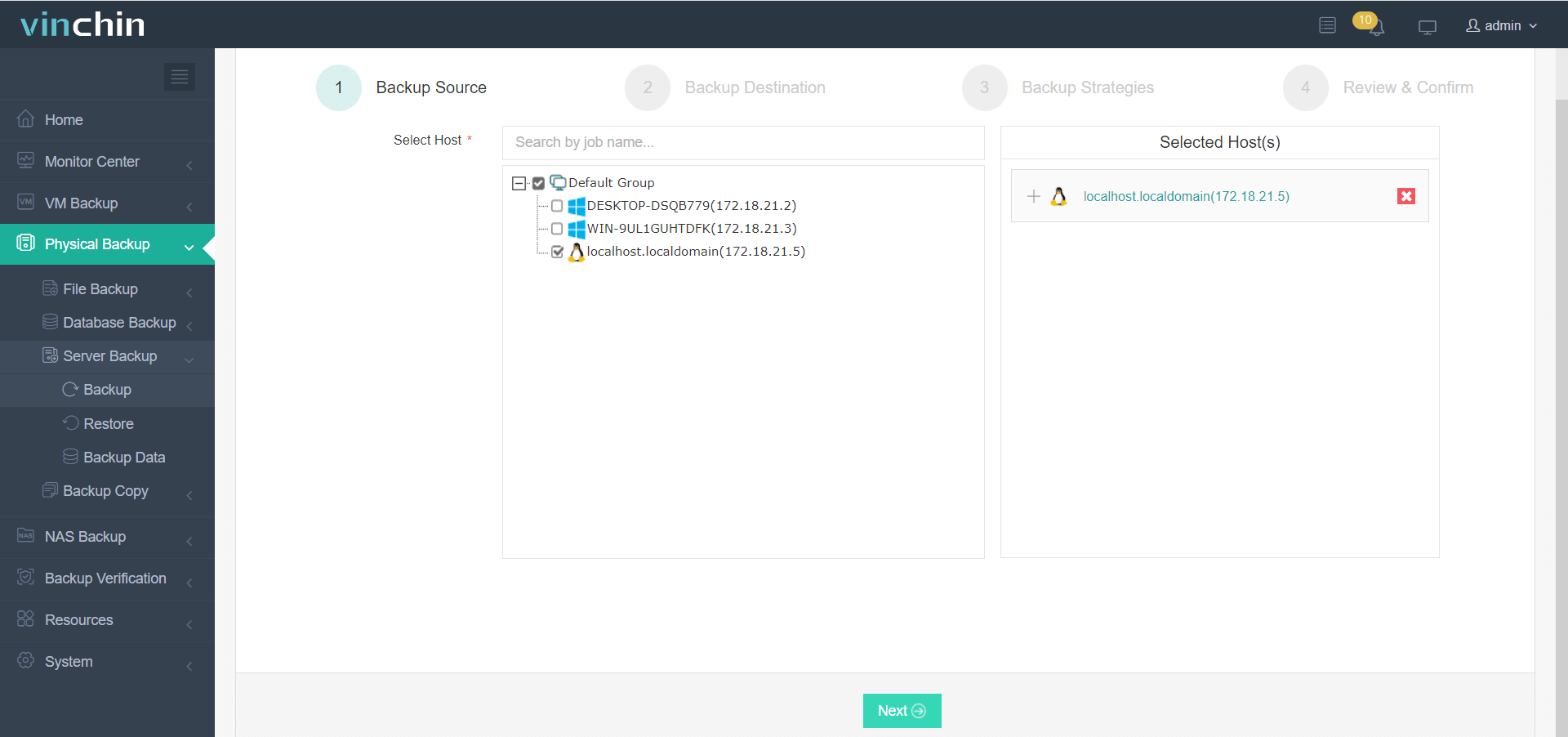
Step 1: Navigate to Physical Backup > Server Backup > Backup and select a licensed Linux host as the backup source.
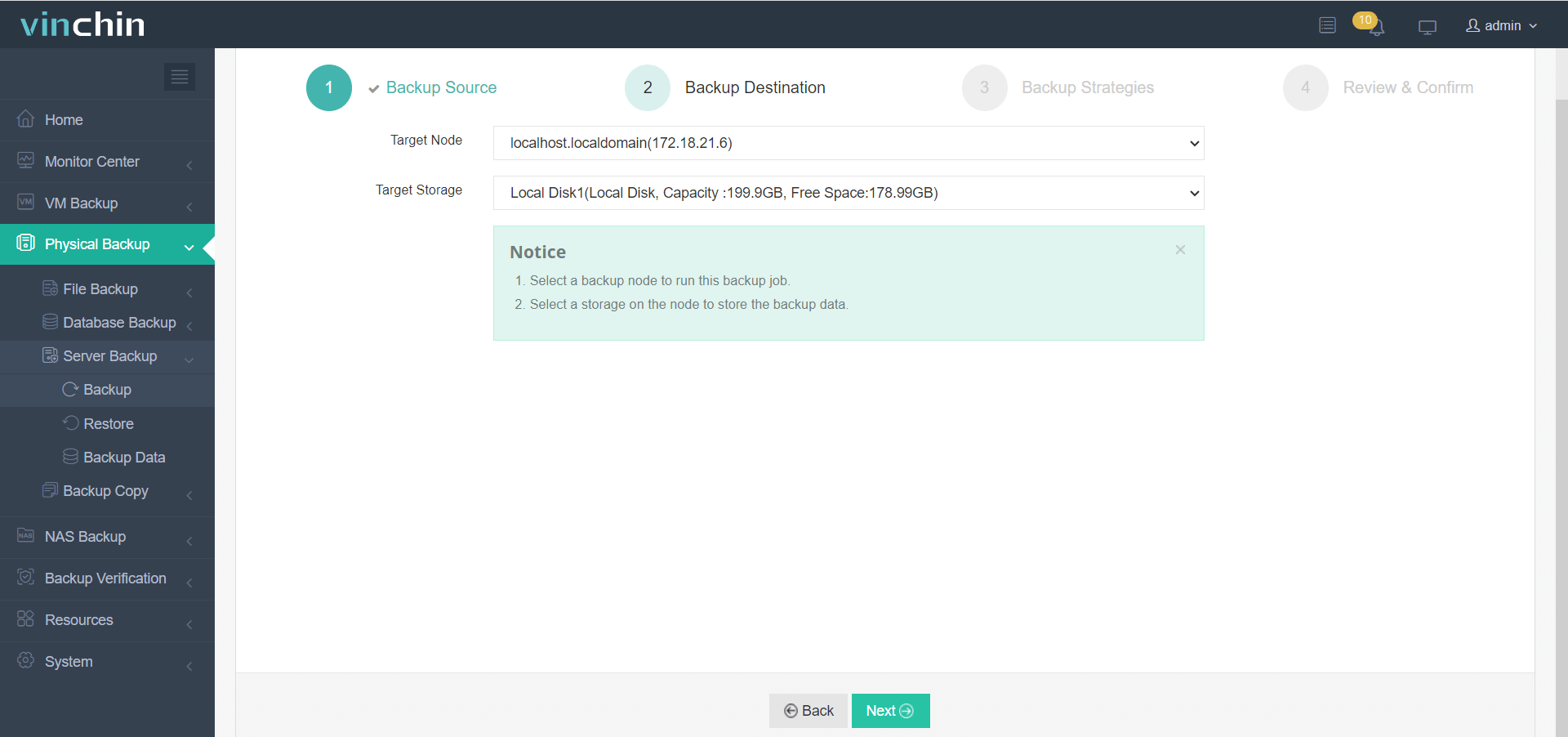
Step 2: Move to the next step; choose a target node and storage media from the drop-down list.
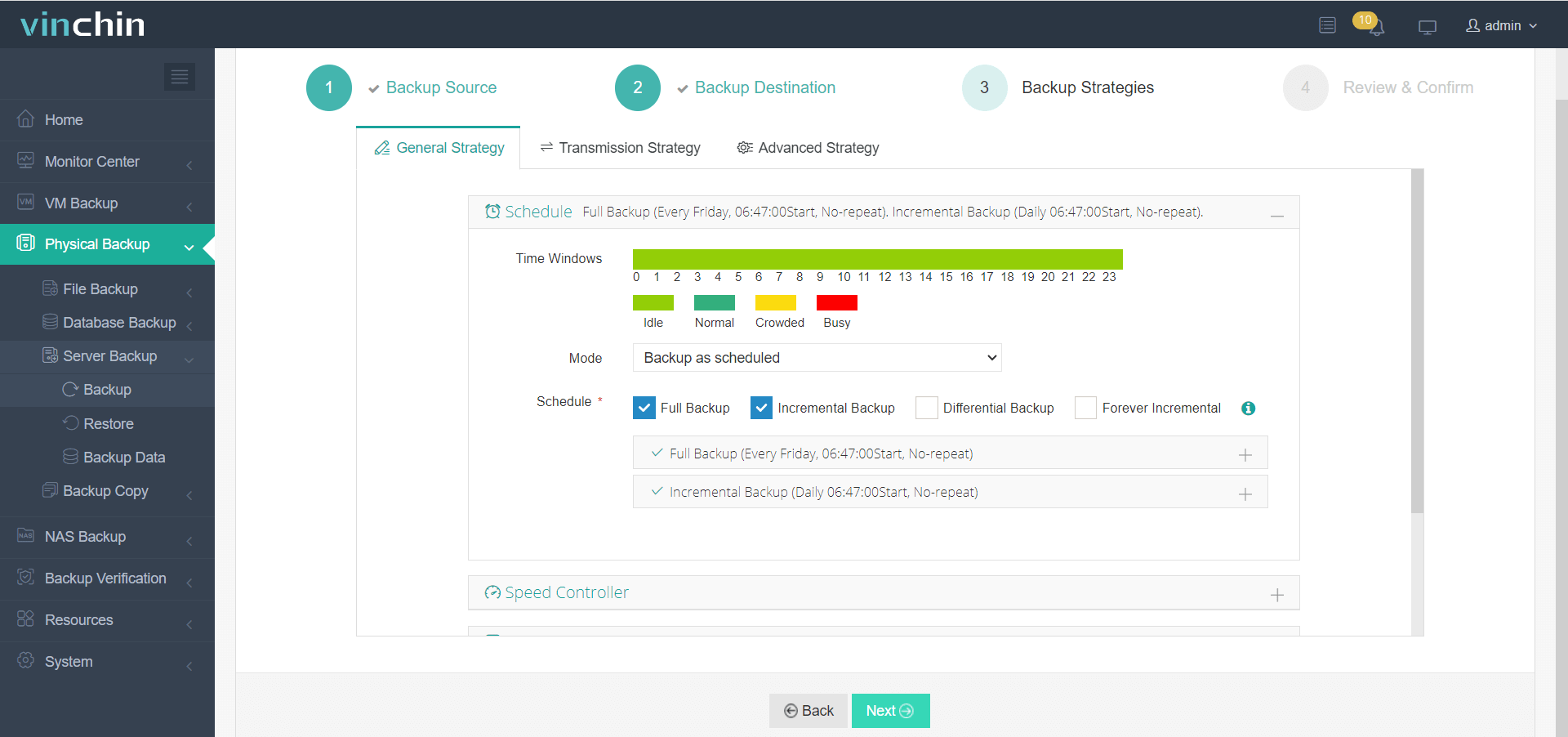
Step 3: Configure backup strategies like time windows, schedules, and backup type (here choose full backup), and retention policies as needed.
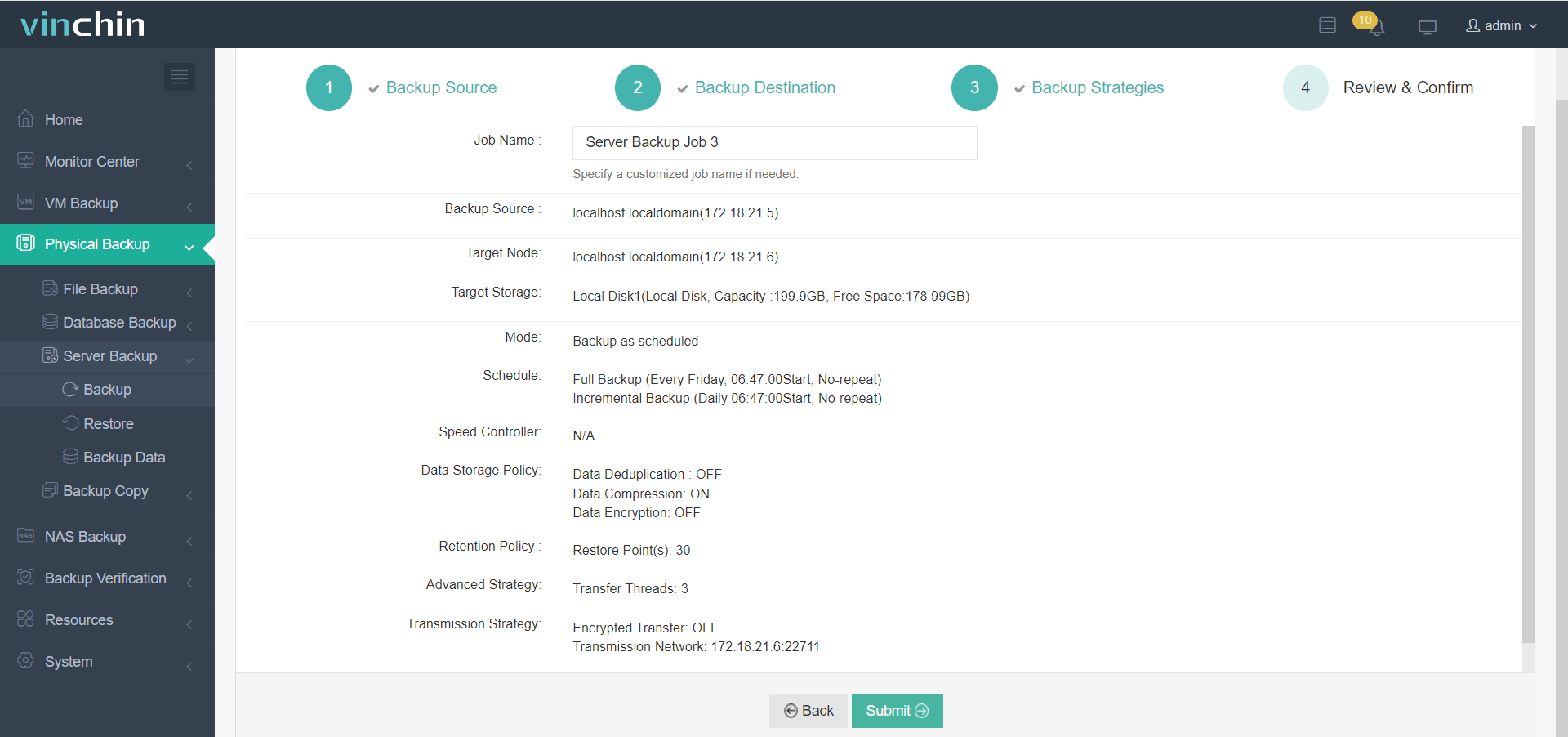
Step 4: Review all the backup details you set, and hit Submit once you’ve confirmed. The job will run on schedule immediately.
Gaining trust and good ratings from thousands of customers globally, Vinchin Backup & Recovery is a robust backup solution that offers reliable, fast, and simple Linux backup services. Click the download button below to try a 60-day free trial.
Common Challenges and Best Practices of Full Backups on Linux Server
Linux server full backups copy the entire system data and thus deliver fast recovery speed and excel in simplicity and reliability. However, it presents significant challenges, as follows:
High storage requirements: Copying all files takes up significant storage capacity, and frequent full backups are impossible to make if there’s no massive infrastructure.
Performance decrease & longer backup window: I/O heavy full backups occupy disk read/write bandwidth, thus increasing the latency of active applications and users.
Data inconsistency: Backing up active files may result in corrupt or fragmented snapshots if a process modifies files during the copy operation.
Silent failures: automated scripts may fail to execute due to permission issues or full disk spaces, leaving administrators unaware that backups are incomplete.
Untested restores: An unverified backup is actually useless. Failing to test the actual data restoration may result in longer downtime during emergencies.
Best Practices:
Here we list some best practices to save your time on backing up critical Linux data using the full backup method and rapidly restoring production data with high reliability.
1. Build an Efficient Backup Strategy
Schedule full backups weekly or monthly based on data importance.
Combine full backups with incremental backups to reduce backup time and storage consumption.
Keep multiple backup versions for flexible recovery.
2. Improve Backup Security and Reliability
Store backups on external devices, NAS, or cloud storage to avoid single points of failure.
Encrypt backup data during transfer and storage.
Regularly verify backup integrity to ensure backups are recoverable.
3. Simplify Backup Management and Recovery
Automate backup tasks with scripts or backup software
Monitor storage capacity to prevent backup failures.
Document backup schedules and retention policies for easier management.
Periodically test recovery procedures to confirm restore reliability.
FAQs Related to Full Backups on Linux Server
Q1: How often should I perform a full backup on a Linux server?
It depends on data change frequency and business requirements. Most organizations schedule weekly or monthly full backups and combine them with daily incremental backups to balance recovery speed and storage usage.
Q2: What is the difference between full backups and incremental backups?
A full backup copies all data every time, while an incremental backup only copies data changed since the last backup. Full backups simplify recovery, whereas incremental backups reduce backup time and storage consumption.
Q3: Where should Linux server backups be stored?
Backups should be stored on external storage, NAS, backup servers, cloud storage, or off-site locations to prevent data loss caused by local hardware failure or disasters.
Q4: Does a full backup affect Linux server performance?
Yes, backup processes can consume CPU, memory, disk I/O, and network bandwidth. Scheduling backups during off-peak hours helps minimize performance impact.
The Bottom Line
Full backup copies all Linux server data and enables fast and worry-free recovery, but it also has limitations. Organizations often need to pair it with incremental backups and regularly monitor and verify backup status. You can choose from the four methods introduced in this article, or opt for Vinchin Backup & Recovery if you prefer a simpler approach without command lines or complex scripts.