Active Backup for Business - You Need to Know
Active Backup for Business (ABB) is a backup suite developed by Synology for protecting:
For Linux systems, ABB uses an agent-based architecture that installs a backup agent on the target Linux server and stores backup data on a Synology NAS.
Supported Linux Distributions
One of the most important considerations before deployment is compatibility.
As of 2026, Synology officially supports the following Linux distributions:
| Distribution | Supported Versions |
| Ubuntu | 16.04, 18.04, 20.04, 22.04, 24.04 |
| Debian | 10, 11, 12, 13 |
| RHEL | 6.10 through 9.7 |
| CentOS | 7.8, 7.9, 8.1, 8.5 |
| Fedora | 38, 39, 40, 41, 42 |
Additional requirements include:
X86-64 architecture
Linux kernel versions between 2.6 and 6.14
ext2, ext3, ext4, or XFS file systems
GCC 4.8.2+
DKMS 2.2.0.3+
Make 4.1+ installed on the source server
These requirements are necessary because ABB relies on a Linux snapshot drive for incremental backup.
Key Features of Active Backup for Business Linux
1. Image-Based Backup
ABB captures an entire Linux machine, including:
Operating system
Boot partitions
Applications
Configurations
User data
This enables complete system recovery after hardware failures or ransomware incidents.
2. Incremental Backup with Changed Block Tracking
Rather than backing up the entire server every time, Active Backup for Business identifies changed blocks between snapshots and transfers only modified data.
Synology confirms that Linux backups utilize Change Block Tracking based on its Linux snapshot driver.
3. Bare-Metal Recovery
If a Linux server becomes unavailable, administrators can restore the entire system onto original hardware, new hardware, and virtual machines.
This significantly reduces downtime during disaster recovery events.
4. File-Level Recovery
Not every incident requires a full server restore.
ABB allows administrators to recover individual files, directories, and specific volumes without rebuilding the entire operating system.
5. Instant Virtual Recovery
A unique capability of ABB is its ability to restore Linux workloads directly into VMware vSphere, Microsoft Hyper-V, and Synology Virtual Machine Manager.
This enables rapid service recovery while production systems are repaired.
Steps to Configure Active Backup For Business Linux
Configuring ABB for Linux involves installing the Linux agent, registering the server with your Synology NAS, and creating a backup task.
Step 1. Install Active Backup for Business on Synology NAS
1. Log in to DSM, and open Package Center
2. Search for Active Backup for Business, and click Install
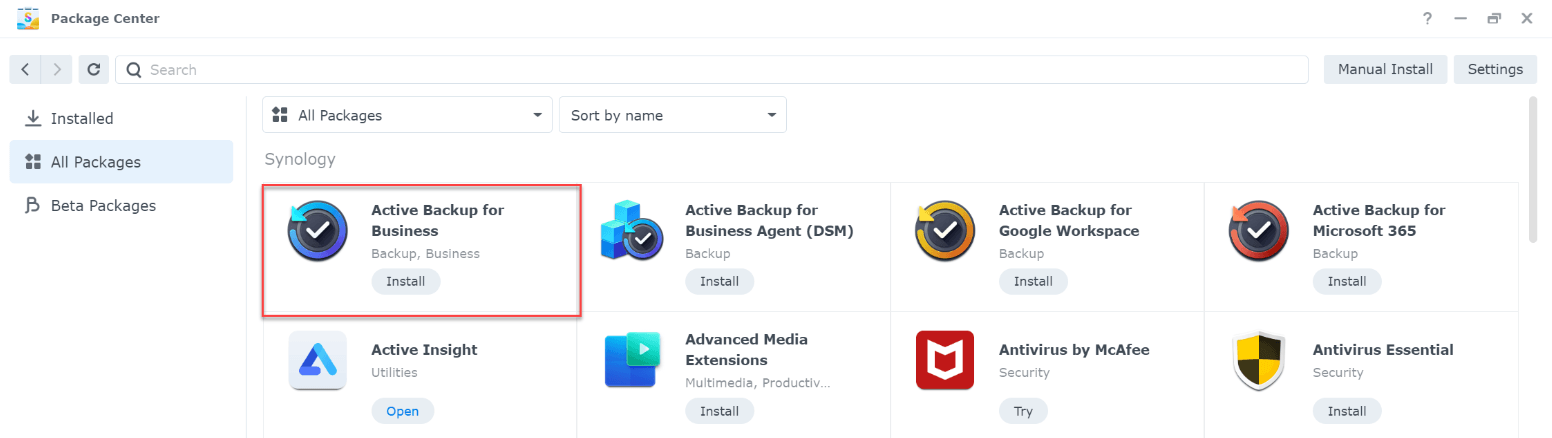
3. Launch ABB after installation
4. Complete the initial setup wizard and allocate storage space for backups
Step 2. Download the Linux Agent
1. Open Active Backup for Business Portal
2. Go to Physical Server > click Linux > select Add Device
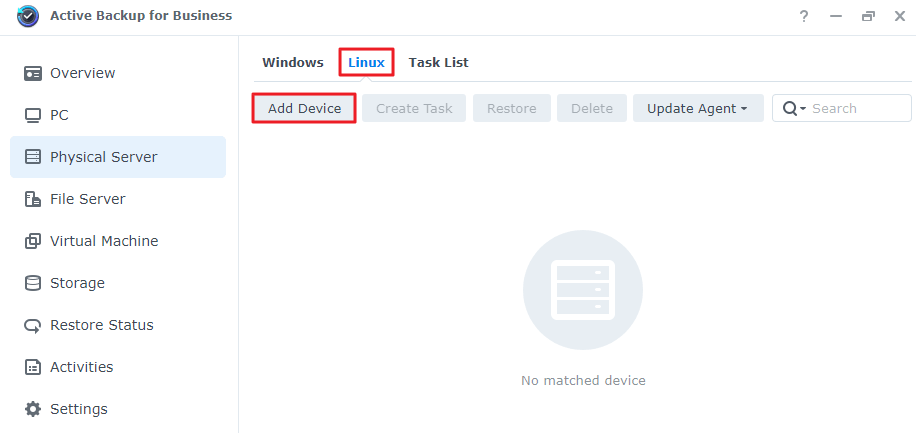
3. Download the ABB Linux Agent package that matches your distribution
You will typically receive either:
.deb package (Ubuntu/Debian)
.rpm package (RHEL/CentOS/Fedora)

Step 3. Install Required Dependencies
ABB Linux Agent requires several components.
Ubuntu/Debian
sudo apt update
sudo apt install gcc make dkms linux-headers-$(uname -r)
RHEL/CentOS
sudo yum install gcc make dkms kernel-devel
Verify:
gcc --version
dkms --version
Step 4. Install the ABB Linux Agent
For Debian/Ubuntu
sudo dpkg -i SynologyActiveBackupBusinessAgent-x.x.x.deb
For RHEL/CentOS/Fedora
sudo rpm -ivh SynologyActiveBackupBusinessAgent-x.x.x.rpm
After installation:
sudo systemctl status abb-agent
or
sudo service abb-agent status
Step 5. Register the Linux Server
Run:
sudo abb-cli -c
or use the registration wizard provided by the installer.
Then enter:
Synology NAS IP address
DSM username
DSM password
Device name
Example:
NAS Address: 192.168.1.100
Username: backupadmin
Password: ********
After successful registration, the Linux server will appear in ABB.
Step 6. Create and Run a Backup Task
On the Synology NAS:
1. Open Active Backup for Business
2. Select Physical Server and locate your Linux machine > click Create Task
Or go to Physical Server > Task List > Create > Linux task
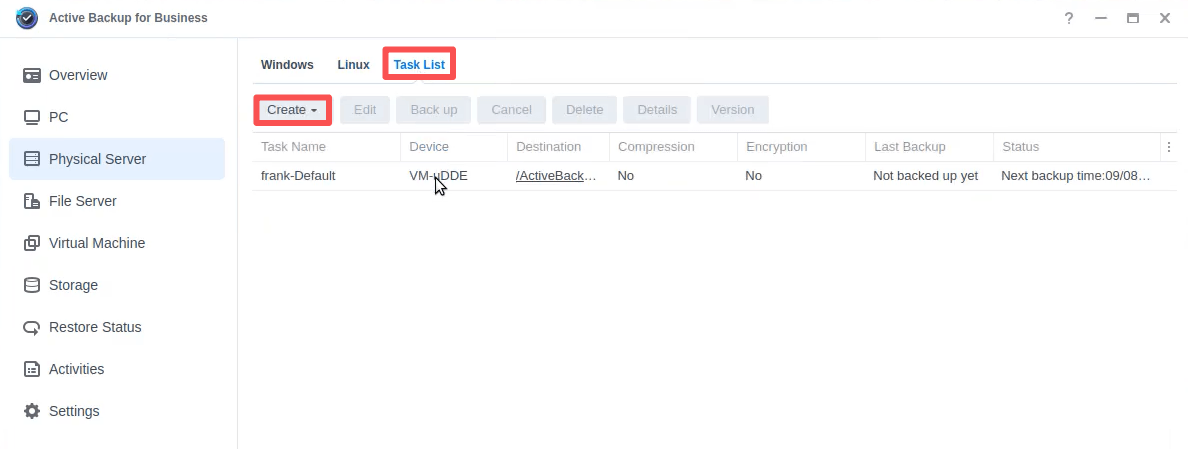
3. Configure:
Backup source type
Choose:
Entire device
System volume
Customized volume
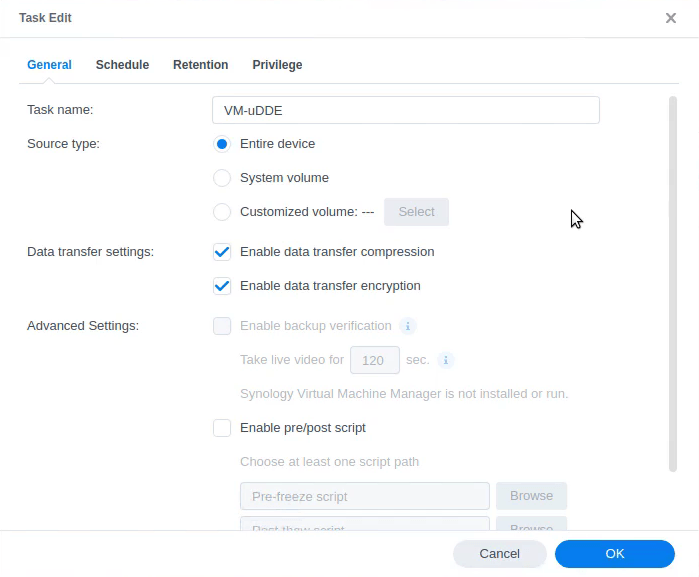
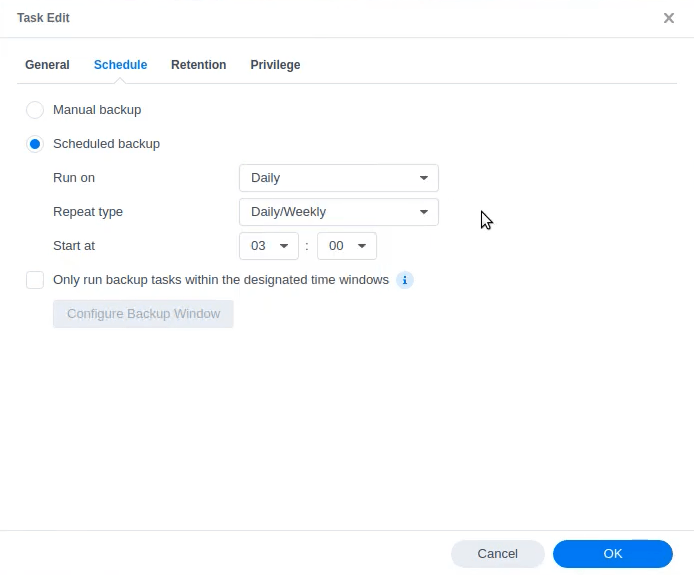
Schedule
You can choose manual backup or scheduled backup (set up the backup schedule as your desire)
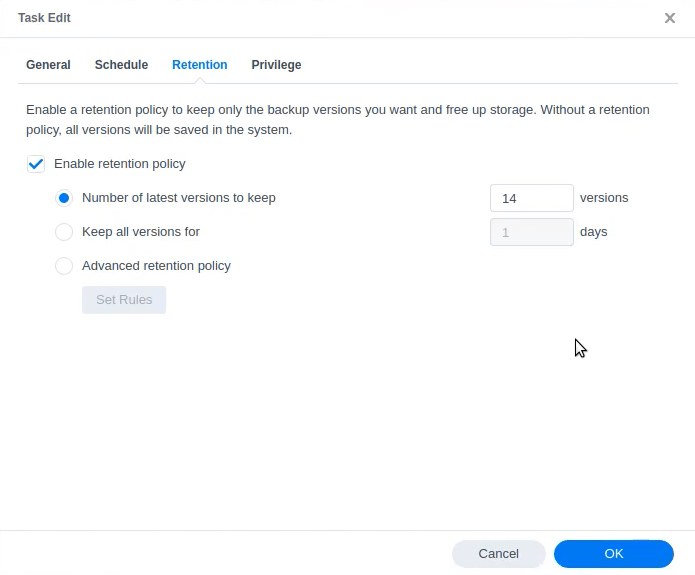
Retention policy
Enable a retention policy, this determines how many versions you'd like to keep
4. After configuration, click Back up to begin process
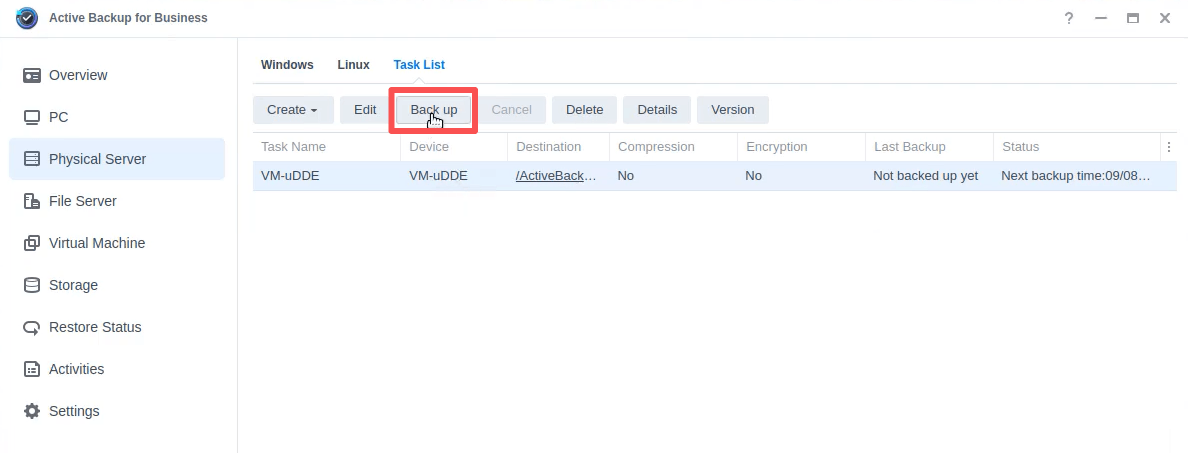
The initial backup is a full backup and may take longer depending on disk size, network bandwidth and data volume.
Enterprise Alternative: Vinchin Backup & Recovery for Linux
While Active Backup for Business is a practical solution for Synology environments, enterprise often requires broader workload protection.
Vinchin Backup & Recovery provides comprehensive protection for Linux servers, VMware vSphere, Microsoft Hyper-V, Proxmox VE, Xenserver/XCP-ng, RHV, Oracle Linux Virtualization Manager, OpenStack, and public cloud workloads.
Not only the broader workload protection, but also:
Cross-platform migration: Support multiple migration V2V, P2V, P2P, C2C, C2V, and P2C
Immutable backup protection: Prevent ransomware from encrypting or deleting backup data.
Advanced enterprise DR: Recover Linux workloads rapidly to minimize business interruption.
Simple steps to backup Linux server with Vinchin:
Step 1. In Backup > Server, choose the Linux server as your backup source
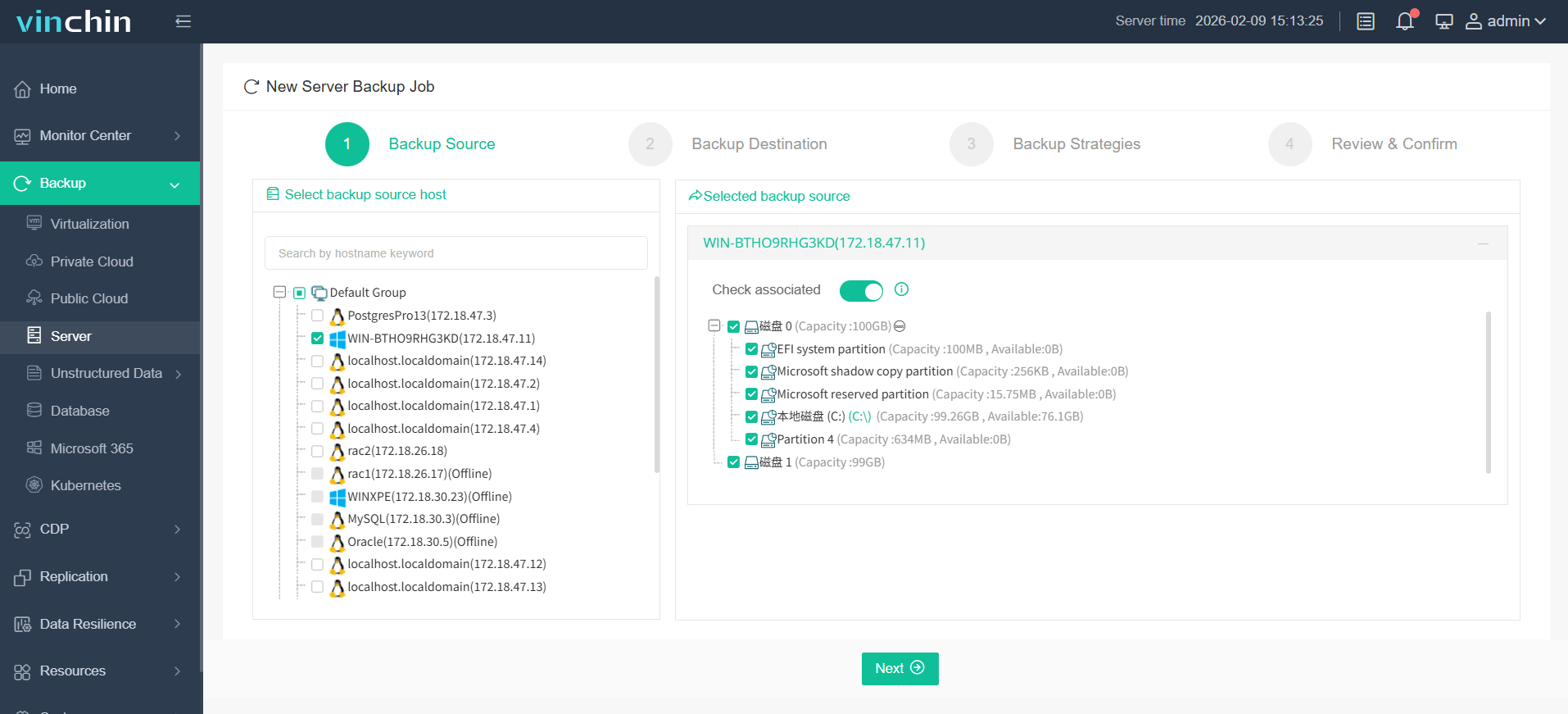
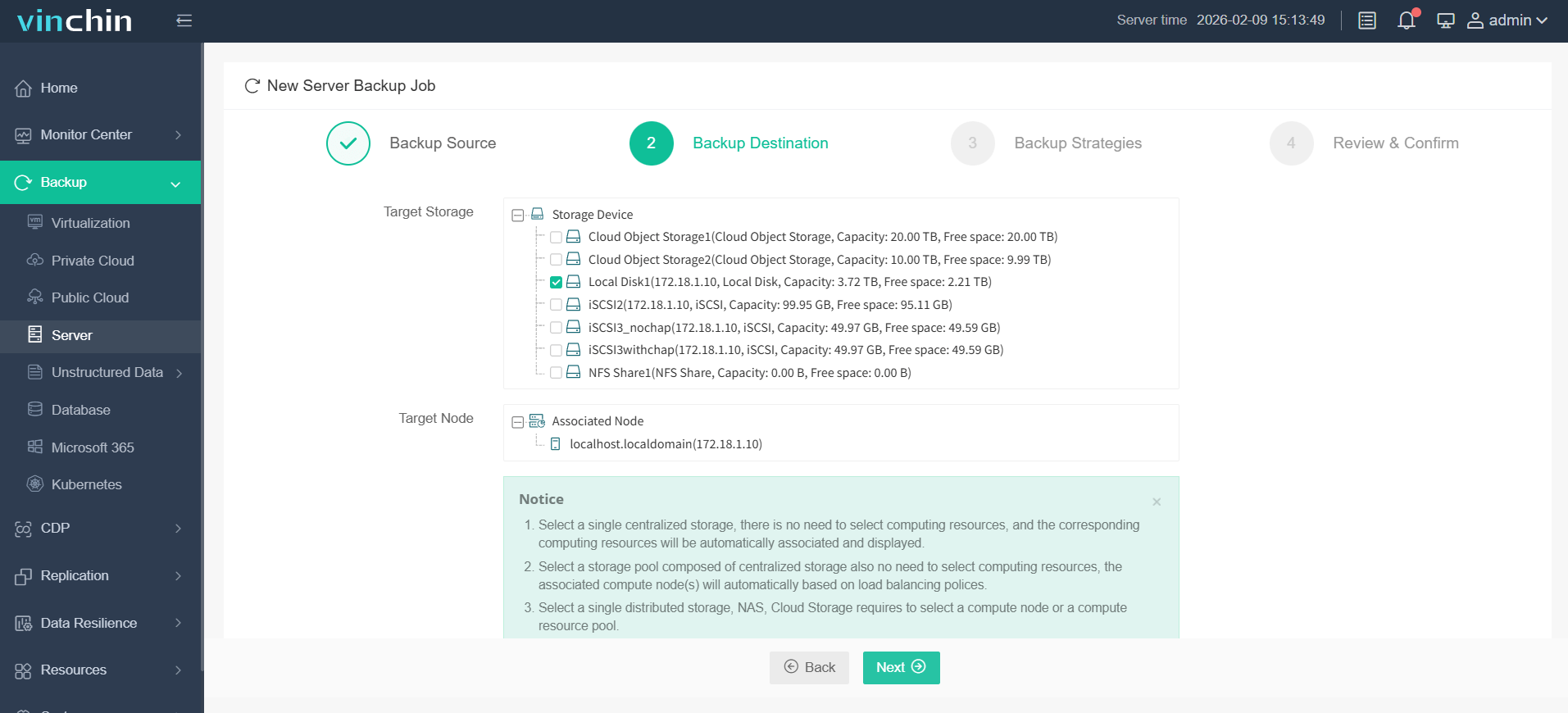
Step 2. In Backup Destination, choose the target storage and target node
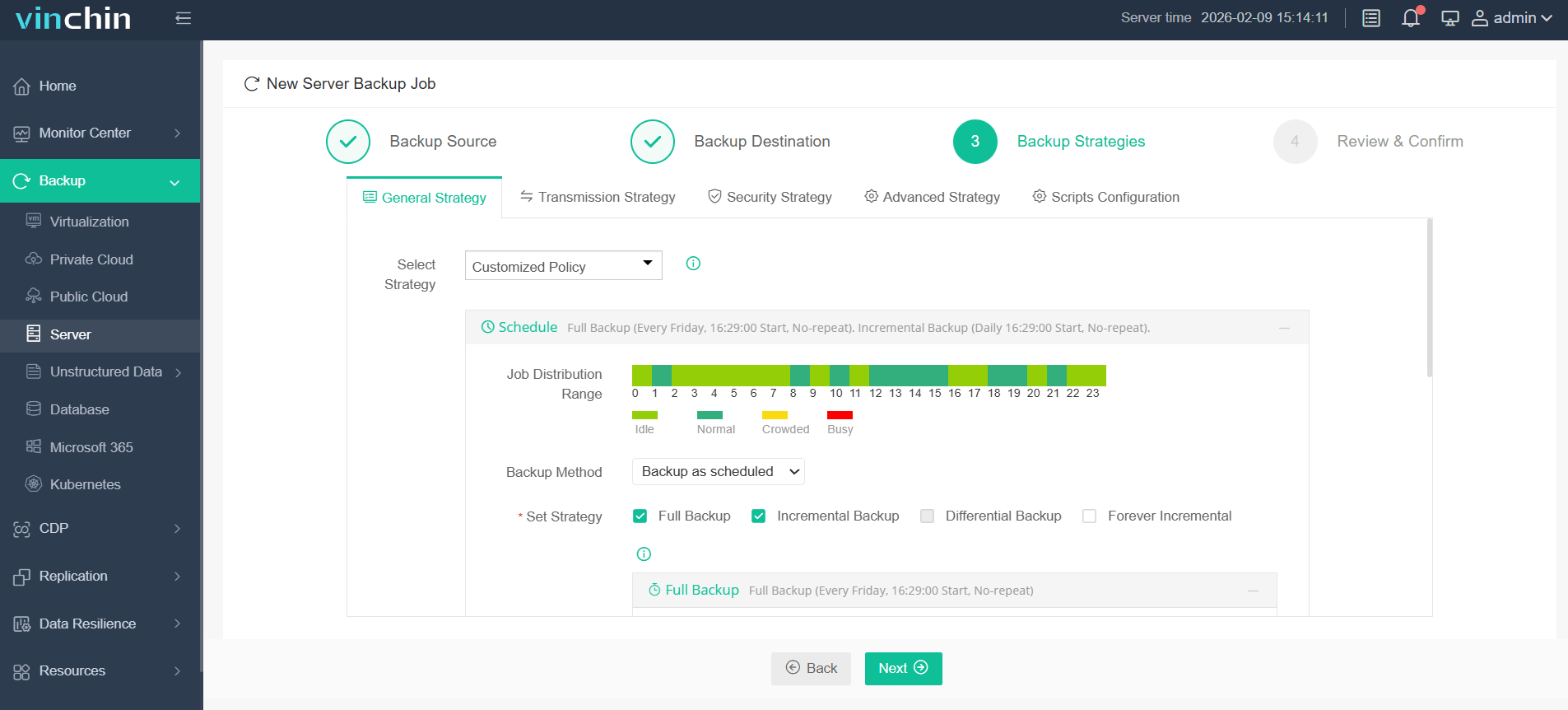
Step 3. In Backup Strategies, configure your backup settings
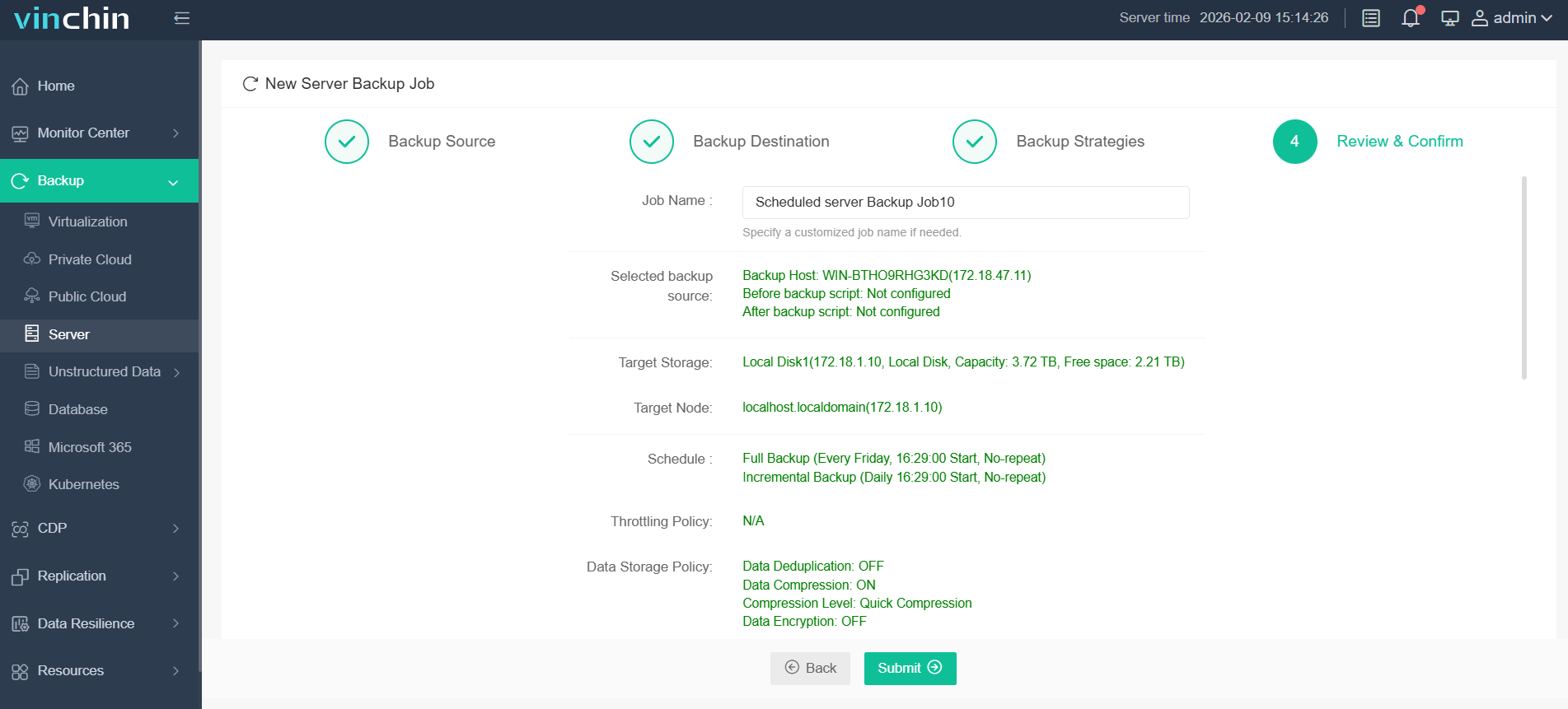
Step 4. Review and confirm all your backup settings, and click Submit
Whether you're protecting Linux servers, virtual machines, or cloud workloads, Vinchin provides a reliable and scalable backup solution.Try Vinchin Backup & Recovery free for 60 days and explore all premium features without any commitment!
FAQs about Active Backup for Business Linux
Q1: Is Active Backup for Business really free for Linux server backup?
The ABB software has no per-device license fees, but you must use a Synology NAS as the backup destination. Costs still apply for NAS hardware and drives.
Q2: What if I use a Linux kernel newer than the supported range?
The snapshot driver will fail to load, and backup jobs will break. Always check kernel compatibility before updating production servers.
Q3: Can ABB restore Linux backups to Windows machines?
No. Cross-OS file restore is not supported.
Conclusion
Active Backup for Business is a practical Linux backup solution for Synology users, offering reliable protection and recovery capabilities. For larger or more complex environments, Vinchin Backup & Recovery provides broader platform support, advanced disaster recovery, and enhanced data protection.