Why Linux Backup Tools Matter More Than Ever
Linux powers modern infrastructure everywhere, from cloud-native applications and Kubernetes clusters to enterprise databases and virtualization platforms. But as Linux environments become distributed and data-heavy, backup strategies also need to evolve.
A single accidental deletion, ransomware infection, failed update, or storage outage can disrupt critical business operations. That's why choosing the right Linux backup software is no longer optional for administrators and enterprises.
The following guide compares the most trusted Linux backup tools, including their strengths, limitations, and ideal use cases. Keep reading!
Available Features Make Good Linux Backup Tools
Before heading into the best Linux backup tools, it's important to understand what modern Linux environments actually require.
Only changed data is transferred after the first backup, reducing storage and bandwidth consumption.
Tools need to support AES-256 encryption or equivalent security standards.
This eliminates redundant data blocks and significantly improves storage efficiency.
Reliable scheduling, retention policies, alerting, and monitoring are essential for production systems.
S3-compatible object storage, Azure Blob, Backblaze B2, and hybrid storage support are becoming standard requirements.
Backups are only valuable if restoration is quick and predictable.
Best Linux Backup Tools in 2026
For individual administrators, rsync, BorgBackup, and Restic remain excellent options. But for organizations managing virtualization, hybrid infrastructure, and enterprise recovery requirements, centralized platforms like Vinchin Backup & Recovery is becoming increasingly attractive.
1. rsync - The Classic Linux Backup Utility
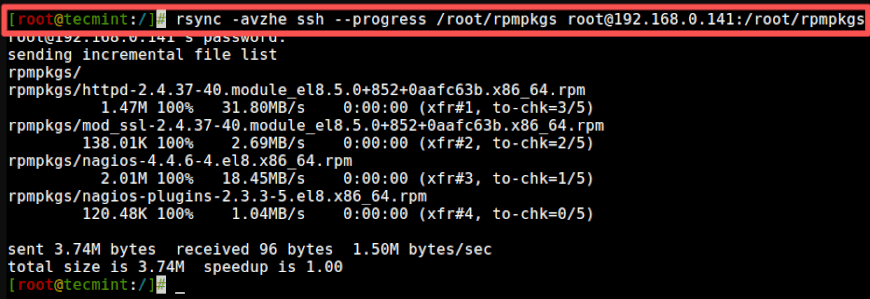
rsync is a command-line based backup tool which is widely used for its simplicity, stability, and flexibility.
It works by synchronizing only changed file blocks between systems, making it highly efficient for incremental backups.
Best For:
Advantages:
Extremely lightweight
Included in most Linux distributions
SSH-based secure transfers
Excellent for scripting and automation
Limitations:
No built-in deduplication
No snapshot management
No native ransomware protection
Manual configuration required
Example rsync Backup Command:
rsync -avz /home/data/ backup@server:/backup/data/
2. Vinchin Backup & Recovery - Enterprise Linux Backup Solution
Vinchin Backup & Recovery provides a more enterprise-focused approach compared to traditional Linux CLI backup tools.
Supported Linux Distributions:
Ubuntu
Debian
CentOS
Rocky Linux
SUSE
Oracle Linux
RHEL
Best For:
Mixed virtualization environments
SMBs scaling into enterprise operations
IT teams want simpler backup management
Disaster recovery planning
Advantages:
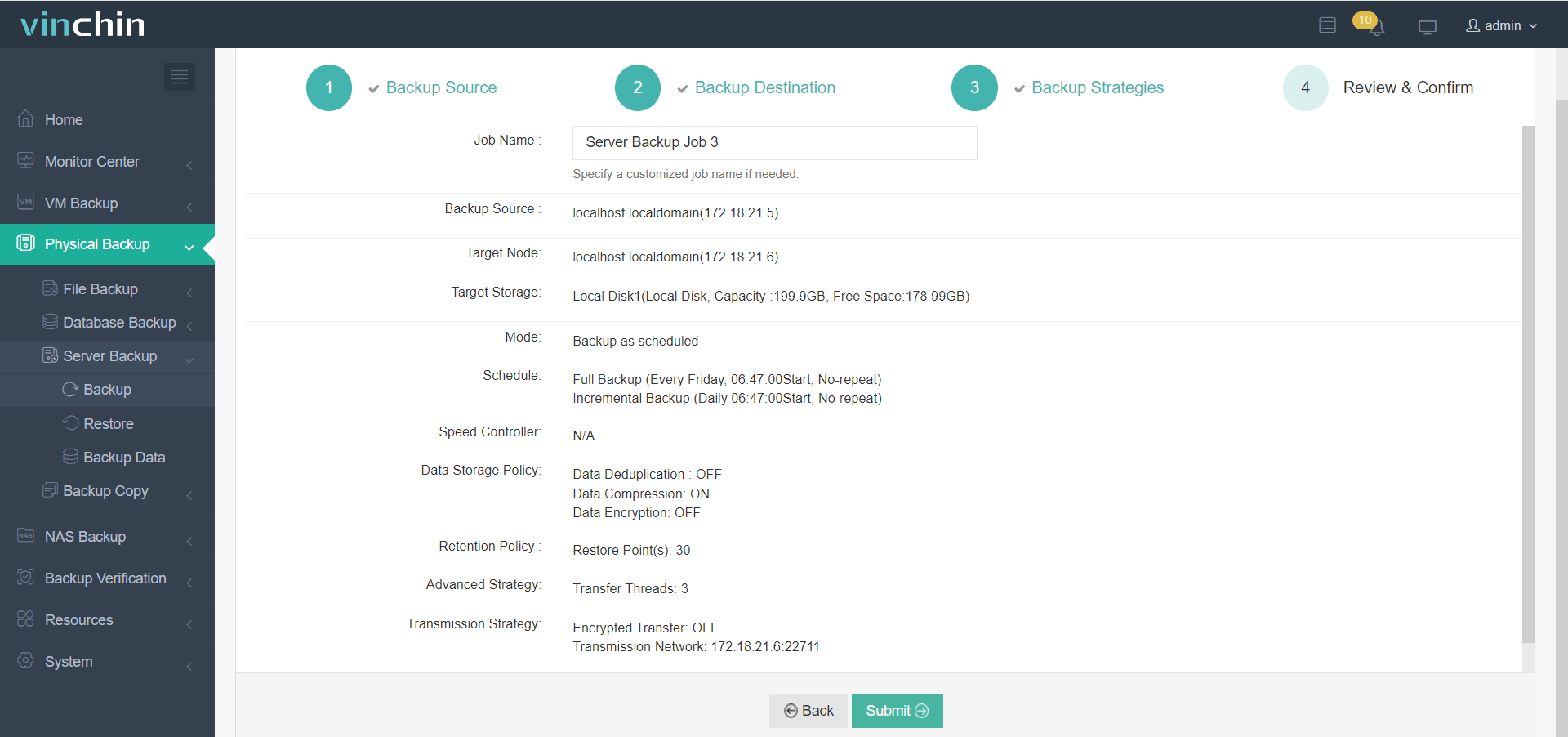
Simple Steps to Linux Backup, the following takes a Linux Server for example:
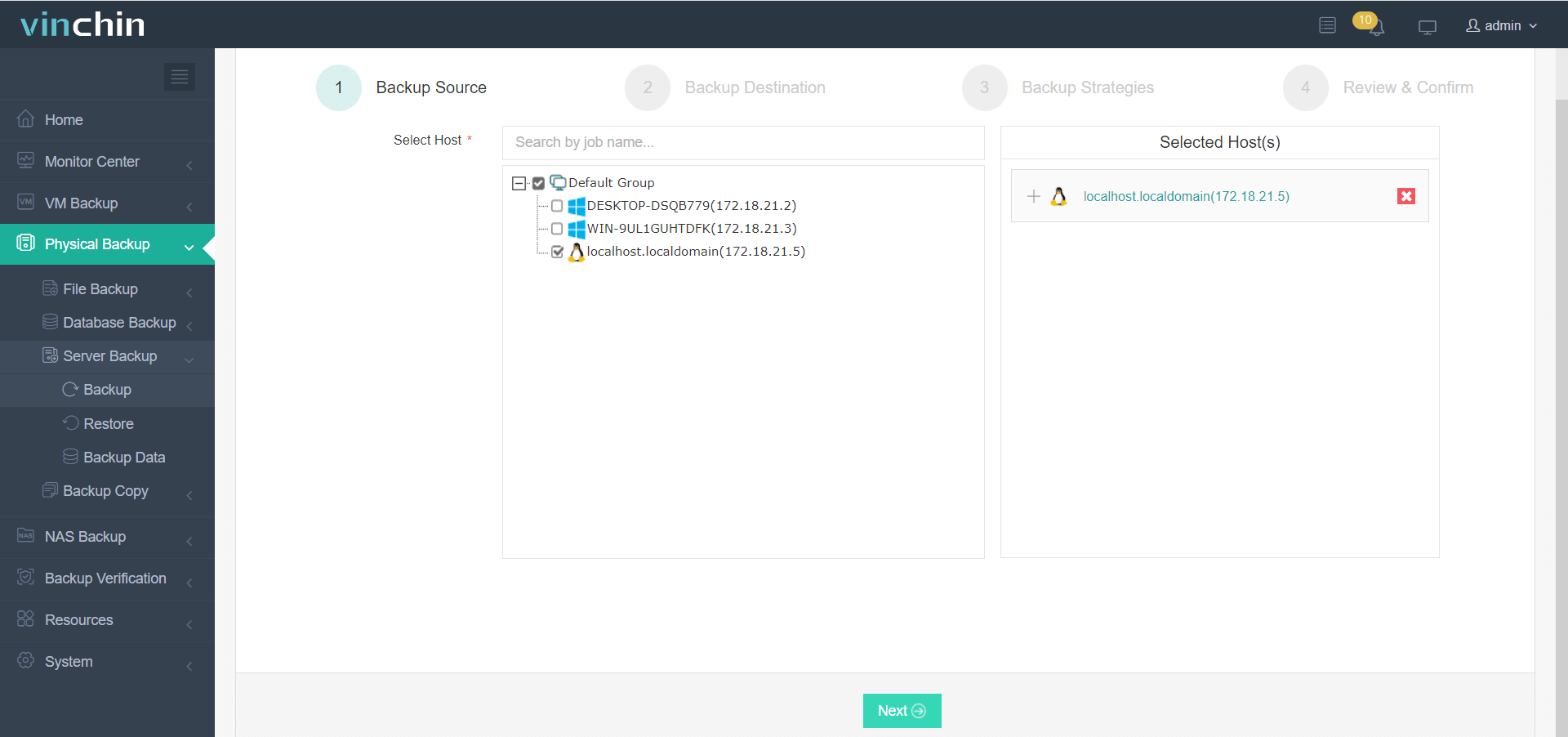
Step 1. Go to Physical Backup > Server Backup to Create Job, and select the Linux servers to protect
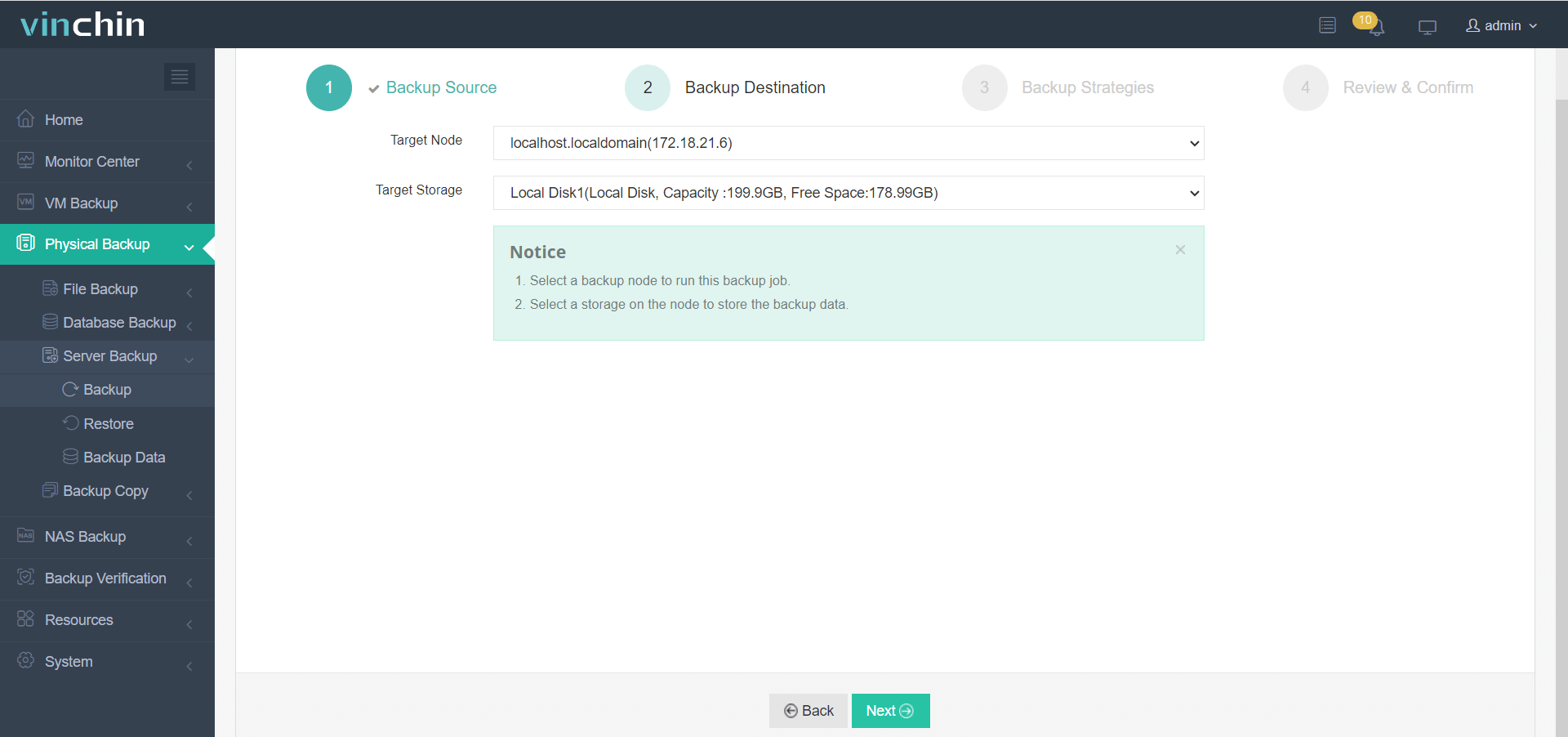
Step 2. Choose your Backup Destination
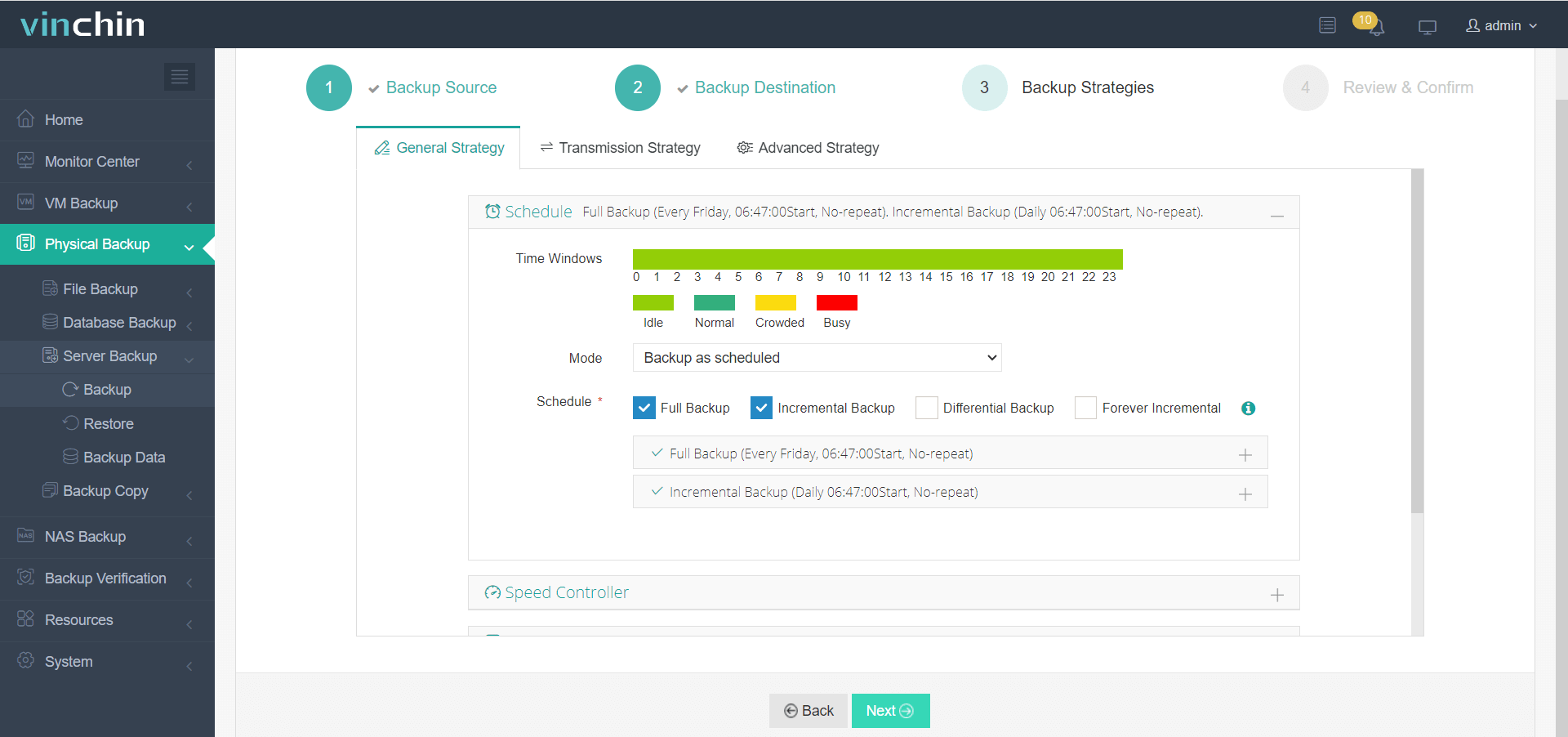
Step 3. Configure the backup policies, like backup mode, schedule, and retention policy
Step 4. Click Start Backup to start the backup process
3. BrogBackup - Secure and Deduplicated Linux Backups
BorgBackup is one of the most respected open-source Linux backup tools for secure and storage-efficient backups.
Best For:
Advantages:
Content-defined chunking
Deduplicated repositories
Efficient compression ratios
Encrypted backup archives
Steps to Linux Backup:
Step 1. Install BorgBackup
For Ubuntu/Debian:
sudo apt update
sudo apt install borgbackup -y
For RHEL/Rocky/AlmaLinux:
sudo dnf install borgbackup -y
Verify installation:
borg --version
Step 2. Create a Backup Repository
Create a repository directory:
sudo mkdir -p /backup/borgrepo
Initialize the repo:
borg init --encryption=repokey /backup/borgrepo
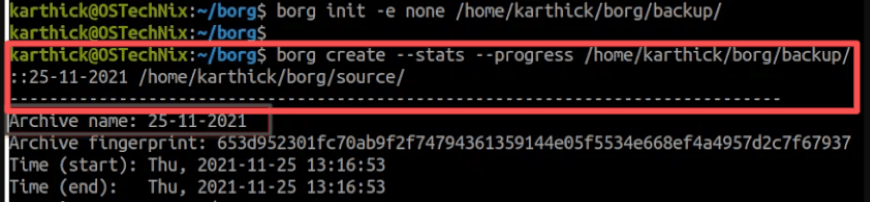
Step 3. Create a Backup
sudo borg create --stats --progress \
/backup/borgrepo::backup-$(date +%Y-%m-%d) \
/home \
/etc \
/var/www
--stats → shows backup statistics
--progress → displays progress
::backup-YYYY-MM-DD → archive name
/home /etc /var/www → data being protected
Step 4. Restore Files
a. Restore Entire Backup
Create a recovery directory:
mkdir ~/restore
cd ~/restore
Extract backup:
borg extract /backup/borgrepo::backup-2026-05-20
b. Restore a Single File
borg extract \
/backup/borgrepo::backup-2026-05-20 \
etc/nginx/nginx.conf
4. Restic - Modern Cloud-Native Linux Backup Software
Restic has become one of the fastest-growing Linux backup tools because of its simplicity and cloud-native architecture.
Best For:
Hybrid cloud backups
Remote Linux servers
DevOps environments
SMB infrastructure
Advantages:
Steps to Linux Backup:
Step 1. Install Restic
Ubuntu/Debian:
sudo apt update
sudo apt install restic -y
RHEL/Rocky/AlmaLinux:
sudo dnf install epel-release -y
sudo dnf install restic -y
Step 2. Prepare Backup Repository
Create a backup directory:
sudo mkdir -p /backup/restic
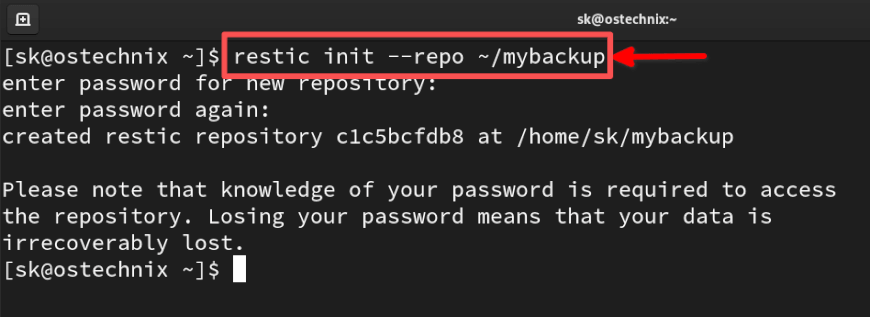
Initialize the repository:
restic init --repo /backup/restic
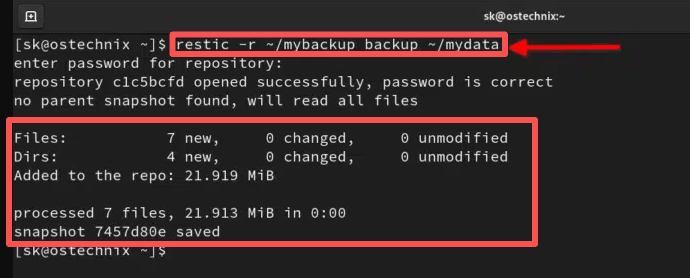
Step 3. Run a Backup
Backup /etc and /home, for example:
restic backup /etc /home
Example output:
Files:        1523 new,     0 changed,     0 unmodified
Dirs:          201 new,     0 changed,     0 unmodified
Added to the repository: 45.123 MiB
snapshot 8f3d7a21 saved
5. Bacula - Enterprise Linux Backup Infrastructure
Bacula is designed for organizations managing large-scale backup environments.
Best For:
Advantages:
Steps to Linux Backup:
Step 1. Prepare the Backup Server
Update packages:
sudo apt update && sudo apt upgrade -y
Step 2. Install Bacula Components
Install Bacula and MariaDB:
sudo apt install bacula-server bacula-client mariadb-server -y
Step 3. Configure the Director
Edit Director configuration:
sudo nano /etc/bacula/bacula-dir.conf
Add a Backup Job
Find the JobDefs section and add:
Job {
  Name = "LinuxClientBackup"
  Type = Backup
  Level = Full
  Client = linux-fd
  FileSet = "Full Set"
  Schedule = "WeeklyCycle"
  Storage = File
  Messages = Standard
  Pool = File
  Priority = 10
  Write Bootstrap = "/var/lib/bacula/LinuxClientBackup.bsr"
}
Step 4. Configure the Linux Client
Install Bacula File Deamon
sudo apt update
sudo apt install bacula-client -y
Edit File Deamon Config
sudo nano /etc/bacula/bacula-fd.conf
Modify:
Director {
  Name = bacula-dir
  Password = "StrongPassword"
}

FileDaemon {
  Name = linux-fd
}

FDAddress = 0.0.0.0
Start Client Service
sudo systemctl restart bacula-fd
sudo systemctl enable bacula-fd
Step 5. Configure What to Back Up
In bacula-dir.conf, locate:
FileSet {
  Name = "Full Set"
Example:
FileSet {
  Name = "Full Set"
  Include {
    Options {
      signature = MD5
    }
    File = /etc
    File = /home
    File = /var/www
  }

  Exclude {
    File = /tmp
    File = /proc
    File = /sys
  }
}
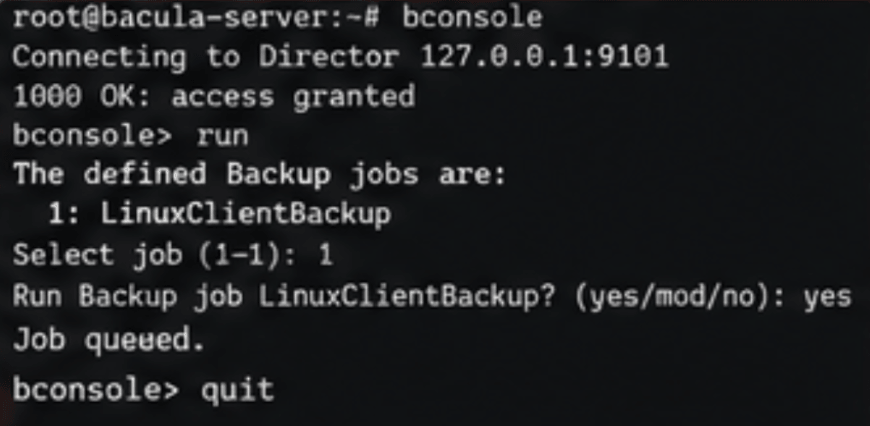
Step 6. Run the First Backup
Inside bconsole:
*run job=
Select:
1: LinuxClientBackup
Confirm with:
Yes
FAQs about Linux Backup Tools
Q1: What is the difference between file-level backup and image-based backup in Linux?
File-level backup protects individual files and directories, making it suitable for documents, configuration files, and application data. Image-based backup captures the entire system state, including the operating system, boot information, applications, and data, allowing faster full-system recovery after hardware failure or ransomware attacks.
Q2: Are Linux backup tools compatible with NAS storage?
Yes, most Linux backup tools support NAS devices through: NFS, SMB/CIFS, iSCSI, and S3-compatible object storage gateways.
Solutions like Restic, BorgBackup, and enterprise platforms such as Vinchin Backup & Recovery can store backups on Synology, QNAP, TrueNAS, and other NAS systems.
Q3: What is immutable backup in Linux environments?
Immutable backup means backup data cannot be modified or deleted for a defined retention period. This can help defend against: ransomware attacks, malicious deletion, insider threats. Immutable storage has become a major trend in enterprise Linux backup strategies.
Q4: Do Linux backup tools affect server performance?
Backup workloads can impact CPU, storage I/O, and network bandwidth, especially during full backups. Modern backup reduces performance impact through: incremental backups, Changed Block Tracking (CBT), deduplication, compression, bandwidth throttling.
Schedule backups during low-usage periods also helps minimize production impact.
Conclusion
Linux backup strategies have evolved far beyond simple file copying, choosing the suitable backup solution is essential for ensuring data security. By evaluating backup features like encryption, deduplication, automation, cloud integration, and rapid disaster recovery, organizations can build a reliable Linux backup strategy that minimizes downtime and strengthens resilience against data loss and cyber threats.