Before You Increase VMware Disk Size
Because resizing the virtual disk is likely to cause data loss, so before resizing any VMware virtual disk, verify the following prerequisites.
1. Make sure you have a backup of the virtual machine.
2. Make sure all snapshots have been removed.
3. Make sure the virtual machine is shut down.
Increase Disk Size in VMware Workstation
VMware Workstation users can resize virtual disks easily.
Method 1. Increase virtual disk with command line
Type vmware-vdiskmanager -x 100Gb vm.vmdk and press Enter to rezise the disk.
You need to open the Windows or Linux Command Prompt on host OS because the guest machine has been powered off.
Method 2. Increase virtual disk with VMware Workstation client
1. In VMware Workstation, select the target virtual machine > select Settings
2. Select Hrad Disk > click Utilities > select Expand
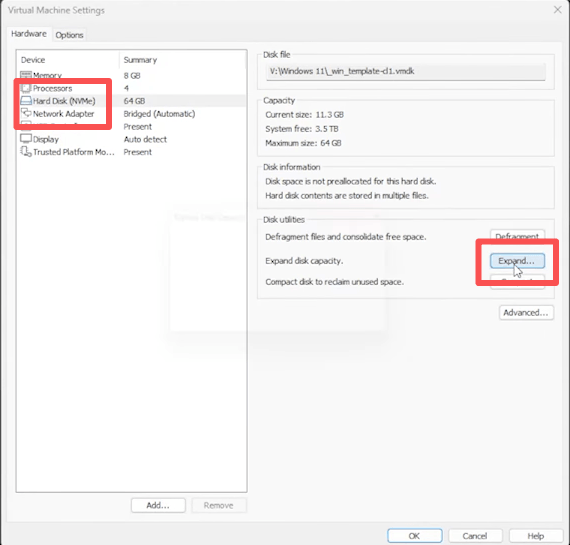
3. Enter the target virtual disk size > click Expand
Increase Disk Size on VMware ESXi/vSphere
Method 1. Expand disk via vSphere Client
It's the most common and safest method.
1. Log in to VMware vSphere Client
2. Right-click the VM > Edit Settings
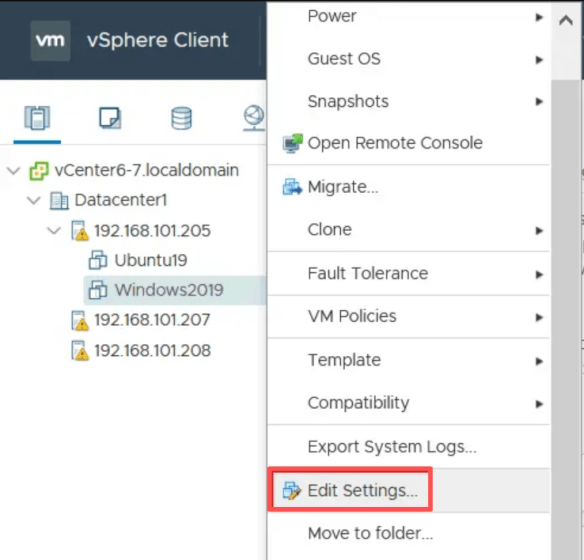
3. Select the virtual hard disk
4. Increase the disk size value, click Save
P.S. VMware virtual disk, the vmdk file, can be used on another hypervisor. For example, you can try converting vmdk to qcow2 to use the virtual disk on KVM virtual machine.
Method 2. Expand VMware Disk Using ESXi CLI
Advanced administrators may resize disks through the ESXi shell using vmkfstools.
Example:
vmkfstools -X 200G /vmfs/volumes/datastore/vm/vmname.vmdk
This changes the VMDK size to 200 GB.
Expand Partition in Windows VM
After the size of virtual disk is increased, the additional storage is not been used on VM immediately, but is regarded as unallocated storage on virtual machine. You need to manually add it to the partition.
1. Open the guest machine now > right-click the Windows icon in the lower-left corner
2. Select Disk Management to find the partition next to the unallocated storage
3. Right-click the partition, select Extend Volume

4. Select the amount of space you want to add to the partition
5. Click Finish
You could see the storage has been added to the partition in Disk Management.
Extend Partition in Linux VM
Linux partition expansion varies depending on filesystem type.
1. Identify disk layout
lsblk
2. Resize ext4 filesystem
resize2fs /dev/sda2
3. Resize XFS filesystem
xfs_growfs /
Protect VMware VMs Before Disk Expansion
Data security should always be seriously taken because there is always risk of corruption when you modify the configuration of VMware virtual machine. Having a backup could make sure that you could restore the virtual machine any time you need.
To easily make VMware virtual machine backup, you could choose Vinchin Backup & Recovery, which is a professional and mature solution that supports complete protection of ESXi servers.
Agentless Backup: Spending time deploying agents is not needed now. Just add the host to Vinchin Backup & Recovery and then you could backup all the VMs on the host.
Instant Recovery: If your VM is corrupted during configuration changing, it could be recovered with the backup in 15 seconds to guarantee the continuity of business.
Deduplication & Compression: To save the backup storage, Vinchin Backup & Recovery would identify and exclude the duplicated data, while compressing the rest of the backup data to save more than 60% storage.
HotAdd Data Transfer: With Vinchin Backup & Recovery, VMware VMs can be efficiently backed up via HotAdd, without traditional LAN-based transfer needed that consumes much production network resource.
Cross-Platform Recovery (V2V): Your virtual machine could not only be recovered on the original virtual platform, but also on a new virtual platform. If you're also planning to migrate data from other virtualizations to VMware, Vinchin Backup & Recovery is able to help by simply recovering VM backups of the original one to VMware.
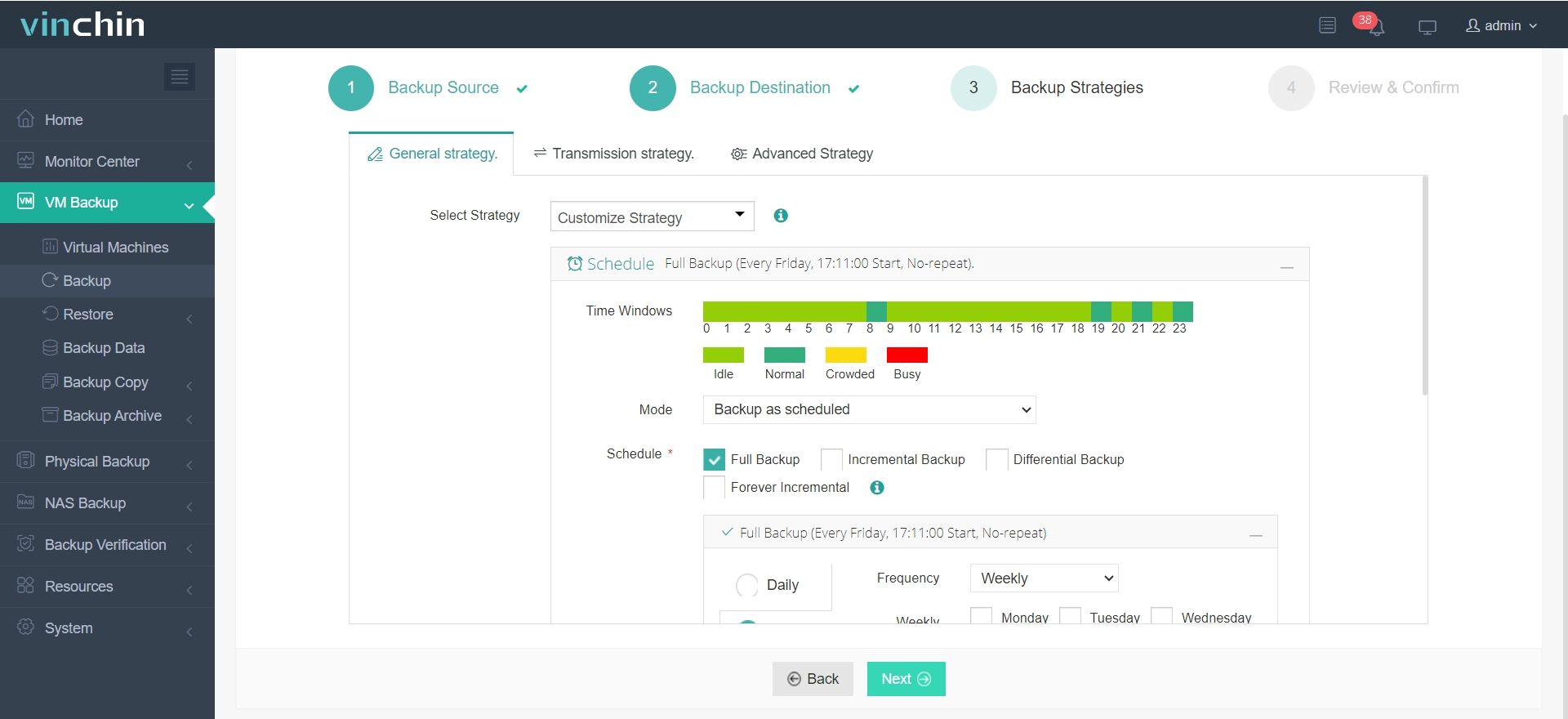
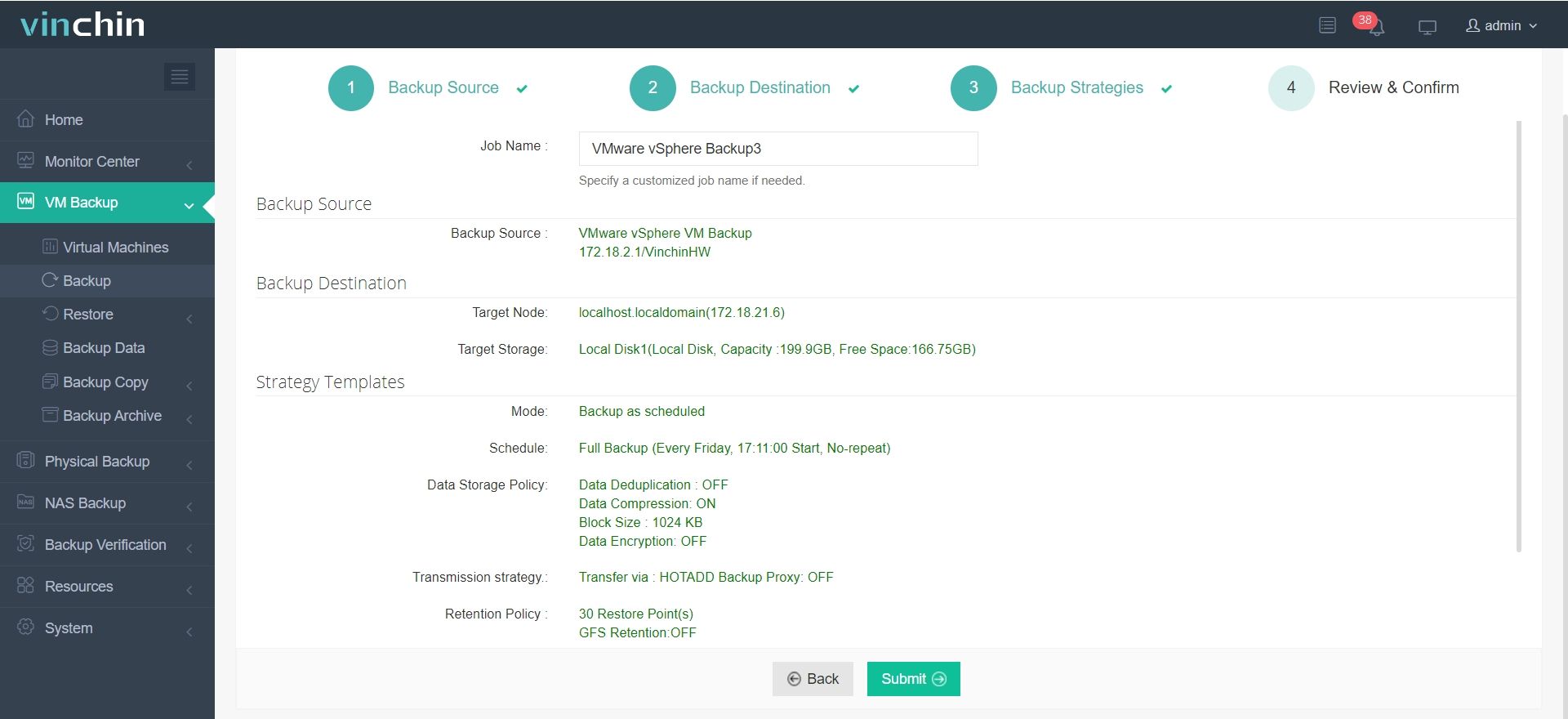
It is easy to create a backup job in its intuitive web console.
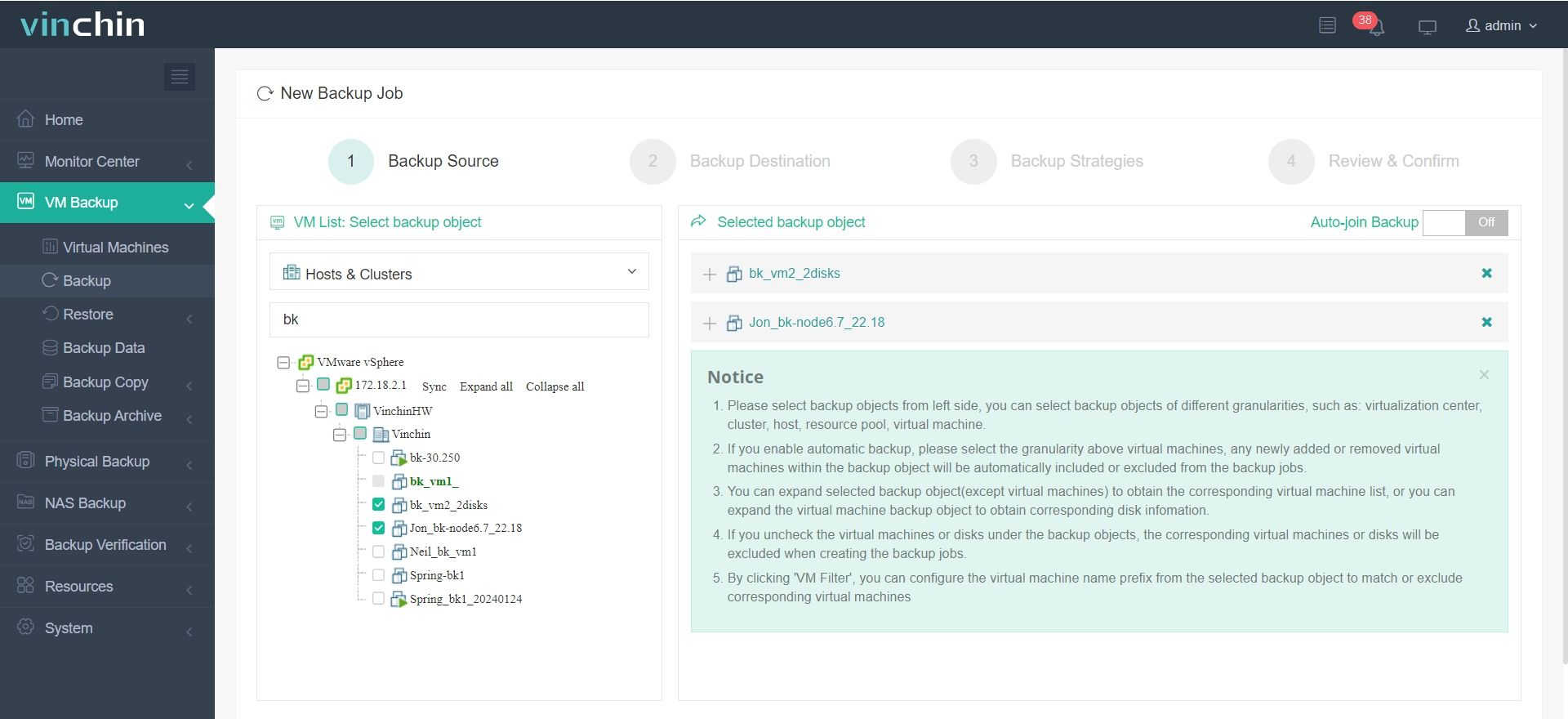
1. Select the VMware VM you want to protect
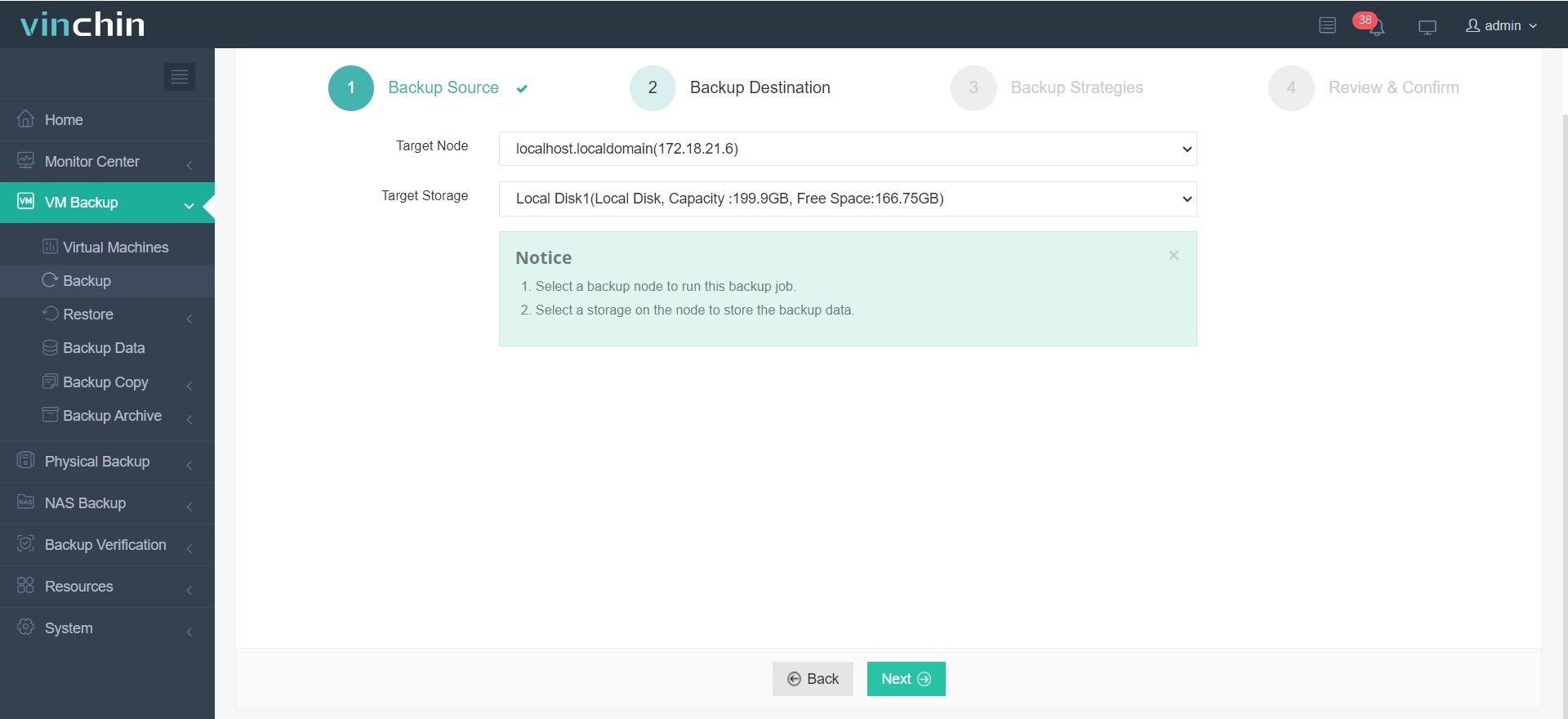
2. Select the storage - Target Node and Target Storage
3. Select the strategies, like backup mode, schedule and advanced stratgy
4. Submit the job
Virtual platform backup could be easy and effective with Vinchin Backup & Recovery. Just start a free 60-day full-featured trial to experience all its features including CBT (Changed Block Track) for VMware, BitDetector, File-level Recovery, Archive Backups to Cloud, etc. Just click the button to get the intallation package.
VMware Increase Disk Size FAQs
Q1: Why won't VMware let me expand my disk when snapshots exist?
A: VMware blocks resizing any virtual disk that has active snapshots, so you must delete all snapshots before expanding.
Q2: What should I do if the guest OS still shows the old disk size?
A: Inside the guest, rescan storage devices (or reboot), then run your OS’s partition-resizing command to recognize the new space.
Q3: Can VMware increase disk size while the VM is running?
A: Yes, many modern VMware environments support hot disk expansion for SCSI and NVMe disks. However, snapshots or legacy controllers may still require shutdown procedures.
Conclusion
The need for VM storage is gradually increased so you need to increase disk size of VMware virtual machine. In this passage, you have known how to add storage to virtual machine on VMware Workstation and VMware vSphere ESXi and how to make the added storage effective for partition.
Changing the configuration of virtual machine is likely to cause VM corruption so you could use Vinchin Backup & Recovery to easily make VM backup and protect your data.