Learn about Hyper-V Failover Cluster
A Hyper-V failover cluster is a set of independent Hyper-V servers/nodes that work together to enhance the availability and scalability of clustered roles connected by physical cables and software.
When a cluster node or multiple nodes fail, other nodes start to fill in. And if you want to add a second server to the system, it can be added to the cluster quickly and on the fly with the aid of a system wizard without the need for any lengthy re-configurations or downtime.
It also offers Cluster Shared Volume (CSV) to access shared storage from all Hyper-V nodes with a consistent and distributed namespace.
Reasons to deploy Hyper-V cluster:
1. High Availability
The primary purpose is minimizing downtime.
2. Maintenance without Downtime
Administrators can use Live Migration to move VMs between nodes during maintenance windows.
3. Better Resource Utilization
Clusters distribute workloads dynamically across hosts, improving CPU, memory, and storage efficiency.
4. Scalability
Additional nodes can be added as infrastructure grows.
5. Disaster Resilience
Modern Windows Server 2025 enhancements improve resilience across racks, rooms, and even campus-level deployments.
Hyper-V Failover Cluster Requirements
Before deployment, administrators must verify hardware and software compatibility.
Hardware Requirements
Microsoft recommends:
64-bit processors
Hardware-assisted virtualization (Intel VT or AMD-V)
Data Execution Prevention (DEP)
Consistent hardware across nodes
Redundant networking
Networking Requirements
Best practices include:
Storage Requirements
Recommended storage configurations include:
Windows Server 2025 introduces additional resiliency improvements for S2D-based environments.
Important considerations:
1. Hardware and system consistency must be maintained across all nodes participating in the cluster.
2. Storage configuration should be optimized for maximum performance. For detailed storage settings and other configurations, it is recommended to consult the manufacturer's official website or contact their technical support.
3. It is crucial to keep the networks for storage and workload management separate to avoid significant performance impacts in the future.
Create a Hyper-V Failover Cluster Step-by-Step
Requirements Configurations
Server Configuration:
1. Install the latest firmware version.
2. Install the Windows Server 2012 R2 Datacenter operating system.
3. Enable CPU virtualization and hyper-threading features.
4. Configure four gigabit network cards for the working network and four gigabit network cards for the storage switch.
Storage Configuration:
1. Install the latest firmware version on the storage device, which can be obtained through vendor technical support.
2. Configure the storage network to connect to the storage switch.
3. Install and configure the necessary storage disk consolidation and volume partitioning.
Network Configuration:
1. Isolate the working network and the storage network to avoid interference with the storage network.
2. Configure flow control and rapid spanning tree protocol on the storage switch.
Using Windows Server Manager
Step 1. Installing the Hyper-V Role
1. Open Server Manager
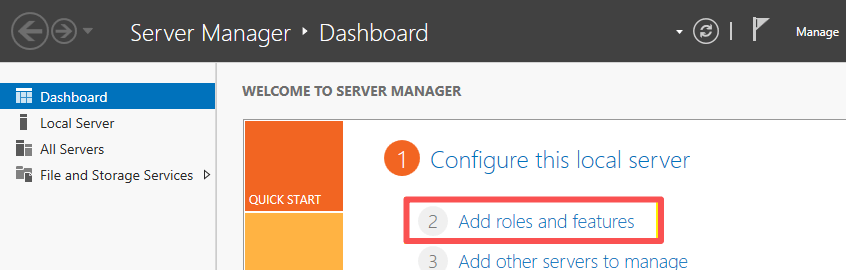
2. Click on Manage and select Add Roles and Features
3. Review the important notes before starting and click Next
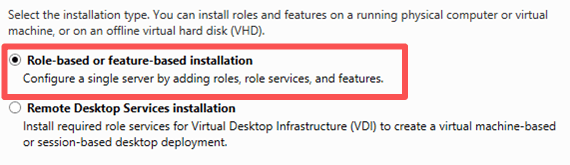
4. Select Role-based or feature-based installation and click Next
5. Choose the server where you want to install this role (Starting from Server 2012, you can use Server Manager to remotely install roles or features on other servers)
6. In the role selection, choose Hyper-V
7. In the pop-up dialog, check Include management tools (if applicable), click Add Features, and proceed by clicking Next until completion
8. Verify the successful installation of the Hyper-V role by opening Server Manager, selecting Tools, and finding Hyper-V Manager, which confirms that the Hyper-V role has been installed
Step 2. Installing Failover Cluster Feature
1. Open Server Manager
2. Click on Manage and select Add Roles and Features
3. Review the important notes and the introduction to this wizard that appears
4. Select Role-based or feature-based installation and click Next
5. Choose the server where you want to install this feature, then click Next
6. In the feature selection page, check Failover Clustering
7. Click Add Features in the pop-up page
8. In the confirmation installation page, you can choose Automatically restart the destination server if required. This allows the server to restart itself at the appropriate time during the installation process
9. Verify the successful installation of the Failover Cluster feature by opening Server Manager, accessing the tools, and finding the Failover Cluster Manager. This confirms that the feature has been installed correctly
Step 3. Connecting iSCSI Storage
The configuration for each storage solution may vary. Here are the steps to connect storage on a Windows system:
1. Open the Server Manager page
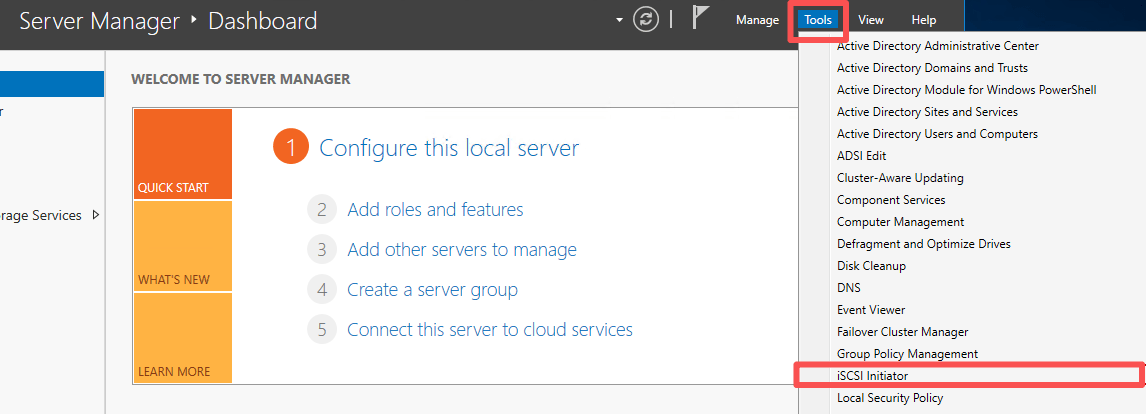
2. In the Server Manager page, click on Tools and select iSCSI Initiator
3. In the opened iSCSI Initiator Properties page, select Discovery
4. In the Discovery page, select Discover Portal
5. In the opened Discover Target Portal page, enter the storage's IP address in the box below the IP address or DNS name. Keep the port as default unless there are specific requirements
6. Then go back to the Targets tab
7. In the Discovered Targets box, select the discovered target and click Connect
8. In the opened Connect To Target page, check Add this connection to the list of favorite targets (automatically reconnect this target when the server restarts) and enable Enable multi-path (requires installation of the MPIO feature to enable multi-path functionality to the storage)
9. Open the Server Manager page again and select Computer Management from the tools to verify if the storage is successfully connected
10. In the opened Computer Management page, select Disk Management
11. At this point, you will see a new offline disk, which has the same size as the virtual machine volume created on the storage. Right-click on the disk and select Connect
12. After the disk is successfully connected, right-click on the disk and select Create Simple Volume
13. Now the storage setup is complete. The computer will have a new partition, and you can test the storage by placing large data into the partition
Step 4. Creating a Hyper-V Failover Cluster
1. In the Server Manager, click on Tools and select Failover Cluster Manager
2. In the opened Failover Cluster Manager page, right-click on Failover Cluster Manager on the left side and choose Create Cluster
3. In the Create Cluster Wizard page, simply proceed to the next step without hesitation
4. Select the servers to be part of this cluster by adding them, and you can use the Browse option to search and add servers in bulk
5. Validation Warning: This step requires a simple test for your cluster. You can choose to skip it, but it is strongly recommended to perform the validation. Choose Yes and click Next
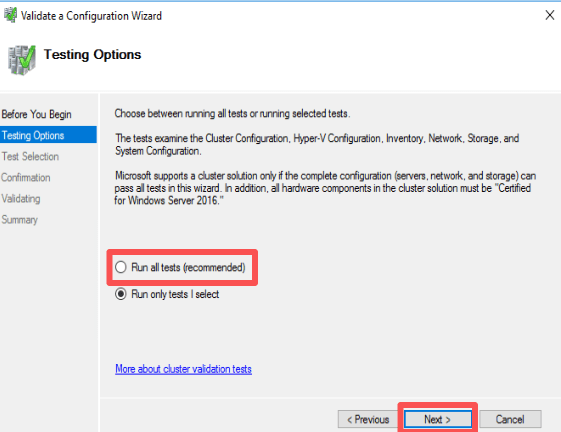
6. Start testing the cluster environment. Choose Run all tests (recommended) and click Next
7. Confirm the parameters for the test validation and click Next
8. Proceed with the validation process, which may take a few minutes. Please be patient
9. Validation complete. If there are any errors or warnings, they will be displayed here, and you can click View Report to check for any configuration issues
10. Begin creating the cluster by providing a cluster name and selecting the address used for cluster management and DNS resolution. Typically, we choose the production network here
11. Confirm the information displayed, including the cluster name, names of the included node servers, and the management address
12. Start creating the cluster and wait patiently for a few minutes
13. Cluster creation completed. At this point, a report will also be generated, and you can click View Report to check for any errors
14. Once finished, you can see the cluster you just created in the Failover Cluster Manager
Now you have finished the creation of Hyper-V failover cluster
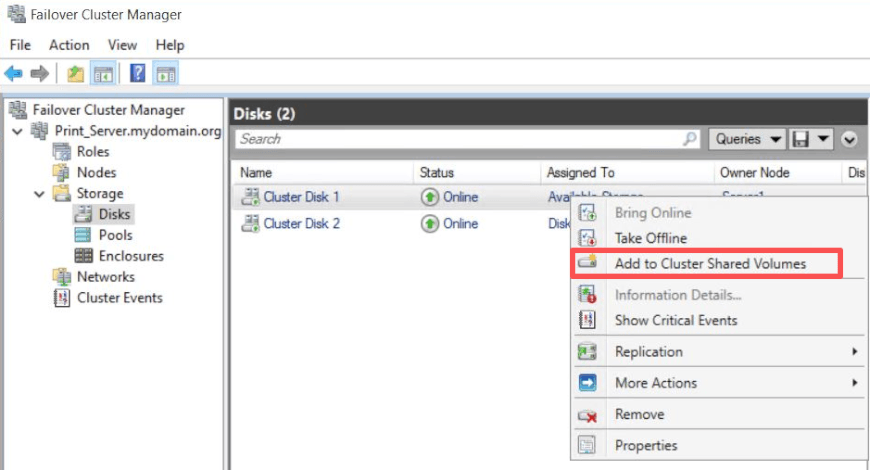
Step 5. Configure Cluster Shared Volumes (CSV)
1. In Failover Cluster Manager, expand Storage and Disks
2. Right-click the shared disk, and select Add to cluster shared volumes
Step 6. Confugre Live Migration
1. Open Hyper-V Manager, right-click the Hyper-V host
2. Select Hyper-V Settings and click Live Migrationsa
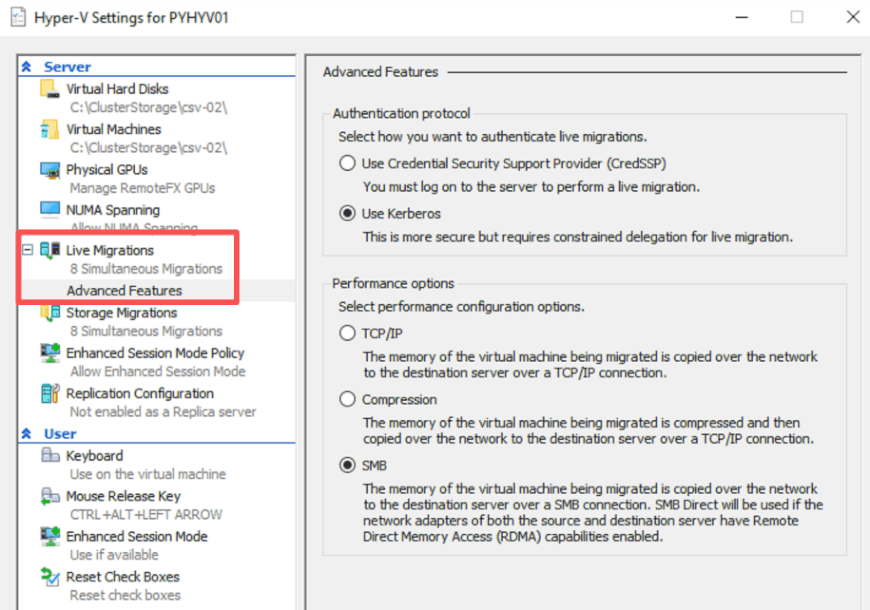
3. Check Enable incoming and outgoing live migrations, choose Kerberos or CredSSP
Step 7. Create Hight Available Virtual Machines
1. Open Failover Cluster Manger, right-click Roles
2. Select Configure Role, choose Virtual Machine and select the VM
Using PowerShell
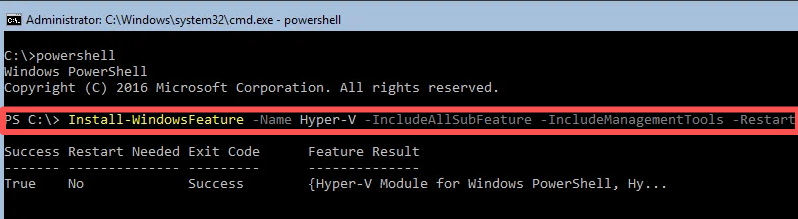
Step 1. Install Hyper-V and Failover Cluster
Install-WindowsFeature -Name Hyper-V, Failover-Clustering -IncludeManagementTools -Restart
Step 2. Create the Hyper-V Failover Cluster
New-Cluster -Name HVCLUSTER -Node H1,H2 -StaticAddress 192.168.10.100

Step 3. Configure Cluster Shares Volumes (CSV)
View available disks:
Get-ClusterAvailableDisk
Add disks to the cluster:
Get-ClusterAvailableDisk | Add-ClusterDisk
Enable Cluster Shared Volumes:
Get-ClusterResource | Where-Object {$_.ResourceType -eq "Physical Disk"} | Add-ClusterSharedVolumeStep 4. Configure Live Migration
Enable Live Migration:
Enable-VMMigration
Allow incoming migrations:
Set-VMHost -VirtualMachineMigrationEnabled $true
For production environments, Kerberos is usually recommended:
Set-VMHost -VirtualMachineMigrationAuthenticationType Kerberos
New Hyper-V Cluster Improvements in Windows Server 2025
Windows Server 2025 introduces several clustering improvements.
Microsoft added improved storage fault tolerance and campus cluster support for increased resiliency.
GPU partitioning workloads can now migrate more efficiently between nodes, benefiting AI and graphics-intensive environments.
Clusters can now operate without Active Directory in some scenarios, increasing flexibility for edge deployments.
Windows Server 2025 improves hang detection and cluster responsiveness, reducing service interruption time.
Protect Hyper-V Environment with a Professional Solution
Hyper-V Failover Cluster provides high availability and fault tolerance for virtualized workloads, allowing organizations to minimize downtime and ensure business continuity. However, to guarantee constant data protection and uninterrupted business performance, it is recommended to backup your critical data and virtual machines with a professional backup and recovery solution.
Vinchin Backup & Recovery is a professional solution which supports data backup of VM like VMware vSphere, Hyper-V, XenServer, XCP-ng, oVirt, RHV, OpenStack, etc. and other data like database, NAS, file server, Linux & Windows Server, etc.
Vinchin Backup & Recovery performs robust Hyper-V backup and recovery functionality including agentless incremental backup, effective data reduction, backup node expansion, offsite backup copy and more, to comprehensively secure Hyper-V environments.
Besides, Vinchin Backup & Recovery can migrate VMs across 10+ virtual platforms including VMware, XenServer, and most KVM-based hypervisors. You can easily switch your critical modern IT workloads from one to another to build your own highly flexible IT infrastructure.
To backup Hyper-V VM, you just need to:
1. Select Hyper-V VM
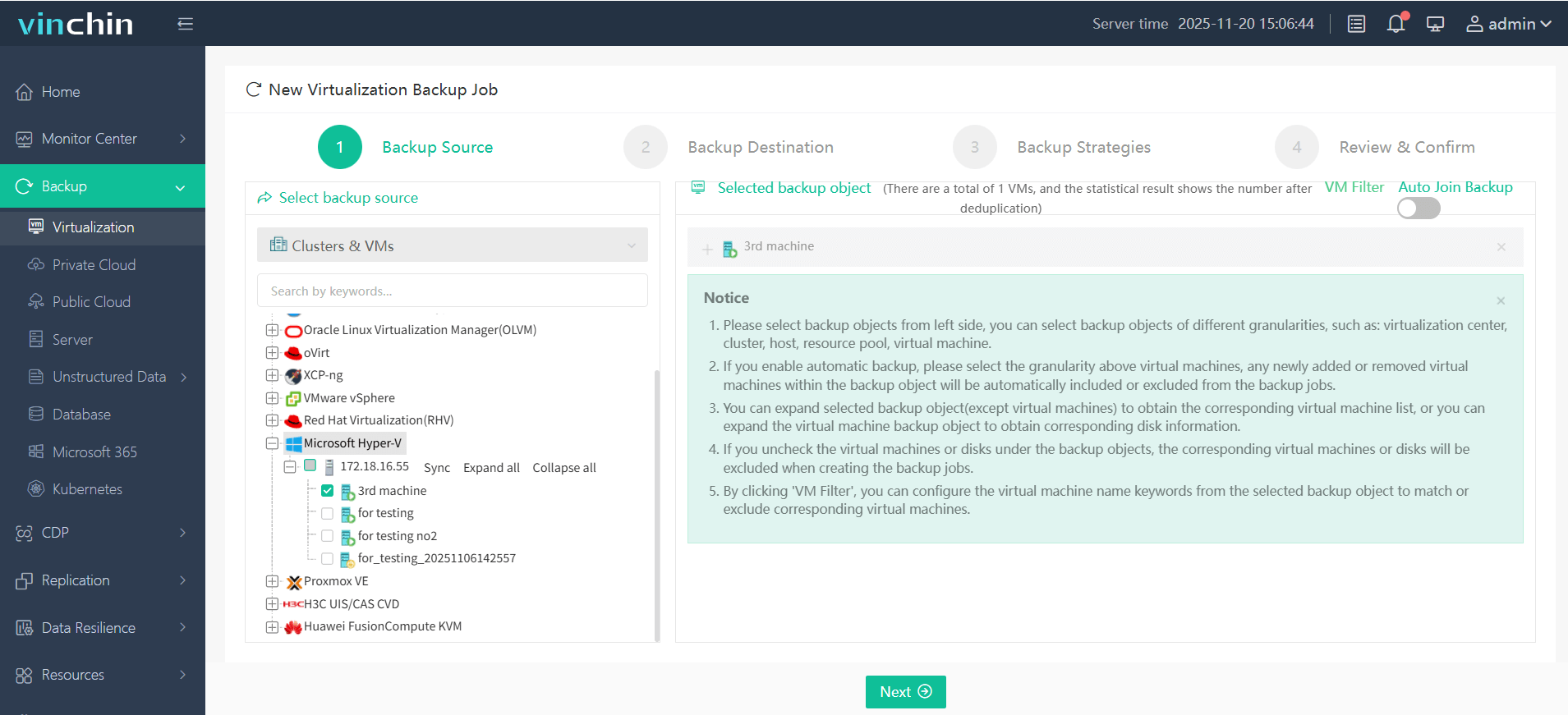
2. Select backup storage
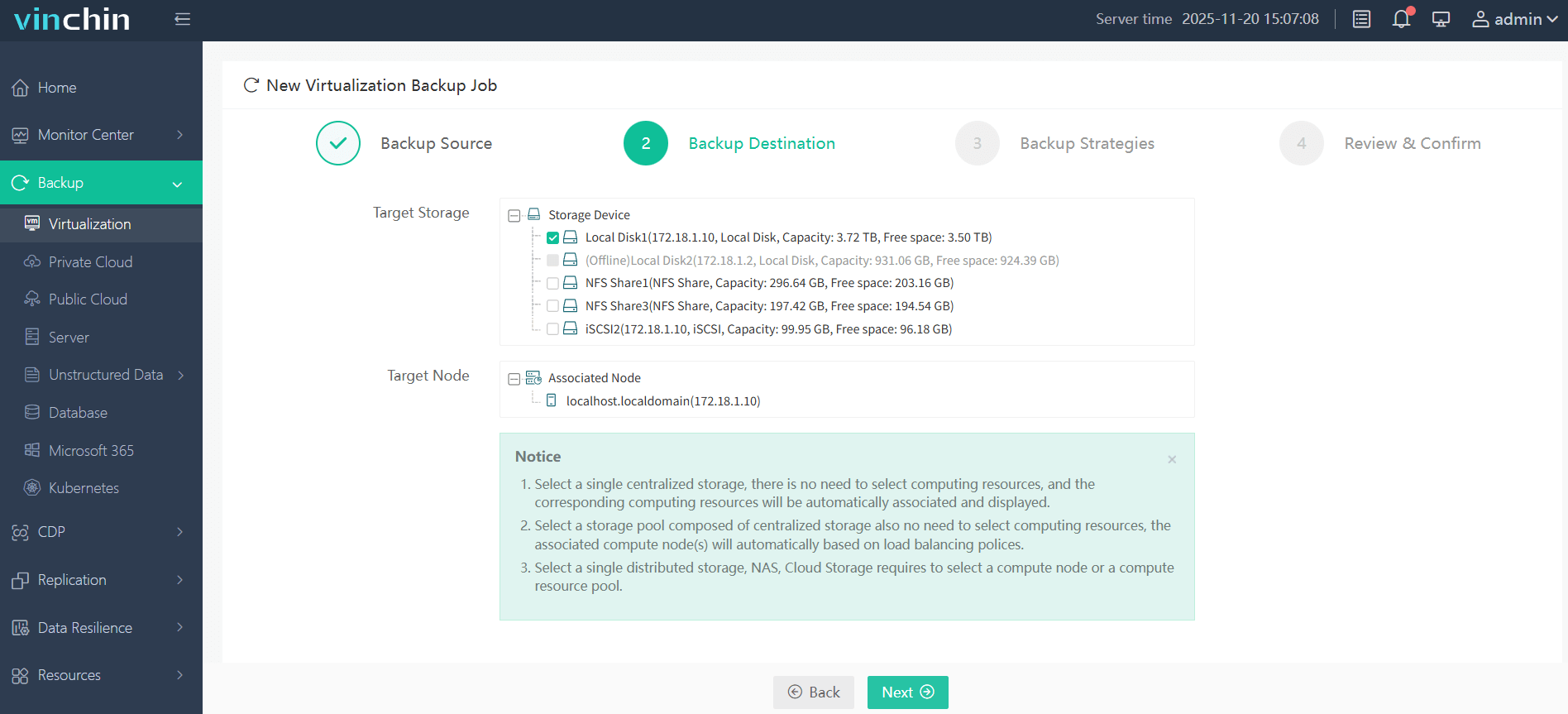
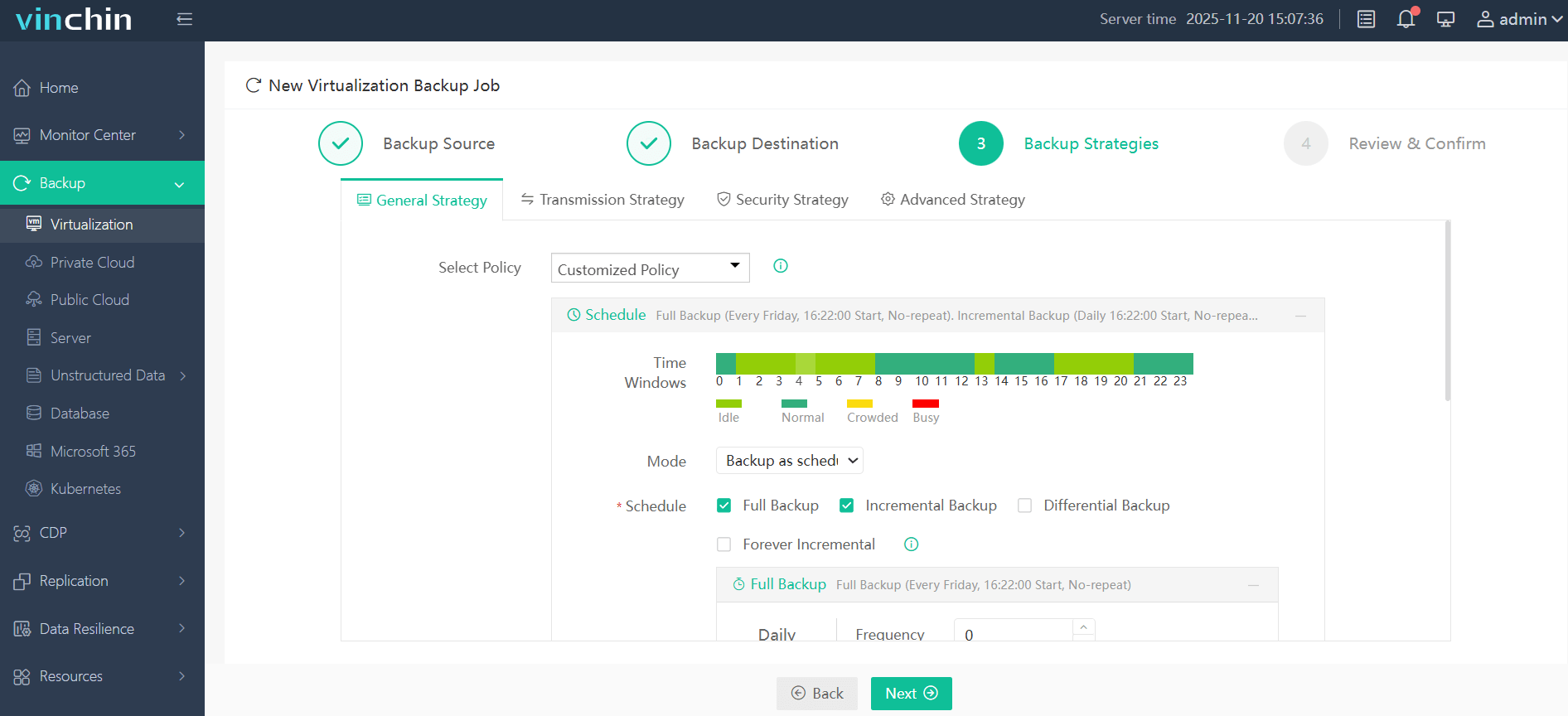
3. Select backup strategies
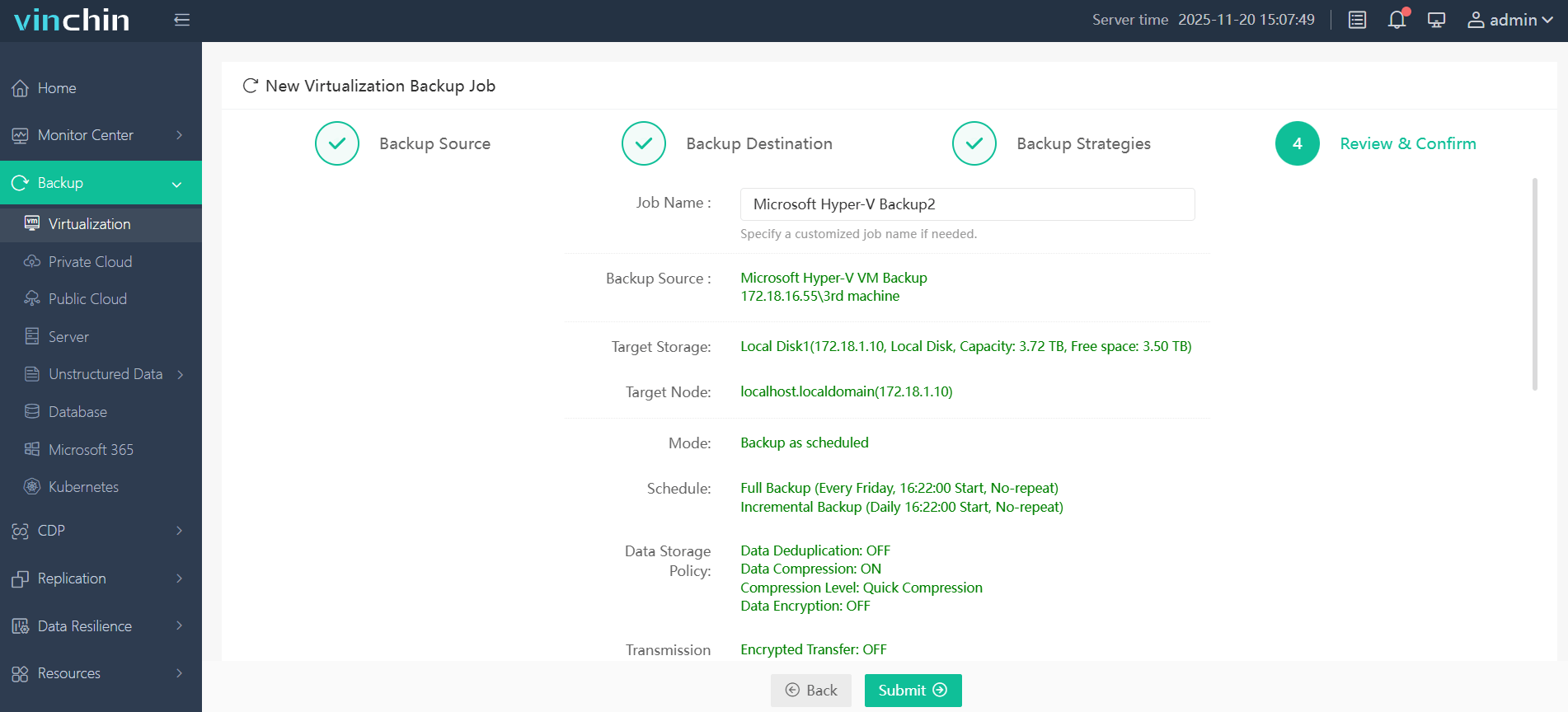
4. Submit the job
Vinchin Backup & Recovery has been selected by thousands of companies and you can also start to use this powerful system with a 60-day full-featured trial! Also, contact us and leave your needs, and then you will receive a solution according to your IT environment.
Hyper-V Failover Cluster FAQs
Q1: What network ports must be open between nodes for my Hyper-V failover cluster?
Open TCP/UDP ports used by clustering services including RPC (135), SMB (445), dynamic RPC range (49152–65535), plus ICMP Echo Request replies enabled between all participating servers.
Q2: Can I mix different CPUs/NICs across my Hyper-V failover cluster? Are there risks?
Mixing hardware models can cause compatibility problems during live migrations; always match CPUs/NIC chipsets where possible for stable performance.
Q3: What's the difference between Quick Migration versus Live Migration—and when should I use each?
Quick Migration saves VM state briefly causing short pause while Live Migration transfers memory actively allowing near-zero downtime—use Live Migration whenever continuous service matters most.
Conclusion
Hyper-V Failover Cluster is a feature in Microsoft Windows Server that allows you to create a high-availability cluster of Hyper-V virtual machines. It provides automatic failover capabilities, ensuring that virtual machines continue to run even if a physical server or Hyper-V host fails.
To efficiently protect Hyper-V environment, you can choose Vinchin Backup & Recovery to easily backup and recover your VMs. Don't miss the free trial.