Key Takeaways
Citrix backup and restore protects VMs, configurations, and data, and essentially the same as XenServer backup in most environments.
Native Citrix tools (snapshots, VM export, storage-level backup) are limited, manual, and not scalable for enterprise use.
Vinchin Backup & Recovery simplifies Citrix backup with agentless architecture, incremental backup, and automated policies.
About Citrix Backup and Restore
Citrix backup and restore is a process of protecting and recovering virtual machines (VMs), configurations, and data running on Citrix environments such as Citrix Hypervisor (XenServer).
A complete backup strategy typically includes:
Restore operations includes:
Tips: Citrix backup and restore is essentially XenServer backup and restore in most real-world scenarios.
Why Citrix Backup and Restore Is Critical
Virtualization platforms provide built-in protection, but native tools are often limited.
Here's why backup and restore are essential:
Prevent data loss from hardware failure or human error
Reduce downtime with fast restore capabilities
Minimize business interruption by restoring critical workloads
Protect against ransomware attacks
Ensure compliance with data retention policies
Fast and reliable backup and restore is especially critical in production environments, where prolonged downtime can lead to service disruption, productivity loss, and financial impact. And you should know this, without proper backup, restoring a Citrix environment can be complex and time-consuming.
Native Citrix Backup and Restore Methods
Citrix provides some basic backup mechanisms, but with some limitations.
1. Snapshot-based Backup
Snapshots capture VM state at a specific point in time.
Pros:
Quick to create
Useful for short-term use
Cons:
Not a real backup solution
Consume storage
Risky for long-term use
2. Export VM
Export VMs using command-line tools:
xe vm-export vm=<vm-name> filename=<backup-file>
Pros:
Simple
No additional tools required
Cons:
Manual process
No automation
Not scalable for large environments
3. Storage-Level Backup
Some storage systems provide snapshot or replication features.
Cons:
Complex recovery process
Vendor dependency
Best Practices for Citrix Backup and Restore
To ensure reliable protection, follow these proven strategies:
1. Use image-based backups
Always backup entire VMs instead of relying solely on file-level backups.
2. Automate backup scheduling
Manual backups are error-prone. Automation ensures consistency.
3. Test recovery regularly
Backups are useless if restore fails - test frequently.
4. Follow the 3-2-1 rule
3 copies of data, 2 different storage types, 1 offsite backup
Vinchin: Best Citrix Backup and Restore Software
Managing Citrix backup and restore manually can quickly become overwhelming, especially as your virtual environment grows. Vinchin Backup & Recovery simplifies this process with an agentless, centralized approach designed for virtualization platforms like Citrix Hypervisor.
Why choose Vinchin?
Agentless Backup: No need to install agents inside VMs
Incremental Backup (CBT-based): Reduce backup time and storage usage
Instant VM recovery: Restore VMs in seconds directly from backup
Automated Backup Policies: Reduce manual workload
Disaster Recovery Ready: Built-in replication and fast failover
How to Connect Citrix Platform to Vinchin
Step 1. In Vinchin, go to Resource > Virtual Infrastructure > Virtual Platform
Step 2. Click Add and select Citrix Hypervisor (XenServer)
Step 3. Enter pool master IP/domain, username and password
Step 4. Click OK to finish the connection
Step-by-Step: Citrix Backup with Vinchin
Step 1. Go to Backup > Virtual Machines to select target VMs or entire cluster

Step 2. Choose backup destination, select your backup node and storage location

Step 3. Configure backup strategy include: backup mode, schedule, data policies

Step 4. Confirm all your settings and start the backup job

Step-by-Step: Citrix Restore with Vinchin
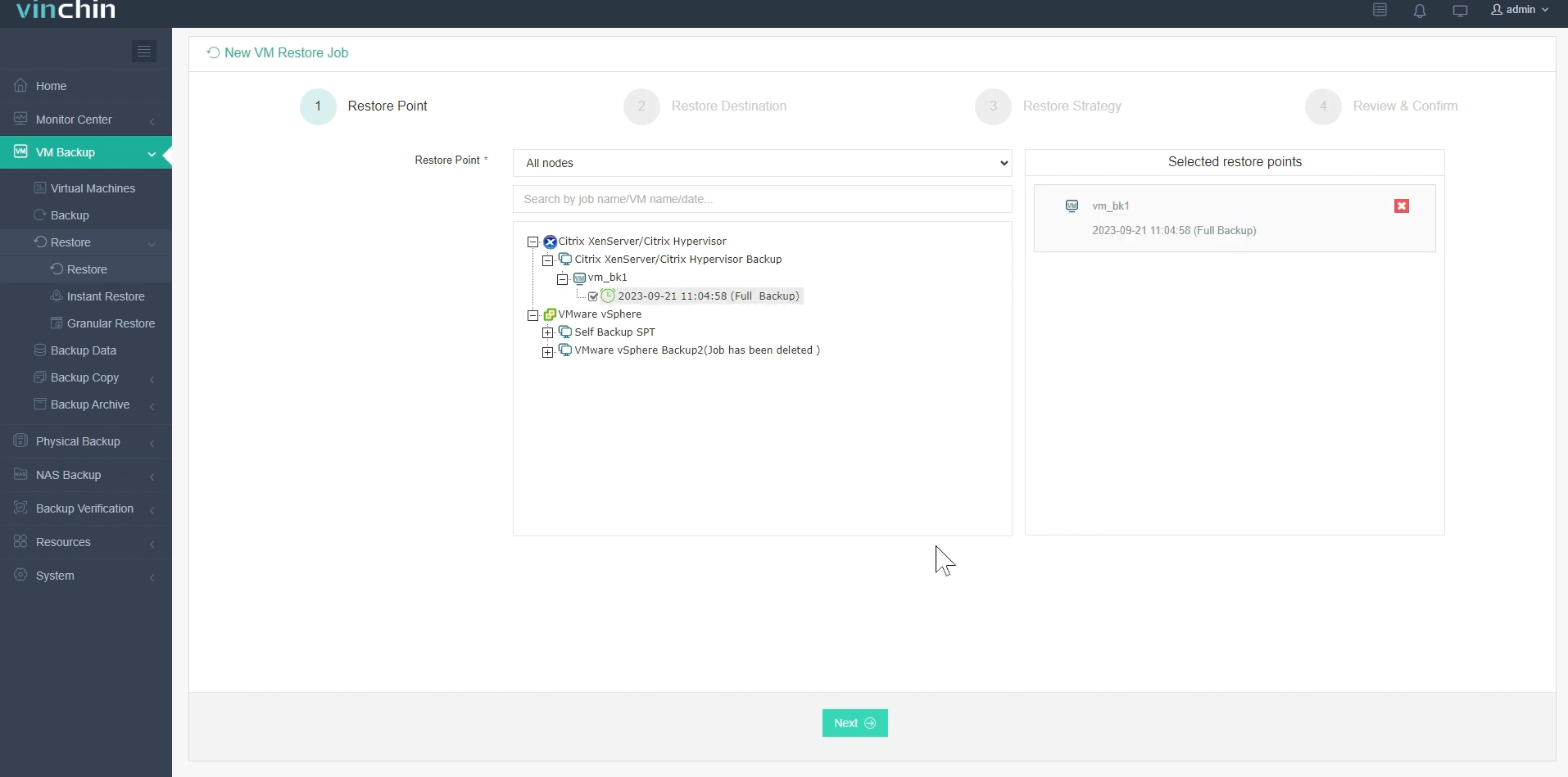
Step 1. Go to Restore > Virtualization to select VM to recover
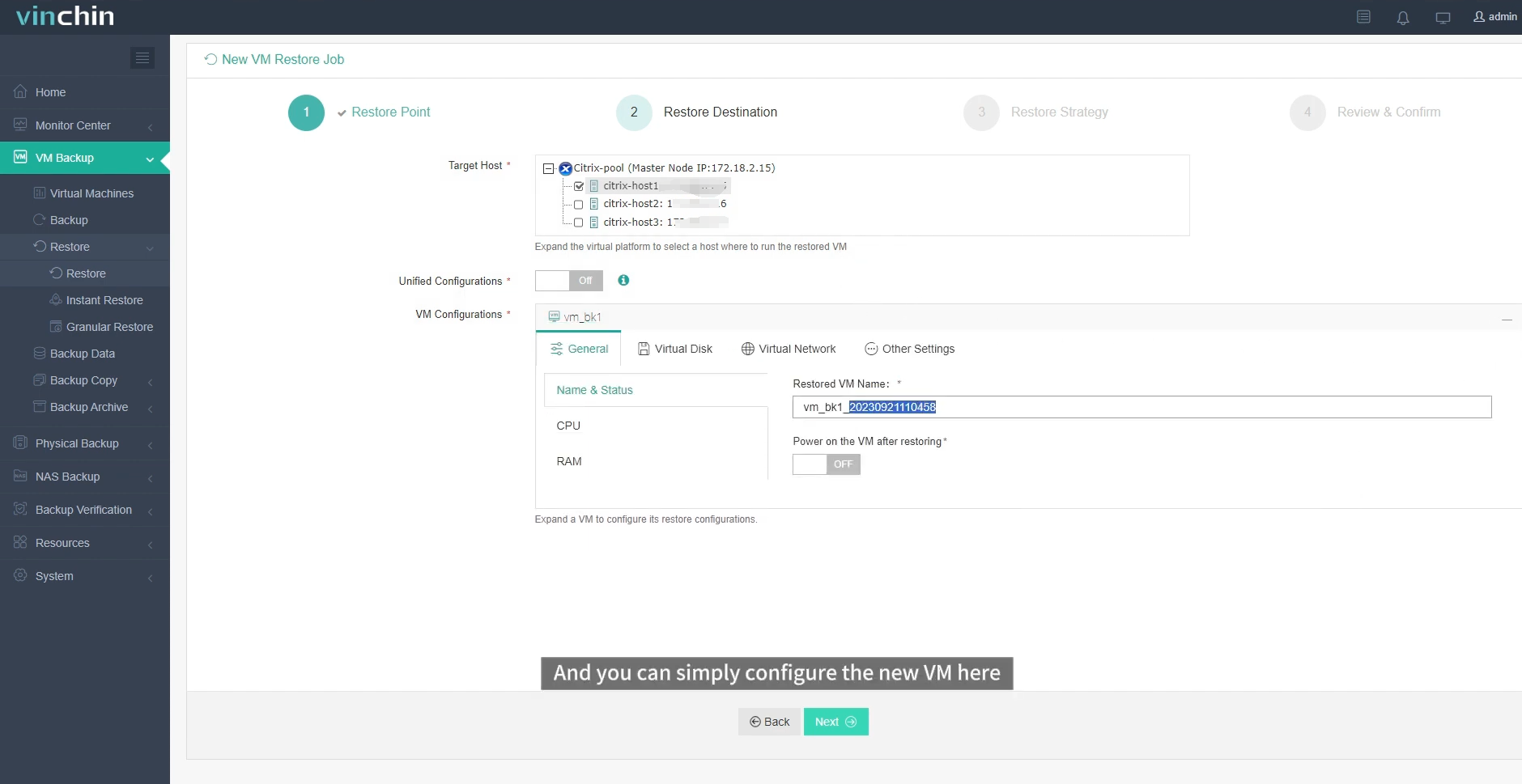
Step 2. Choose restore destination
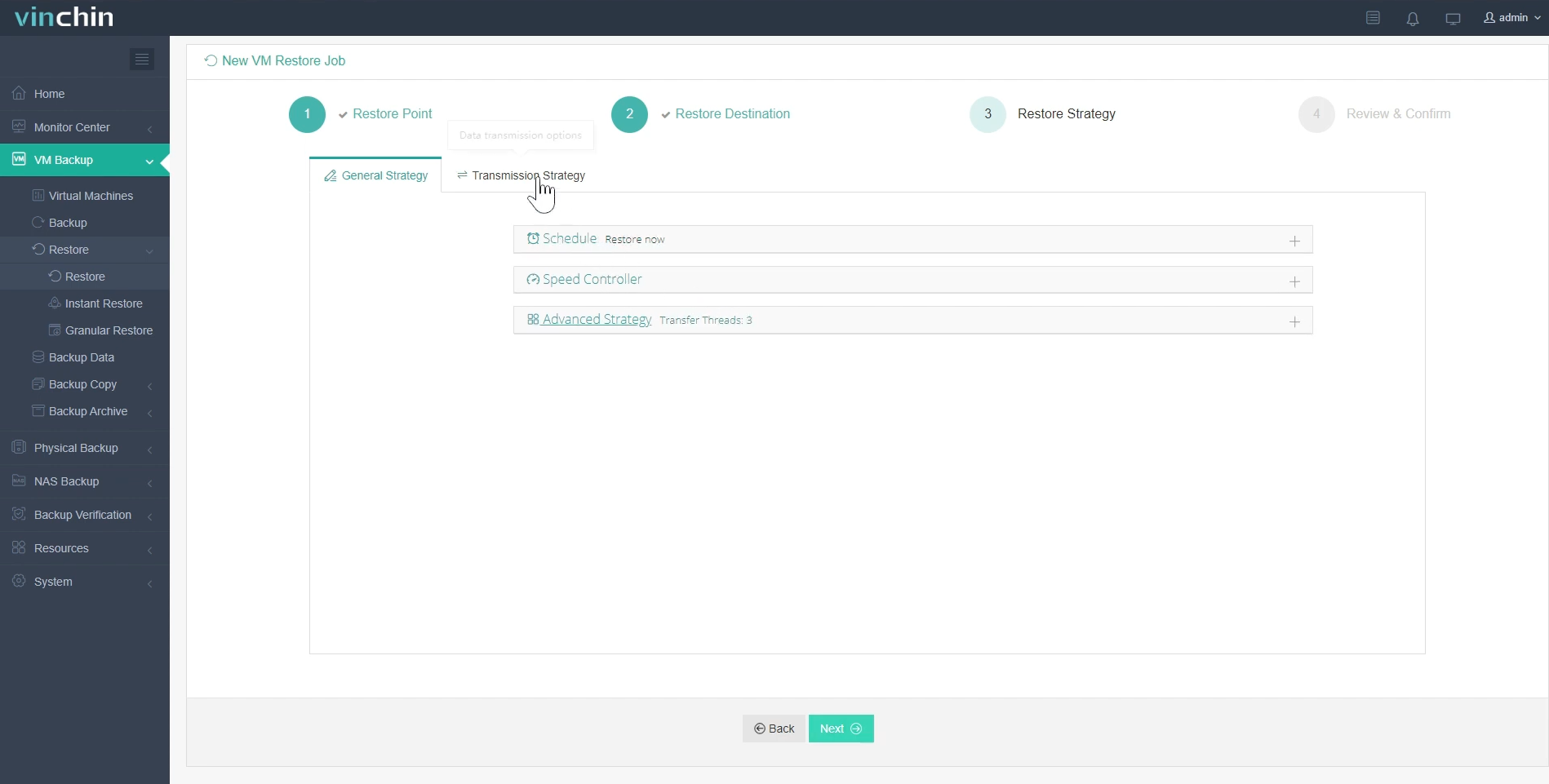
Step 3. Cnfigure the restore strategy: CPU/RAM, network and datastore
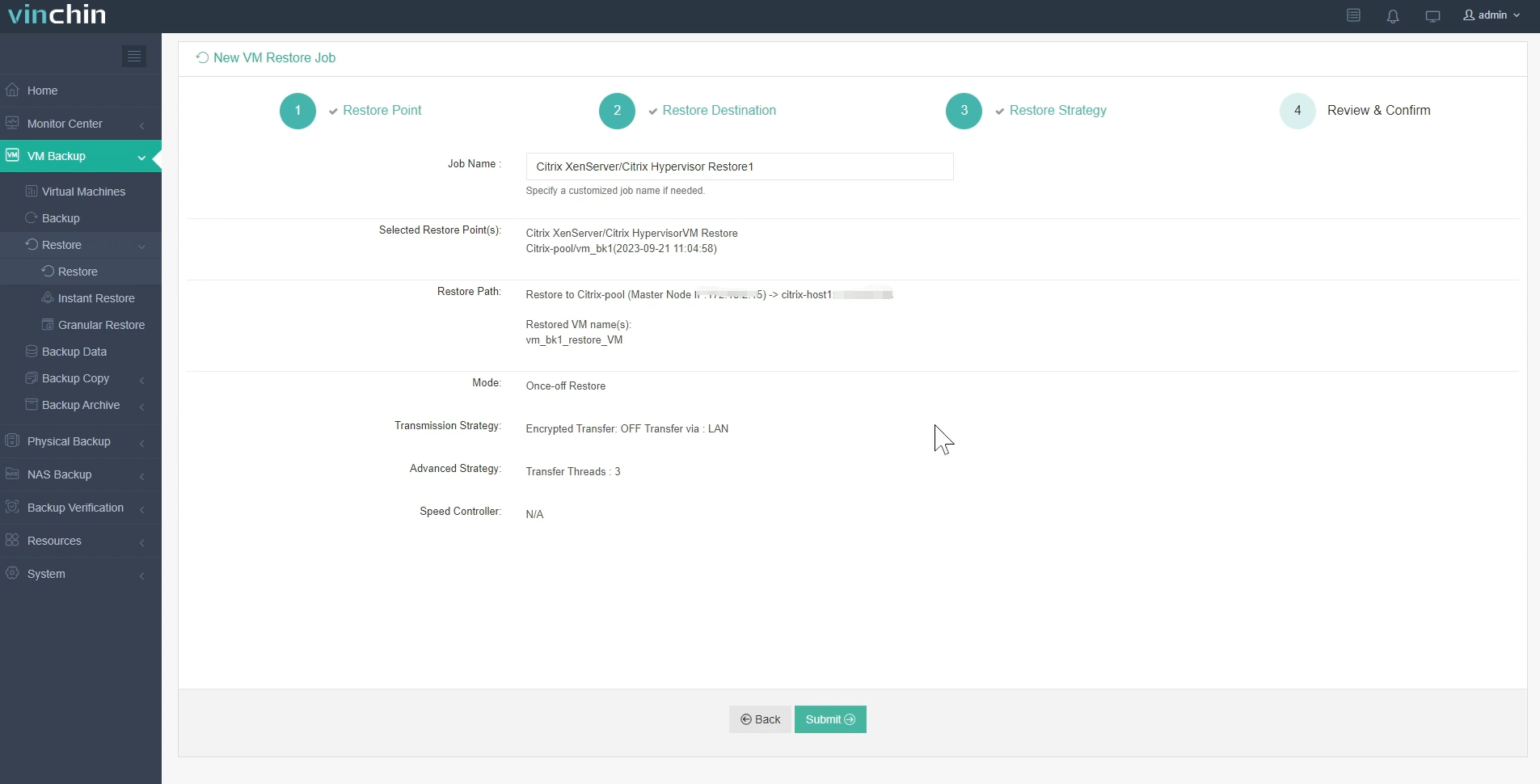
Step 3. Launch restore job and monitor progress
Citrix Backup and Restore FAQs
Q1: Does Citrix Hypervisor support Changed Block Tracking (CBT) for backups?
No, Citrix Hypervisor does not natively provide CBT in the same way as some other hypervisor.
Q2: Is it possible to back up running VMs in Citrix without downtime?
Yes, most modern backup solutions support live (hot) backups of running VMs by leveraging snapshots, allowing backups without shutting down workloads.
Q3: What happens to Citrix backups if the storage repository (SR) fails?
If backups are stored on the same SR and it fails, both production data and backups may be lost. This is why offsite or external storage is strongly recommended.
Q4: Can I migrate backup between different Citrix pools or hosts?
Yes, but it depends on the backup format and tool used
Q5: Does Citrix support application-consistent backup?
Citrix itself does not provide built-in application-aware backup features. Application consistency depends on the backup solution and may require integration tools like Microsoft Volume Shadow Copy Service (VSS).
Final Thought
Citrix environments are powerful, but without backup and restore strategy they can become a single point of failure. Implementing a professional solution like Vinchin can ensure: reliable data protection, fast recovery, simplified management, and enterprise-grade resilience. And Vinchin is not only suit for Citrix, it also for VMware, Hyper-V, Proxmox, and etc., if you need to virtualization backup and recovery, consider trying Vinchin!