ESXi USB passthrough lets you attach a physical USB device to a virtual machine. This simple feature helps when you need to use a USB printer, flash drive, or even a licensing dongle with your VM. In today’s virtual world, physical devices still matter. This guide shows you how to set up USB passthrough on ESXi, troubleshoot common issues, and protect your virtual machines with Vinchin.
Learn about ESXi USB Passthrough?
ESXi uses USB passthrough to make a physical device available to a guest operating system. The hypervisor creates virtual controllers, disks, and other devices for each VM. When you use USB passthrough, the physical USB device connects directly to the VM.
Three key components make this work:
• Arbitrator: A built-in service that scans and routes USB traffic.
• Physical USB Controller: The hardware that handles the USB port on the host.
• Virtual USB Controller: An emulated controller added to the VM.
It lets you run tasks like file transfers or licensing on a VM as if the USB device were plugged directly into it.
If you would like to
backup ESXi VM to USB, you should connect the USB drive to local machine and then copy the VM data via vCenter.
How ESXi USB Passthrough Works?
The process is straightforward. The USB arbitrator scans for devices on the ESXi host. When a device is connected, it assigns it to a specific VM. Note that only one VM can use a USB device at any time. The virtual machine must have a USB controller in its configuration. The ESXi host supports up to 20 USB devices per VM and up to 15 controllers in vSphere 7.0.
When you plug in a USB device, you can check its status with the command:
lsusb
If the device appears, the arbitrator routes its data to the VM. Otherwise, you may have to troubleshoot.
ESXi USB Passthrough Requirements
Before configuring USB passthrough, ensure your environment meets the following requirements.
Supported VMware Versions
USB passthrough is supported in:
VMware ESXi 6.x
VMware ESXi 7.x
VMware ESXi 8.x
Hardware Requirements
Your ESXi host should include:
VM Requirements
The VM should:
Be powered off during initial configuration
Use compatible virtual hardware version
Have VMware Tools installed
USB Device Compatibility
Most standard USB devices work correctly, but some specialized devices may require vendor-specific drivers inside the guest OS.
Steps to Enable ESXi USB Passthrough
Following these steps to configure USB passthrough in VMware ESXi with vSphere Client.
1. Connect the USB device
2. Open VMware vSphere Client and log in
3. Edit VM settings
Right-click the virtual machine, select Edit Settings. Click Add New Device and choose USB Device
4. Select the USB device
Choose the connected USB device from the dropdown list
If you plan to use
vMotion, check the option
Support vMotion while device is connected.
5. Save configuration
Click OK and power on the
Once the VM boots, check the guest operating system. In Windows, open Device Manager to verify that the USB device is recognized. If the device is a storage device, use Disk Management to ensure it has a drive letter.
How to Enable USB Controller Passthrough in ESXi
For advanced use cases, administrators may pass through an entire USB controller.
Step 1: Enable PCI Passthrough
Step 2: Add PCI Device to VM
This method provides better compatibility for some hardware-dependent USB devices.
Fix USB Passthrough not Working on ESXi
Sometimes, ESXi does not show your USB device. Here are some reasons and solutions you can check and use:
1. Device not listed
Run the command below in the ESXi shell.
esxcli hardware usb passthrough device list
If nothing appears, verify that your device works on another machine.
2. Service issues
Ensure the USB arbitrator service is running. Restart it if needed.
3. Hardware incompatibility
Some devices, such as certain USB 3.0 controllers, may need extra drivers. If a device is not recognized, consider using a USB 2.0 hub or testing a different USB port.
4. vMotion limitations
If you plan to use vMotion with USB passthrough, remember that suspending or powering off the VM disconnects the device. Make sure to configure vMotion properly before migration.
User reports have shown that simply adding a USB device (and not the entire USB controller) is enough for most cases. In ESXi 6.5 and later, pass through the USB device directly. One user noted that removing PCI passthrough configuration fixed his issue.
ESXi USB Passthrough Limitations
Although useful, USB passthrough has several limitations administrators should understand.
VMs using active USB passthrough may not support vMotion migration.
If the physical USB device is unplugged from the host, the VM immediately loses access.
USB passthrough is not ideal for high-performance storage workloads.
Some USB 3.0 controllers may behave inconsistently depending on hardware vendors and ESXi driver support.
VMware High Availability and Distributed Resource Scheduler features may have limited functionality when USB passthrough dependencies exist.
USB Passthrough not Working on ESXi Troubleshooting Examples
Many users have encountered issues where the ESXi host does not detect USB devices.
1. A user running ESXi 8 on a Dell PowerEdge R450 found that only the onboard controllers appeared. After updating ESXi and checking the BIOS settings, the device was finally recognized.
2. A user on a C240 M4 with ESXi 6.7 managed to pass through one USB port but had trouble with the second port. The issue was linked to hardware limitations on that controller.
3. When a user inadvertently passes the entire USB controller to a VM. In most cases, it is best to pass through the USB device alone. As one expert noted, there is no need to pass the PCI device if you can add the USB device directly.
How to Disable Passthrough for Specific USB Devices?
Sometimes, you may want to use a USB device as a datastore on ESXi without passing it through to a VM. In these cases, you need to exclude the device from passthrough. There are two methods:
Method 1. ESXCLI Command
1. Run the command below:
esxcli hardware usb passthrough device list
Identify the device by its VendorId and ProductId.
2. Disable passthrough:
esxcli hardware usb passthrough device disable -d Bus:Dev:VendorId:ProductId
3. Reboot the host.
Method 2. Using USB Quirks
1. List USB devices with the command below:
lsusb
Note the VendorId:ProductId of the device.
2. Set the quirk:
esxcli system settings advanced set -o /USB/quirks -s 0xVendorId:0xProductId:0:0xffff:UQ_MSC_NO_UNCLAIM
3. Reboot the host.
These methods allow you to use the device for an ESXi datastore while still passing through other USB devices to VMs.
Reilable Backup ESXi VMs Methods with Vinchin
USB-dependent workloads can still experience corruption, hardware failure, accidental deletion, ransomware, or VM issues. Vinchin Backup & Recovery is a powerful software that specializes in virtual machine backup and migration. It is designed to work seamlessly with VMware ESXi and other mainstream virtualization platforms like Hyper-V, Proxmox, oVirt, OLVM, XCP-ng, etc.
It offers features like scheduled incremental backup to automatically create data backup of smaller size, changed block tracking can greatly increase the speed of incremental backup, data verification can make sure the recovered VM can boot successfully, data retention strategies can easily control the data size of the backup chain.
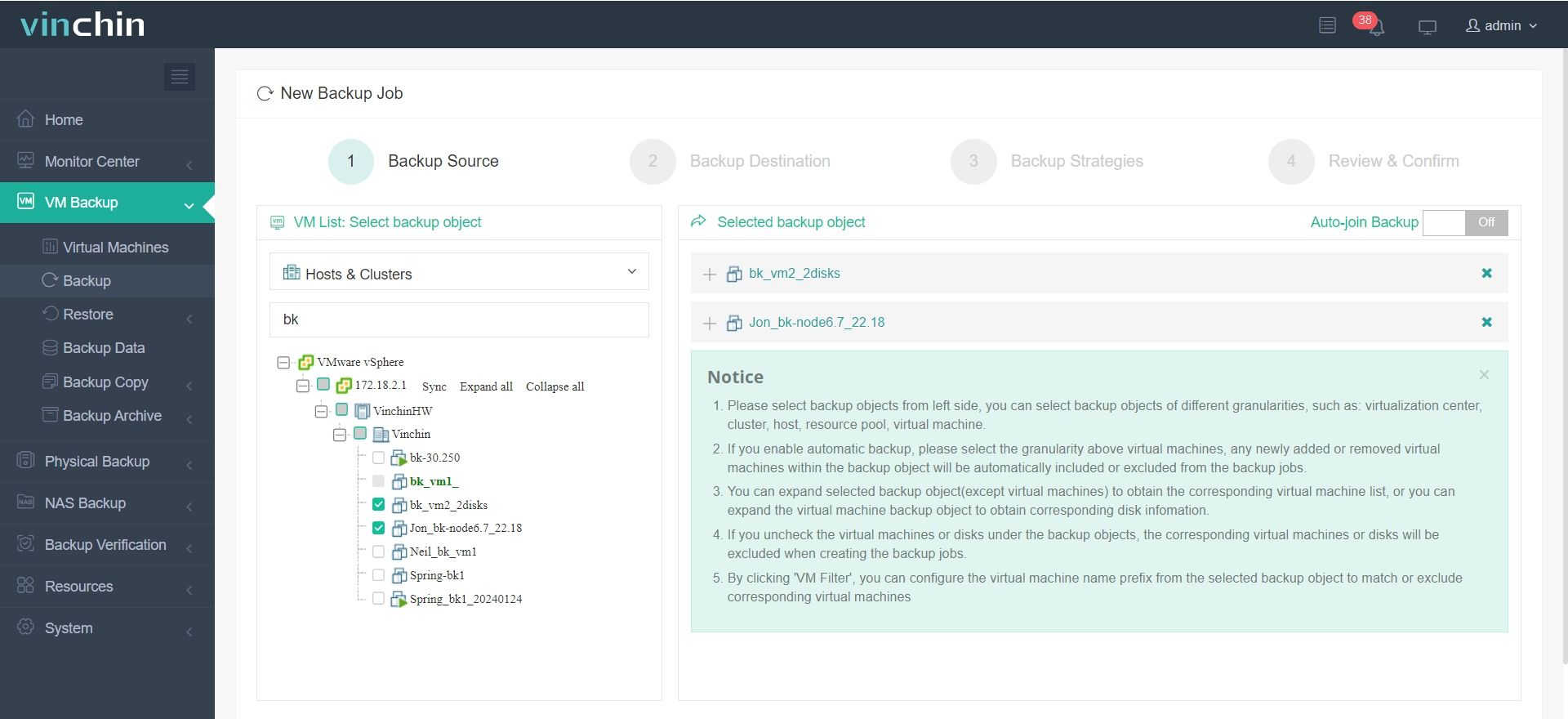
The web console is simple and easy to use. Here’s how you can backup your ESXi VMs with Vinchin:
1. Select the ESXi VMs to backup
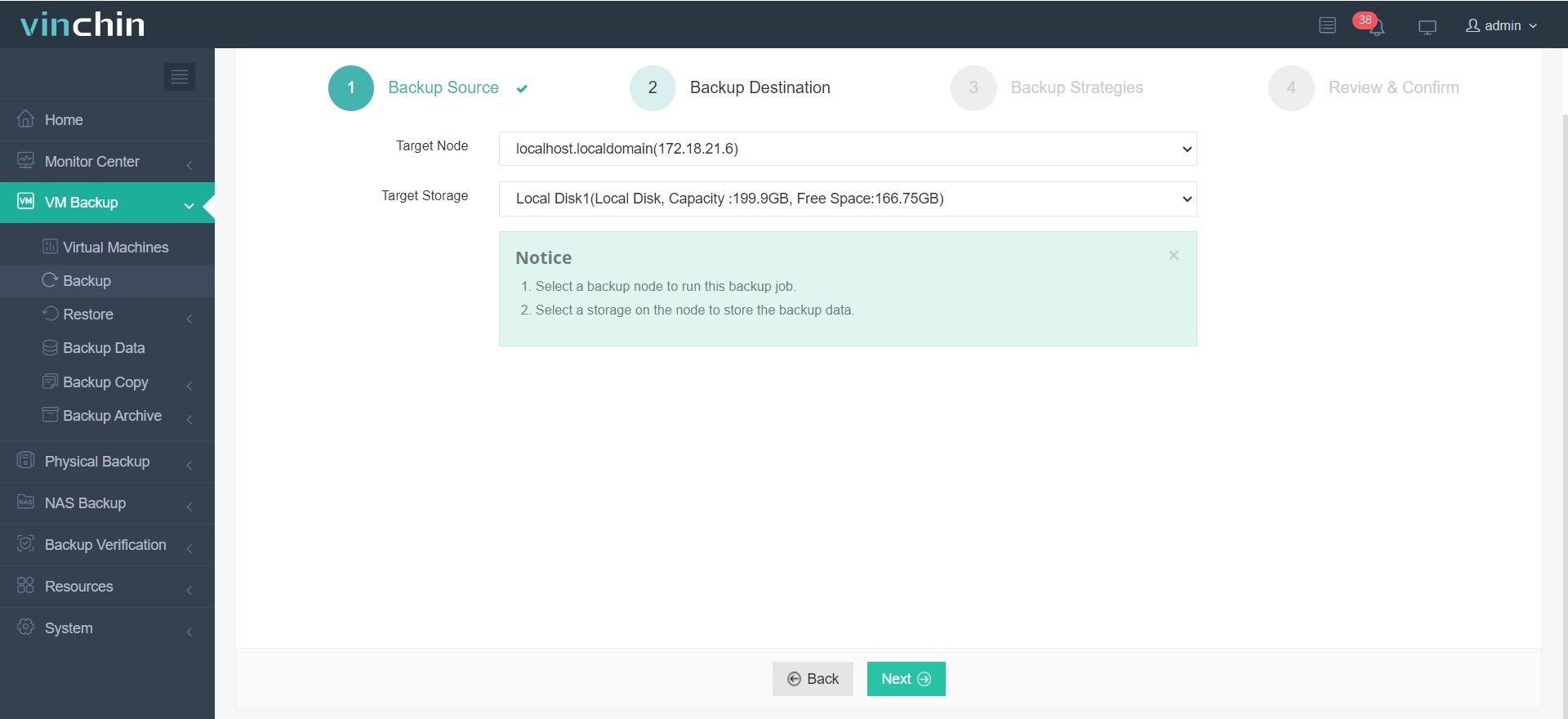
2. Select backup storage - Target Node and Target Storage
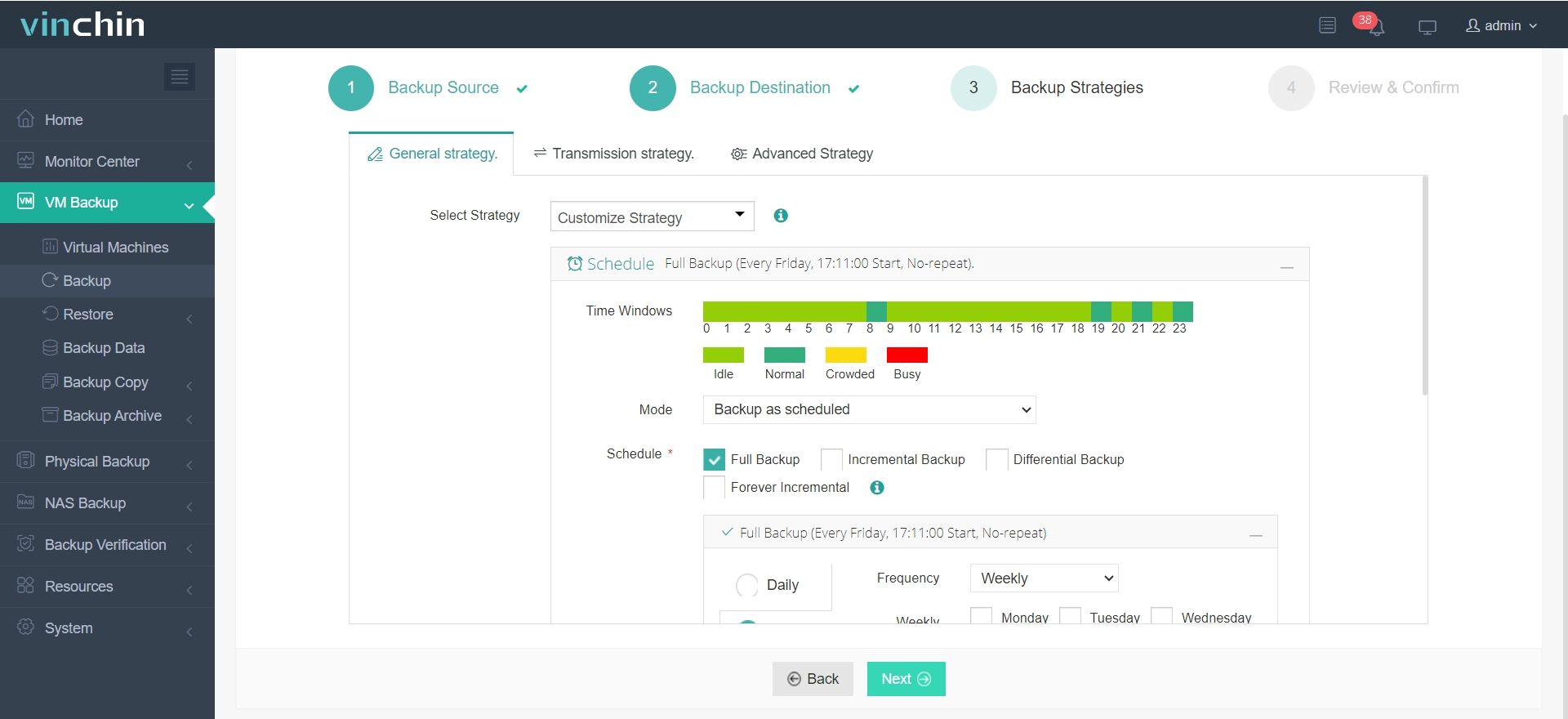
3. Select backup strategies, you can choose full backup, incremental backup, differential backup or forever incremental
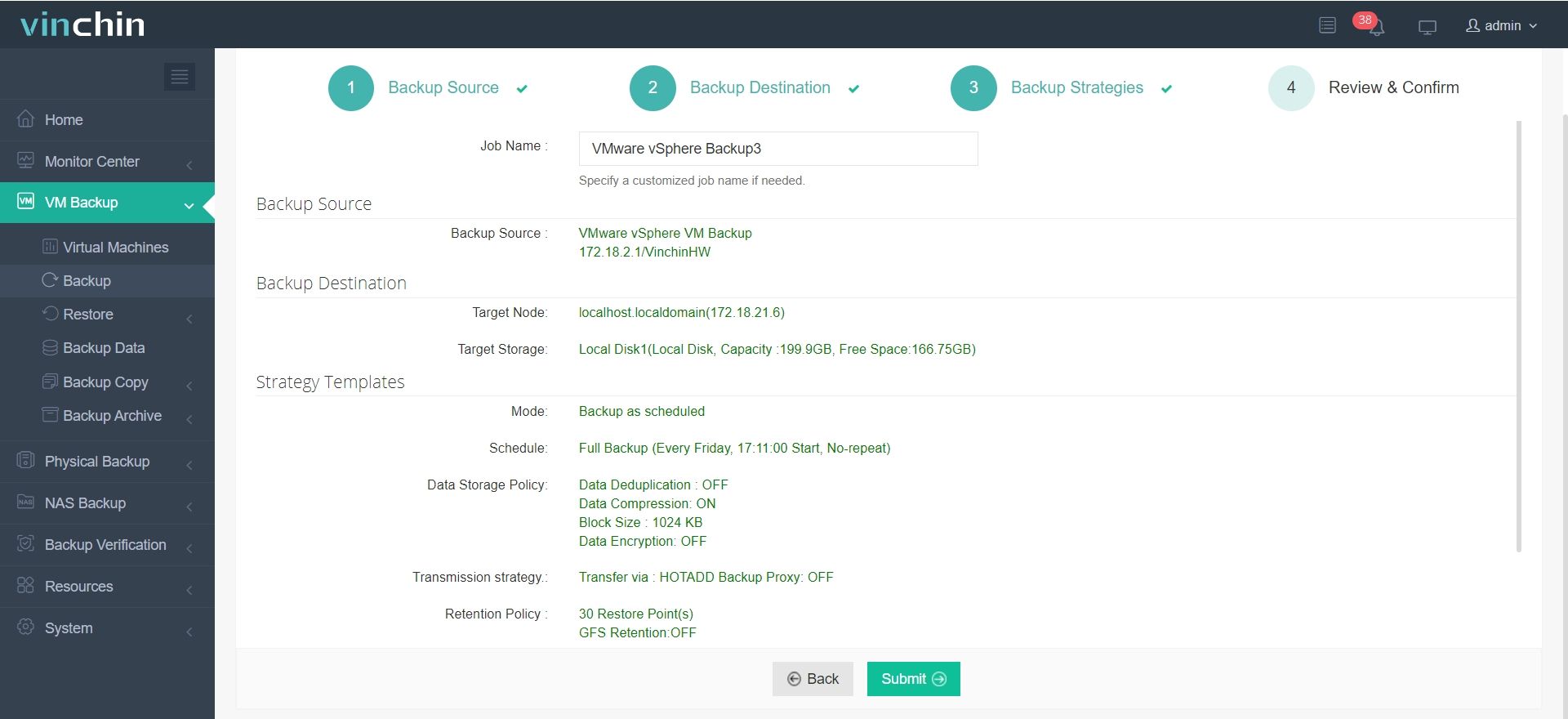
4. Submit the job to start backup process
Vinchin supports a wide range of workloads. If you are using ESXi, Vinchin can help you secure and manage your data. Our customers around the globe praise the simplicity and efficiency of Vinchin. With a 60-day full-featured free trial, you can test our software with no risk. Click the button on our website to start your trial and protect your virtual environment today.
ESXi USB Passthrough FAQs
Q1. Can I use a USB device as a boot drive for a VM?
No, ESXi does not support using USB devices as boot drives.
Q2. What if my USB device is not detected?
Check the USB arbitrator service and verify the device with the lsusb command.
Q3. Can I use USB 3.0 devices with ESXi?
Yes, but compatibility depends on the ESXi version, host hardware, and USB controller drivers.
Some environments may require firmware or BIOS updates.
Q4. Can multiple VMs share the same USB device?
No, a USB device can typically be attached to only one VM at a time.
Conclusion
ESXi USB passthrough is a useful feature for connecting physical devices to your virtual machines. It makes it possible to use USB storage, printers, or dongles directly within a VM. However, you must meet the system requirements and be aware of its limitations. Troubleshooting may involve checking the arbitrator service or updating your ESXi version.
Vinchin offers an all-in-one solution to protect your virtual environment. With our simple, efficient, and reliable backup and migration features, you can ensure that your data is safe and your VMs are quickly recoverable. Don't miss out on the free trial.