VMware is the popular server virtualization supplier. Companies could use its solution to build their own virtualization infrastructure.
Server virtualization technology is to make hardware resources fully utilized to improve work efficiency and reduce cost and that's what VMware's solution does. Since VMware product could speed up companys business system, what would be the solution to make VMware product perform better?
This question is still answered by VMware itself. To make your virtual machine has a better performance, VMware Tools could be the solution. It is an official tool to enhance the performance of virtual machines and make management easier.
About VMware Tools
VMware Tools is a collection of drivers, services, and utilities installed inside a guest operating system. It improves communication between the virtual machine and the VMware hypervisor, resulting in better performance and enhanced management capabilities.
After installation, VMware Tools enables:
Improved mouse and keyboard responsiveness
Optimized network and storage drivers
Guest OS heartbeat monitoring
Time synchronization
Graceful shutdown and reboot operations
Enhanced screen resolution support
Shared clipboard and drag-and-drop functions (supported platforms)
Better VM lifecycle management from vCenter or ESXi hosts
Without VMware Tools, many advanced VMware features may not function properly.
What does VMware Tools do for your virtual machines?
As is said before, VMware Tools is the package for enhancing virtual machine performance. It could fix some issues on virtual machines and give you better experience.
If your guest machine has some monitor issues, like low video resolution or inadequate color depth, installing VMware Tools on the guest machine would be the fix.
It would also be helpful if the network speed on guest machine doesn't display correctly, your mouse can't be moved freely, file transfer like copy-and-past or drag-and-drop can't be done, sound is not working.
To give you better experience, VMware Tools could make you be able to take quiesced snapshots of the guest machine and sync the time on guest machine with the time on the host machine.
VMware Tools are also required if you would ike to enable VM Monitoring for HA (High Availability).
Install VMware Tools on Windows
Method 1. Manually from ISO on Windows
Preparation: Download VMware Tools ISO file from VMware's official site and add a CD/DVD drive to virtual machine and put the ISO file into it. We have another post to introduce how to boot VM from ISO.
Step 1. Start the virtual machine in VMware Workstation.
Step 2. On VMware Workstation tools bar, click VM and then select Install VMware Tools.
Step 3. Inside the Windows VM, open File Explorer > This PC, and open the VMware Tools CD/DVD drive.
Step 4. Follow the VMware Tools installation wizard to complete the process.
Method 2. Install from vSphere Client or ESXi Host
Step 1. Log in to the Windows virtual machine.
Step 2. Go to VM > Guest OS > Install VMware Tools or VM > Upgrade/Install VMware Tools
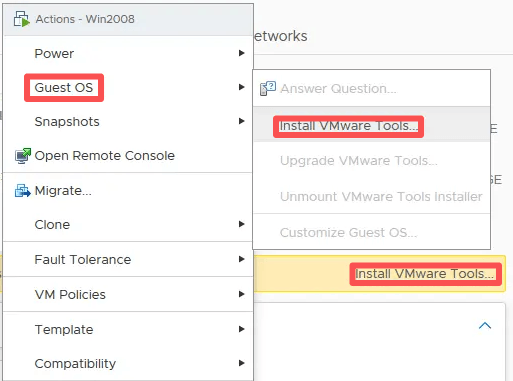
Step 3. Inside Windows, open File Explorer.
Step 4. Open the mounted VMware Tools CD drive, run setup.exe.
Step 5. Follow the wizard to complete the installation
Install VMware Tools in Ubuntu
Method 1. Install VMware Tools from ISO (Legacy Method)
Do the same preparation.
Step 1. Start the Ubuntu virtual machine in VMware Workstation.
Step 2. On VMware Workstation tools bar, click VM and then select Install VMware Tools.
Step 3. In Ubuntu virtual machine, click the CD/DVD drive named VMware Tools on desktop.
Open it and copy VMwareTools-x.x.x-xxxxxx.tar.gz (name could be different) to desktop.
Step 4. To unzip it, type in Terminal:
tar zxf /home/sunev/Desktop/VMwareTools-x.x.x-xxxxxx.tar.gz
Find the folder vmware-tools-distrib on desktop and enter it.
Step 5. To install VMware Tools, type in terminal:
sudo ./vmware-install.pl
Wait for the process completed, then VMware Tools would be installed in Ubuntu virtual machine.
Method 2. Install Open VM Tools (Recommended)
Step 1. Update package repository:
sudo apt update
Step 2. Install Open VM Tools
For Ubuntu Server:
sudo apt install open-vm-tools -y
For Ubuntu Desktop:
sudo apt install open-vm-tools open-vm-tools-desktop -y
Step 3. Restart Ubuntu
sudo reboot
Protect VMware VMs Before Installing or Updating VMware Tools
Virtual machines are often used to run business systems which are very important to company. The best way to protect data and the continuity of business, every company should make a disaster recovery plan.
Vinchin Backup & Recovery is a professional VM disaster recovery solution which has helped many companies make their own DR plan. Its excellent performance has been endorsed by users.
Agentless Backup: You don't have to spend a lot of time deploying agents on every virtual machine. It supports agentless backup on 11 popular virtualization platforms including VMware, oVirt, OpenStack, etc.
Instant Recovery: To guarantee the continuity of your business, Vinchin Backup & Recovery could save your business from downtime in 15s.
User-friendly GUI: You could easily understand the operation in Vinchin Backup & Recovery and manage your task on the wizard-driven web-based console, with a data visualization interface also built in to show you the backup system status in a clear way.
Changed Block Tracking (CBT): CBT technology would identify the block of data that have changed or in use to largely speed incremental backup.
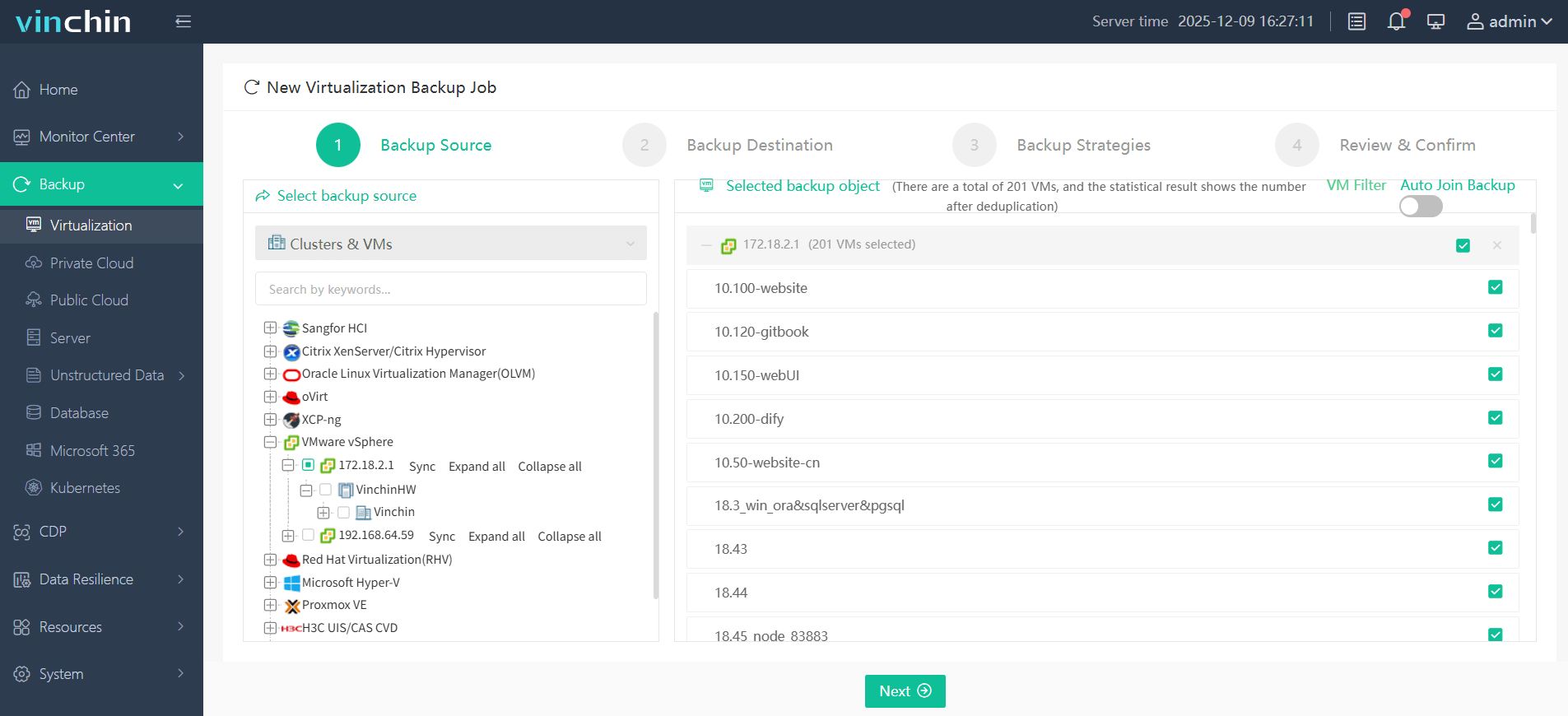
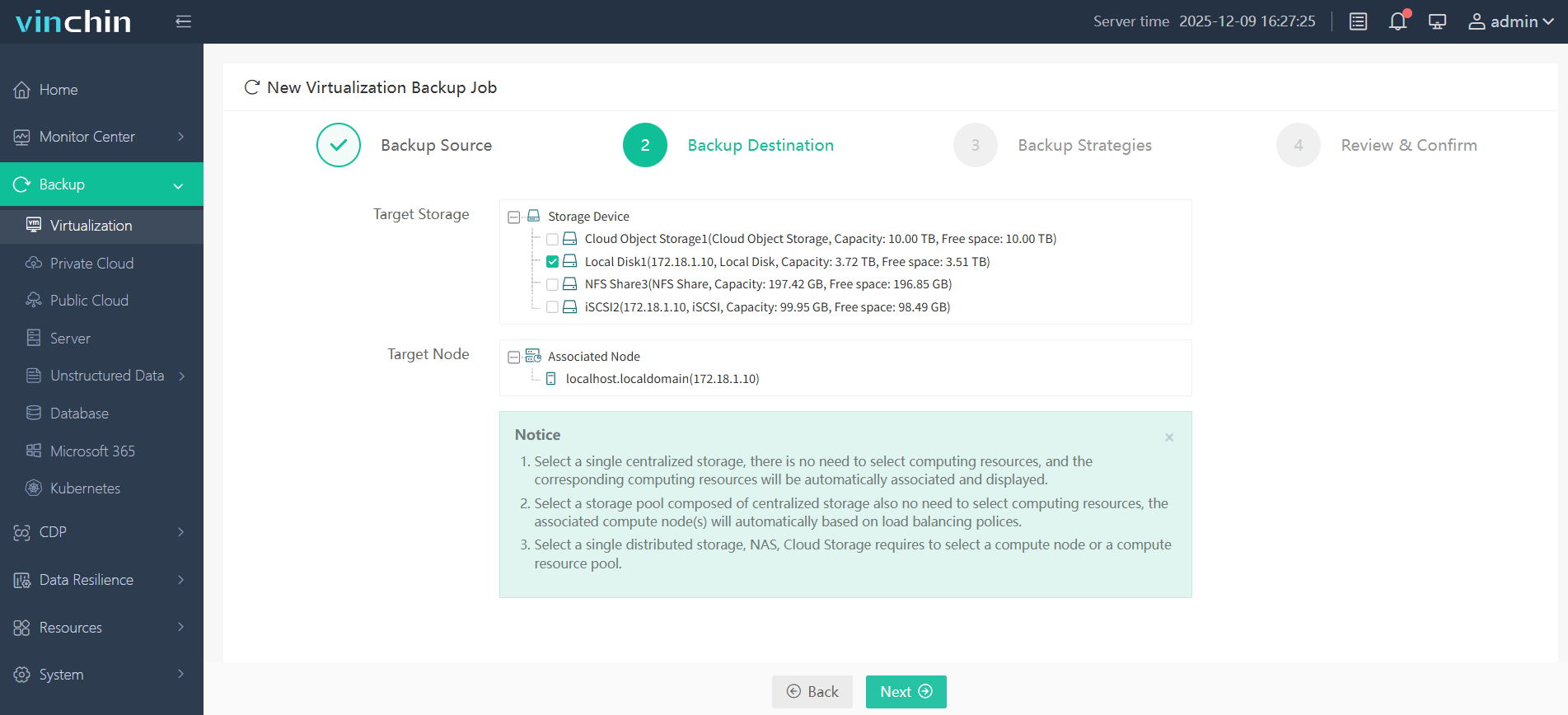
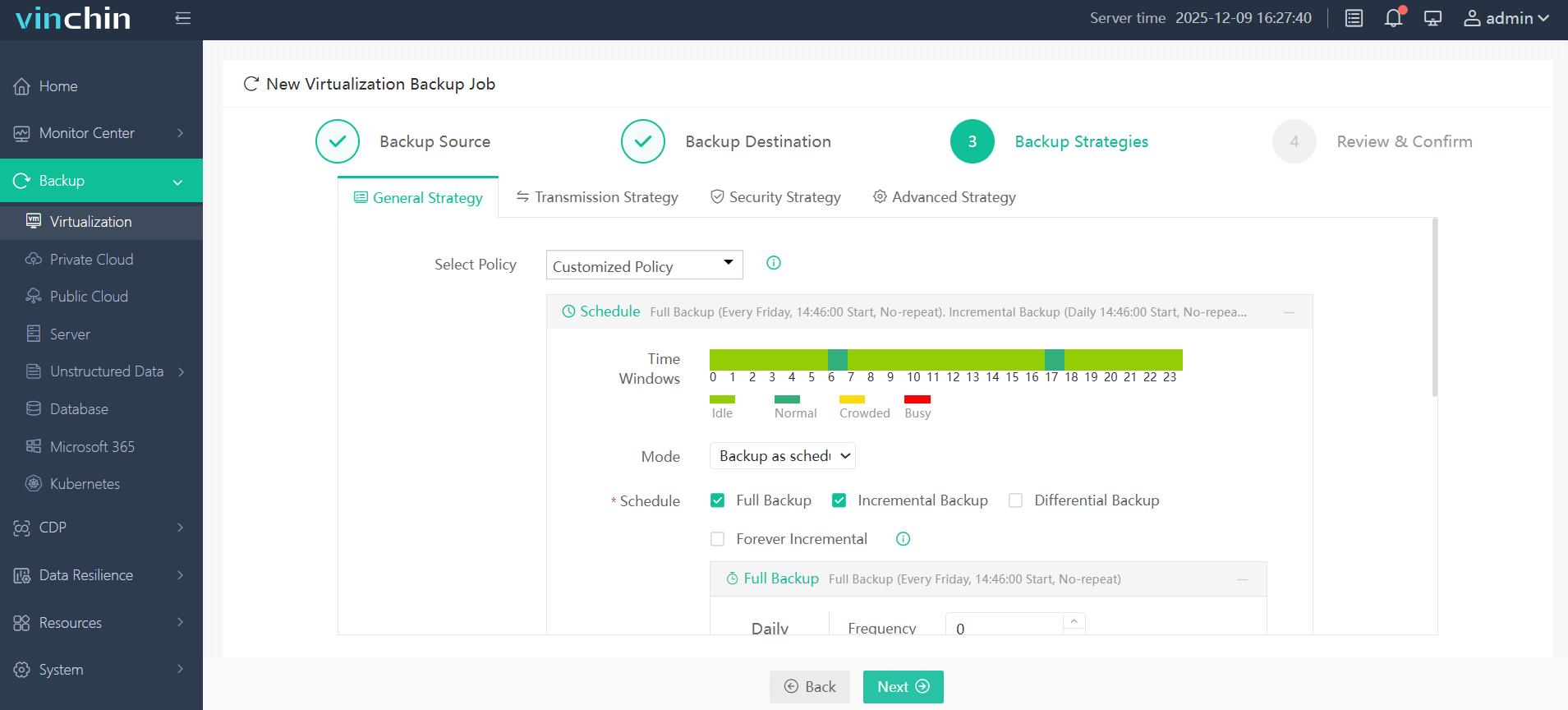
You can easily backup VMware virtual machine in 4 steps.
1. Select the VMware VM
2. Select the backup storage
3. Select the backup strategies
4. Submit the job
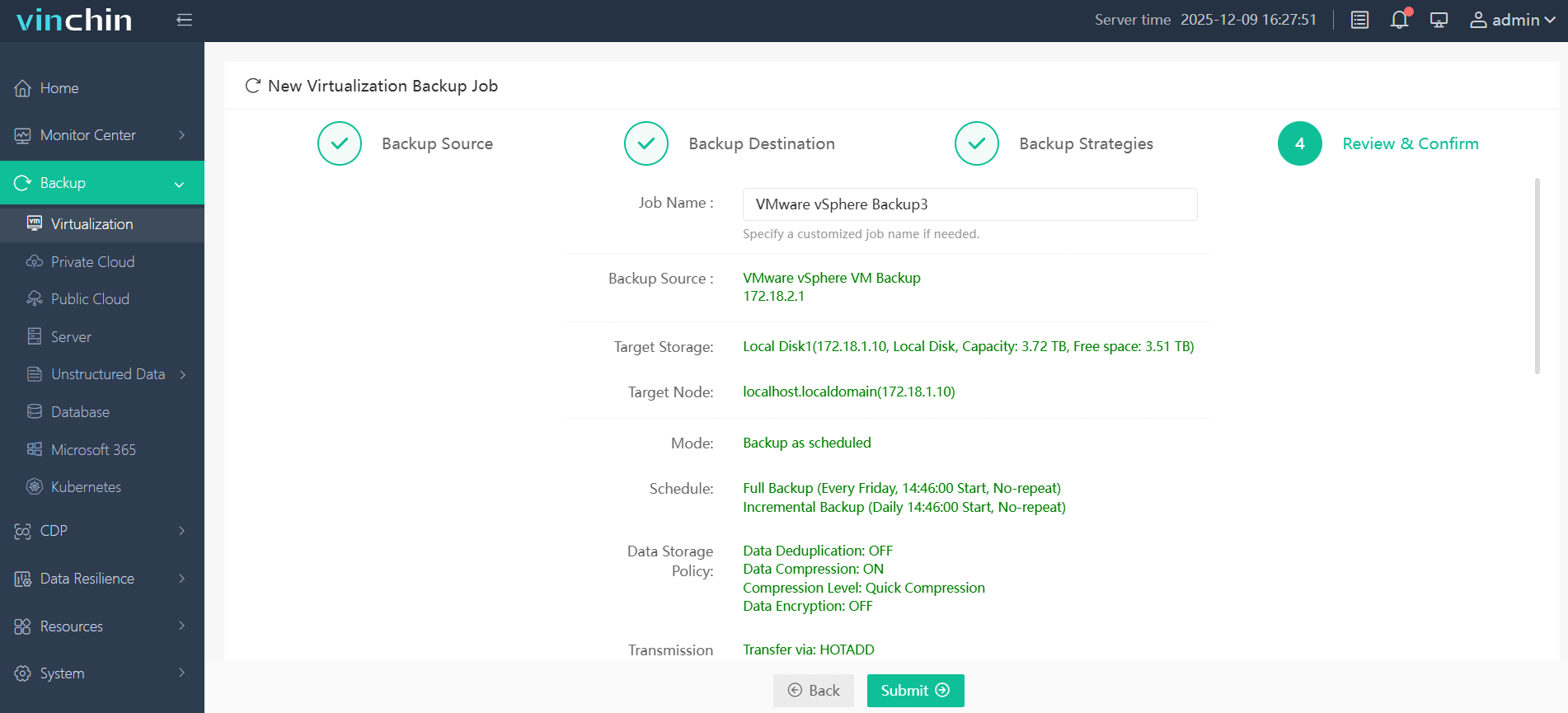
There are more advanced features like Lan-Free VMware Backup, File-level Recovery, BitDetector (feature for in-depth backup data extraction), Flexible Node Expansion, etc. Start a 60-day full-feature trial and then you could experience them all at once. Just click the button to get the installation package.
Install VMware Tools FAQs
Q1. How to update VMware Tools automatically?
Enable Automatic Tools Upgrade in vCenter under the VM’s Guest OS settings to have VMware Tools update at each power cycle
Q2. How to uninstall VMware Tools?
Run the Uninstall VMware Tools option in Windows Control Panel or execute sudo vmware-uninstall-tools.pl in Linux
Q3. How to verify VMware Tools is running?
Check the VMware Tools service status in Windows Services or run vmware-toolbox-cmd stat in Linux terminal
Conclusion
The performance of VMware virtual machine could be improved and VMware Tools is the answer. You have known what VMware Tools is and how to install VMware Tools on Windows or Ubuntu operating system. Before you get everything started, don't forget that your data on virtual machines are also important, so set up a right backup solution for it in advance is a wise choice. You could use the excellent DR solution Vinchin Backup & Recovery to get this goal.