Introduction
A green backup job tells you that data was written. It does not tell you that the VM will restore, boot and run its application. To test VM backups properly, you have to restore them and check the result.
This guide explains how to test VM backups, from quick integrity checks to full recovery drills. You will learn what recoverable means, six practical ways to run a backup restore test, a safe procedure to follow, how often to test, and how automated VM backup verification removes the manual work.
Why a Successful Backup Job Does Not Prove Recoverability
A completed job proves only that data was written, and it says nothing about whether you can restore that data. Our guide to what backup verification is and why it matters covers the idea in brief; this article shows how to put it into practice.
What a Completed Job Actually Confirms
Job status tells you the backup software finished without a fatal error. It does not read the data back, boot the VM or check the application. Storage can also degrade over time, so a backup that was fine last quarter may be unreadable today. The Proxmox Backup Server documentation describes this risk as bit rot and recommends re-verifying all backups at least monthly.
Common Reasons VM Backups Fail to Restore
Silent corruption is the first cause. The second is a snapshot that is only crash-consistent: Microsoft notes that production checkpoints use the Volume Shadow Copy Service to create a data-consistent backup, and also warns that a snapshot is not a full backup and can cause consistency problems for systems such as Active Directory.
Other causes include missing drivers or guest tools, lost encryption keys or credentials, and dependencies such as DNS and domain services. Ransomware adds another risk, because many variants try to delete or encrypt backups they can reach, as our guide to the first 24 hours after a ransomware attack explains.
Define What Recoverable Means
Recoverable has four levels, and each one proves more than the one before it.
Four Levels of Recoverability
Pick the level that matches how critical the workload is, then choose a backup recovery test that proves it.
| Level | What it proves | Typical check | Effort |
|---|
| 1. Data readable | Backup data is intact and can be read | Integrity check | Low |
| 2. VM boots | The restored VM starts and the guest OS loads | Restore and boot in isolation | Medium |
| 3. Guest healthy | Network, guest tools and services respond | Ping, heartbeat, screenshot | Medium |
| 4. Application works | The application runs and its data is current and consistent | Login, test query, data check | High |
Tie Tests to RTO and RPO
A restore that works but takes four hours still fails a one-hour RTO. Record how long each test restore takes and how old the restored data is, then compare both numbers with your targets. If you have not set targets yet, see our guide to building a disaster recovery plan with defined RTO and RPO.
Six Ways to Test VM Backups
The six methods below run from the cheapest check to the most complete rehearsal, and most teams combine several of them. Use the table to match each method to what it proves.
| Method | What it proves | Effort | Best for |
|---|
| Integrity check | Backup data is intact | Low | Every backup |
| Isolated restore | The VM restores from a restore point | Medium | Regular checks |
| Boot and heartbeat check | The OS boots and guest tools respond | Medium | Many VMs at once |
| Application validation | The application works with current data | High | Critical workloads |
| Run from backup | The VM boots without a full restore | Low to medium | Quick checks and urgent recovery |
| Full failover rehearsal | Several VMs recover within the RTO | High | Yearly DR exercise |
Check Backup Integrity
Integrity checks compare stored backup data with what was written, so they catch corruption cheaply. Run them on every backup, or at least on a schedule, because they are the lowest-effort form of VM backup verification. They cannot show that the VM boots, so treat them as the first layer rather than the whole test.
Restore to an Isolated Network
The most direct way to test VM backups is to restore a VM and start it on a network that cannot reach production. Isolation prevents IP conflicts and duplicate domain identities, and it lets you test without risk. Always restore from a recent restore point and time the restore.
Boot the VM and Confirm Heartbeat
After the restore, check that the guest OS boots, that the hypervisor's guest tools report a heartbeat and that the VM answers ping. A screenshot of the login screen makes useful evidence for audits. These checks are simple enough to automate across many VMs.
Validate the Application
A VM can boot and still fail its job. Start the services, log in, run a test query or open a record, and confirm that the newest transactions are present. For a database or an application server, this is the step that proves the backup is usable by the business.
Run the VM Directly from Backup
Instant recovery starts a VM straight from the backup without copying all the data back first, so you can confirm in minutes that it boots. Read how instant VM recovery restores a VM. Use it as a quick check, because it does not replace a full restore test that measures total restore time.
Rehearse a Full Failover
Restore several VMs in dependency order, for example the domain controller, database, application and web tier, and measure the total time against your RTO. Do this at least once a year, because it exposes ordering and dependency problems that single-VM tests miss.
Run a VM Restore Test Step by Step
A safe backup restore test follows the same four stages every time: prepare, restore and boot, validate, then clean up. The diagram after the stages shows the flow, including the retest loop when validation fails.
Prepare an Isolated Test Environment
Create a separate network or virtual lab with no route to production. Make sure the restored copy cannot clash with the live VM's IP address, hostname or domain identity, and keep enough free storage for the restored disks.
Restore and Boot the VM
Choose a recent restore point and a VM you did not test last time, so that coverage rotates. Note the start time, restore the VM into the isolated environment and power it on.
Validate and Record Results
Check that the VM boots, the network adapter and guest tools respond, the services start, the application works and the newest data is present. Record the restore time against your RTO and the age of the data against your RPO.
Clean Up and Fix Gaps
Delete the test VM, log anything that failed and fix the cause, whether it is a missing driver, a bad snapshot setting or a lost key. Then repeat the test until it passes, so the fix is proven rather than assumed.
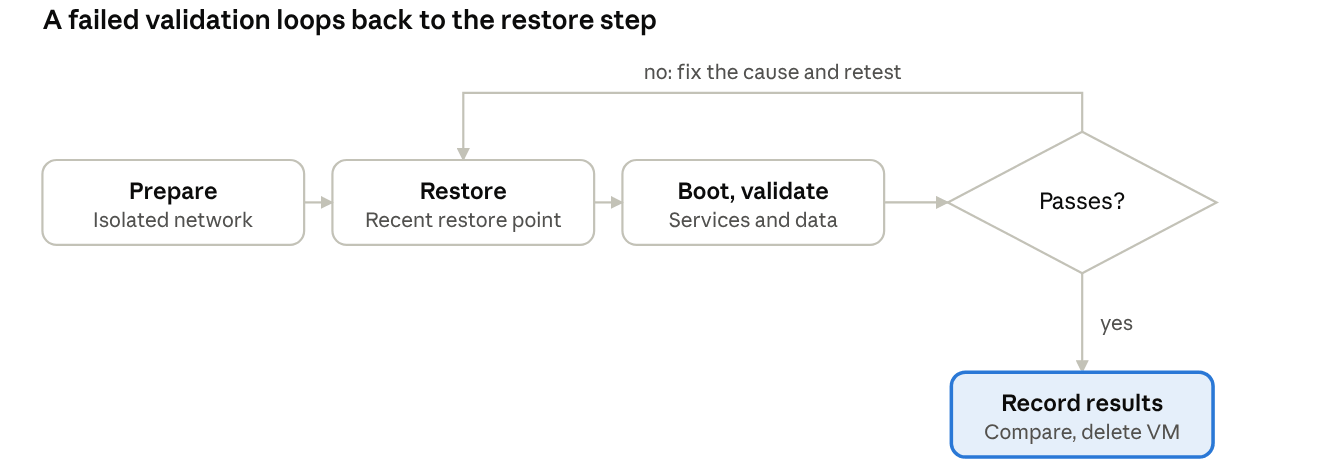
A passing test ends with recorded results and a clean-up; a failing one returns to the restore step once the cause is fixed.
How Often to Test and What to Sample
The CISA StopRansomware Guide advises organizations to regularly test the availability and integrity of backups, and the same applies to every VM backup you rely on. The right frequency depends on how critical the workload is.
Set a Schedule by Tier
The table shows an illustrative schedule; adjust it to your own risk and RTO.
| Workload tier | Integrity check | Isolated restore and boot | Application validation | Full failover |
|---|
| Critical | Every backup | Monthly | Quarterly | Yearly |
| Standard | Every backup | Quarterly | Yearly | Optional |
| Low priority | Weekly | Twice a year | Not needed | Not needed |
Sample Large Estates
Testing every VM every month is rarely practical. Rotate through the estate so that each VM is covered over a cycle, and choose a different restore point each time. Always include the VMs with the tightest RTO.
Retest After Changes
Run a fresh test after any change that could affect recovery: a new backup job, a hypervisor or storage upgrade, a change of backup target, or a major application update. A passing result from last quarter says little about a changed environment.
Automate Recovery Testing with Vinchin
Manual tests are easy to postpone, which is why Vinchin Backup & Recovery verifies backups automatically. It covers three layers, from the integrity of the data to the security of the backup to the recoverability of the system.
Why Automate Backup Verification
Automation lets you test more VMs, more often, and leaves a report as evidence for audits. It also removes the scheduling problem: the checks run whether or not anyone remembers to start them.
Integrity Verification and Security Scanning
Backup data verification checks the integrity of backup data for any backup type, and integrity verification is on by default when it is enabled on the source backup job. For full-system backups, you can also scan the backup data for viruses inside an isolated environment, using third-party antivirus tools. Virus scanning is off by default, so you turn it on when you need it.
Full Recoverability Verification
For whole physical or virtual systems, Vinchin builds a network-isolated virtual rehearsal environment from an application group, a virtual lab and an isolated network, then starts the backed-up VM there through instant recovery. It checks whether the VM boots, has network connectivity and can be recovered, using Ping, Heartbeat and Screenshot checks with a configurable verification time.
Automatic and Manual Verification
Automatic verification runs on a schedule, once or daily, weekly or monthly, against the latest or specified backups, and combines the results into a verification report. Manual verification lets you sample specific backups on a verification host. The reports are visual, can be emailed and use customizable templates.
| Layer | What it checks | How it runs |
|---|
| Data | Integrity of backup data | On by default when enabled on the backup job |
| Security | Malware in backup data of full-system backups | Optional, off by default, in an isolated environment |
| Business | Boot, network connectivity and recoverability | Automatic on a schedule, or manual sampling |
Don't wait for a real outage to find out whether your backups work. Try Vinchin Backup & Recovery free for 60 days and let automated verification prove that your VM backups are recoverable.
FAQ
Q1: What is application validation, and why is it more thorough than just booting a VM?
A1: Booting confirms the OS loads, while application validation verifies logins, queries and business logic work. It confirms your restored data is transactionally consistent.
Q2: What risks come with testing VM restores in the production network?
A2: Restored VMs may conflict with live DNS, IP addresses or database locks. Always run recovery validation inside an isolated sandbox environment.
Q3: What common hidden issues pass integrity checks but break VM restore?
A3: Corrupted guest tools, missing disk snapshots, inconsistent database logs and invalid VM hardware configurations often slip past basic integrity scans.
Q4: What Should I Check After a Test Restore?
A4: Confirm that the VM boots, the network and guest tools respond, services start, the application works and the newest data is present. Then record the restore time and compare it with your RTO.
Conclusion
Only a restore proves that a backup works. A completed job confirms that data was written, but integrity checks, isolated restores and application validation show whether the VM can actually return to service. Match the depth of each test to how critical the workload is, and measure every restore against your RTO and RPO.
Start small: pick one critical VM, restore it into an isolated environment, validate the application and record the result. Fix whatever fails, then widen the schedule across your tiers and retest after every major change, so recoverability is something you have measured rather than assumed.