Why Traditional VM Recovery Takes So Long
A traditional restore cannot hand the VM back until all of its data has been copied to production storage, and for a multi-terabyte VM that copy can take hours. Even when the restore is fully automated, the business sees the same thing: an application that stays down while gigabytes of data move across the network.
The process follows five steps: locate the backup, extract the data, transfer it to production storage, register the VM, and power it on. The transfer is where the time goes, for three reasons:
Data volume: the restore copies every block of every disk, including blocks the VM will not read for hours.
Network bandwidth: the transfer can only run as fast as the slowest link between the repository and the host.
Storage I/O: the target datastore must absorb the whole write stream while other workloads keep running.
Until the transfer finishes, the VM normally cannot start. That raises a simple question: can a VM run before its data has been copied? Instant VM recovery answers yes, and NFS mounting is how many implementations do it. In effect, it trades a long wait for a short one: the VM starts first and the data catches up afterwards. Our guide on recovering a VM without waiting for a full restore covers the practical steps; this article explains the mechanism underneath.
What Is NFS Mounting in VM Recovery?
NFS, the Network File System, lets one machine use a directory that another machine shares over the network, as if the directory were local. The protocol is defined in public standards such as RFC 7530, which specifies NFS version 4. A few terms come up repeatedly in instant recovery:
| Term | Meaning in VM recovery |
|---|
| NFS server | The machine that shares storage. In instant recovery, this is the backup repository or backup server |
| NFS export (share) | The directory the server publishes over the network |
| NFS client | The machine that uses the share. Here, the hypervisor host |
| NFS mounting | Attaching the share to the client so it appears as local storage |
| NFS datastore | A mounted NFS share that the hypervisor uses to hold VM files |
Hypervisors are built to accept this kind of storage. ESXi, for example, has a built-in NFS client that mounts a volume from a NAS server over TCP/IP. It supports NFS versions 3 and 4.1, and an NFS datastore can hold virtual machines (VMware documentation). To the hypervisor, an NFS datastore is simply storage, which is why NFS mounting works with a backup repository that was never designed as VM storage.
The protocol version matters to administrators. According to VMware, NFS 4.1 adds server-side locking, multipathing through session trunking and Kerberos security, while NFS 3 uses client-side locking and does not support multipathing. A datastore cannot be mounted with both versions at once, so the version should be a deliberate choice.
Backup software takes advantage of this. It does not restore the VM at this stage. Instead, it publishes the virtual disks held inside a backup as files on an NFS share, so the host sees them as ordinary disk files.
The key point: NFS does not recover anything by itself. It gives the hypervisor a direct path to the backup data.
How NFS Mounting Enables Instant VM Recovery
In VMware instant recovery, four things happen in order: the backup is exposed over NFS, a VM is created from it, the VM starts, and its new writes are redirected. The diagram below shows the whole path, and the four steps follow it.
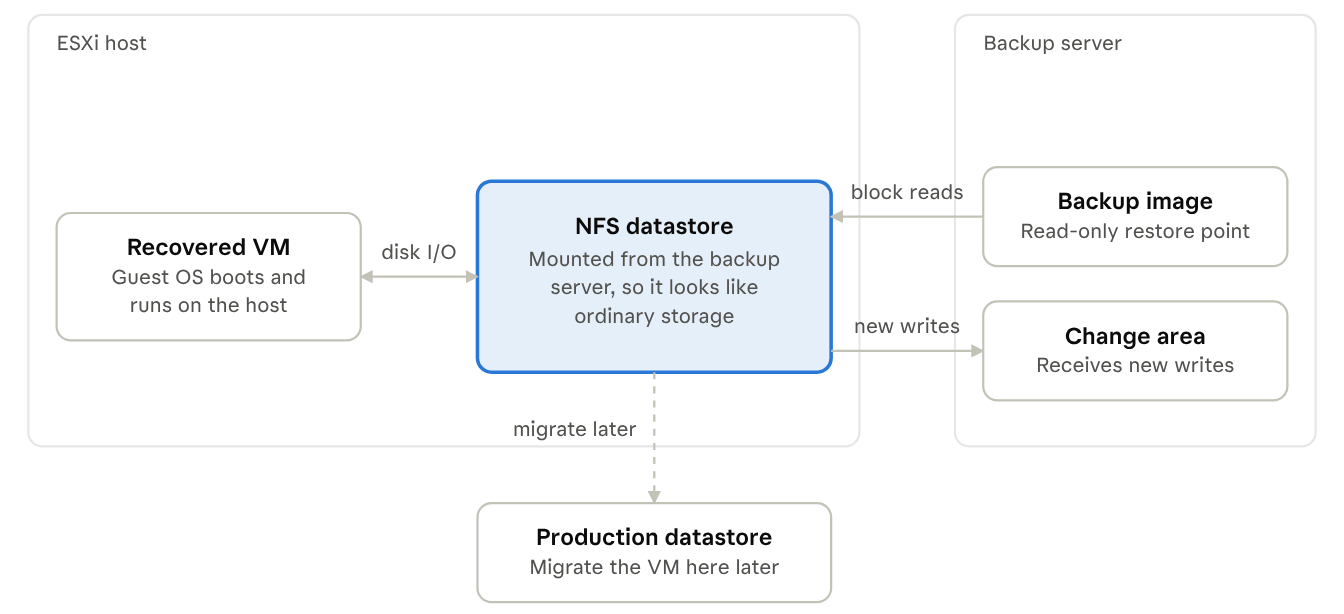
Behind the datastore, the backup server keeps the read-only backup and the change area apart. The host reads VM blocks from the backup and sends writes to the change area, and both paths run through the same NFS datastore, so the VM regards it as ordinary storage.
Reads flow from the read-only backup into the NFS datastore, new writes flow to a separate change area, and the production datastore is where the VM ends up after migration.
Exposing Backup Data Through NFS
The backup software finds the chosen VM backup image and publishes its virtual disks through an NFS export. The ESXi host then performs the NFS mounting, and a new NFS datastore appears in vSphere. No VMDK file is copied to a production datastore first.
In VMware instant recovery, this step replaces the copy: the backup repository is mounted to the target VMware host as an NFS datastore, and the mount address must be reachable from that host.
Creating a VM From the Mounted Backup
The hypervisor reads the VM files through the NFS datastore and registers the recovered VM. It associates the virtual disks, configuration and metadata, and allocates the resources the VM needs to start. VM name, vCPUs, memory and networking can be adjusted at this point.
Starting the VM Before Full Data Restoration
The guest operating system boots by reading blocks on demand through the datastore, rather than waiting for the whole disk to arrive. In practice, an instant restore job usually reaches the running state within seconds to a minute, though exact timing depends on the product and its storage.
The VM is ready to use once the job shows it as running. Because the guest reads through NFS, performance at this stage depends on the repository and the network, a point covered under Performance Considerations and Limitations below.
Redirecting Write Operations
The original backup stays read-only, so new writes cannot go there. They are redirected to a separate area, which products call a write cache, a redo log, or temporary storage.
Reads and writes are therefore served from different places. Implementations differ between vendors, so this is not a standard shared by every NFS-based product. Where that area lives and how large it can grow are design choices, so check them in your product's documentation before relying on it.
Why No Data Has to Move First
A common misunderstanding is that instant recovery is just a faster copy. It is not a copy at all: the VM starts while its data remains in the backup repository. Three core properties explain why instant VM recovery does not require an upfront full data transfer:
The host gains access, not a copy. NFS mounting provides the hypervisor direct access to backup files, just like a regular datastore. No pre-transfer is required before the VM is registered.
Block-level reads are on-demand. The VM only fetches the specific blocks it requests over the network. Boot time depends on mount and registration, not total disk capacity; unused blocks remain in the backup repository until needed.
The base backup remains unchanged. The backup is kept read-only. All new writes are directed to a separate layer, protecting the original recovery point from modification by the running VM.
Because untouched data is never transferred upfront, instant recovery creates no initial write pressure on production storage. This lets small VMs and multi‑terabyte VMs boot in comparable time, though actual performance is governed by your storage and network. For operational advice on running this safely, see our best practices for instant VM recovery.
Preparing for an Instant Recovery Before an Outage
Instant recovery works best when a few things are settled in advance. Check these in a test, not for the first time during an outage:
A reachable mount address. The host must be able to reach the address that exports the backup. If your product lets you choose the mount IP, pick one that the target host can reach, and confirm it in advance.
A target host with spare capacity. The recovered VM runs on the host's CPU and memory, so the host needs room for it.
Credentials for encrypted backups. If the backup is encrypted, the restore needs its encryption password.
Compatible targets. If you plan to restore to a different virtualization platform, check driver compatibility and any cross-platform licensing first.
Safety options. If your product supports pre-start checks such as virus scanning or integrity verification, configure them in advance so the recovered VM comes up clean.
What Happens After the VM Is Back Online?
Running from backup is a bridge, not a destination. The VM still reads unmigrated data through the network from backup storage, so the data has to reach production storage eventually. Instant VM recovery restores availability first and finishes the data movement in the background.
During the run, new writes sit in the change area while older data sits in the backup. Migration has to merge the two. This is the read/write consolidation step: the original data is copied to production storage first, then new and changed data, and finally the cached changes are synced so nothing written during the run is lost.
Migrate to production storage. In VMware environments with a suitable license, Storage vMotion can move a running VM's configuration file and virtual disks to another datastore. Backup software can also run its own migration from the instant restore job, ideally outside business hours.
Choose how to finish. Completion can be manual or automatic:
| Completion mode | What happens | When it fits |
|---|
| Manual | Changes are synced periodically, and you decide when to switch over | You need a planned cutover window |
| Automatic | The instant VM is powered off and the final changes are moved | A short, unattended switchover is acceptable |
NFS datastore. Then stop the job, which deletes the instant VM, unmounts the NFS datastore and clears the changed data from the repository. The order matters: stopping the job before migrating discards everything written since the VM started.
NFS-Based Instant Recovery vs. Traditional VM Restore
The two approaches differ in order of operations, not only in speed:
| Comparison | Traditional restore | NFS-based instant recovery |
|---|
| Initial data transfer | Required before startup | Not required before startup |
| VM startup | After data restoration | Before full migration |
| Data access while running | Production storage | NFS-mounted backup storage |
| Write operations | Production storage | Separate write layer, depending on implementation |
| Full data migration | Part of the initial restore | Continues after startup |
| Service availability | Delayed until the copy ends | Available much earlier |
The table describes a different path, not a fixed speed-up. Instant recovery changes when the VM starts and shifts the data movement to the background. It does not remove the need to move data, and the total effort can be similar. What changes is that users get the service back first.
In VMware instant recovery, for example, an NFS datastore backed by the repository appears in vSphere while the VM runs, which makes the dependency easy to see. There is also a cost: instant VM recovery uses backup storage as live storage for a while, while a traditional restore uses it only as a source.
Performance Considerations and Limitations
Instant recovery shortens the initial wait, but storage and network quality still matter. Plan for these points:
Network bandwidth and latency: while the VM runs, unmigrated data is still read over the network.
Backup storage performance: the repository now serves the VM's read requests, including random I/O.
Concurrent recoveries: several VMs running at once add load to the NFS server and the repository.
Write cache capacity: the temporary area must hold all changes made while the VM runs.
Environment compatibility: NFS connectivity, hypervisor support, storage configuration and available resources all affect recovery.
Do not unmount the datastore: unmounting the NFS datastore while the VM runs takes it offline.
Avoid snapshots and disk edits: snapshots or virtual disk changes on the instant VM can crash it and lose the new data it has written.
Monitor datastore latency and repository load during the run, since these numbers show early whether the VM is starved of reads. Treat the running VM as temporary. The sooner you migrate it, the sooner it stops depending on backup storage and network paths.
FAQ
Q1: Does NFS instant recovery impact VM performance?
A1: It adds latency because storage traffic runs across the network to the backup repo. Performance improves once background data migration finishes.
Q2: Can the NFS instant recovery VM run indefinitely?
A2: Not recommended long-term. It relies on backup storage and network links; you should complete migration to production storage.
Q3: Can I test application functionality with an NFS instant recovered VM?
A3: Yes. You can validate applications and data integrity immediately before final cutover and migration.
Q4: Is the original backup file modified when I run an NFS instant recovery VM?
A4: No. The base backup stays read-only. All runtime changes are captured in independent delta files.
Final Thoughts
In short, instant VM recovery is less about copying faster and more about changing when the copy has to finish. Three ideas sum up the mechanism. NFS mounting lets the hypervisor reach VM data directly in the backup. On-demand reads let the VM start without waiting for a full copy. Background migration and write consolidation then bring the VM back to normal production storage.
If you want to see instant VM recovery in your own environment, you can download Vinchin Backup & Recovery for a 60-day free trial and try an instant restore on a non-critical VM first.