As workloads grow, older Hyper-V hosts may on longer provide enough performance, capacity, and reliability to support production environments efficiently. In such case, administrators migrate Hyper-V VMs to improve disaster recovery abilities, reduce downtime risks, or consolidate resources into newer data centers or clusters.
To ensure the VM data and configurations remain consistent after the move, a secure and reliable migration method is essentially needed. In this article, we listed five main ways to migrate Hyper-V VM to another host with step-by-step guidelines.
Benefits of Hyper-V VM migration
Migrating Hyper-V virtual machines provides several important benefits for virtualized environments.
First, it helps optimize resource utilization by moving VMs away from overloaded hosts to servers with available CPU, memory, and storage resources, which can improve VM performance and overall infrastructure efficiency.
By moving VMs to another host, organizations can maintain business continuity and minimize service downtime while performing maintenance tasks safely.
In hybrid virtualization environments, Hyper-V VM migration enables greater platform flexibility. For example, organizations may migrate workloads from Hyper-V to VMware to meet changing infrastructure requirements or support multi-platform virtualization strategies.
In disaster recovery scenarios, migrating or restoring VMs to healthy hosts helps rapidly recover business services after unexpected server failures or downtime events. Regular VM backups further improve recovery reliability and reduce data loss risks.
Additionally, VM migration and cloning simplify application deployment. When the same application or service is needed on another host, cloning or moving an existing VM provides a much faster solution than rebuilding the environment from scratch.
How to choose the right Hyper-V VM migration method
In practice, choosing the right Hyper-V VM migration method mainly depends on downtime tolerance, infrastructure readiness, and long-term operational requirements. Here we list an overview of the best use cases of each migration method.
If business continuity is critical and the environment meets the required hardware, network, and authentication conditions, Live Migration is the best option because it minimizes downtime. However, it requires more complex configuration and infrastructure support.
If downtime is acceptable or live migration requirements are not available, moving a powered-off VM with Hyper-V Manager or using export and import is simpler. Cold migration is suitable for similar environments, while export and import provides an additional safety layer and standalone VM copy.
For environments with multiple hosts or repetitive migration tasks, PowerShell migration offers better automation and scalability, but it requires command-line knowledge and proper permission settings.
If compatibility, cross-platform migration, or recovery reliability is a concern, migration based on backup is a more flexible solution because it combines workload migration with data protection and recovery capabilities.
Method 1. Hyper-V Live Migration (Without Shared Storage)
Live migration is the feature wanted by every IT administrator. It moves VM to another host while doesn't require shutting down the guest operating system or export the VM, greatlyly reducing downtime.
Hyper-V supports live migration on Windows Server 2008 R2 and later versions. It requires failover cluster setup (physically connecting servers), similar or the same hardware and software configuration (for compatibility ), fixed IP addresses, etc. before live migration.
In Windows Server 2016 and later versions, failover cluster is not required but more software layer configuration is required.
If you are interested in this, refer to the post How to Perform Hyper-V Live Migration.
Method 2. Migrate Hyper-V VM with Hyper-V manager
Hyper-V Manager is often used in Hyper-V virtual environment management. If you haven’t done the configuration for live migration, just use Hyper-V manager to directly migrate VM when it is powered off.
Add the destination server:
Open Hyper-V Manager > right-click Hyper-V Manager (above the host name) > select Connect to Server > add the destination server and source server
Migrate Hyper-V VM:
Right-click the VM you would like to migrate > select Move > follow the Move Wizard to migrate the whole VM or just storage to another location
Method 3. Export and Import Hyper-V VM
Exporting would let you get all the files of the Hyper-V VM including data, snapshots, and configurations. After importing the VM to another host, you still keep the VM export as a kind of backup. Hyper-V Manager is still the tool used in this method.
The steps to export Hyper-V VM:
In Hyper-V Manager, right-click the VM on the source host > select Export > specify the destination to store the VM export > click Export
Steps to Import Hyper-V VM:
In Hyper-V Manager, right-click the destination host > select Import VM > follow the wizard to import the VM with the VM extract
P.S. You can also export Hyper-V snapshot to create new VM.
Method 4. Move Hyper-V VM to another host via PowerShell
Microsoft PowerShell could also be used to migrate Hyper-V VM.
To move VM to a remote server when the virtual machine is stored on an SMB share, type the command below:
Move-VM -Name "Test VM" -DestinationHost remoteServer
There is also a post on Exporting and Importing Hyper-V VM via PowerShell.
Method 5. Migrate Hyper-V VM to another host with Vinchin Backup & Recovery
Is there a way to migrate Hyper-V VM while VM data is systematically protected simultaneously? Absolutely yes! Enterprise solutions like Vinchin Backup & Recovery enables secure VM backup while performing reliable migration. It supports Hyper-V environments such as 2012, 2012 R2, 2016, 2019, and later versions, and also provides V2V migration capabilities across different platforms.
Utilizing data encryption transmission technology, Vinchin ensures data security and integrity throughout the entire migration process to reduce risks of data loss or service disruption. And it simplifies backup and migration tasks with a unified web console, allowing for centralized management and monitoring of backup jobs. Moreover, it minimizes manual intervention with automated workflows to improve consistency and efficiency.
In Vinchin, it’s hassle-free to migrate Hyper-V to another host. Backup the source Hyper-V and restore data to the target host and finally achieving a migration task.
Take Hyper-V to VMware Migration as an example:
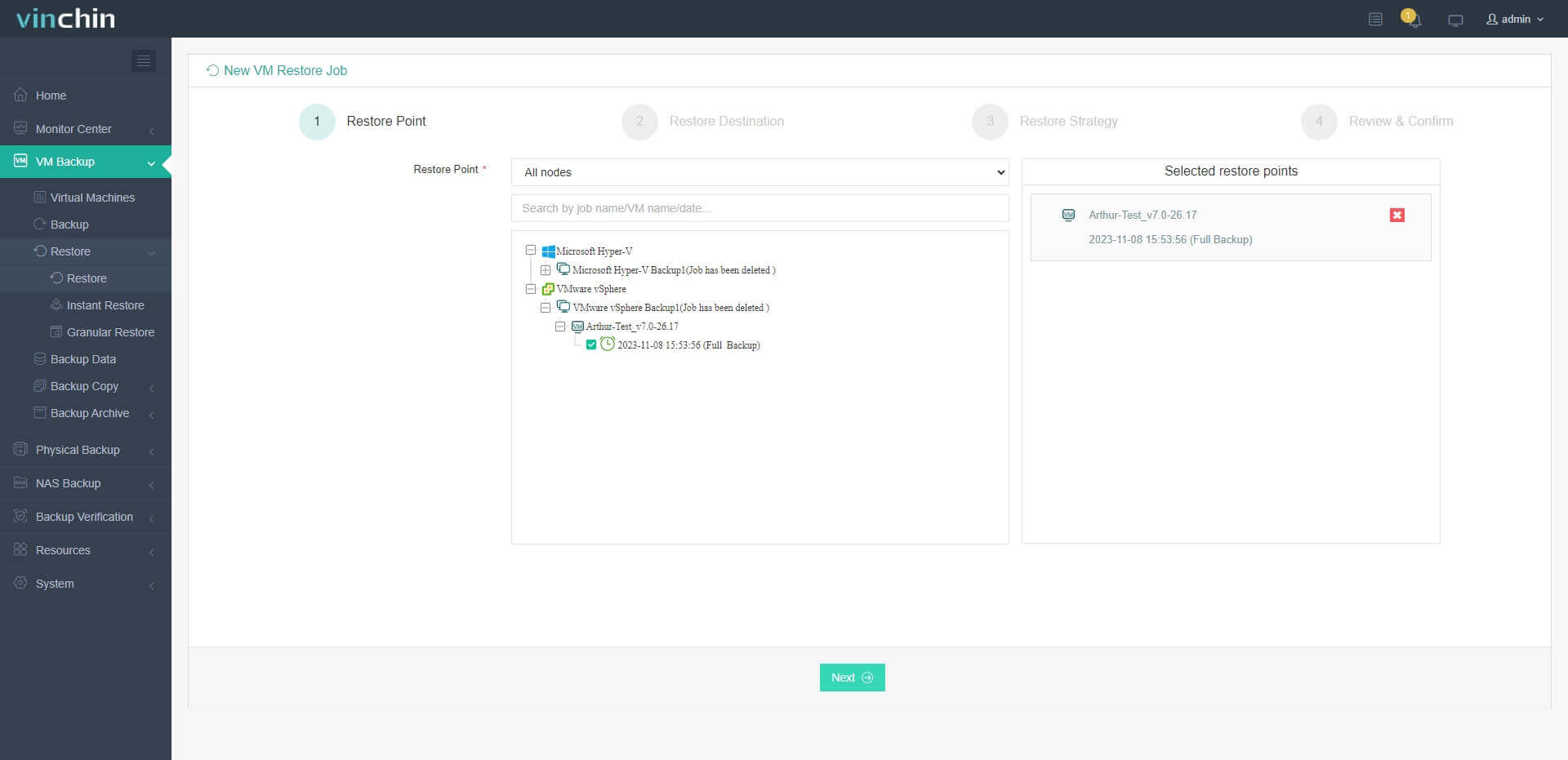
1. Navigate to VM Backup>Restore, and select the Hyper-V host you backed up just now from the expanded list.
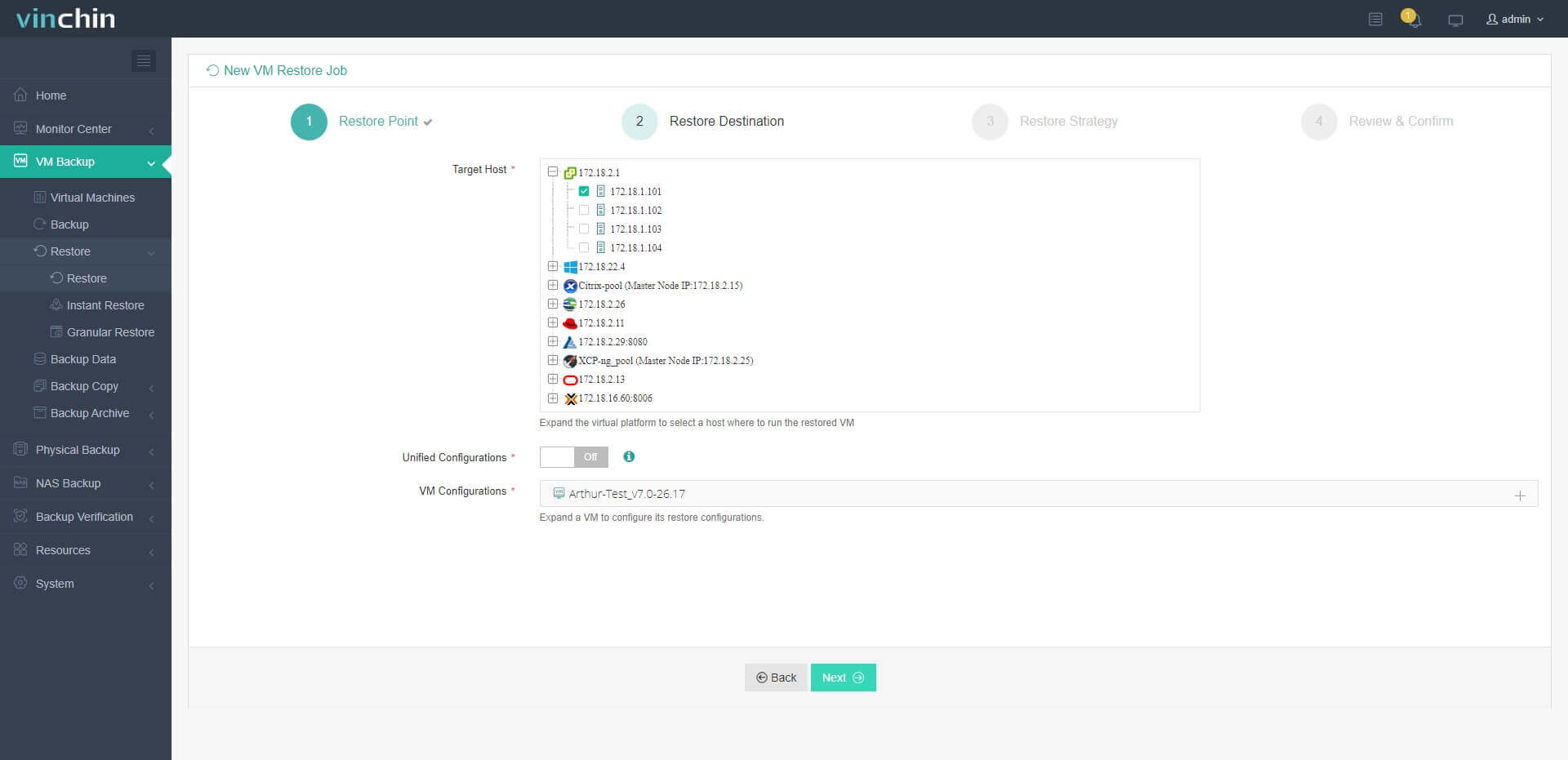
2. Then, select a VMware host as the restore destination.
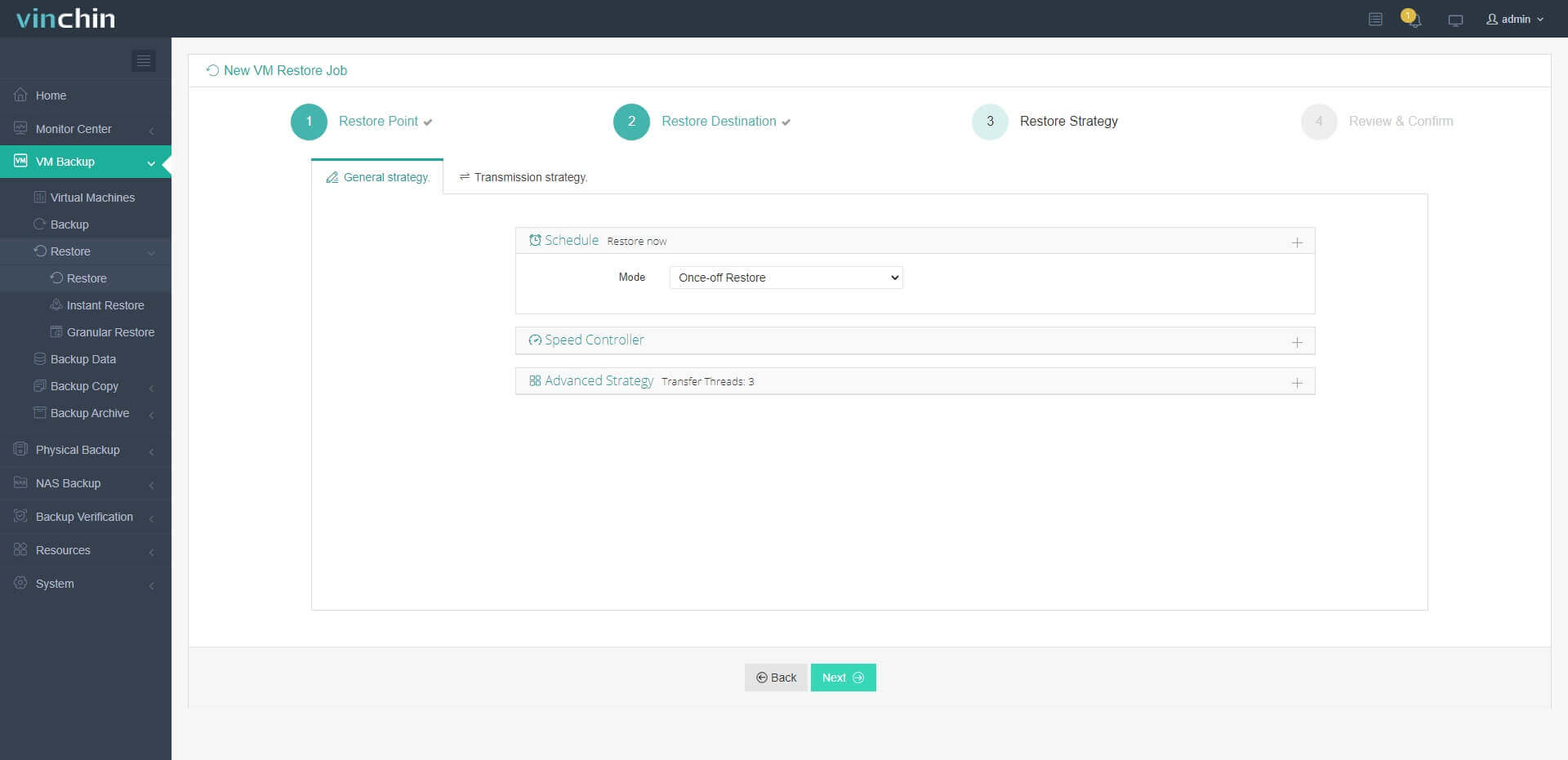
3. Configure the restore strategy; either to run the task immediately or schedule it. You can also customize any migration or throttling policies.
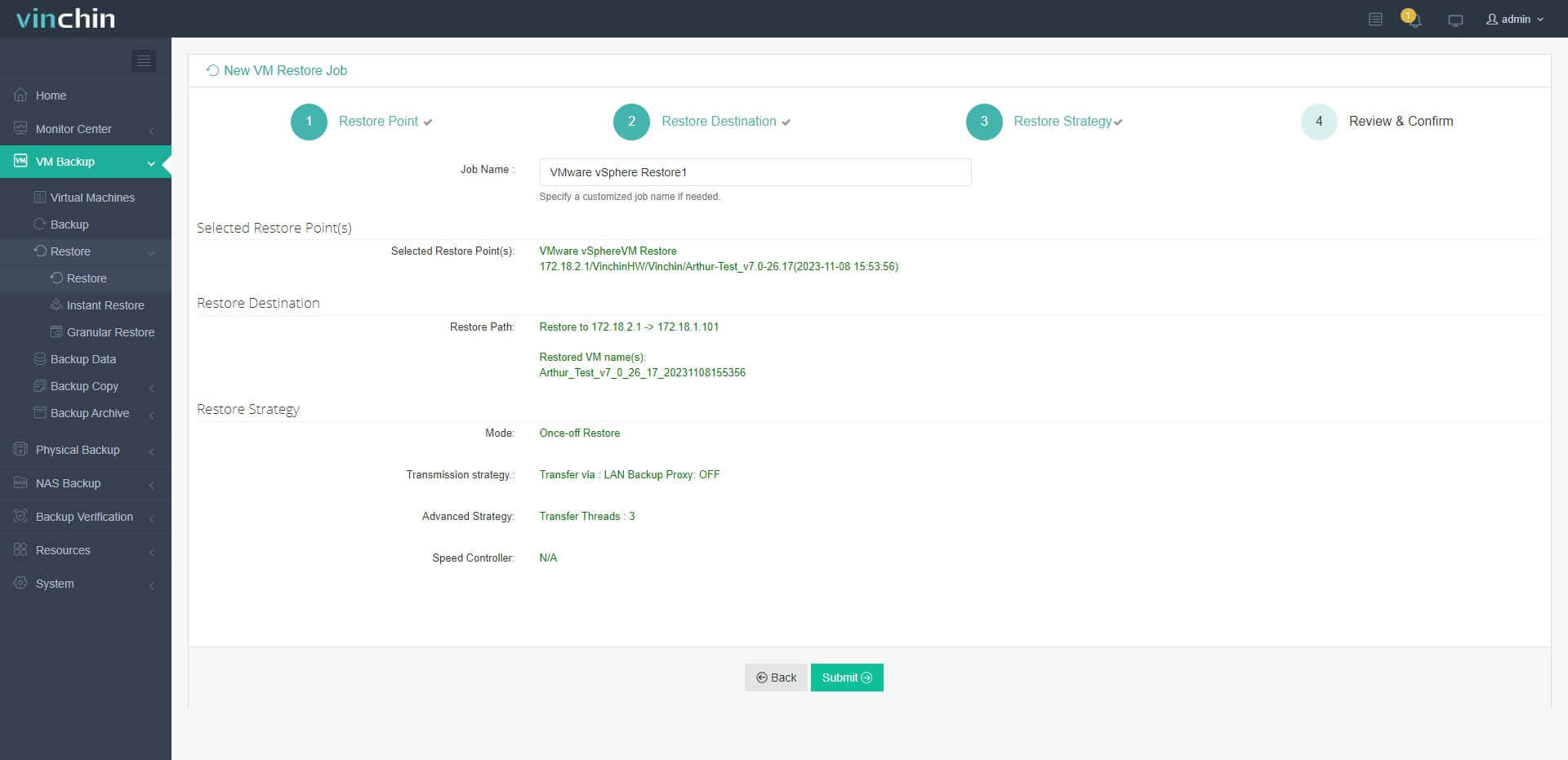
4. Finally, name the job, check all the details, and click Submit to let the migration task start.
Vinchin Backup & Recovery has been selected by thousands of companies and you can also start a 60-day full-featured free trial here. Also, contact us, leave your requirements, and then you will receive your tailored solution. We have established partnerships with reputable companies all over the world so if you would like to do a local business, you can select a local partner here.
Move Hyper-V VM to another host FAQs
1. What is the easiest way to move Hyper-V VM to another host?
Every method introduced in this post is very easy to execute and Hyper-V Manager. Hyper-V live migration by command seems to be the easiest way but it requires configuration before that. You can use Vinchin Backup & Recovery to protect Hyper-V workloads and easily perform VM migration even to another virtualization platform.
2. Can you move a VM to a host with a different version of Hyper-V?
There could be compatibility issue if you use a Microsoft’s solution. Using Vinchin Backup & Recovery can help solve the issue.
3. Can you move a Hyper-V VM to a non-Hype-V platform?
Yes. Vinchin Backup & Recovery can help easily migrate VM from Hyper-V to another virtualization platform like VMware, Proxmox, oVirt, OLVM, etc.
Sum Up
Hyper-V VM migration is a useful skill to improve the work of IT environment. In this post, there are 5 methods to help you move Hyper-V VM to another Hyper-V host including live migration, cold migration, directly exporting and importing, typing PowerShell command, and migrating Hyper-V VM with VM backup with Vinchin Backup & Recovery.
Vinchin Backup & Recovery could not only help systematically backup Hyper-V VM, but also migrate VM with that backup. Don't miss out on the free trial.