Managing virtual machines across different clouds can feel overwhelming for IT teams. As organizations shift toward hybrid and multi-cloud environments, complexity increases fast. How do you stay in control, keep systems secure, and avoid wasting money? VMware Aria is designed to help solve these challenges with a unified approach.
What Is VMware Aria?
VMware Aria is an intelligent platform for managing applications, infrastructure, and services across private, hybrid, and public clouds from one place. It builds on VMware’s vRealize Cloud Management foundation but adds even more power through integration.
The main components of VMware Aria include:
VMware Aria Automation (which includes Orchestrator for custom workflows): Automates delivery and management of IT services so you can provision resources quickly.
VMware Aria Operations: Monitors performance, provides analytics, and helps optimize your entire stack—from infrastructure up to applications.
VMware Aria Cost: Tracks cloud spending so you can manage budgets better.
VMware Aria Operations for Logs and Networks: Gives deep visibility into logs and network traffic for issue resolution.
At the heart of this suite is VMware Aria Hub, which offers a single view of your entire multi-cloud environment. It uses VMware Aria Graph, a scalable data store that maps resources along with their relationships—making it easier to understand dependencies when changes happen.
You can get VMware Aria as part of VMware Cloud Foundatvmwareion or use it alongside major public clouds like AWS, Azure, or Google Cloud.
Why Choose VMware Aria?
Why do so many organizations choose VMware Aria? The answer lies in its ability to simplify complex cloud environments while boosting efficiency at every stage.
First off is unified management—you control all your clouds from one platform instead of juggling multiple tools. This saves time right away because everything you need sits behind one login screen.
Automation comes next. With built-in automation features such as provisioning VMs or running compliance checks automatically, routine tasks become faster—and less prone to human error.
Cost optimization matters too. VMware Aria gives full visibility into how much each resource costs across all clouds; built-in analytics help you right-size workloads so nothing goes unused or over-provisioned.
Security stays front-and-center thanks to policy enforcement across every environment—private or public cloud alike. Risks are detected early; misconfigurations get flagged before they cause trouble.
Finally comes scalability: whether you run just a few servers or thousands worldwide, VMware Aria grows with you using flexible licensing models—on-premises deployment options exist alongside SaaS or hybrid setups.
How to Manage Virtual Machines with VMware Aria
Managing virtual machines (VMs) in VMware Aria is straightforward, whether using the interface or APIs for scripting. It balances simplicity with powerful functionality. Start by logging into either the VMware Aria Automation console or VMware Aria Operations dashboard, depending on your task.
To provision a new VM: Open the Service Catalog in Aria Automation, select your template, fill in required details, and click Request. The system automatically allocates resources and applies admin-set policies.
For ongoing monitoring (Aria Operations): View real-time metrics (CPU, memory, disk I/O) per VM or grouped by your team’s needs.
You can follow the steps below:
1. First, view live performance stats;
2. Then analyze capacity trends and get rightsizing recommendations;
3. Next, set alerts for CPU/memory spikes;
4. track compliance/security status via dashboards;
5. Finally, create custom dashboards to monitor VM compliance with your security or cost policies.
For automation: Use Aria Automation’s built-in Orchestrator workflow tools (drag-and-drop) to automate actions like IP assignment after provisioning or configuration updates triggered by events (e.g., patch cycles).
Advanced users can use REST APIs to create/update/delete VMs programmatically, integrate with other tools via Python/PowerShell scripts, and scale operations efficiently.
Policy-based governance: Define access permissions, set quotas per department/team/project, and enforce consistent security rules—preventing mistakes and simplifying audits.
Example: Automating a VM Lifecycle Workflow with Orchestrator
Let’s walk through automating a common workflow—a process many admins want streamlined:
Suppose you need every new VM provisioned from a specific template also added automatically into your company’s security group plus have certain software installed right away:
1. Open the Orchestrator designer inside Aria Automation;
2. Drag out steps: Provision VM > Install Software Package > Add VM To Security Group;
3. Configure each step by selecting templates/software/security group names from dropdowns;
4. Link steps together visually so they execute in order;
5. Save workflow then test it using sample inputs provided by Orchestrator UI.
This approach means no manual intervention after clicking Request—the whole lifecycle runs hands-free until completion notification arrives!
Common VMware Aria Configuration Best Practices
Getting started with VMware Aria works best when following proven practices used by experienced operations teams worldwide:
Use tags generously! Assign tags based on project name/cost center/application type so reporting becomes easy later, and cost allocation stays transparent during budget reviews.
Set up approval workflows within Service Catalog requests; this ensures only authorized personnel spin up costly resources while maintaining audit trails for compliance checks down the road.
Enable proactive alerting, not just default thresholds but also custom alerts tied directly back into ticketing systems if possible, to catch resource contention issues before end-users notice slowdowns!
Regularly review role-based access controls (RBAC); make sure permissions match current org structure rather than legacy setups left over from past projects that no longer exist today.
How to Back Up Virtual Machines Managed by VMware Aria Using Vinchin?
When protecting virtual machines in VMware environments, including those managed with VMware Aria, it’s essential to choose a reliable, enterprise-ready backup solution that supports diverse platforms.
Vinchin Backup & Recovery provides comprehensive protection for VMware and over 15 other platforms such as Hyper-V and Proxmox VE. It offers key features like forever incremental backup, granular recovery, cross-platform V2V migration, and efficient deduplication and compression to reduce storage and transfer costs. Built-in encryption and ransomware protection further ensure data security and business continuity in large-scale environments.
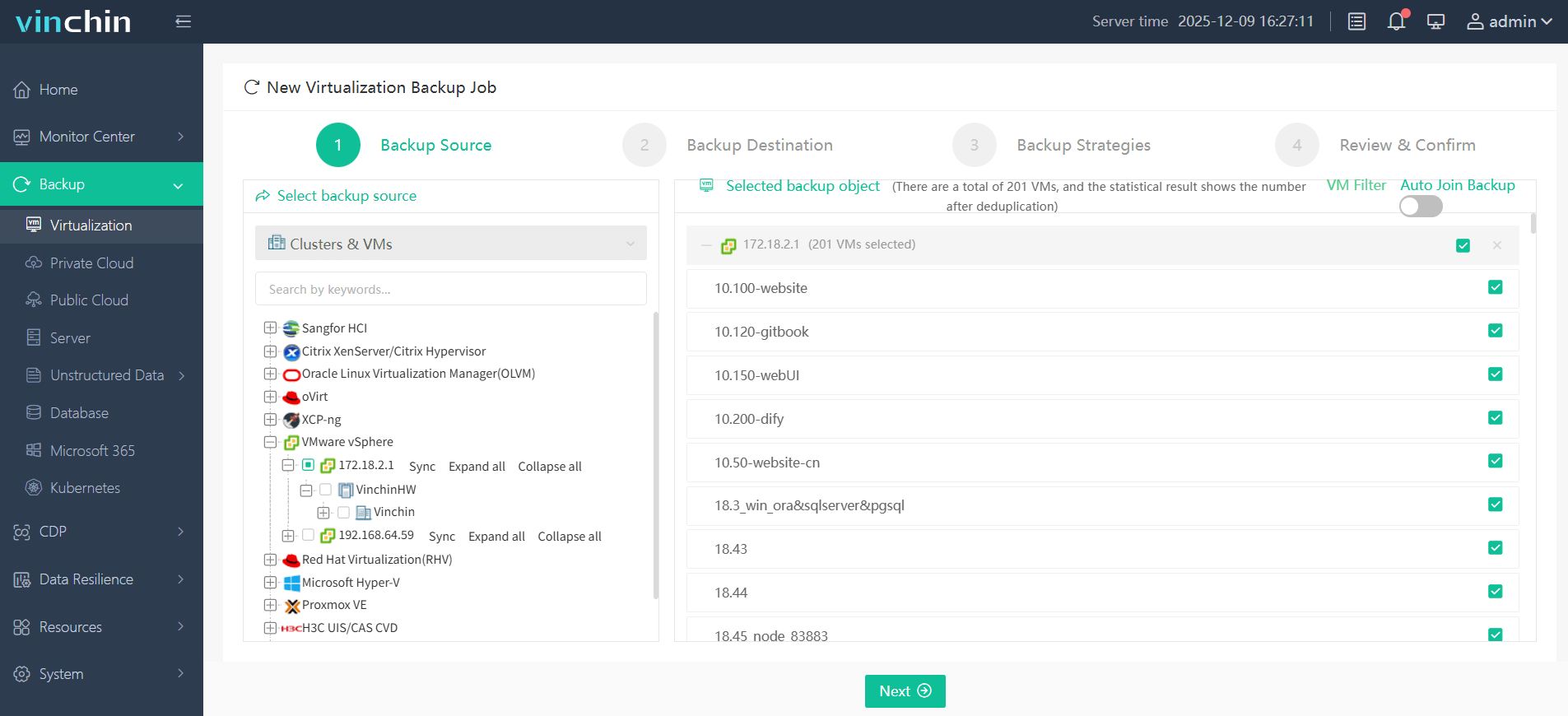
With its intuitive web console interface, backing up a VMware virtual machine managed by VMware Aria involves just four clear steps:
Step 1: Select the VMware VM to back up
Step 2: Choose backup storage

Step 3: Configure backup strategy
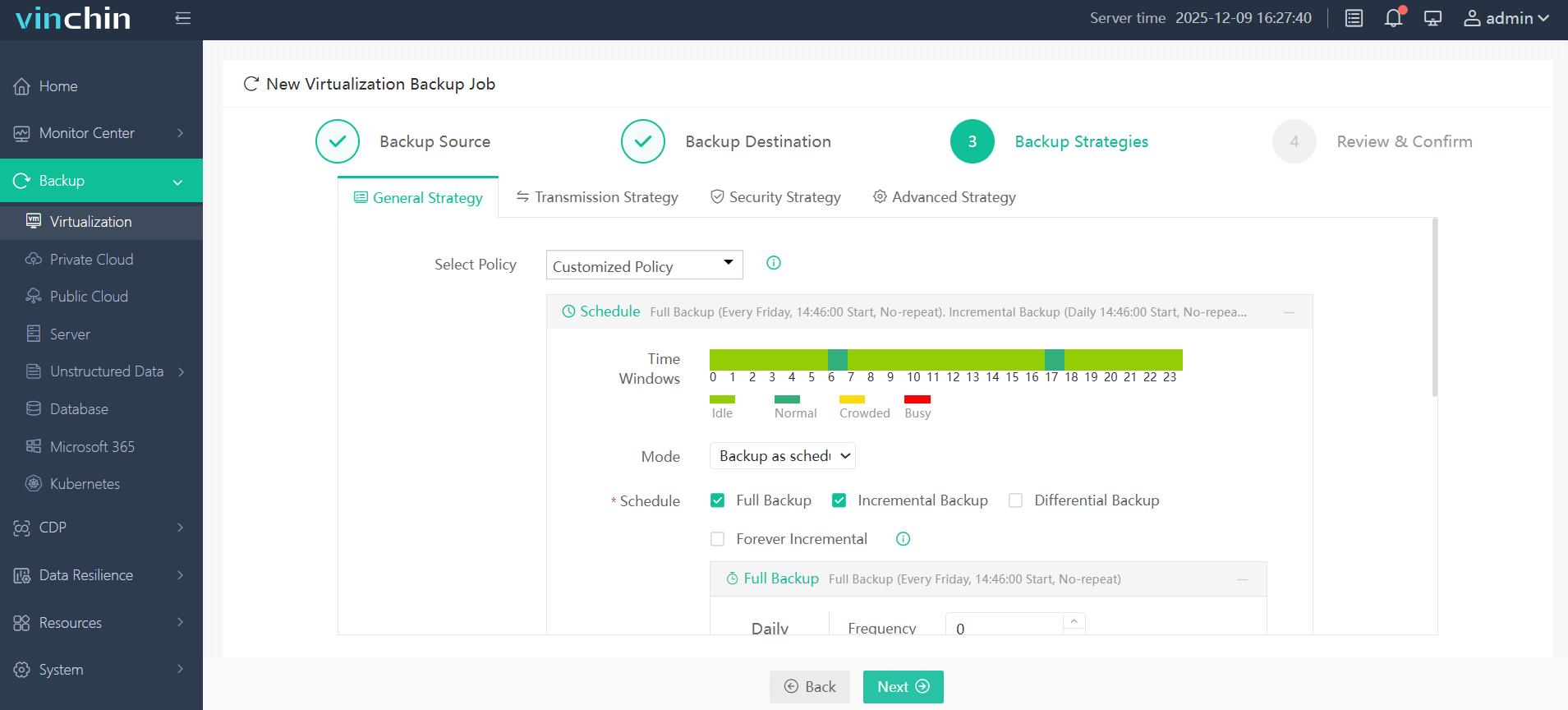
Step 4: Submit the job
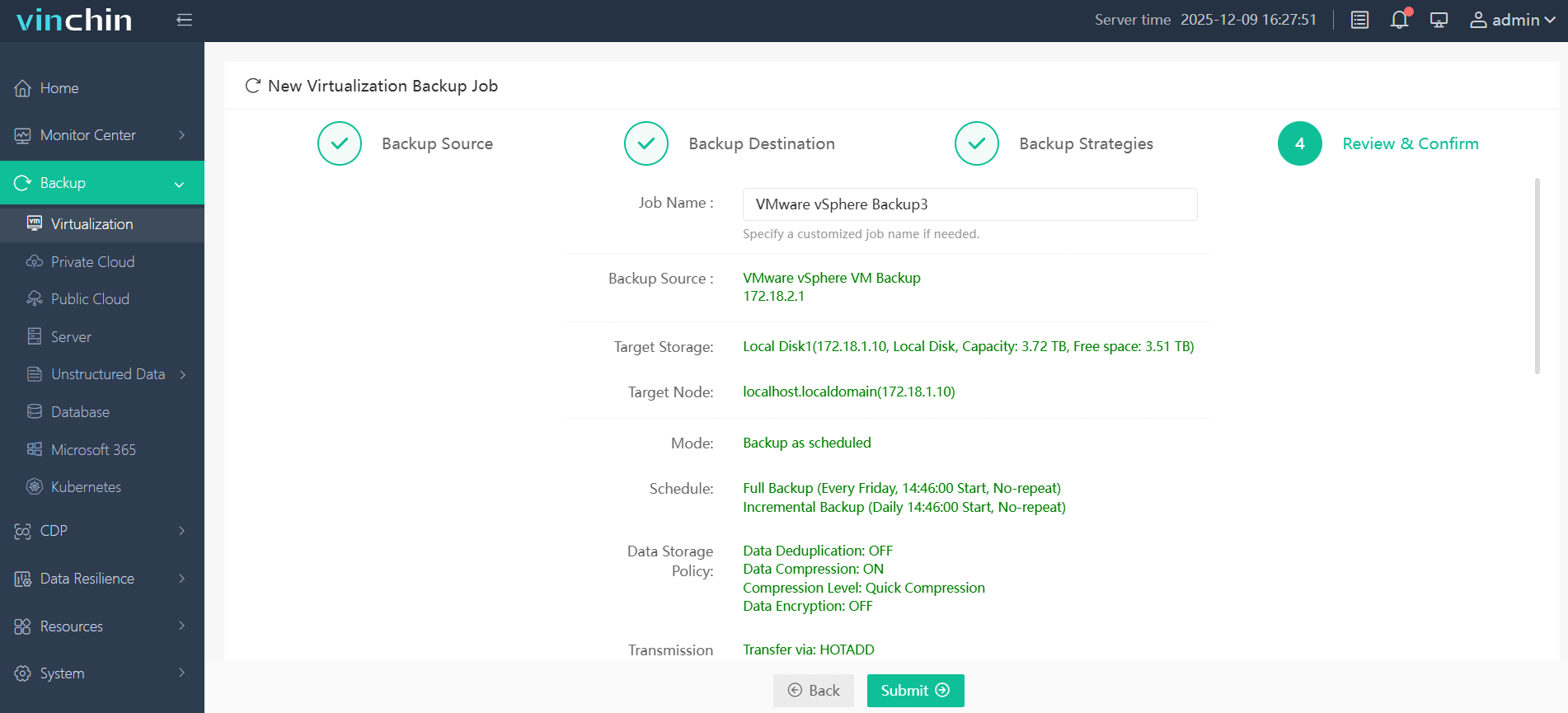
With a few steps, you can backup VMware virtual machines securely and fast to ensure your bisuness continuity.
Recognized globally among enterprise customers for reliability and innovation—with top industry ratings—Vinchin Backup & Recovery offers a 60-day full-featured free trial so you can experience its benefits firsthand; click below to download now!
VMware Aria FAQs
Q1: Can I integrate VMware Aria directly with AWS/Azure/GCP accounts?
Yes; VMware Aria supports direct integration allowing unified cross-cloud management from central hub interface anytime needed anywhere globally deployed assets reside now!
Q2: How do I automate provisioning new VMs using service catalog?
Open SERVICE CATALOG inside ARIA AUTOMATION > select template desired > fill required fields > click REQUEST button start automated build process instantly!
Q3: What’s fastest way monitor live performance stats specific virtual machine?
Launch ARIA OPERATIONS dashboard > select target VM listed left pane > view real-time metrics/custom dashboards top-right area immediately!
Conclusion
VMware Aria brings clarity, simplicity, and security to multi-cloud management—transforming what was once a landscape filled with confusion, risk, and inefficiency. For reliable backup, choose Vinchin, which offers an advanced feature set, ease of operation, and global support, delivering unmatched value to every customer.