Learn about Proxmox Virtual Desktop Infrastructure (VDI)
Proxmox VDI (Virtual Desktop Infrastructure) is a desktop virtualization solution built on the open-source Proxmox VE (Virtual Environment) platform. It allows administrators to centrally deploy and manage multiple virtual desktops on data center servers, providing users with a consistent desktop experience via remote access.
Instead of installing operating systems and applications directly on physical PCs, users connect remotely to virtual desktops running inside the Proxmox cluster.
A typical Proxmox VDI environment includes:
Proxmox VE nodes
Shared or distributed storage
Windows or Linux desktop VMs
Remote display protocols such as SPICE or RDP
Authentication and access control
Backup and disaster recovery solutions
Why Choose Proxmox VDI
Open-source and free: Proxmox is a powerful open-source platform that eliminates expensive licensing costs, making it ideal for budget-conscious businesses and educational institutions.
Centralized management: All virtual desktops are hosted centrally, allowing for unified configuration, security control, and maintenance.
Flexible resource allocation: Resources can be dynamically allocated based on user needs, improving overall server efficiency.
Remote access: Users can access their virtual desktops from anywhere with a network connection, enabling flexible and remote work.
Compatible with SPICE/QXL protocols: Delivers a smooth remote desktop experience through graphic acceleration technologies.
Deploy Proxmox VDI Step-by-Step
Step 1: Install Proxmox Virtualization Platform
Install the Proxmox virtualization platform on your host machine. Refer to the official documentation for the installation process.
Step 2: Configure Network and Storage
Configure the network and storage resources in Proxmox to ensure that virtual machines can access the network and storage properly.
Step 3: Create Virtual Machines
Create virtual machines using Proxmox's web interface or command-line tools, and configure the virtual machine's hardware resources and settings.
Step 4: Install the Operating System on the Virtual Machine
Install the operating system on the created virtual machine. You can use an ISO image file or deploy from existing OS templates.
Step 5: Configure VDI Desktop Virtualization
Enable VDI desktop virtualization on Proxmox by running the following commands:
# Enable VDI desktop virtualization
pvesh set /pools/{pool}/config --vga qxl
# Add VDI storage
qm set {vmid} --ide2 {storage}:ISO/iso
# Enable VDI graphics acceleration
qm set {vmid} --vga qxl
# Install VDI Agent
# Follow the official documentation to install the appropriate VDI Agent for optimizing virtual desktop performance
SPICE vs RDP in Proxmox VDI
A common question in Proxmox VDI projects is whether to use SPICE or RDP.
SPICE Advantages
SPICE is deeply integrated with Proxmox and offers:
It is often preferred for:
RDP Advantages
RDP remains popular because:
It performs well over WAN
Windows natively supports it
User session management is mature
Multi-session workflows are easier
Many organizations use:
SPICE for management
RDP for end-user access
Ensuring Data Protection for your Proxmox VDI environment
While deploying a Proxmox-based VDI environment can significantly enhance IT efficiency and flexibility, data protection and business continuity remain critical concerns. Virtual desktops, like any other workloads, are susceptible to data loss due to hardware failure, system crashes, or user errors.
To safeguard your Proxmox virtual machines and ensure fast recovery in case of an incident, it’s important to implement a reliable backup strategy. This is where Vinchin Backup & Recovery comes in—a professional and efficient backup solution that offers full support for Proxmox VE environments, including:
Proxmox VE 7.2, 7.4, 8.0, 8.1, and 8.2
Automatic VM Backups: Schedule and automate VM backups to ensure the protection of your Proxmox VE environment.
Flexible Backup Scheduling Options: Customize backup frequency and retention policies to fit your business requirements.
Agentless Backup: Quick installation with minimal resource consumption and lower maintenance costs.
LAN-free Backup: Data is transferred directly via SAN, avoiding any consumption of your production network.
Powerful CBT Alternatives: Boost the speed of incremental VM backups in Proxmox VE environments with efficient Changed Block Tracking (CBT).
Instant VM Recovery: Achieve an RTO (Recovery Time Objective) as low as 15 seconds by running VMs directly from backups.
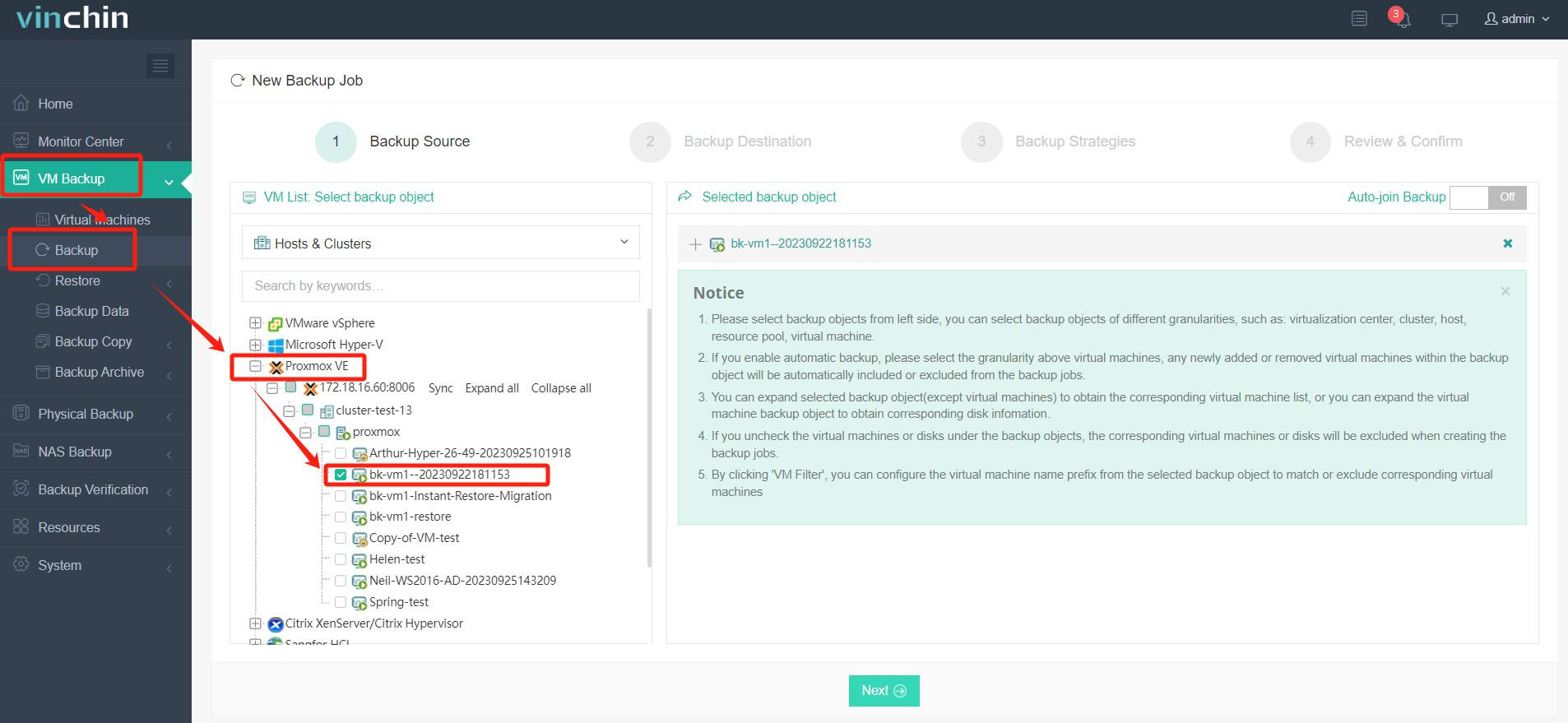
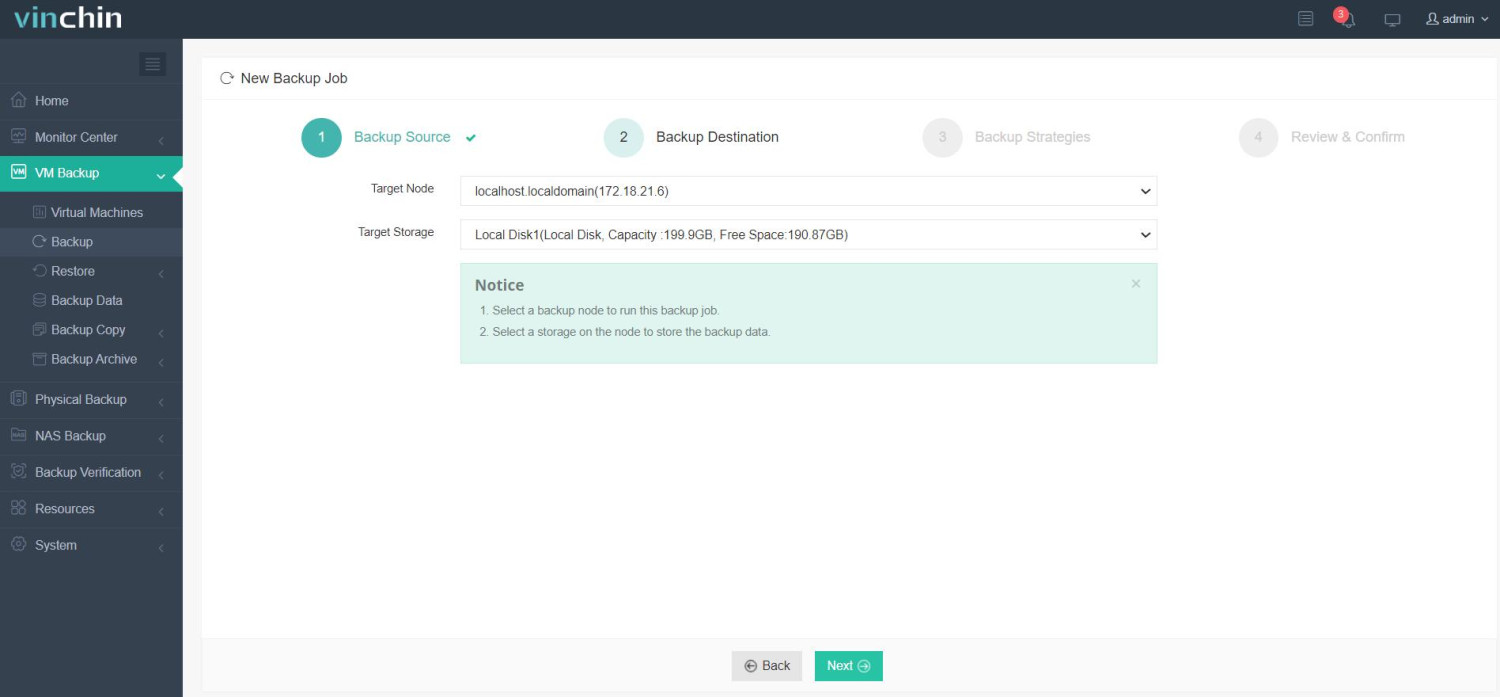
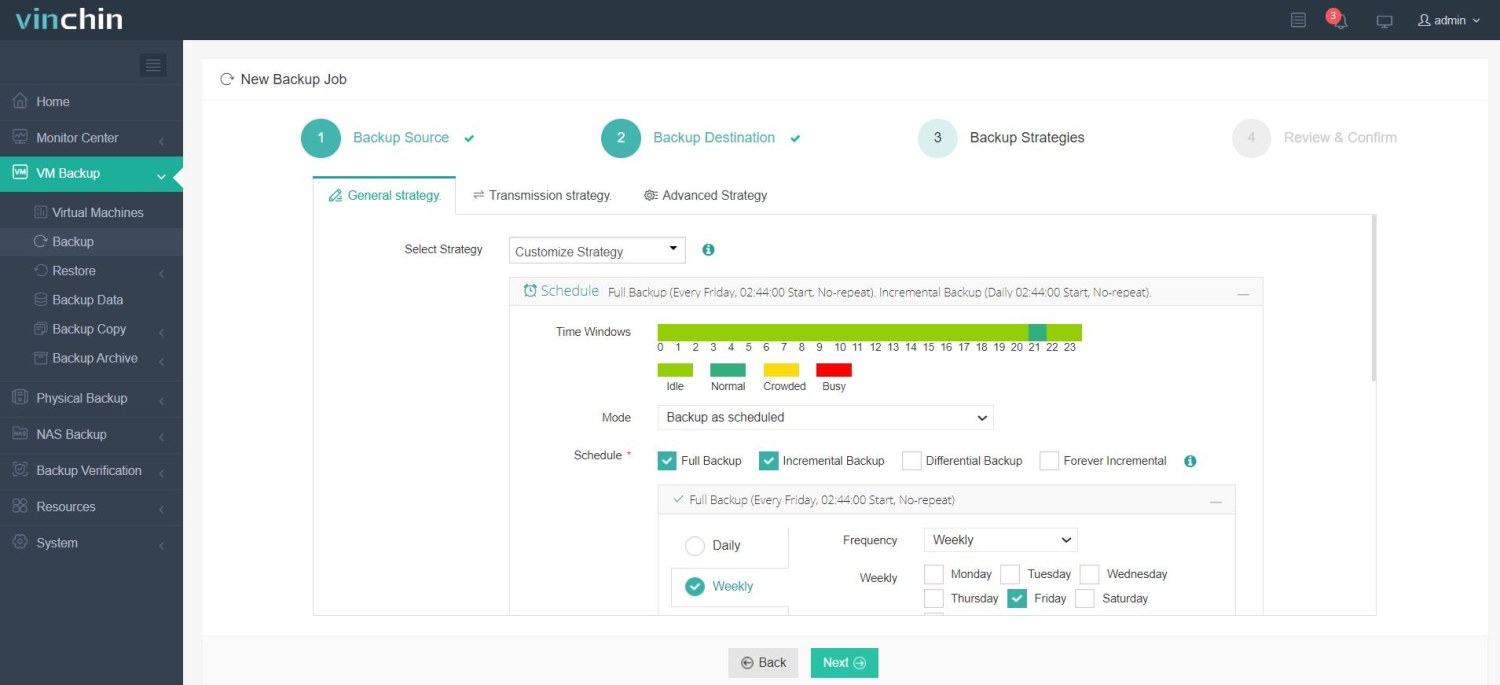
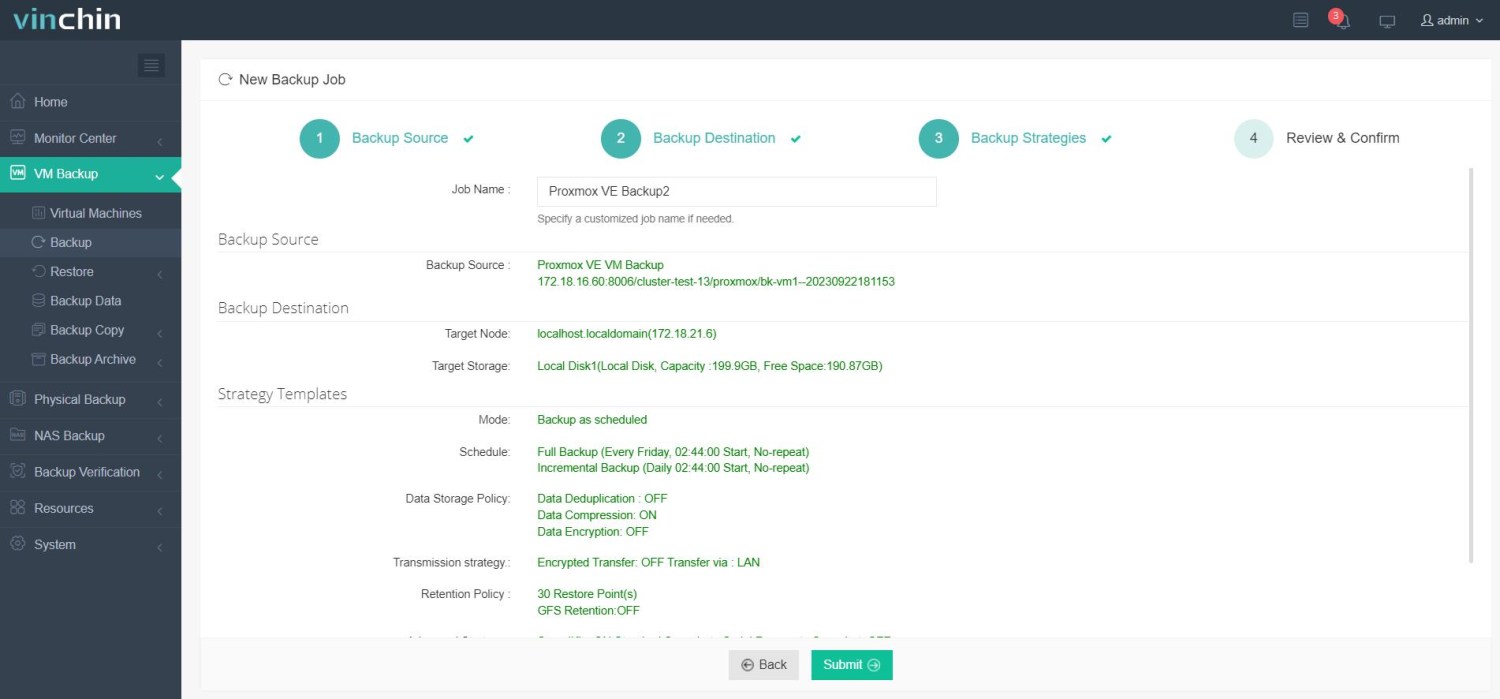
Vinchin Backup & Recovery's operation is very simple, just a few simple steps.
1.Just select VMs on the host
2.Then select backup destination
3.Select strategies
4.Finally submit the job
By implementing Vinchin Backup & Recovery for your Proxmox VE infrastructure, you can ensure robust protection and rapid recovery of your virtual machines, helping you maintain business continuity and minimize downtime. Vinchin offers a free 60-day trial for users to experience the functionality in a real-world environment. For more information, please contact Vinchin directly
Proxmox Virtual Desktop Infrastructure FAQs
Q1: What client devices does Proxmox VDI support?
A1: Proxmox VDI can support a wide range of client devices, including traditional PCs, thin clients, tablets and even smartphones, as long as these devices can run the supported remote desktop client software.
Q2: What is the performance of Proxmox VDI?
A2: Performance depends on a number of factors, including the hardware configuration of the physical server, network conditions, and the number of virtual desktops running at the same time. Proper resource allocation and optimization can ensure a good user experience.
Q3: What storage is best for Proxmox VDI?
A3: High-performance storage such as NVMe, ZFS, or Ceph is commonly recommended because VDI workloads generate high random I/O activity.
Conclusion
In conclusion, Proxmox VDI provides a cost-effective and flexible desktop virtualization solution, while Vinchin Backup & Recovery ensures robust data protection for Proxmox VE environments, enabling rapid recovery and business continuity through automated, agentless, and efficient backup strategies.