Introduction
Are you searching for a reliable way to back up your Proxmox virtual machines using your Synology NAS? Many IT administrators want a solution that is scalable, cost-effective, and easy to manage. By combining Proxmox Backup Server with Synology NFS storage, you can create a robust backup system that meets these needs. This guide provides clear steps based on proven best practices so you can integrate Proxmox Backup Server with Synology NFS as your backup repository.
What Is Proxmox Backup Server?
Proxmox Backup Server is an open-source tool designed for backing up virtual environments managed by Proxmox VE. It supports both virtual machines (VMs) and containers, offering features like deduplication, incremental backups, data integrity verification, and fast restores.
What Is Synology NFS Storage?
Synology NAS devices provide network-attached storage that can be shared using NFS (Network File System). This allows Linux systems like Proxmox Backup Server to mount remote storage as if it were local.
Benefits of Proxmox Backup Server with Synology NFS
Simplicity: Easy setup via Synology UI
Reliability: Stable hardware/software ecosystem
Scalability: Expand storage easily
Centralization: Manage all backups in one place
Advanced Features: Snapshot replication for extra protection
Step-by-Step to Set Up Synology NFS for Proxmox Backups
1. Create Shared Folder (Synology)
2. Enable NFS
3. Configure NFS Permissions
4. Configure PBS Server
sudo apt update

sudo apt install nfs-common


mkdir /mnt/synology

chown backup:backup /mnt/synology

chmod 775 /mnt/synology
Add to /etc/fstab:
10.13.2.230:/volume1/pbs /mnt/synology nfs

vers=3,nouser,atime,auto,retrans=2,rw,dev,exec 0 0
Mount:
sudo mount -a
Verify:
mount | grep synology

df -h /mnt/synology
Test:
touch /mnt/synology/testfile.txt

rm /mnt/synology/testfile.txt
5. Add Datastore in PBS
Troubleshooting Common Issues
Connection errors: Check firewall (ports 111, 2049)
Permission issues: Verify squash = no mapping
Slow performance: Tune rsize/wsize
Logs:
Linux: /var/log/syslog
DSM: Log Center
How Does Vinchin Back Up Proxmox Virtual Machines?
While Proxmox Backup Server with Synology NFS is a solid and cost-effective solution, it does come with some limitations, especially around cross-platform support, centralized management, and advanced recovery options in more complex environments.
For organizations, needs more flexibility features, third-party solutions can be worth considering. So, Vinchin Backup & Recovery provides enterprise-level backup for Proxmox and other platforms (VMware, Hyper-V, XenServer, etc.).
Key Features:
Workflow:
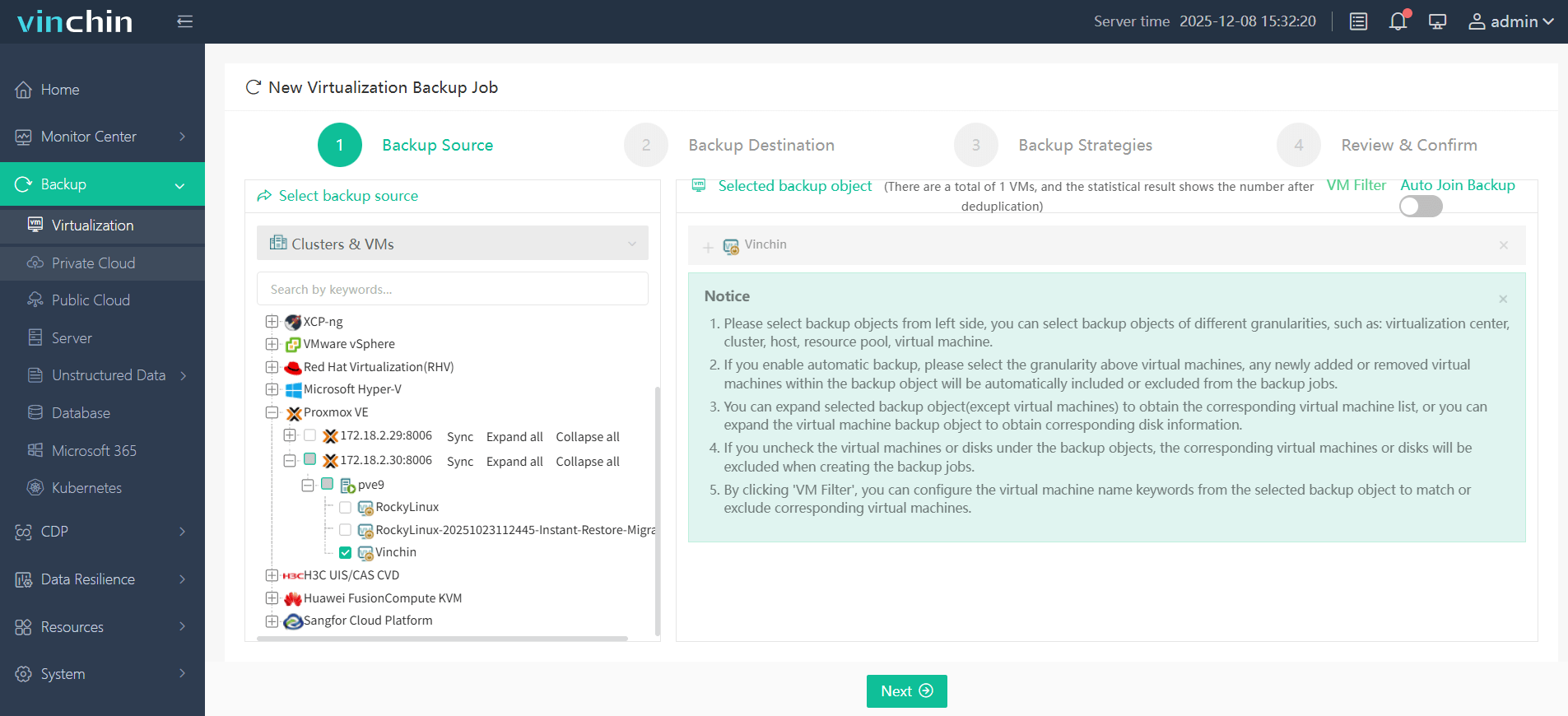
1. Select the Proxmox VM you want to backup
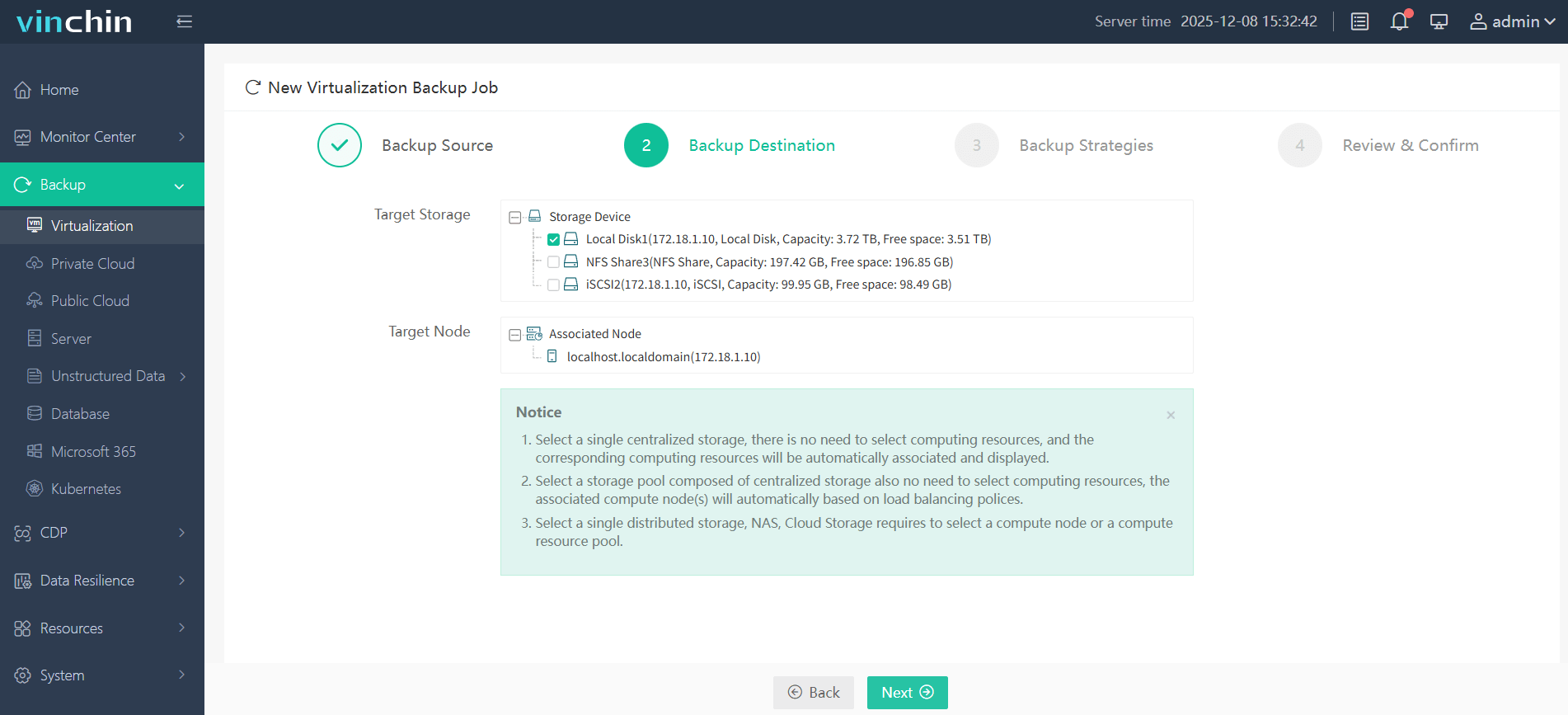
2. Choose the target backup storage
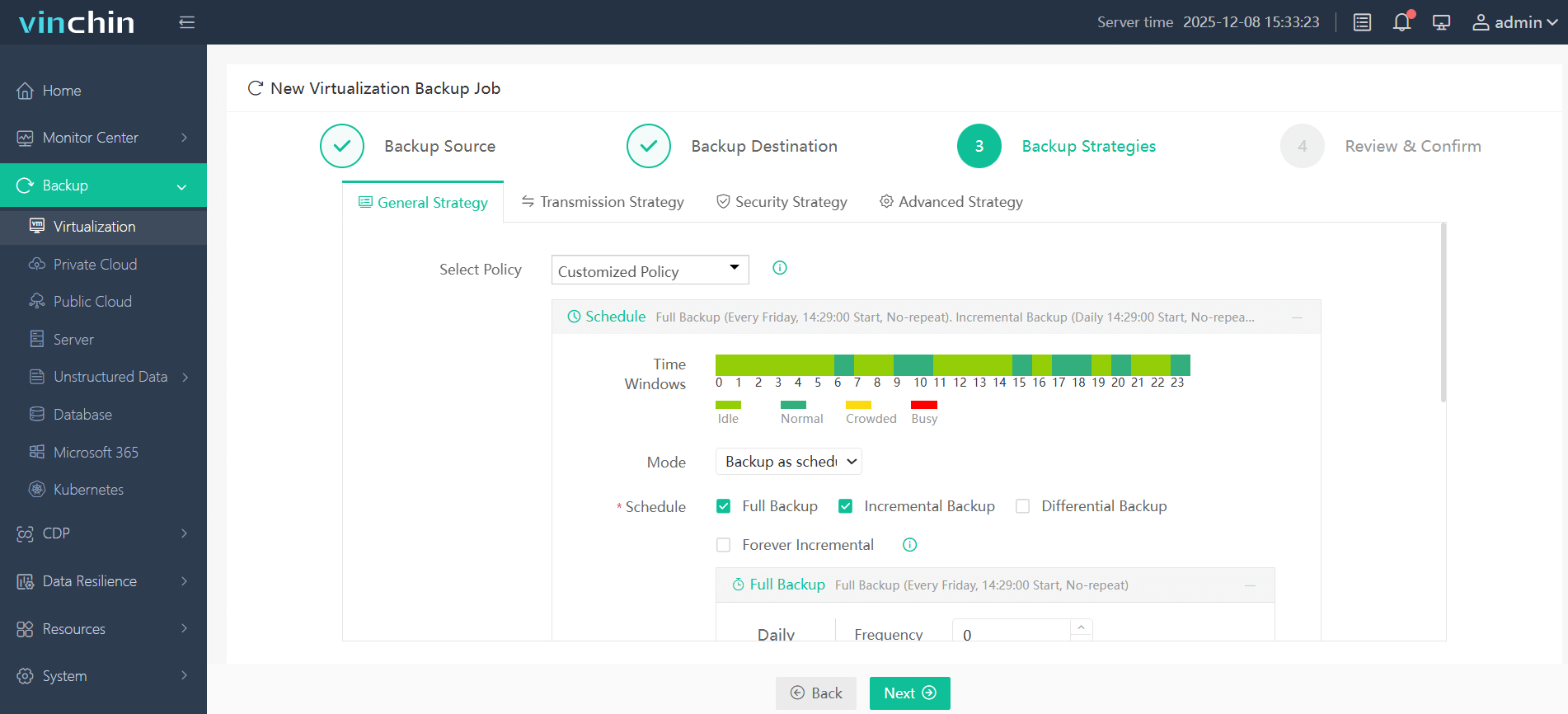
3. Configure a suitable strategy based on business
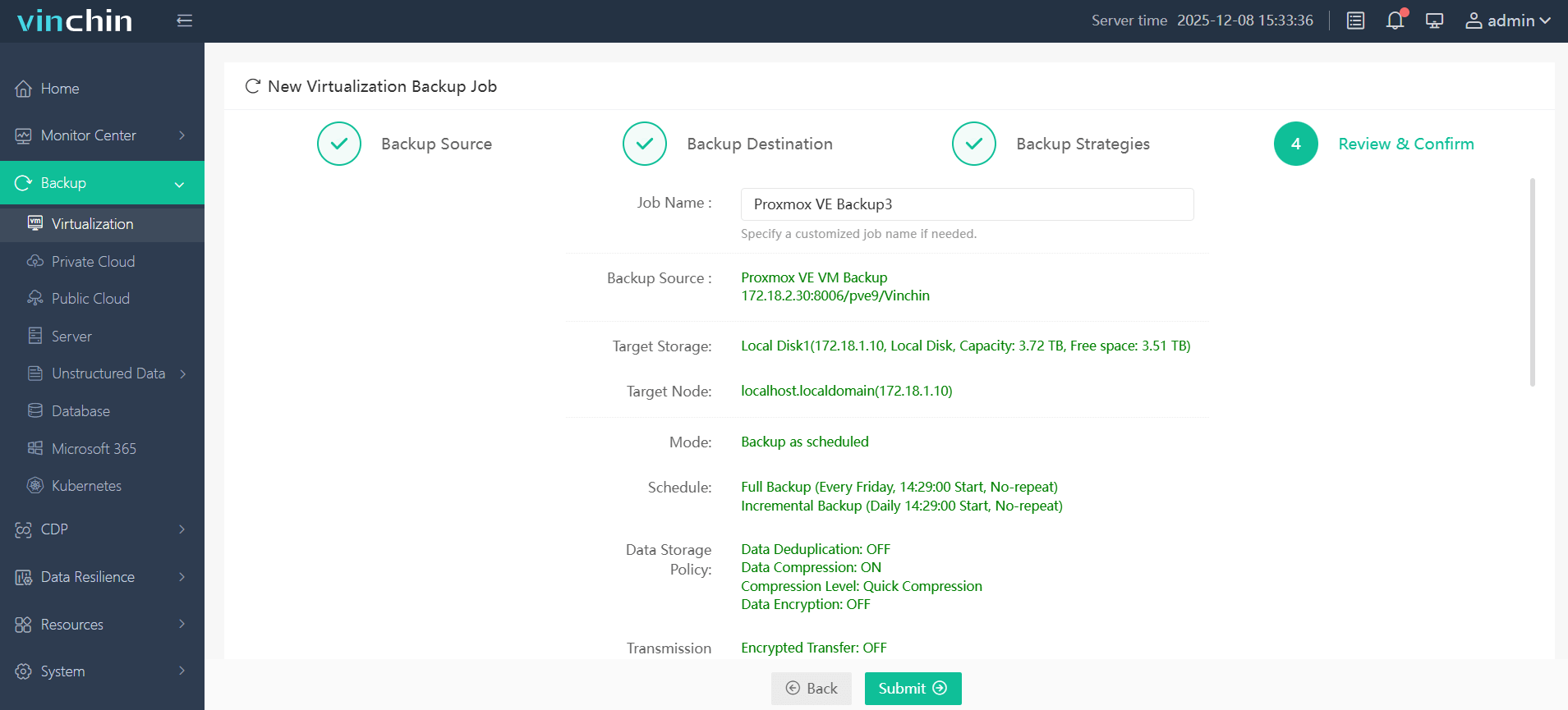
4. Review and confirm all your backup settings, and Submit job
Visit Vinchin Backup & Recovery to learn more! Includes a 60-day free trial!
FAQs
Q1: Why do I get permission errors when mounting Synology NFS in Proxmox Backup Server?
A common cause is UID/GID mismatch between PBS and Synology.
Q2: Why does Proxmox say "storage is not online" even though NFS mounts manually?
This usually happens due to:
NFS version mismatch (e.g., v3 vs v4)
Firewall or RPC port issues
Proxmox staff recommend checking ports 111 and 2049 and forcing NFSv3 if needed
Q3: Why are backups not visible across Proxmox nodes in a cluster?
This happens when storage is:
Q4: Why does Proxmox fail to detect Synology NFS exports automatically?
Because Proxmox relies on tools like showmount, which may not behave correctly with some Synology configurations.
Conclusion
Using Proxmox Backup Server with Synology NFS provides a flexible and scalable backup solution. Follow the setup steps carefully, and consider advanced tools like Vinchin for enterprise-level features.