When a virtual machine goes down, every minute of downtime matters. Traditional restore methods often take hours to bring services back online, which is not always acceptable for critical workloads.
This is where VMware Live Recovery becomes essential. Utilizing instant recovery capabilities, it allows virtual machines to be restored and run almost immediately. In this article, we’ll explain what live recovery in VMware is, its key benefits, how it works, and how to set it up. Now, let’s get started!
What Is VMware Live Recovery?
Live recovery in VMware is a cyber and data resiliency feature in VMware Cloud Foundation, which is designed for virtual machines to enable fast disaster recovery. It allows VMs to be restored and run almost instantly after a failure, without waiting for a full restore procedure.
Commonly used in VMware ecosystem backup and replication solutions, it helps reduce downtime to protect critical workloads. It also provides unified management, ransomware prevention, and flexible deployment across on-premises and cloud environments.
VMware Live Recovery V.S. Full Restore
VMware-based live recovery is a fast disaster recovery method in VMware Cloud Foundation that allows virtual machines to start almost instantly from backup storage while data is restored in the background, minimizing downtime to the largest extent.
In contrast, full restore requires the entire VM to be completely rebuilt before it can run, which takes significantly longer but ensures full data recovery before startup. In short, live recovery emphasizes speed and business continuity, while full restore prioritizes complete recovery before operations.
Key Benefits of Live Recovery
Live recovery delivers several key advantages that help organizations maintain resilience and minimize the impact of system failures or cyber incidents. Its main benefits focus on speed, continuity, and protection against data loss.
Live recovery extremely reduces recovery time objective (RTO) by allowing VMs to boot instantly from backup storage. Without waiting for the system to fully recover, the workloads can be available for several minutes, while the rest of the data is synchronized in the background.
By allowing applications and services to resume fast after a failure, it helps ensure uninterrupted operations. This makes sure critical business functions stay online even during unexpected outages, minimizing the impact on users and revenue.
It offers a powerful recovery mechanism against ransomware attacks and system corruption by allowing organizations to roll back to a clean and verified recovery state. This helps to restore the compromised or damaged environments quickly without relying on infectious production data.
Live recovery is often used in scenarios where fast restoration and minimal downtime are critical for business operations.
When the system is encrypted or compromised, Live Recovery allows organizations to rapidly recover clean virtual machines from secure backups, thereby avoiding long-term downtime and minimizing the risks caused by compromised production data.
If a VM crashes due to software errors, hardware issues, or configuration problems, it can be restarted instantly from backup storage, ensuring services are restored without waiting for a full rebuild.
In the event of a complete site or infrastructure failure, workloads can be brought back online from backup copies in another environment, helping maintain service availability even during large-scale disruptions.
It also enables safe recovery testing by running VMs directly from backups, allowing IT teams to validate data integrity and recovery readiness without impacting production systems.
These scenarios highlight why disaster recovery is essential. That is, modern IT environments require the ability to restore critical services quickly, not just store backups.
How Does Live Recovery Work?
Live recovery works by allowing VMs to stay back online immediately from backup storage without waiting for the full restore process.
First, the VM is directly run from backup data, which means it can boot and become operational even after a failure. To make this possible, the backup repository is mounted as an NFS datastore, so the hypervisor can access VM files as if they were on normal production storage.
Meanwhile, the background migration process starts automatically, gradually migrating the data of VMs back to production storage. Once this synchronization is complete, the VM can fully switch to production infrastructure without causing downtime or service interruption.
How to Set Up VMware Live Recovery?
Setting up live recovery in VMware Cloud Foundation typically involves configuring backup, recovery, and orchestration components so virtual machines can be restored and run instantly when needed.
Here’s a clear step-by-step guideline:
1. Prepare the environment and deploy the recovery setup
Ensure VMware infrastructure (vCenter Server, ESXi hosts) is properly configured, then deploy and register the live recovery solution, defining primary and recovery sites with necessary storage and network resources.
2. Configure replication and recovery policies
Select protected VMs and set up replication parameters, including recovery points, frequency, retention policies, and recovery settings such as network mapping, IP rules, and compute allocation based on RPO/RTO requirements.
3. Test, validate, and maintain recovery readiness
Run failover tests to verify VM recovery, then continuously monitor replication health and update recovery plans, resources, and configurations as the infrastructure evolves.
Recover VMware VMs Instantly Using Vinchin’s Backup & Recovery
VMware’s native capabilities have certain limitations in backup and recovery, especially in granular restore, cross-environment migration, and fast business recovery. Features like Live Recovery that quickly start a virtual machine from backup cannot be fully achieved using Vsphere alone, but need to resort to third-party backup software.
Third-party solutions often use image-based backups, instant mounting, and rapid recovery mechanisms to restore backup data and run virtual machines directly, enabling near-minute or even instant business recovery. In addition, some solutions also support cross-platform recovery, further improving disaster recovery flexibility.
For example, Vinchin Backup & Recovery provides backup and fast recovery capabilities for VMware environments. It supports instant recovery, allowing virtual machines to be quickly recovered and brought back online directly from backup data to ensure business continuity. In addition, it also offers cross-platform migration to help organizations perform disaster recovery across heterogeneous infrastructures.
Here’s how to perform VMware Live Recovery in Vinchin:
Prerequisites
Ensure the VMware VM backup is completed and stored in a configured backup repository.
Verify that the vSphere/ESXi host is added and managed by Vinchin Backup, with normal network connectivity and sufficient permissions.
Step-by-step tutorials:
1. Navigate to VM Backup > Restore > Instant Restore.
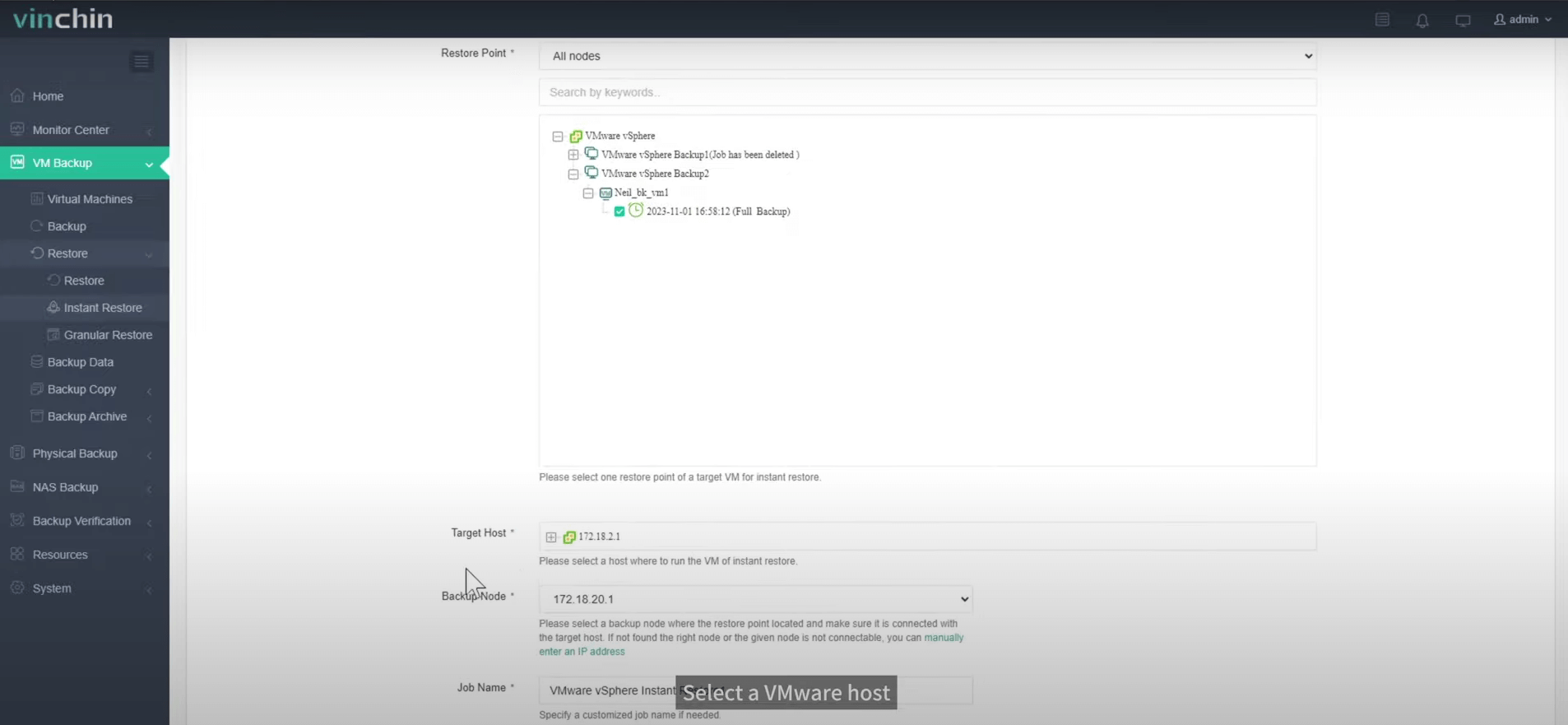
2. Select a valid VMware VM backup for instant restore, then choose a host to run the restored VM. Optionally, enter an IP address and customize the job name.
3. Configure basic settings for the VMware VM (e.g., network mapping, resource allocation if needed), and it’s recommended to enable Power on this VM after restoring.
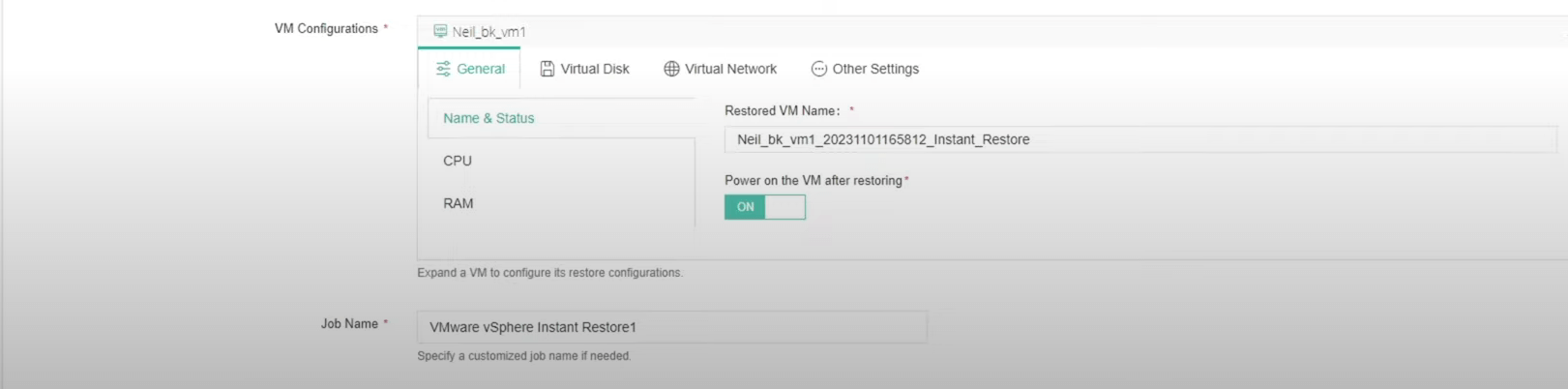
4. After creating the instant restore job, you will be redirected to the job list. The new job will remain in the Pending state until manually started.
5. Click Options next to the pending job, then select Start Job to run the instant restore.

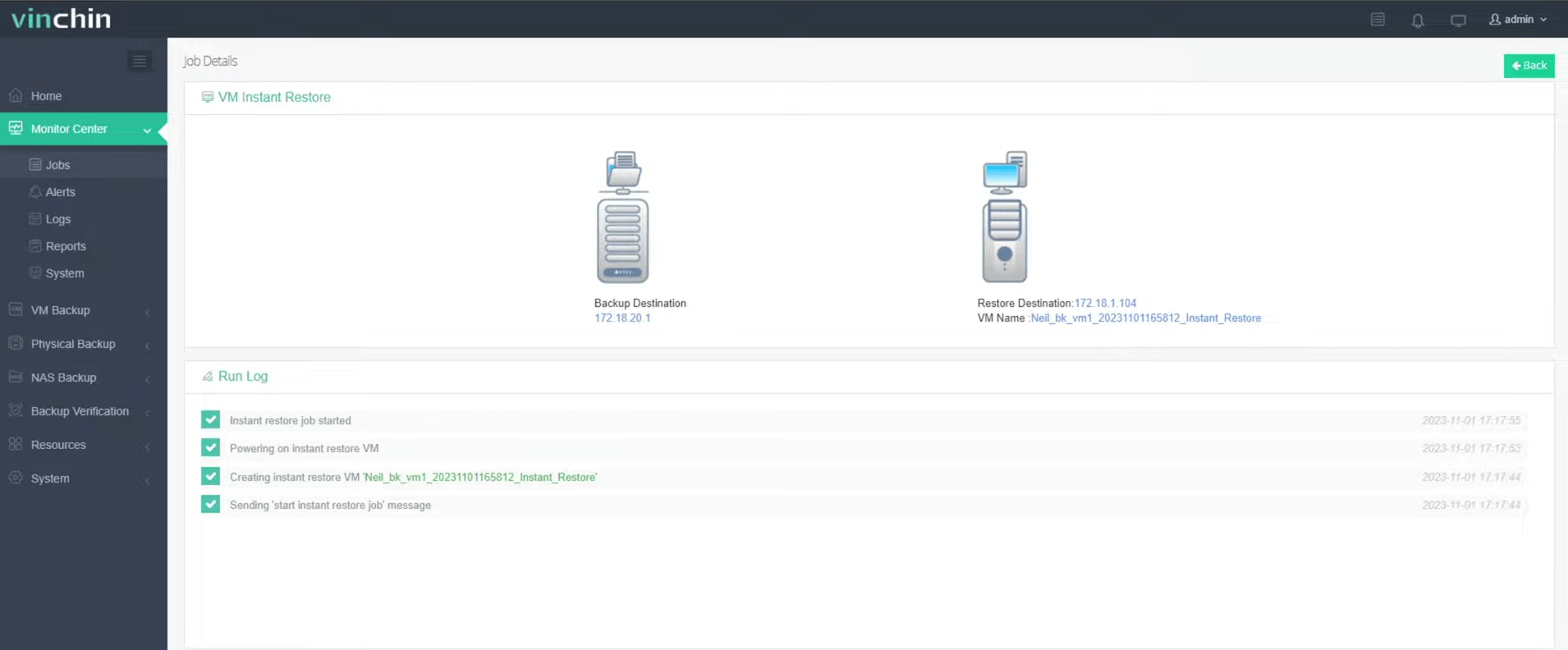
6. You can click the job name to view details; the VM will be brought online within seconds.
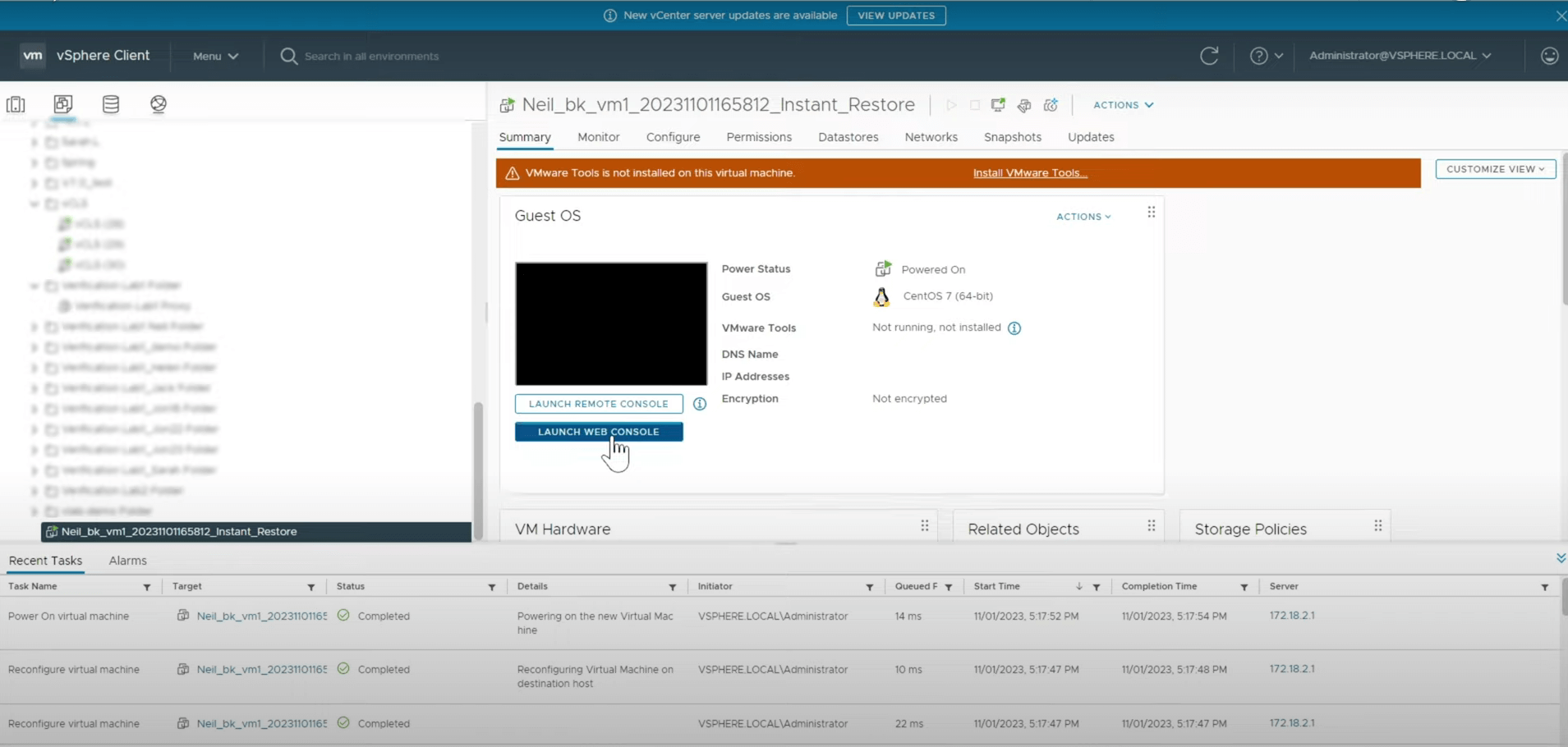
7. Finally, verify in the vSphere Client. Here in the virtual machine list, you can see a new virtual machine added by instant restore, and it is up and running.
Trusted by thousands of enterprises and earning massive good ratings, Vinchin’s Backup & Recovery offers a fully-featured 60-day free trial, allowing you to recover VMs instantly and keep business consistent. Click the button below to have a try!
VMware Live Recovery FAQs
Q1: Is live recovery the same as instant recovery?
Not exactly. Live recovery and instant recovery are related but not the same concept.
Instant recovery is a backup feature that allows a virtual machine to be started directly from a backup file, enabling it to run almost immediately while data is restored in the background.
Live recovery is a broader concept that refers to restoring services with minimal disruption, often combining instant recovery with additional orchestration such as failover and workload switching.
In short, instant recovery is the technical mechanism, while live recovery is the end-to-end recovery experience built on top of it.
Q2: Does live recovery affect performance?
Yes, it may have some influence on performance. In live recovery, the VM often runs directly from backup storage, which can lead to higher latency compared to regular production storage.
However, performance usually improves over time as data is gradually moved back to primary storage in the background. Overall, it’s a temporary trade-off to achieve fast recovery and reduce downtime.
Q3: Can I migrate a VM after live recovery?
Yes, after a VM is brought online through live recovery, it can usually be migrated back to production storage or another host once the environment is stable.
Q4: Is it safe for production use?
Yes, but mainly for temporary use. Live recovery is safe for restoring production services quickly during outages, but it runs from backup storage, so performance may be limited. It should be used as a short-term solution until the VM is migrated back to normal production storage.
Final Thoughts
VMware Live Recovery enables virtual machines to be quickly booted and run directly from backup storage, helping maintain business continuity and minimize downtime. However, this capability is not natively available in VMware vSphere, so organizations often rely on third-party backup solutions such as Vinchin to achieve instant VMware recovery. With built-in instant restore features and no additional licensing complexity, Vinchin makes it possible to bring VMware VMs back online quickly and efficiently.