VMware is an excellent hypervisor to let users manage the virtual machines, but some users reported that sometimes network can’t be used on VMs while the connection is normal on host machine.
“I am using HP zbook, x86-64, running Windows 10 workstation. The scenario is that VM network connection sometimes failed. Most of time it works perfectly for me but the occasional disconnection is enough to drive me crazy. How can I fix this?”
Section 1. Why is your VM not connected to the Internet?
In fact, many reasons could lead to that. According the solutions of users, the possible reasons could be antivirus, disabled system service, outdated application, or system glitches.
In other words, the connection might be blocked by your firewall or antivirus on host machine. You professional antivirus is executing scanning, insulating, or other task. Your VMware VM is suspected as the threat to your computer, so you can’t use the Internet on VM.
What’s more, the related system service, like NAT service, or DHCP serviced might be disabled, so that network could not be used on VM.
For system glitches, it could be easily fixed by rebooting, or no one knows the bug so you might have to reinstall the operating system.
Your host machine might be using a VPN or proxy that intercepts or blocks traffic from VMware’s virtual adapters. In this case, VMware NAT or Bridged traffic may fail to pass through the VPN tunnel.
VMware can also conflict with other virtualization platforms such as Hyper-V, VirtualBox, or WSL2. These tools install their own virtual switches and can break VMware network adapters.
Another possible cause is that VMware Tools is not installed or the virtual NIC type is incompatible. Using the wrong NIC model (e1000/e1000e/vmxnet3) may lead to unstable or missing network.
If your VM is configured with the wrong network mode, such as Host-Only, it will not have Internet access by design. IP conflicts on your LAN, wrong DNS settings, or incorrect VLAN settings can also lead to the same problem.
Finally, power-saving features or driver issues on the host NIC may cause intermittent disconnections, especially on laptops.
Section 2. How to make your VM connected to Internet?
Since you have known the possible causes of why you can’t use network on virtual machine, you could troubleshoot it according to the symptom of your VM or follow the solutions in this section to solve the problem.
Solution 1. Restart your VM
Whether you believe or not, according to experience, restarting could solve 90% of computer problems. You won’t regret to try the simplest solution. Maybe you would find that you VM network connection gets fine like magic.
Solution 2. Disable antivirus
As it is said before, disabling antivirus or firewall might fix the issue. You could also ask the tech support of your antivirus whether there is an mode for VM. As far as we know, AVG Antivirus has such option that Allow any traffic from/to Virtual Machines supported by firewall.
Solution 3. Enable VMWare NAT service/DHCP service
Press Windows Key and R > input services.msc > locate VMware NAT service and enable it. You could also enable other corresponding services like Bridged (DHCP).
Restarting the corresponding services might also help mitigate the situation.
Solution 4. Update the Windows network adapter
Right-click the Windows icon on desktop > select Device Manager > locate and expand Network adapters > right-click the related adapter > select Update Driver Software > select Search Automatically for Updated Driver Software > waiting for update completed
Solution 5. Reinstall network adapter
Find Network adapter as in Solution 4 > right-click the related adapter > select Uninstall Device > select “Scan for hardware changes” (just below the Help option) in device manager to reinstall network adapter.
If you couldn’t find VMware network adapter not showing up in this panel, you could also use this solution to reinstall it.
Solution 6. Manually reconnected to network
Reboot the VM > double-click the adapter icon > if it says “Connected”, uncheck it (like unplug the ethernet cable) > check it again to reconnected to the Internet
Solution 7. Network Setup
Certain users report that putting ADSL router IP as DNS IP in virtual network editor in vmnet8--->NAT settings--->DNS settings could solve the problem.
Solution 8. Windows Diagnose
Go to Network and Sharing Center > select Change adapter settings > right-click "VMware Network Adapter VMnet1" (you might see the red x on it) > select Diagnose > do the same for "VMware Network Adapter VMnet8"
Some users also reported that disabling the network adapters and then running diagnose could fix the issue. It looks like the solution 6.
Solution 9. Virtual Network Editor
In the VMware software, click Edit > select Virtual Network Adaptor > click Restore Defaults > click OK
Solution 10. Reinstall VM
I think this might be the last solution you want to use, but it is very likely to fix the issue. The most important thing is backup VM before you delete it.
Solution 11. Install/update apt-get
If you are Ubuntu user and have problem using browser to connect to internet, install or update the apt-get could be the solution.
Solution 12. Check VPN or proxy settings on the host
If you are using a VPN, disconnect it temporarily or enable split tunneling. Some VPN clients block virtual adapters by default.
Solution 13. Disable Hyper-V or other virtualization platforms
Go to Control Panel > Turn Windows features on or off > uncheck Hyper-V, Windows Hypervisor Platform, Virtual Machine Platform, or uninstall other VM software, then reboot the host.
Solution 14. Reinstall or update VMware Tools
Open VM > Install VMware Tools and complete the installation inside the guest OS. This will reinstall the correct network driver and may fix missing connectivity.
Solution 15. Switch virtual network adapter type
Open the VM settings > Network Adapter > change to vmxnet3 or e1000e, then restart the VM. Different OS versions work better with different NIC models.
Solution 16. Change the VM network mode
Switch from NAT to Bridged or from Bridged to NAT. Sometimes Bridged mode fails due to router or NIC restrictions.
Solution 17. Renew IP or flush DNS
Inside the VM, run:
This forces the VM to get a fresh IP address.
Solution 18. Turn off power-saving options for the host NIC
Open Device Manager > Network adapters > right-click your NIC > Properties > Power Management > uncheck “Allow the computer to turn off this device to save power”.
Solution 19. Reset VMware virtual network configuration
If the vmnet configuration is corrupted:
Go to Edit > Virtual Network Editor > click Restore Defaults > restart VMware Workstation.
Solution 20. Update host BIOS or network drivers
Outdated NIC drivers or BIOS firmware can cause unstable connection, especially on laptops such as HP ZBook.
Section 3. Easily Protect Data on your VM
Your data on VM is vitally important but issues like network disconnection or crash might make you lose the precious data and cause severe disaster. To protect the data, Vinchin Backup & Recovery could help you backup VM on VMware ESXi.
Easy to use: Vinchin Backup & Recovery requires no agent installation for VM backup, you could directly manage and backup your VMs via one web console in a super easy way and the maintenance cost is also reduced.
Instant Recovery: You never know when the disaster would come, but Vinchin would be always online to protect your business. Vinchin Instant Recovery technology could help you recover VMs on another host machine in 15 seconds when the VMs are down to quickly recover business and minimize the loss.
Cross Platform Migration: Want to migrate VM to another virtualization platform? For multi-platform users, Vinchin Backup & Recovery builds the bridge across 15+ virtualization platforms including VMware, Hyper-V, Promxox, oVirt, etc. to help you easily execute cross-platform recovery.
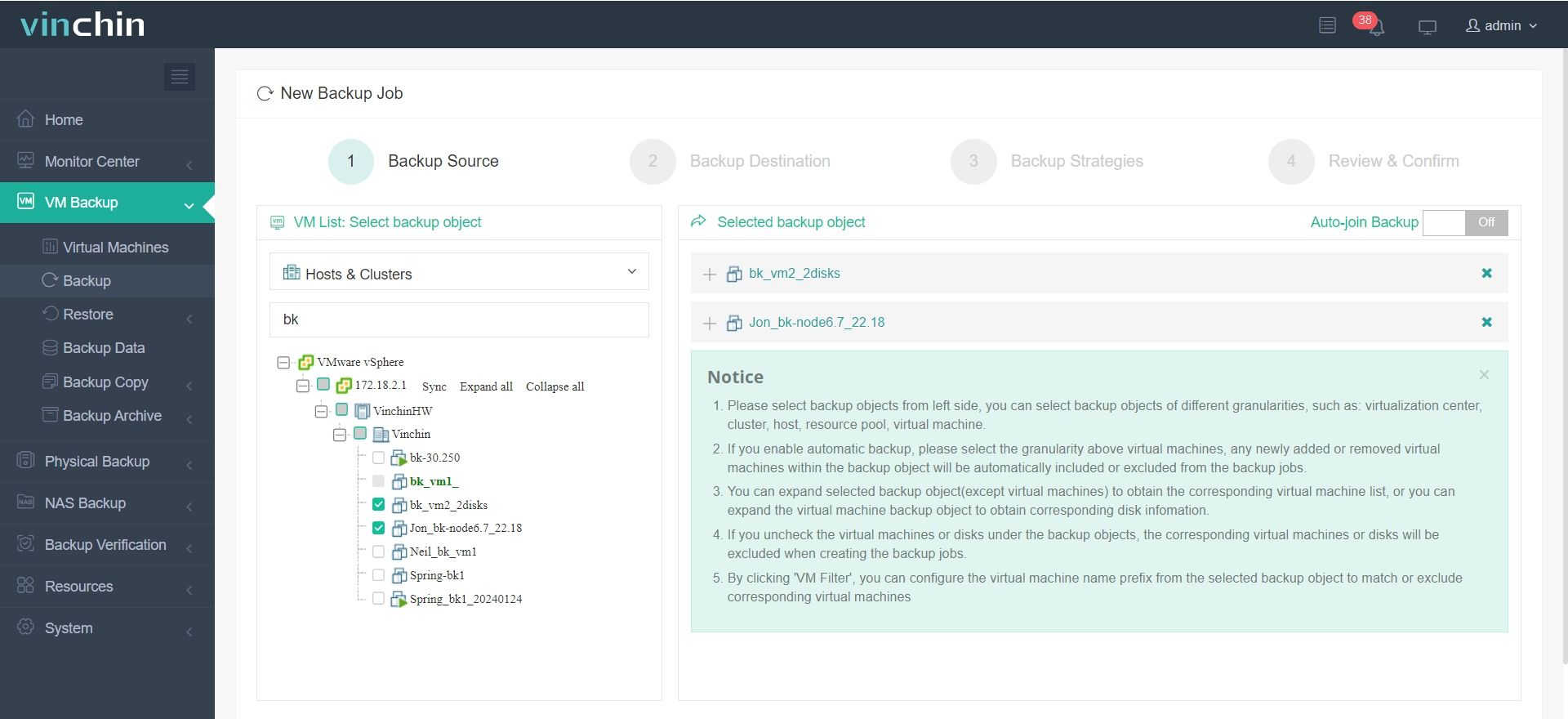
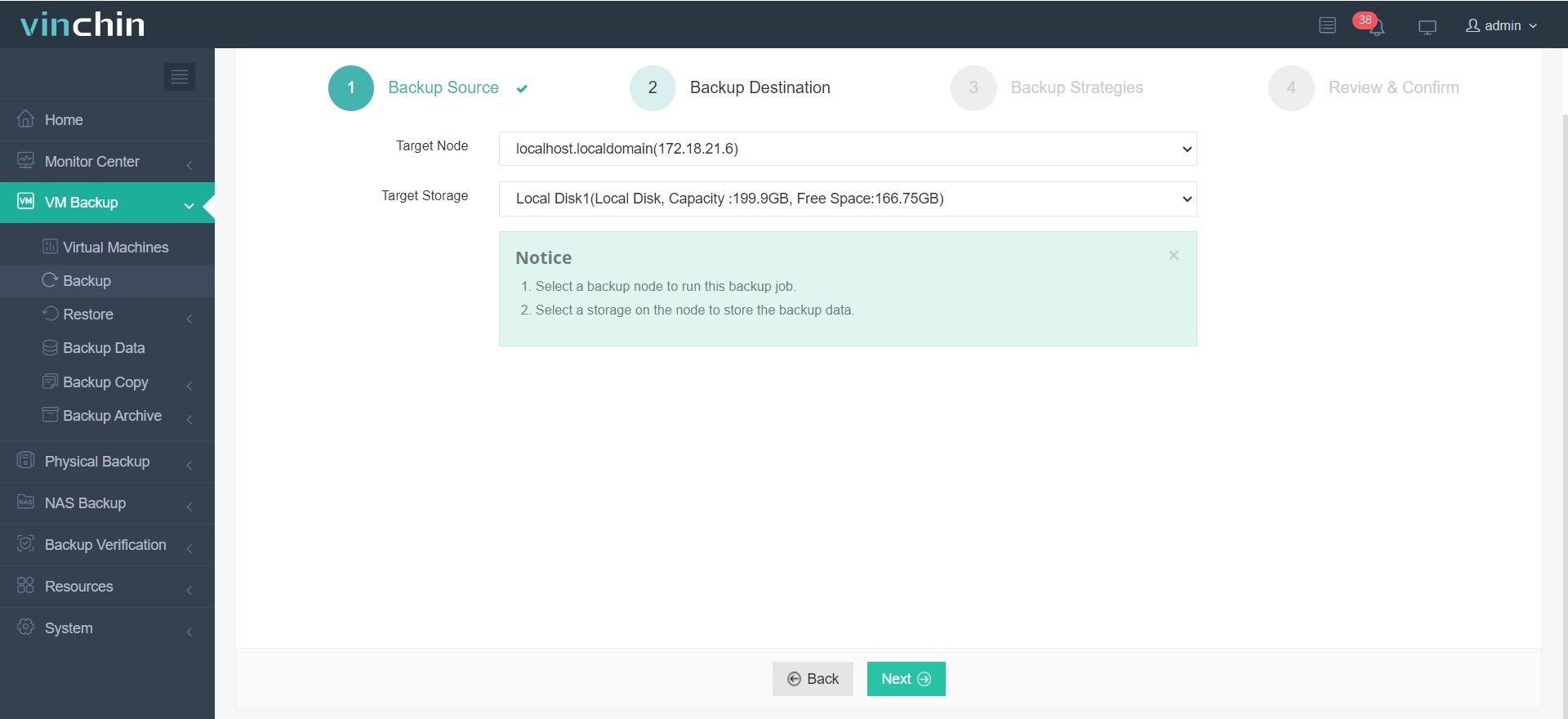
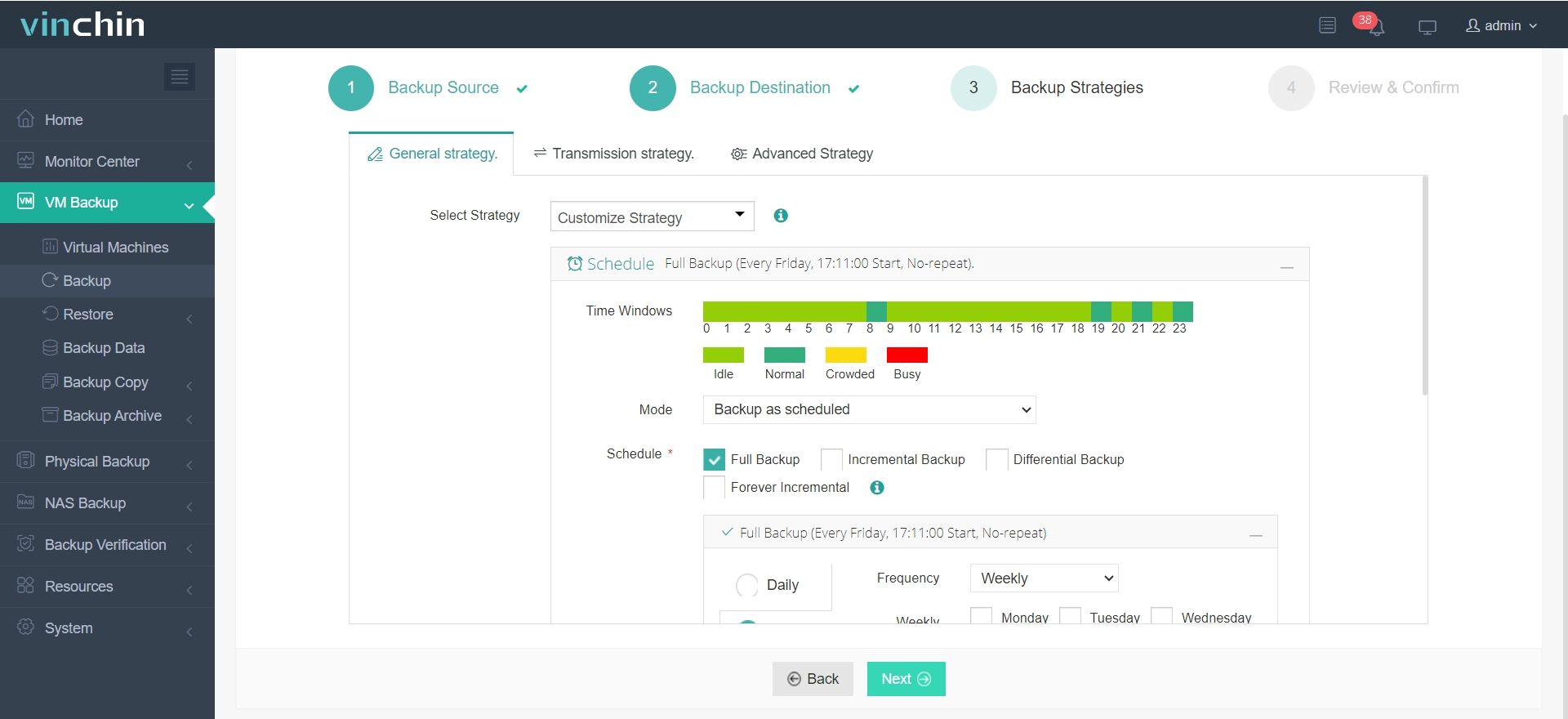
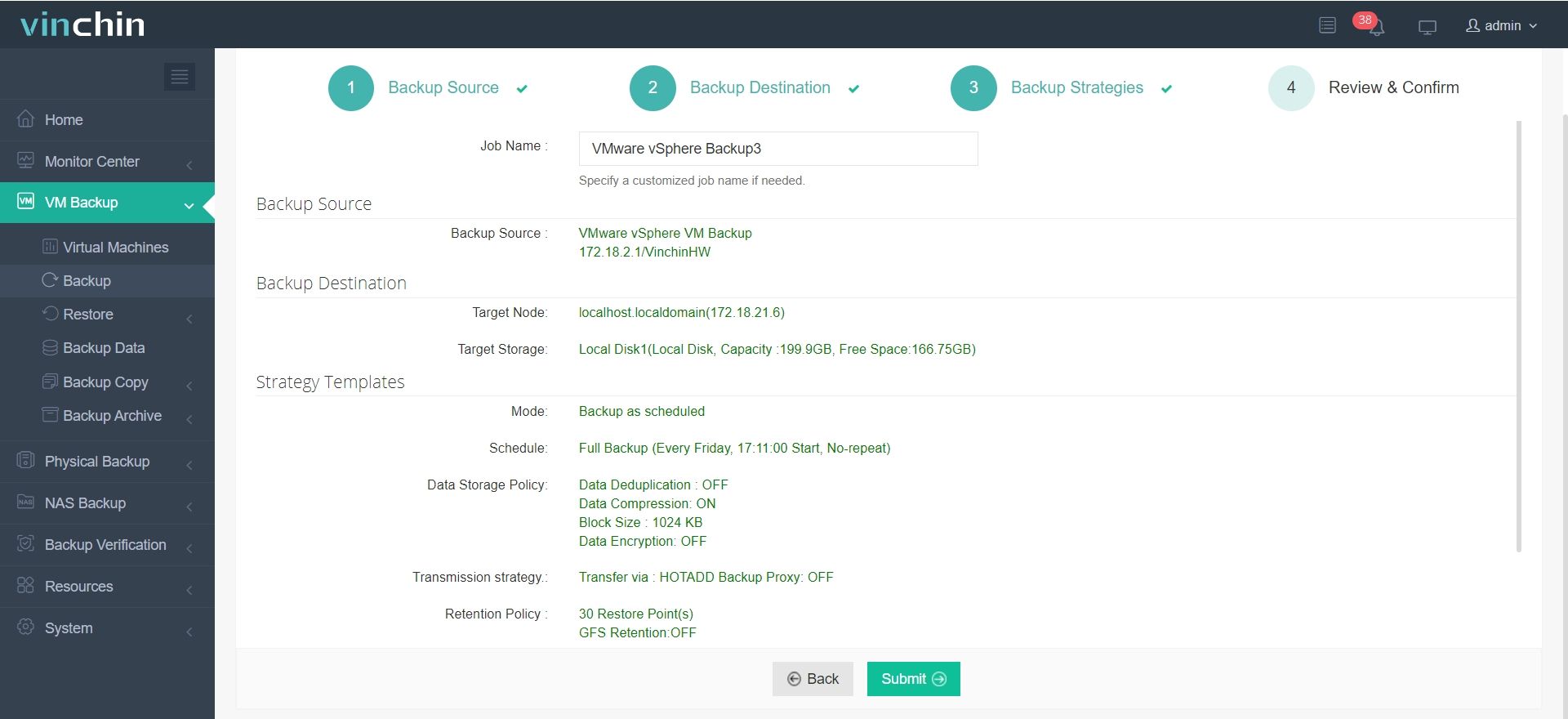
For example, it is easy to backup ESXi VM in 4 ways:
1. Select the ESXi VM
2. Select the backup destination
3. Select the backup strategies
4. Sunmit the job
Vinchin Backup & Recovery has been selected by thousands of companies and you can also start to use this powerful system with a 60-day full-featured free trial. Just click the button to get the installation package.
VMware not connecting to internet FAQs
Q1: Why is NAT mode internet dropping intermittently?
A: The VMware NAT Service can stop responding; restarting the “VMware NAT Service” on the host restores guest connectivity.
Q2: Why does the network adapter show as disconnected?
You need to check both “Connected” and “Connect at power on” in the VM’s Network Adapter settings under VM > Settings.
Q3: How do I get internet after suspending and resuming the host?
A: Restart the VM instead of resuming its saved state to fully reinitialize the virtual network stack.
Conclusion
When you find VM could not be able to connected to the network, the problem might be caused by antivirus, disabled system service, outdated application, or system glitches. This passage has given you the comprehensive solution to help you troubleshoot and solve the problem in every way.
Don’t for get to protect your VM data because it is really necessary. Don't miss the free trial of Vinchin Backup & Recovery.