Microsoft Hyper-V is a widely adopted hypervisor that provides a robust platform for virtualization in both enterprise and development environments. One common requirement in virtualized systems is the ability to pass physical USB devices from the host to a virtual machine, a feature commonly known as USB passthrough.
What is Hyper-V USB Passthrough?
Hyper-V USB passthrough is a technology that allows a USB device on a physical host to be directly connected to a virtual machine, enabling the VM to have exclusive access to the device as if the physical device were directly plugged into the VM. This is essential in scenarios such as:
Using USB dongles for software licensing
Connecting to USB storage devices for backup or data transfer
Interfacing with USB hardware such as printers, scanners, or specialized industrial equipment
Development and testing of USB peripherals
How to Enable Hyper-V USB Passthrough?
Usually, hypervisors can implement USB device passthrough through with 3 steps:
1. Device Identification and Assignment: Hypervisors identify the USB devices connected to the host machine and allows the administrator to select which devices will be passed through to specific virtual machines.
2. Device Isolation: Removing these USB devices from the host's device tree and assigns them to the designated virtual machine. The host will no longer have direct access to the devices, and control will be handed over to the virtual machine.
3. Driver Loading and Communication: When the virtual machine starts, it loads the appropriate USB device drivers and communicates directly with the device as if it were physically connected to the VM.
Native USB Passthrough Limitations in Hyper-V
While Hyper-V does not support USB passthrough natively as directly and flexibly as some other hypervisors like VMware or VirtualBox, there are several methods available to achieve similar functionality. This article explores the available approaches to USB passthrough in Hyper-V.
Hyper-V does not provide direct USB passthrough in the same way VMware or VirtualBox do. Specifically:
There is no option in Hyper-V Manager to simply "attach USB device" to a VM.
Hyper-V is designed to be more isolated for performance and security reasons, limiting direct hardware access.
However, Hyper-V does not natively support traditional USB passthrough (such as VMware's direct connection method), and similar functionality must be achieved through following alternative methods.
Method 1: Access USB Devices in Enhanced Session Mode
Accessing USB devices in Enhanced Session Mode is a feasible way to enable Hyper-V USB passthrough. If your Hyper-V host is running on Windows 8.1 or Windows 10, you can skip this step, as Enhanced Session Mode is enabled by default.
Step 1: Open Hyper-V Manager, right-click the host name in the main interface, and select “Hyper-V Settings.”
Step 2: In the server list on the left, select “Enhanced Session Mode Policy,” and check “Allow enhanced session mode.”
Step 3: In the user list on the left, select “Enhanced Session Mode,” check the “Use enhanced session mode” option on the right, then click “Apply” > “OK.”
Step 4: After enabling Enhanced Session Mode, power on the virtual machine. In the pop-up virtual machine connection configuration window, click the “Show Options” button, then go to the “Local Resources” tab and click “More” to select the USB device you want to connect. Finally, click “Connect” to establish the Hyper-V USB connection and easily transfer files.
Method 2: Enable USB Passthrough via Remote Desktop Protocol
Step 1: Right-click “This PC,” select “Properties” > “Advanced system settings.”
Step 2: In the pop-up window, go to the “Remote” tab, check both “Allow Remote Assistance connections to this computer” and “Allow remote connections to this computer,” then click “OK.”
Step 3: Press Win+R, enter mstsc, and press Enter to open Remote Desktop Connection, then click “Show Options.”
Step 4: Go to the “Local Resources” tab and click “More.”
Step 5: Expand the drives list and select the USB device you want to connect, then click “OK.”
Step 6: Return to the General tab, enter the IP address and username of the virtual machine, and then click “Connect.”
Method 3: Take the USB Device Offline and Add It to the VM
You can also take the USB device offline and then add it to the Hyper-V virtual machine.
Step 1: Press Win+R, enter diskmgmt.msc, and press Enter to open the Disk Management tool.
Step 2: In Disk Management, locate your USB device, right-click it, and select “Offline.”
Step 3: Launch Hyper-V Manager, right-click the virtual machine that needs USB access from the main interface, and select “Settings.”
Step 4: In the pop-up window, navigate to “SCSI Controller,” then choose “Hard Drive” and click “Add.”
Note: You can only add the drive to an IDE controller when the VM is turned off, but you can add it to the SCSI controller whether the VM is on or off.
Step 5: Click “Physical Hard Disk,” select your connected USB device, and click “OK” to enable Hyper-V USB connection.
Note: To remove a Hyper-V USB drive, go to SCSI Controller > Hard Drive, select the connected USB drive, and click Delete.
Protect Your VMs with Vinchin Backup & Recovery
With the methods above, you've unlocked a straightforward path for moving large files, media, or specialized hardware streams into your VMs. But once that data is inside the virtual machine, you still need a rock-solid protection strategy like Vinchin Backup & Recovery to guard against accidental deletion, disk failure, or ransomware.
Vinchin Backup & Recovery is an advanced data protection solution that supports a wide range of popular virtualization platforms, including VMware, Hyper-V, Proxmox, XenServer, Red Hat Virtualization, Oracle, etc., and database, NAS, file server, Linux & Windows Server.
It provides advanced features like agentless backup, V2V migration, instant/granular restore, and ransomware protection. These are critical factors in ensuring data security and optimizing storage resource utilization.
It only takes 4 steps to backup your Hyper-V VMs with Vinchin Backup & Recovery:
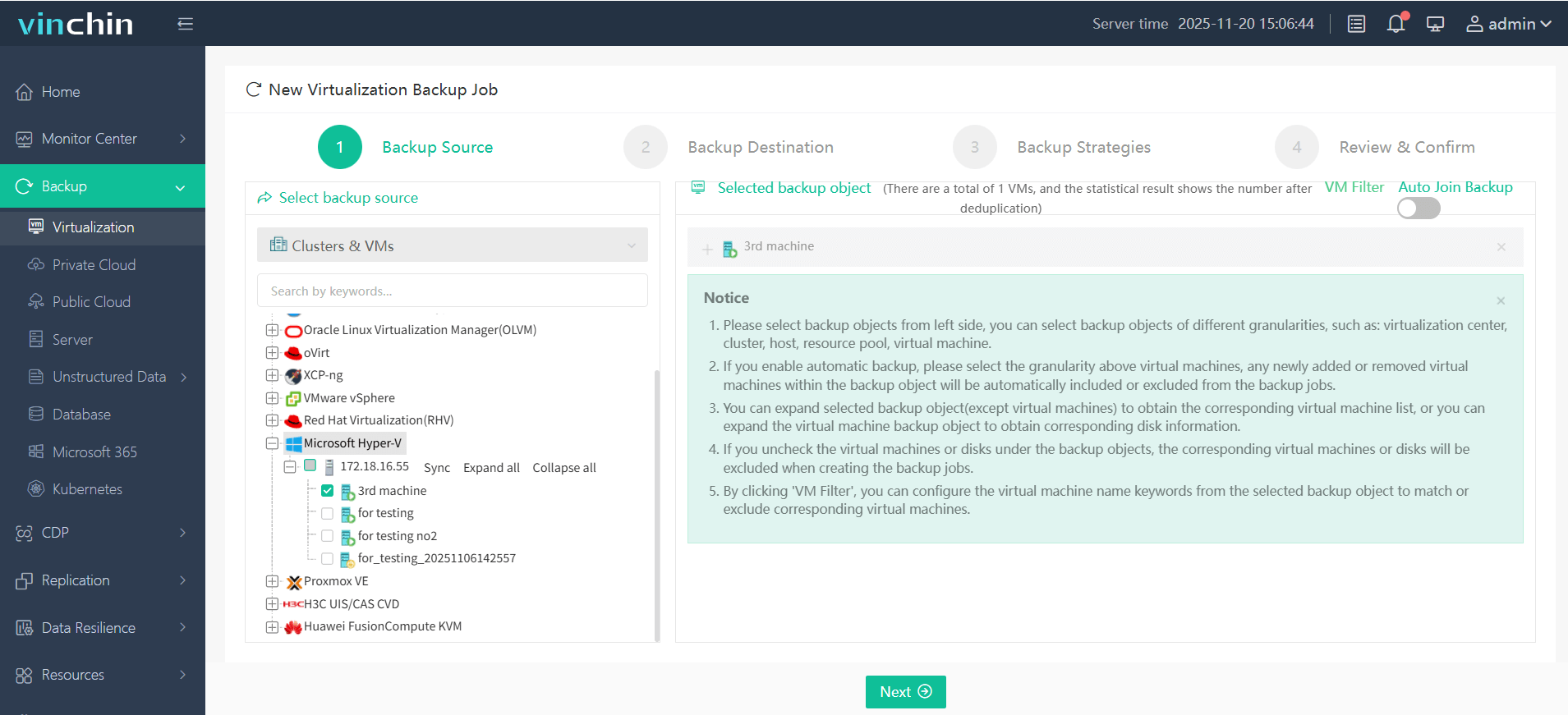
Step 1. Select the backup object. Here is Hyper-V.
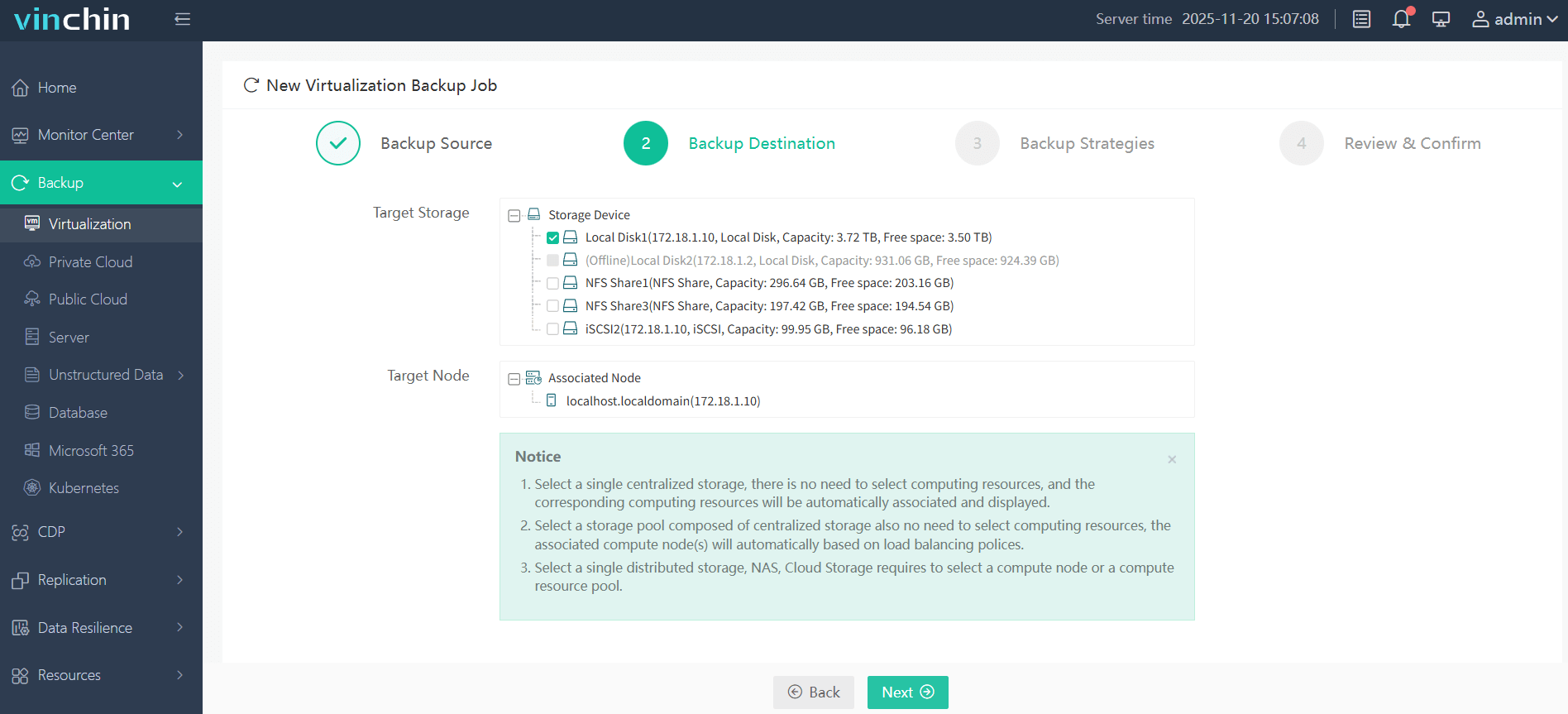
Step 2.Select backup destination that has enough storage space.
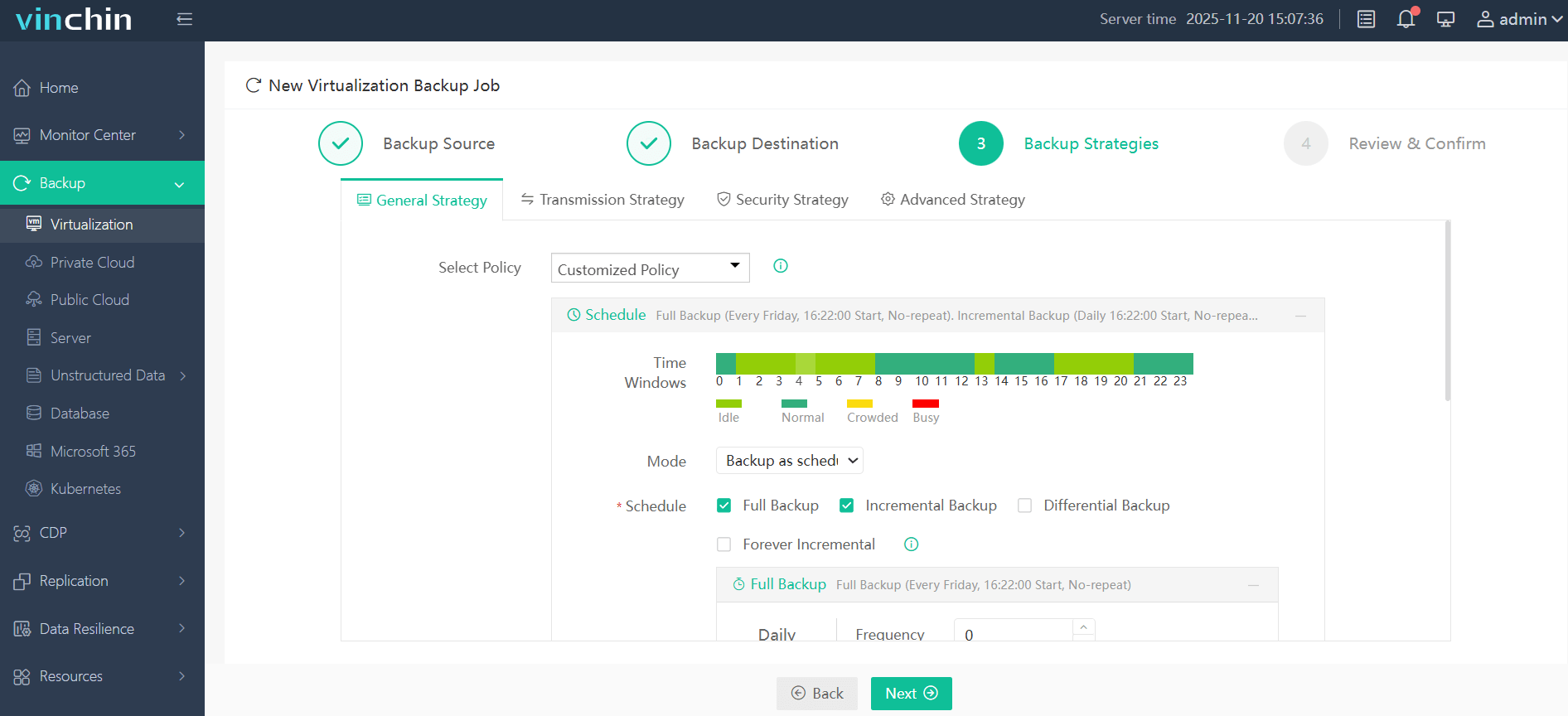
Step 4. Configure backup strategies to backup your data automatically and efficiently.
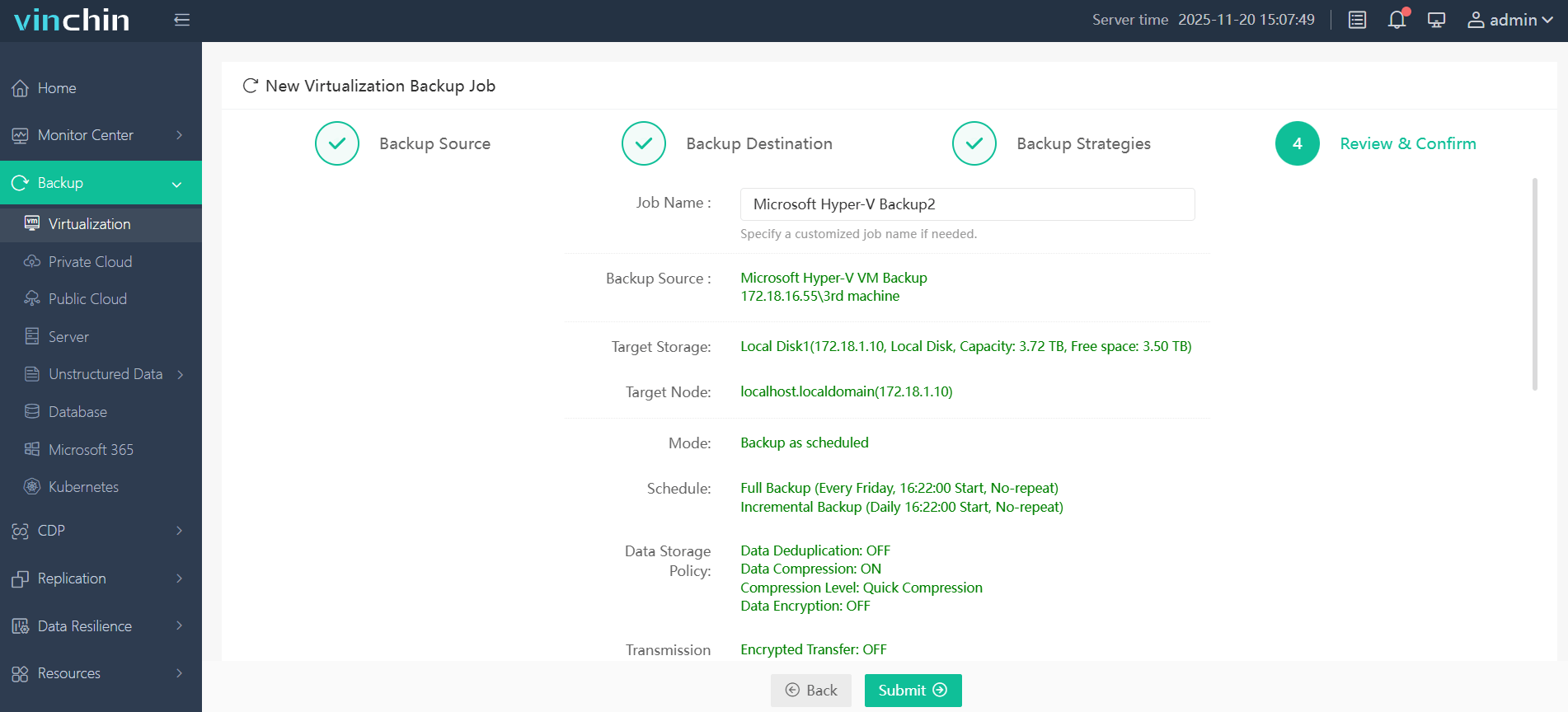
Step 4. Review your options and submit the job.
Discover the power of this comprehensive system firsthand with a free 60-day trial! Leave your specific needs, and you will get a customized solution that fits your IT environment perfectly.
Hyper-V USB Passthrough FAQs
Q1. What is Enhanced Session Mode, and how does it help?
A1: Enhanced Session Mode allows USB redirection from a client (usually when connecting via Hyper-V Manager or Remote Desktop). It's limited to Windows guests and specific USB device classes.
Q2. Can I pass through a USB dongle (e.g., license key) to a VM?
A2: Yes, but not directly. You must use USB over IP software or hardware-based USB device servers.
Q3: Can I use USB redirection with Windows guest VMs?
A3: Yes. Windows guest operating systems generally support USB device redirection through Remote Desktop and Enhanced Session Mode, provided the device type is supported.
Q4: Can I use USB passthrough in Hyper-V for production workloads?
A4: It depends on the workload and device type. For business-critical applications, administrators should thoroughly test compatibility, reliability, and performance before relying on USB redirection or third-party passthrough solutions in production environments.
Final Words
While Hyper-V may not offer native, one-click USB passthrough like some other virtualization platforms, the methods outlined above provide reliable and secure ways to bridge physical USB devices into your VMs. By understanding these workarounds and selecting the approach that best fits your environment.
Whether you prioritize simplicity, performance, or isolation - you can extend Hyper-V's capabilities to meet virtually any USB-device integration need. And don't forget to protect your data in virtualization platforms with the best backup solution - Vinchin Backup & Recovery. It offers a 60-day free trial, try it now!