With the reports and demands from users, programs always need to be developed and updated. Sometimes suppliers will offer a new application as a complement to existing applications, but most of the time they will release patches to fix the reported issues or add new features.
ESXi update also works in this way. Every time the patch is released, you can download the package from VMware's page and install it to fix issues and improve its performance with added new features. Of course, ESXi update is not always necessary and compulsive. If your ESXi host works perfectly, you don't have to update to the latest version.
Before updating ESXi, you should read the release note carefully to see whether the issues on your ESXi host can be fixed or there are very useful new features in the latest version. Also, it will be better if you can go to VMware community to see the feedback about this ESXi update. Sometimes the new version will bring new issues so you should decide whether it is worth updating.
There are multiple ways to upgrade ESXi to any version you want. In this post, you will learn the possible ways to update ESXi.
Note: Sometimes you will find that virtual machine can't work on another ESXi host when the ESXi versions are different. You can use Vinchin Backup & Recovery to move VM to any ESXi host. Vinchin Backup & Recovery will also help protect ESXi hosts from ransomware attack.
Pre-Upgrade Checklist for ESXi
Before performing an ESXi upgrade, ensure the following:
1. Check hardware compatibility
2. Backup your environment
3. Verify vCenter compatibility
4. Put hosts into maintenance mode
Method 1. vSphere Lifecycle Manager (Recommended)
vLCM is the most modern and centralized method.
1. Open vCenter Server
2. Select cluster or host
3. Attach image or baseline
4. Run compliance check
5. Start remediation (upgrade process)
Method 2. ESXi ISO Installer (Interactive Upgrade)
1. Download ESXi ISO from VMware
2. Boot host from ISO
3. Select Upgrade ESXi, preserver VMFS datastore
4. Follow installation wizard
Best for standalone hosts or small environments.
Method 3. ESXi Update Command Line
1. Download the ESXi offline bundle
2. Enable SSH on ESXi host
Press F2, go to Troubleshooting Options and enable SSH. Then connect using SSH client:
ssh root@ESXi-IP
3. Put ESXi host into maintenance mode
Run:
vim-cmd hostsvc/maintenance_mode_enter
You can verify:
esxcli system maintenanceMode get
Expected output:
Enabled
4. Check current ESXi version
vmware -vl
5. List available upgrade profiles
esxcli software sources profile list -d /vmfs/volumes/datastore1/VMware-ESXi-8.0U3-depot.zip
6. Run the ESXi upgrade command
esxcli software profile update \
-p ESXi-8.0U3-standard \
-d /vmfs/volumes/datastore1/VMware-ESXi-8.0U3-depot.zip
-p: profile name
-d: depot ZIP file
7. Reboot the ESXi host
After successful upgrade:
reboot
How to fix the compatibility issue between ESXi hosts of different versions?
You might find that although both two servers have been installed with ESXi hypervisor but virtual machine still could not be moved smoothly. This is because of the compatibility issue. You can have an easy solution.
Vinchin Backup & Recovery is a professional backup and disaster recovery solution, which will help you move VM from one ESXi host to another as you wish.
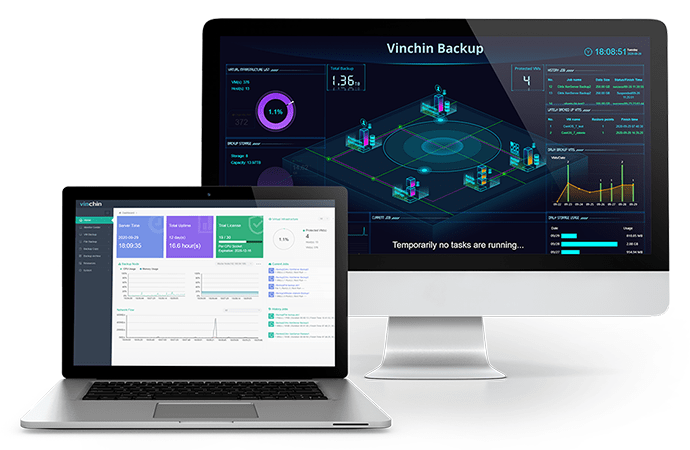
You can add all your ESXi hosts into Vinchin backup system and then make backup agentlessly. Also, you don't have to turn off the VM while making backup. Just set a schedule to backup VMs you need on a user-friendly web console.
Vinchin Backup & Recovery will help fix the compatibility issue. You just need to select a VM backup and restore it on the destination host.
Ransomware is rampant on the Internet but you can use Vinchin Backup & Recovery to protect the virtual environment. Backup storage will be protected by Vinchin ransomware protection technology and only Vinchin's application can modify the data so you can always keep your data safe.
You can deploy Vinchin Backup & Recovery in your virtual environment to see how convenient it is to migrate VM. Just start a 60-day full-featured free trial to easily manage ESXi hosts. Vinchin Backup & Recovery has more advanced features for you to experience like Instant Recovery (recovery VM of any size from backup in 15 seconds), data deduplication and compression, offsite copy, etc.
FAQs about ESXi Upgrade
Q1: How long does an ESXi upgrade take?
Typically 15-60 minutes per host depending on hardware and upgrade method.
Q2: Is ESXi upgrade disruptive?
Yes, hosts usually require reboot, so VMs must be migrated or powered off unless using vMotion.
Q3: Will ESXi upgrade delete my virtual machines or datastore?
No, ESXi upgrade normally preserves VMFS datastores and virtual machines if you select: Upgrade ESXi, preserver VMFS datastore. However, backups are still strongly recommended before any upgrade operation.
Sum Up
ESXi update can help you fix known issues and add new features to system but it is not always essential if you have perfect ESXi host. You can follow the upgrade methods to update ESXi to any version.
VMs on the lower-version ESXi host might not work on the higher-version ESXi host. You can use Vinchin Backup & Recovery to move VM to any ESXi host to fix the compatibility issue. Don't miss the free trial.