


Table of contents
-
Backup VM on OLVM in Vinchin Backup & Recovery
-
Restore VM on OLVM in Vinchin Backup & Recovery

Vinchin provides various built-in user-friendly backup and restore functionalities to fully protect your entire Oracle Linux Virtualization Manager infrastructure no matter on a standalone host or cluster environment.

Updated by Iris Lee on 2024/09/09
You will learn how to easily backup and restore VM on OLVM with Vinchin Backup & Recovery here. Vinchin supports Oracle Linux Virtualization Manager 4.4.x and Oracle Linux Virtualization Manager 4.3.x, providing various built-in user-friendly backup and restore functionalities to fully protect your entire Oracle Linux Virtualization Manager infrastructure no matter on a standalone host or cluster environment.
To backup VM on OLVM agentlessly, you need to add the host first
Just click Resources > Virtual Infrastructure > Virtual Platform. Click Add.
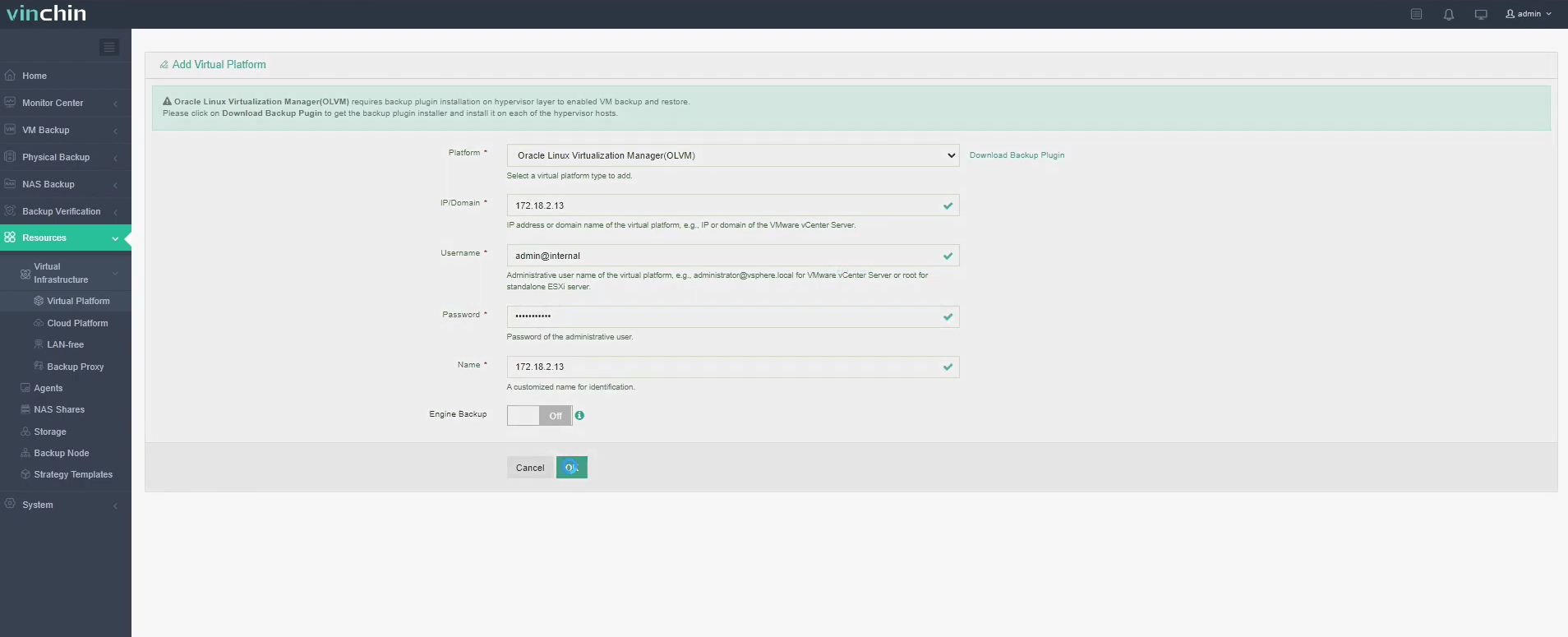
Enter the credentials of the host, and then click License to finish configuration.
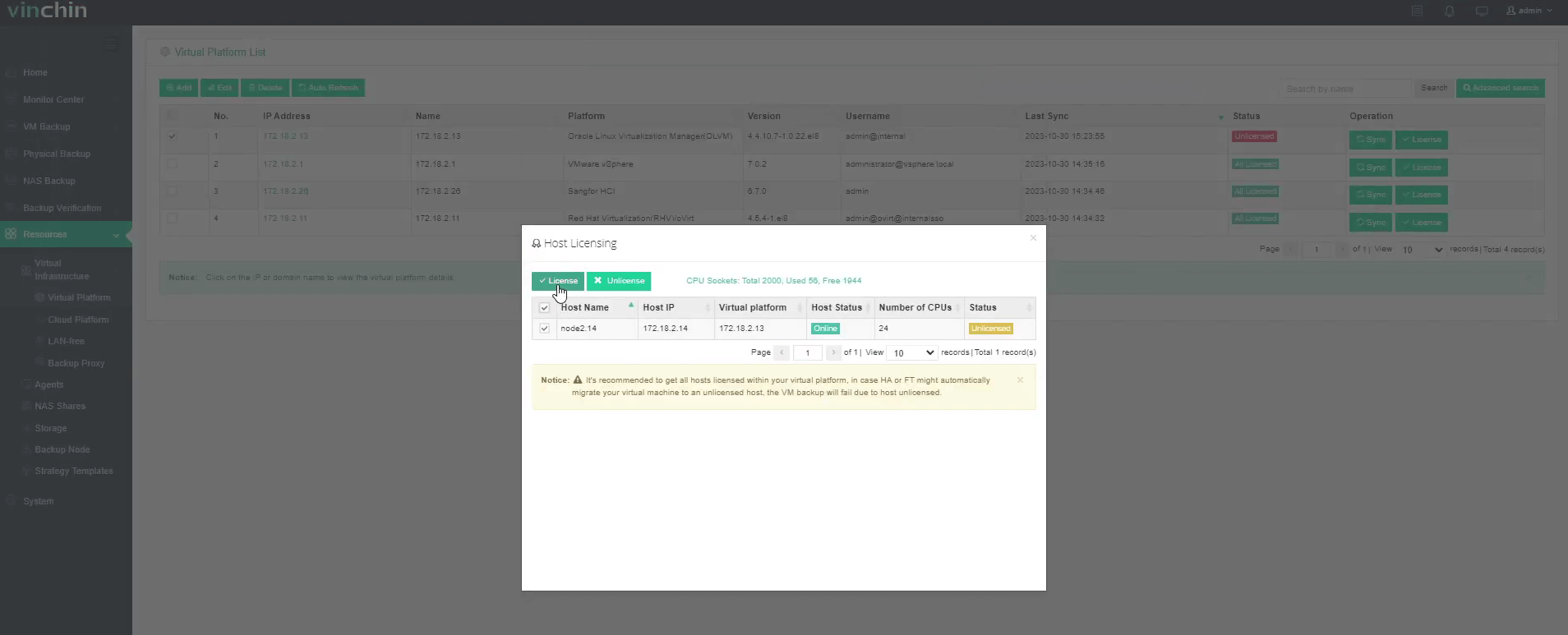
Now you can create backup and restore jobs for the VM on OLVM.
Go to VM Backup > Backup page.
Step 1. Select Backup Source
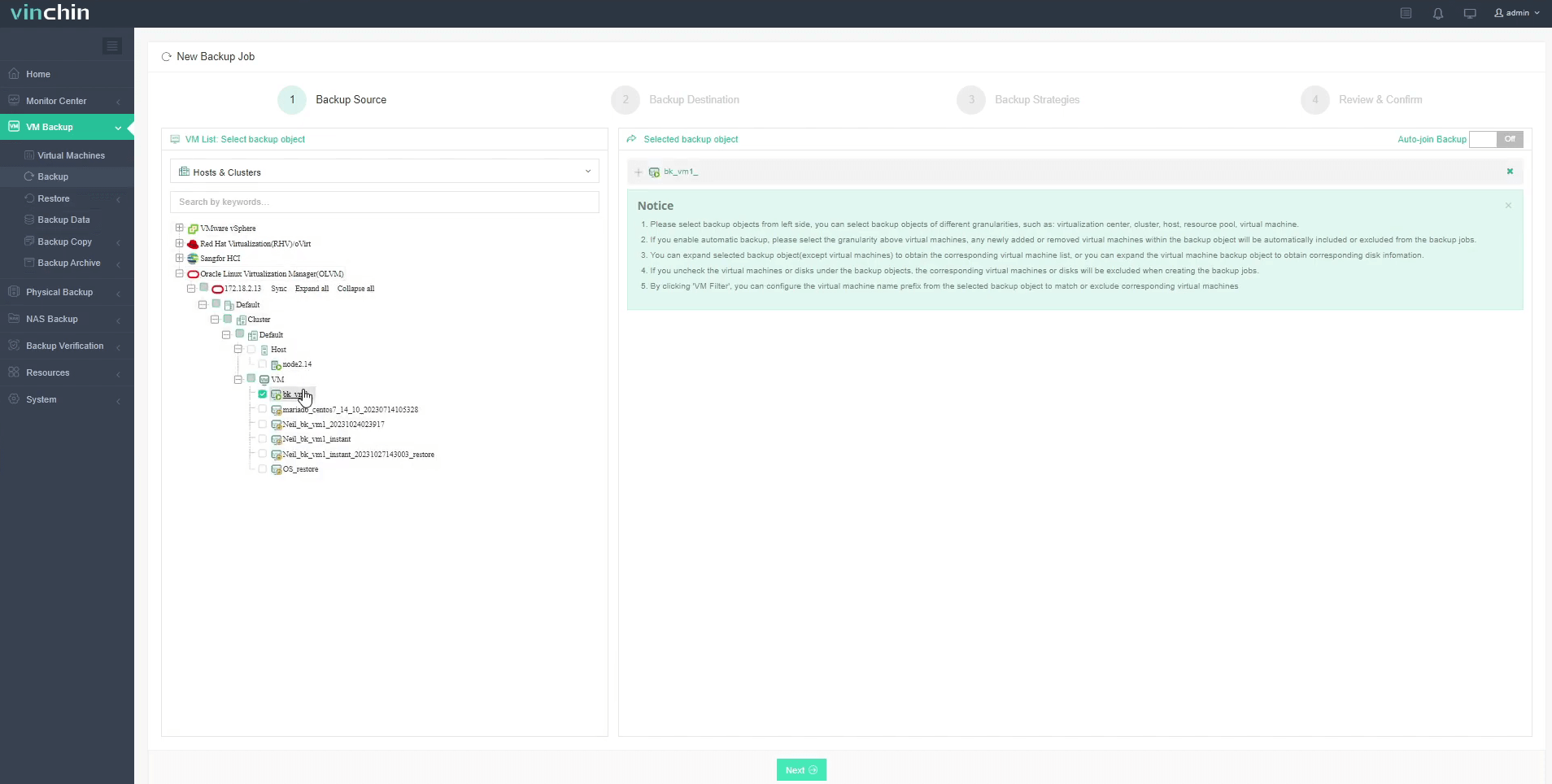
Here you can click a OLVM host and select the VM to backup. For multiple VMs on the host, you can select a group of VMs to backup to add them to the list on the right. After adding the VMs which you want to backup, click Next.
Step 2. Select Backup Destination
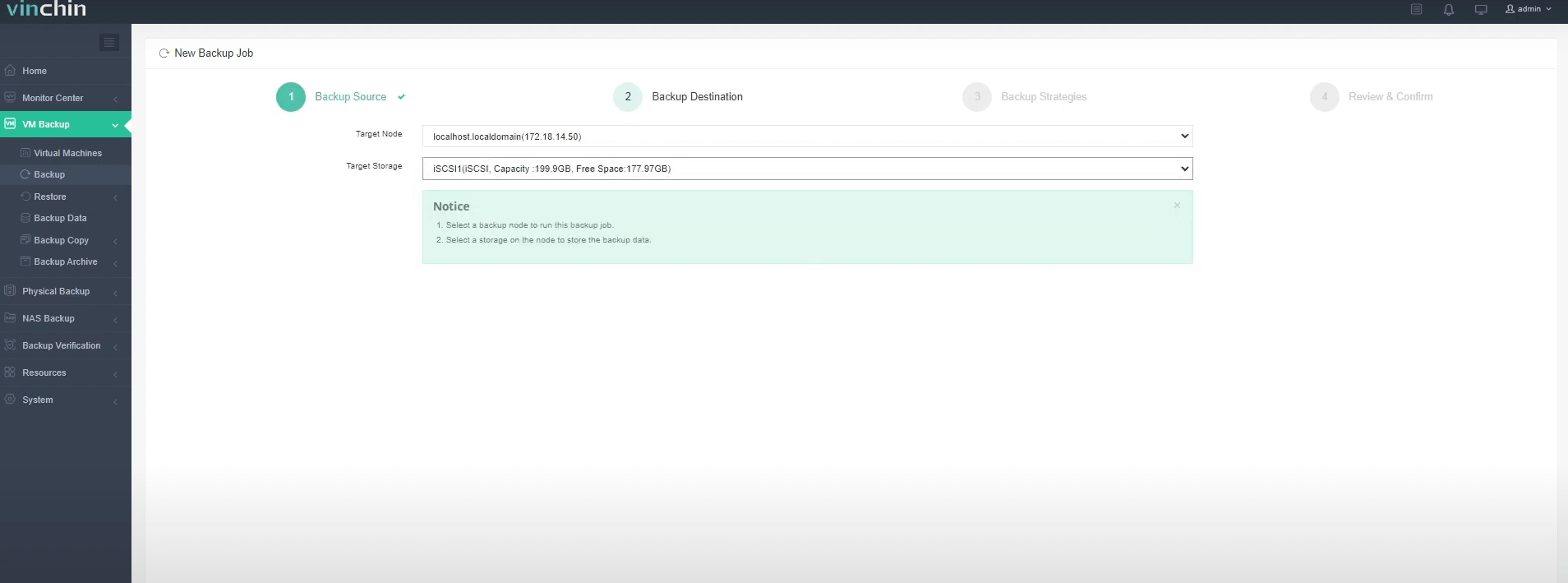
Select a Target Node to run this backup job and then select the Target Storage for the VM backup. Click Next.
Step 3. Select Backup Strategies
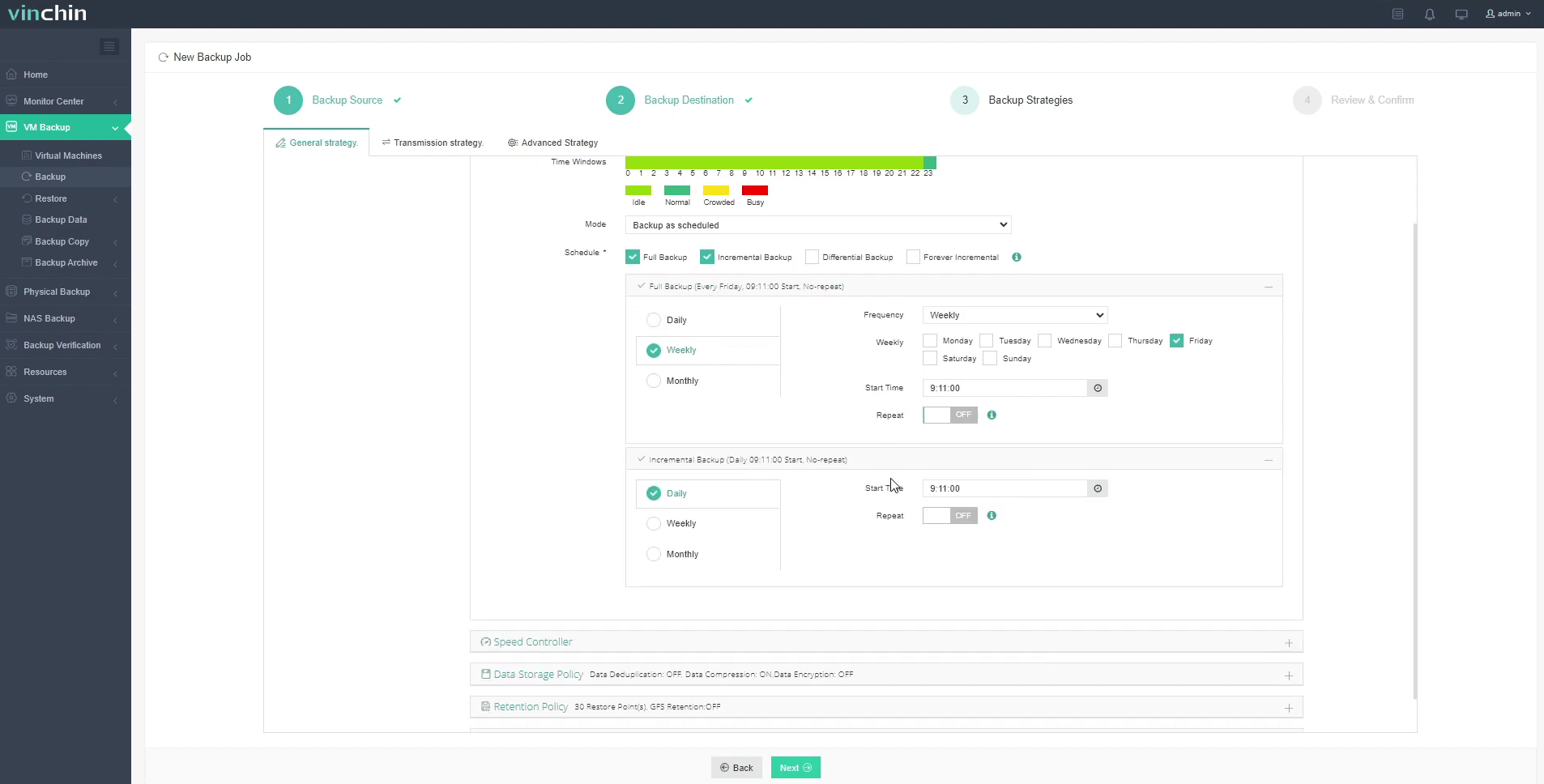
In Schedule, you can choose Backup as scheduled or Once-off backup. Backup as scheduled will automatically backup the selected VMs at a specific time, and Once-off backup will backup the VMs only once.
For scheduled backups, you can choose a daily, weekly or monthly schedule. You can also choose full or incremental combinations of backups. And data storage policies provide Deduplication and Compression. Retention policies allow retention by recovery point or number of days.
And you can choose to transfer via different transmission strategies.
After configuring all the backup strategies, click Next.
Step 4. Review and submit the job

You will be redirected to the Jobs page of Monitor Center. The created backup job will be listed here and you can start job manually, then click job name to monitor the job in real time.
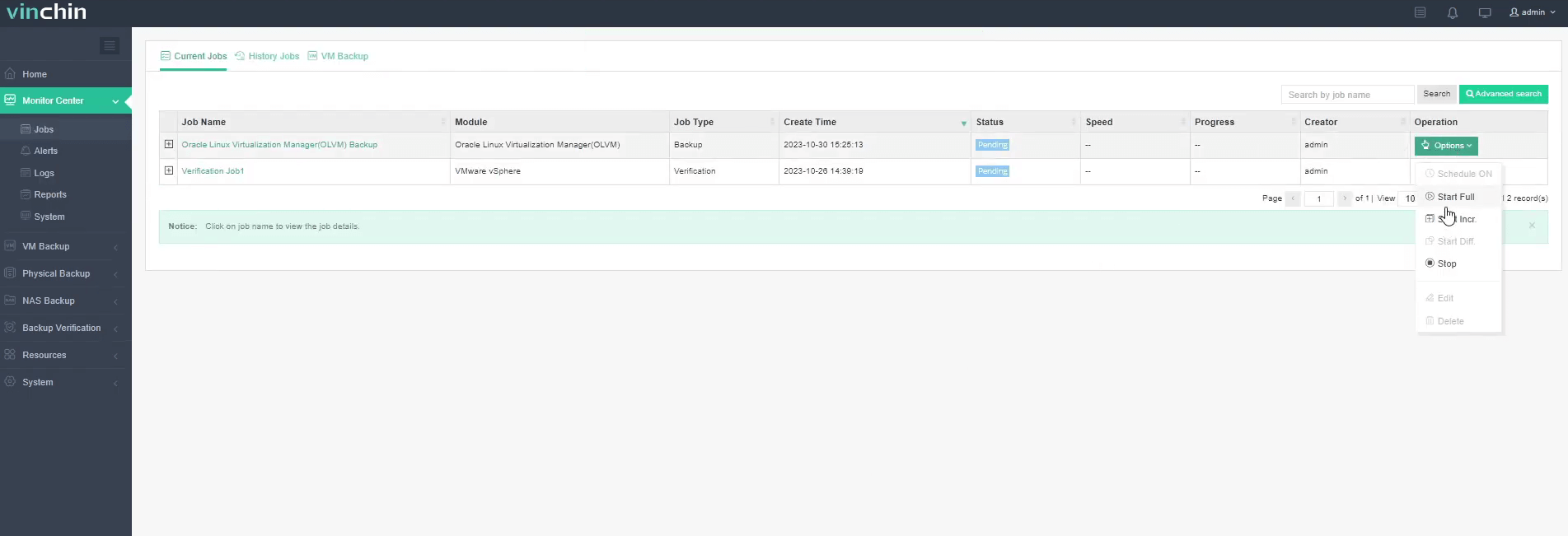
Here, you can see the VM has been successfully backed up.

When you need to restore the VM, go to VM Backup > Restore page
Step 1. Select Restore Point
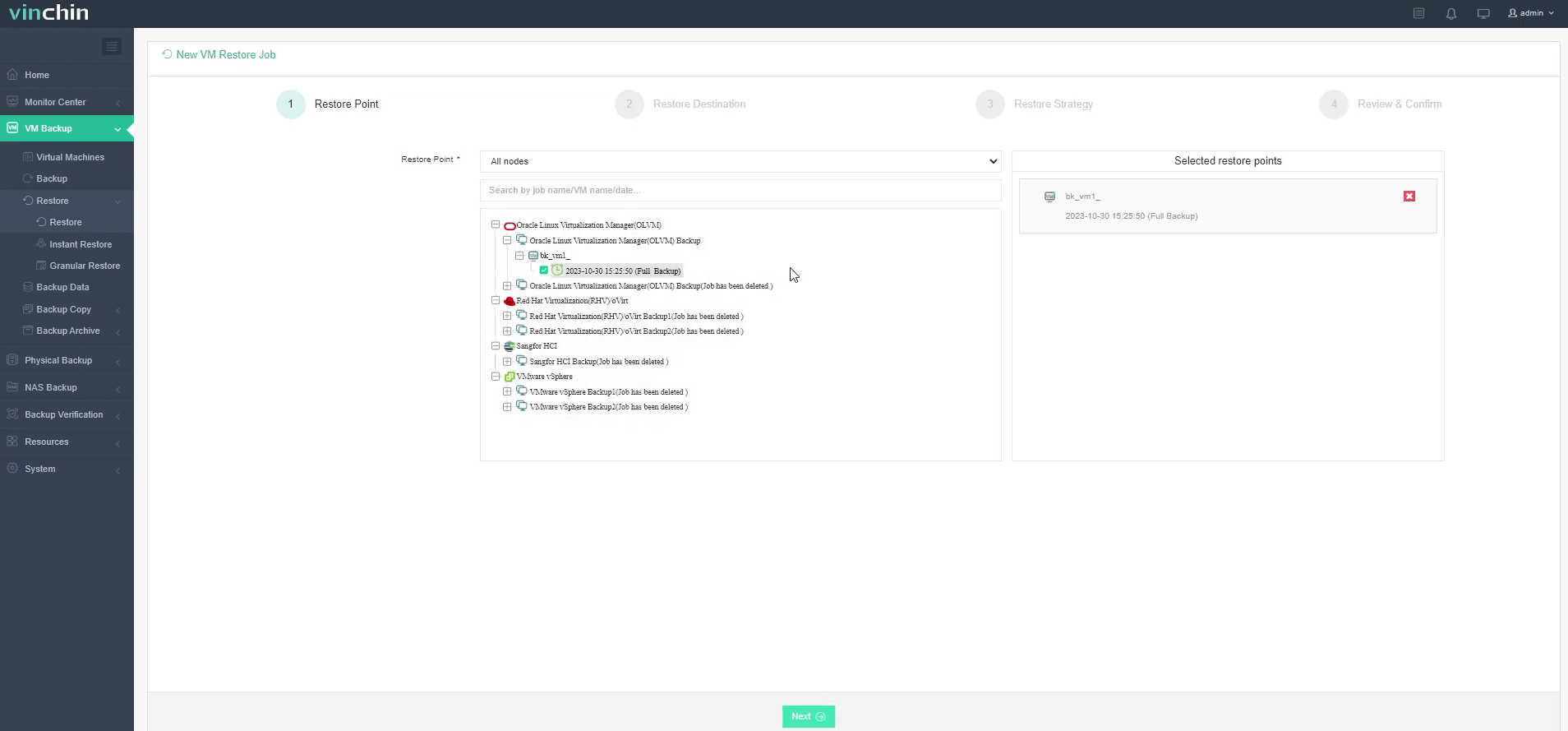
In the list, you can see all the available restore points. Just select the OLVM restore point you want to restore, and click Next.
Step 2. Select Restore Destination
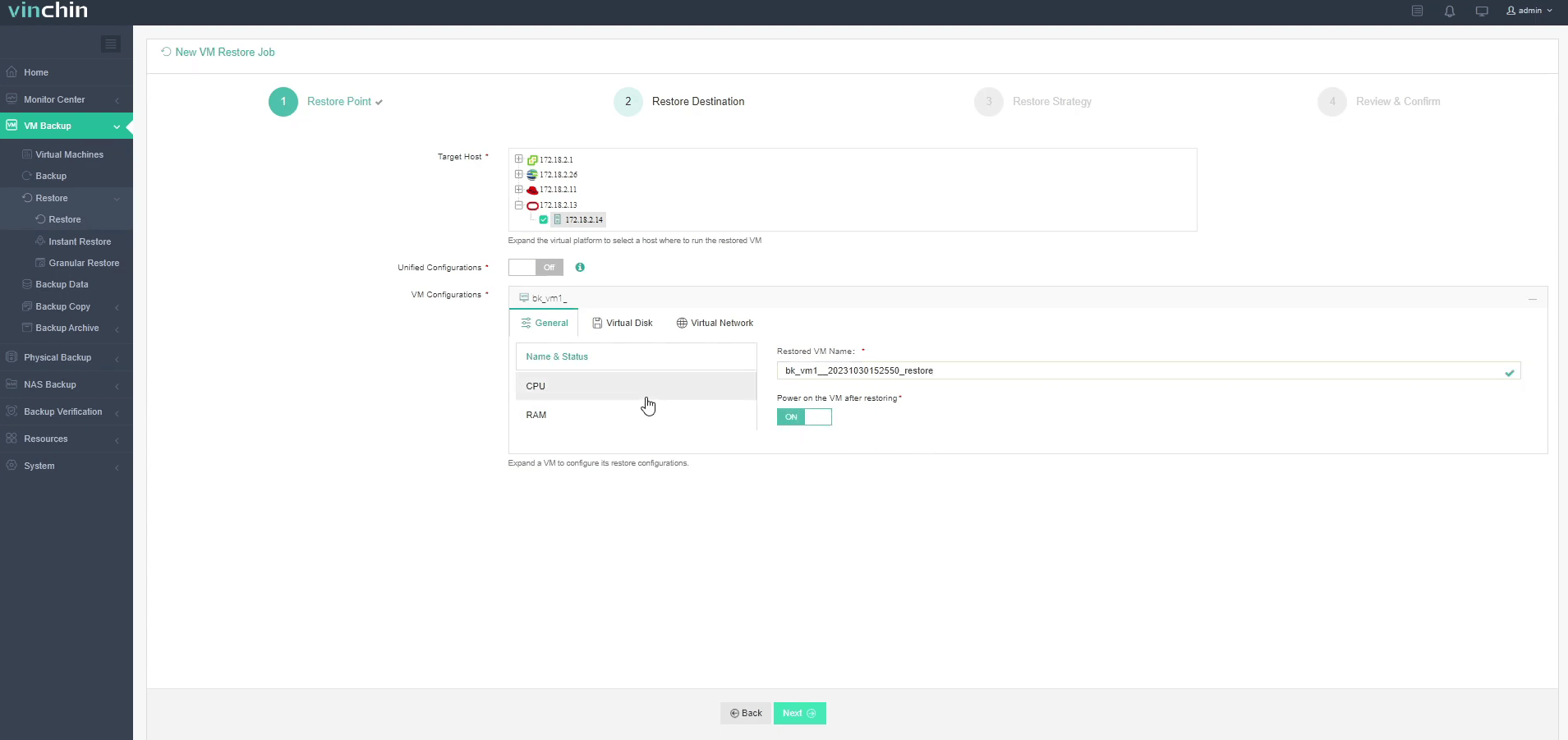
Select a Target Host where to run the restored VM. Here, you can simply configure the restored VM. You can also choose to power on the VM after restoring. After configuration, click Next.
Step 3. Select Restore Strategies
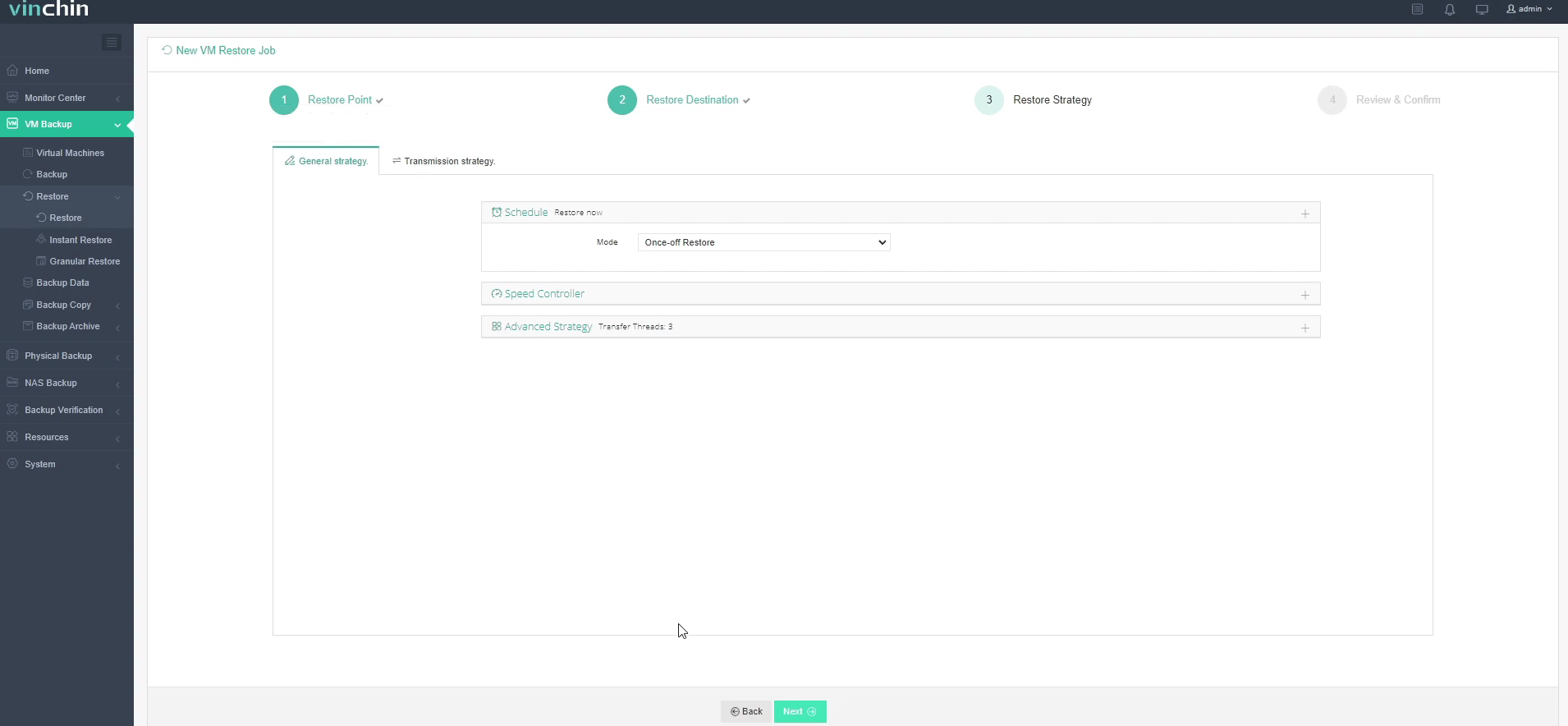
In Schedule, you can choose Restore as Scheduled or Once-off Restore. Restore as scheduled will automatically restore the VMs at a specific time, and Once-off Restore will restore the VMs only once. You can choose transmission strategy as well.
After configuring all recovery policies, click Next.
Step 4. Review and submit the job
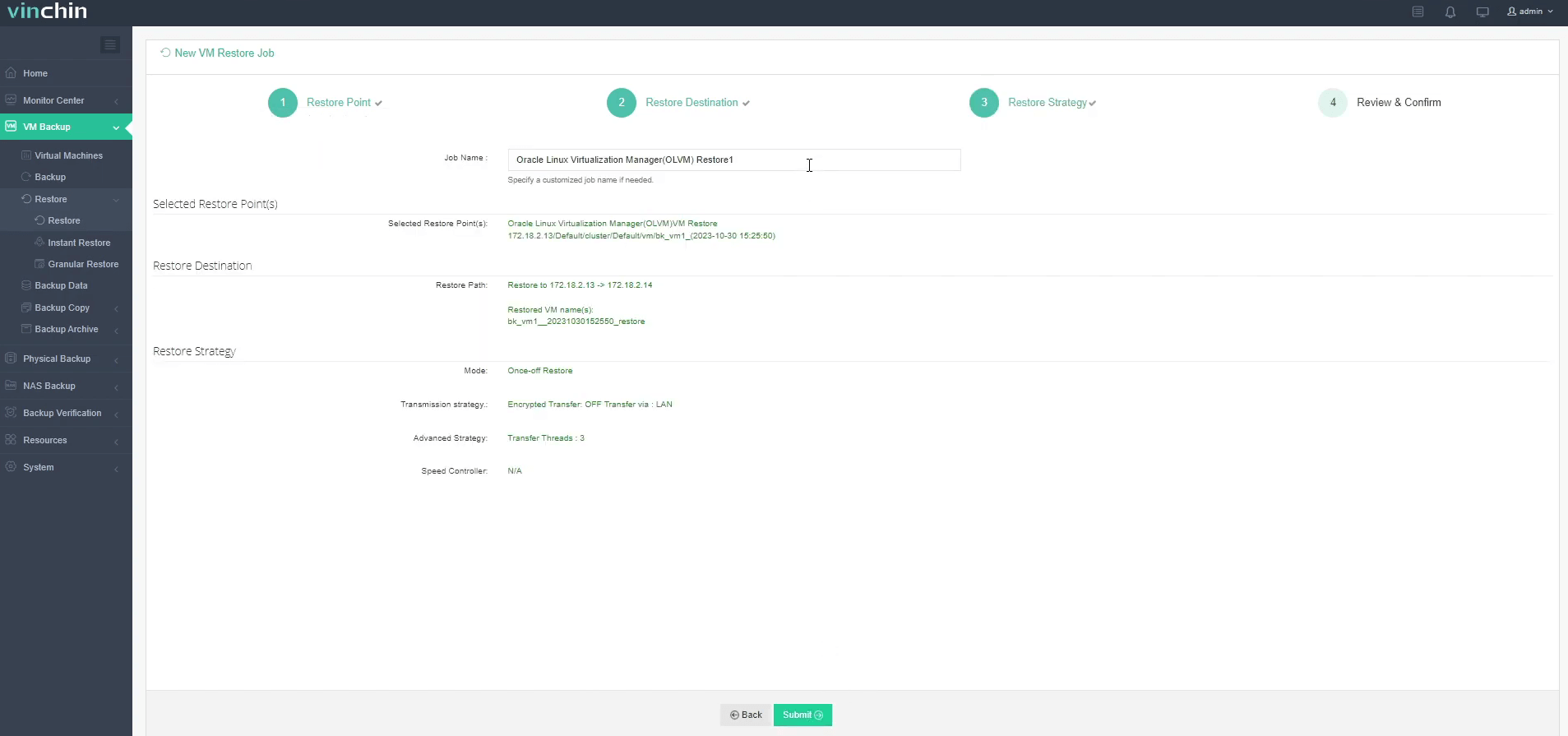
Once the job is created, you’ll be redirected to the job list page and the restore job will run now.
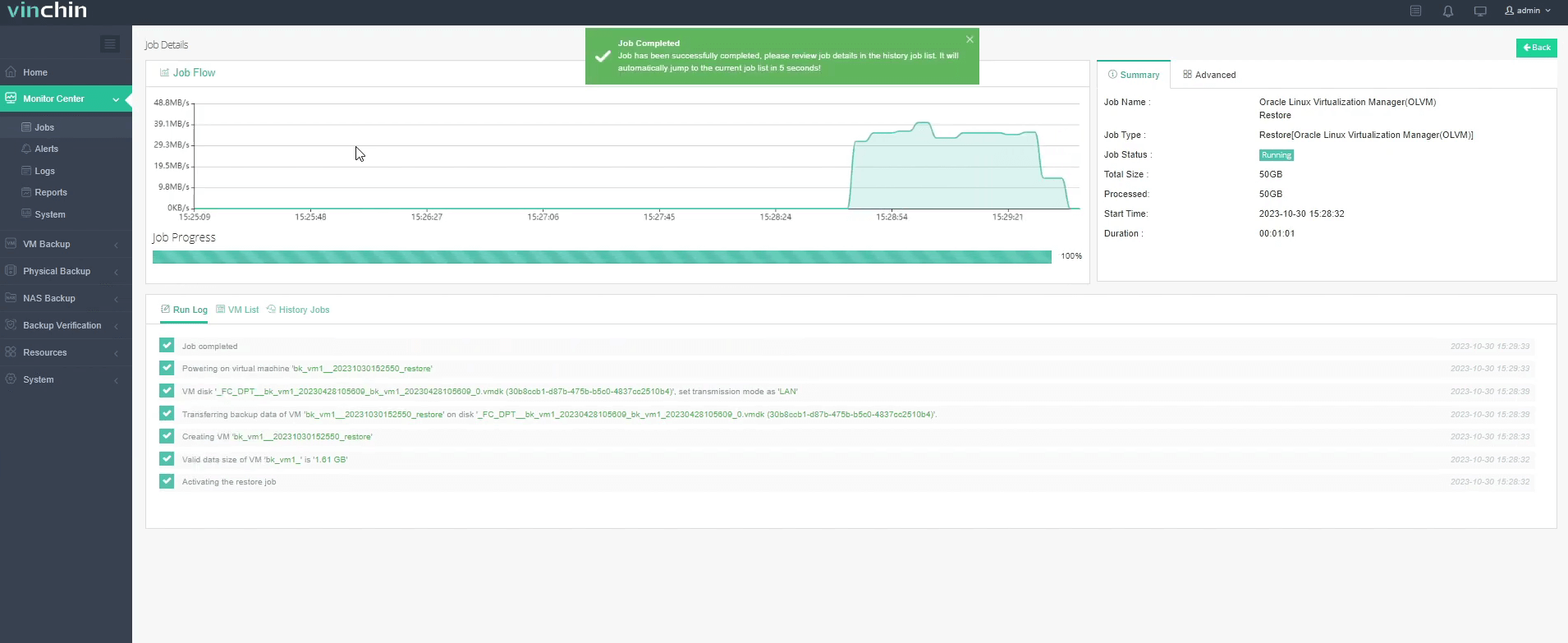
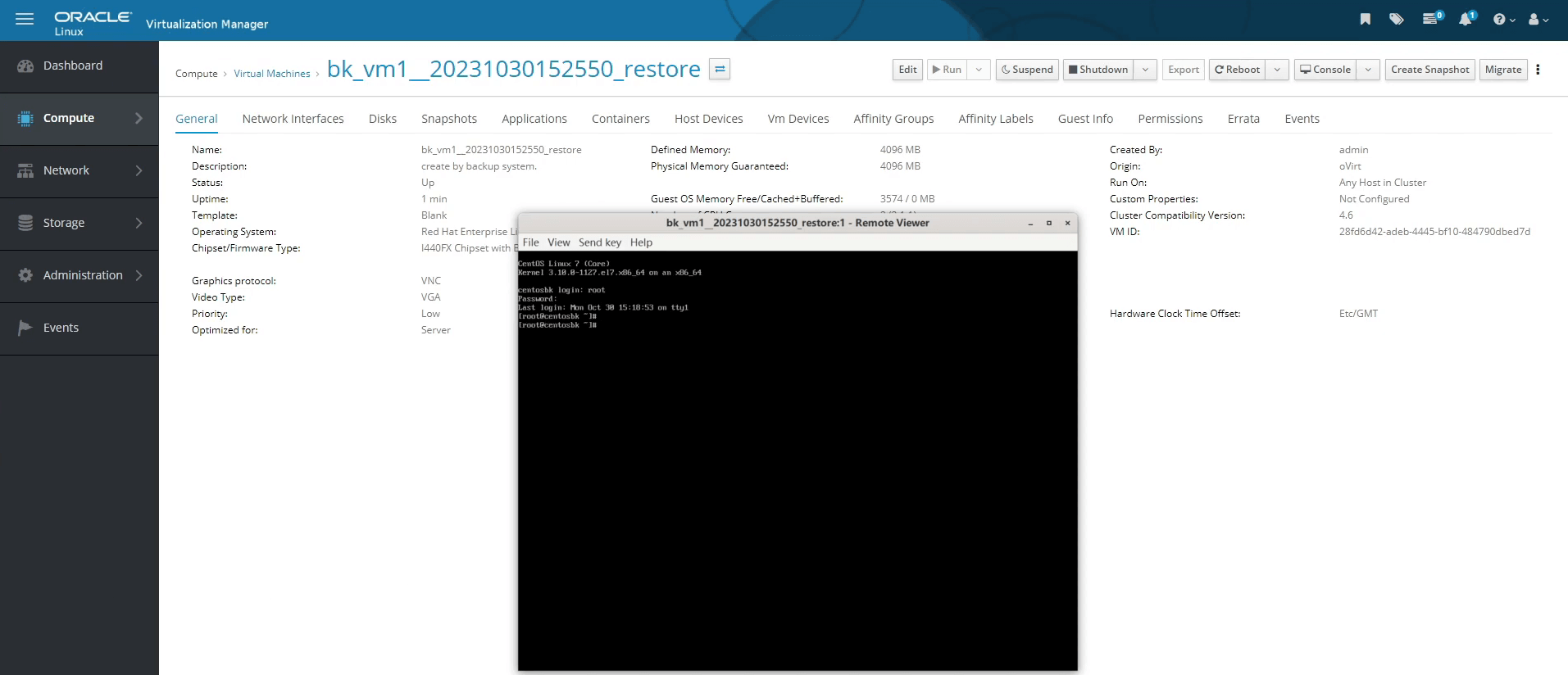
Here, you can see the VM has been successfully restored.
Vinchin offers a 60-day free trial for users to experience the functionality in a real-world environment. For more information, please contact Vinchin directly or contact our local partners. Get the journey started today!
Share on:



