Patching a Proxmox VE node, replacing hardware or rebalancing a busy cluster used to mean shutting down every VM on the host. Live migration removes that downtime: Proxmox VE moves running virtual machines to another node while users keep working.
Quick answer: To live-migrate a Proxmox VM, the source and target nodes must be in the same cluster, the VM’s disks must be on shared storage (or you migrate them along with the VM), and both nodes must support the VM’s CPU type. In the web interface, select the running VM, click Migrate, choose the target node and click Migrate. From the command line, run qm migrate <vmid> <target-node> --online, adding --with-local-disks if the disks are on local storage.
What Is Proxmox Live Migration?
Live migration, also called online migration, moves a running virtual machine from one Proxmox VE node to another without shutting it down. Proxmox VE does it in three phases:
1. Pre-copy: the VM’s memory is copied to the target node while the VM keeps running. Pages that change during the copy are sent again in further rounds.
2. Switchover: when only a small amount of changed memory remains, the VM is paused briefly, usually for well under a second, while the last pages and the CPU state are transferred.
3. Resume: the VM continues on the target node, and its network traffic follows it.
If the VM’s disks are on local storage, Proxmox VE first copies the disks to the target node while the VM runs, then migrates the memory.
Live migration works for virtual machines (QEMU/KVM). LXC containers can’t be live-migrated; they use restart migration, which stops the container, moves it and starts it again (pct migrate <ctid> <target-node> --restart).
Proxmox Live Migration Requirements
| Requirement | Details |
|---|
| Cluster | Source and target nodes must be in the same Proxmox VE cluster, with quorum. Check with pvecm status. |
| Storage | VM disks on shared storage (Ceph RBD, NFS, iSCSI/LVM marked as shared, etc.) that both nodes can reach, or local disks migrated with --with-local-disks, with enough free space on the target. |
| Network | A stable connection between nodes, ideally a dedicated 10 Gbps or faster migration network. Allow TCP 22 (SSH) and TCP 60000–60050 (live migration) between nodes. |
| CPU | The VM’s CPU type must be supported by the target node’s CPU. Use a generic model such as x86-64-v2-AES in mixed clusters, not host. |
| VM configuration | No PCI/GPU passthrough or USB devices tied to the source host. Remove local ISO images from the CD drive, or keep ISOs on shared storage. |
| Resources | The target node needs enough free memory and CPU for the VM. |
| Versions | All nodes should run the same Proxmox VE version. You can migrate from an older to a newer version during an upgrade, but not usually the other way round. |
Set up the cluster
# On the first node
pvecm create my-cluster

# On each additional node
pvecm add <ip-of-first-node>

# Check the cluster
pvecm status
Add shared storage
Add shared storage at the Datacenter level so every node can use it: Datacenter > Storage > Add. You can also use the command line, for example for NFS:
pvesm add nfs nfs-vmstore --server 192.168.10.50 --export /export/vmstore --content images,iso
For iSCSI with LVM, add the iSCSI target, create an LVM volume group on the LUN, then add the LVM storage with Shared checked. For Ceph, use the built-in installer in Node > Ceph or the pveceph commands (pveceph install, pveceph init, pveceph mon create).
Use a migratable CPU type
In mixed clusters, set the VM’s CPU type to a model that every node supports:
qm set <vmid> --cpu x86-64-v2-AES
Use host only when all nodes have identical CPUs, because it exposes every feature of the physical CPU and blocks migration to different hardware. Changing the CPU type requires the VM to be restarted.
How to perform live migration in Proxmox?
Method 1: From the web interface
1. In the Proxmox VE web interface, select the running VM.
2. Click Migrate in the top-right corner.
3. Choose the Target node. Proxmox VE shows whether the migration is possible and warns you about local resources such as local disks or passthrough devices.
4. If the VM has local disks, select the Target storage on the destination node.
5. Click Migrate and follow the progress in the task log.
Method 2: From the command line
Live-migrate VM 103 to node2:
qm migrate 103 node2 --online
If the VM’s disks are on local storage, migrate them as well, and choose the target storage:
qm migrate 103 node2 --online --with-local-disks --targetstorage local-lvm
Without --online, Proxmox VE refuses to migrate a running VM. A stopped VM can be migrated without it (offline migration).
Check the result
Run these on the target node. The VM should show as running. Also check that applications in the VM are responding.
How to Speed Up and Secure Live Migration?
Use a dedicated migration network. By default, migration traffic uses the cluster network. To send it over a faster, separate network, open Datacenter > Options > Migration Settings and choose the network, or set it in /etc/pve/datacenter.cfg:
migration: secure,network=10.10.10.0/24
You can also choose it for a single migration with --migration_network 10.10.10.0/24.
Choose secure or insecure migration. In the default secure mode, memory is sent through an encrypted SSH tunnel. On a trusted, isolated migration network, insecure mode skips encryption and can be noticeably faster for VMs with a lot of memory. Never use it on a shared or untrusted network.
Limit bandwidth if needed. To keep migrations from saturating the network, set a limit in Datacenter > Options > Bandwidth Limits, or per migration with --bwlimit (in KiB/s).
Migrate busy VMs at quiet times. VMs that write to memory very quickly can take a long time to converge. Migrate them during low-load periods.
Migrate All VMs Off a Node for Maintenance
To empty a node before maintenance, right-click the node in the web interface and select Bulk Migrate, or use the API:
pvesh create /nodes/node1/migrateall --target node2
If you prefer a script, for example to control the order:
#!/bin/bash
TARGET_NODE="node2"
for VMID in $(qm list | awk '$3=="running" {print $1}'); do
    echo "Migrating VM $VMID to $TARGET_NODE..."
    qm migrate "$VMID" "$TARGET_NODE" --online
done
Run it on the node you want to empty. For more ways to automate migration, see how to auto migrate Proxmox VMs.
Live Migration and High Availability
With HA enabled (Datacenter > HA > Add), the HA manager restarts VMs on another node if their node fails. HA resources can be in the requested state started, stopped, disabled or ignored. Check the HA status with:
For HA-managed VMs, migrate through HA so the two don’t conflict:
ha-manager migrate vm:103 node2
Under Datacenter > Options > HA Settings, you can set the shutdown policy to migrate, so that when you reboot a node, its HA VMs are live-migrated to other nodes first.
Common Issues and Troubleshooting
| Problem | Likely cause | What to do |
|---|
| “can’t migrate running VM without --online” | Missing option | Add --online, or migrate from the web interface |
| “can’t migrate local disk” / local resources error | Disks or ISO on local storage | Use --with-local-disks, move the disk to shared storage, or set the CD drive to none: qm set <vmid> --ide2 none,media=cdrom |
| VM fails to start on the target / CPU error | CPU type host or unsupported CPU features | Set a generic CPU type such as x86-64-v2-AES and restart the VM |
| Migration hangs or connection drops | Firewall or network problem | Allow TCP 22 and 60000–60050 between nodes, and check the migration network |
| Migration is very slow | Slow or shared network, busy VM | Use a dedicated 10 Gbps+ migration network, consider insecure mode on a trusted network, migrate at quiet times |
| Memory copy never finishes | VM changes memory faster than the network can copy it | Reduce load in the VM during migration, or use a faster network |
| Passthrough device error | PCI/GPU or USB passthrough | Detach the device, or use offline migration |
| Migration fails on HA VM | HA and manual migration conflict | Use ha-manager migrate or migrate from the web interface |
| Shared storage not available on target | Storage not enabled on all nodes | Check Datacenter > Storage, and test with pvesm status on the target node |
Enhancing Proxmox live migration with Vinchin Backup & Recovery
Native live migration only works between nodes in the same Proxmox VE cluster. To move VMs to another cluster, another host, or another platform such as VMware, Hyper-V or OpenStack, and to protect them in case a migration goes wrong, you need a backup-based approach.
Vinchin Backup & Recovery backs up Proxmox VMs without agents and restores them to a different host or platform, with no need for shared storage or a common cluster. Take a backup before major migrations, so you can roll back quickly if something fails.
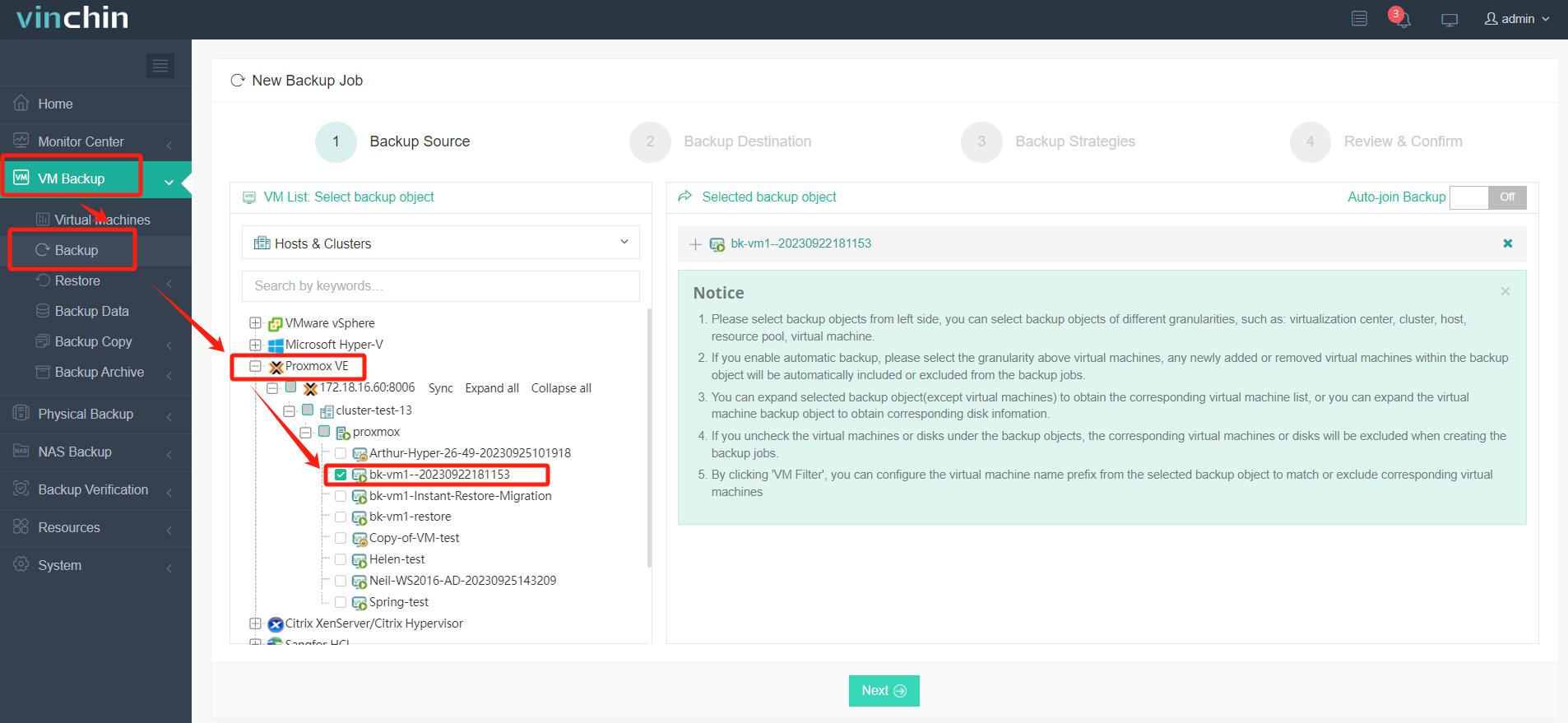
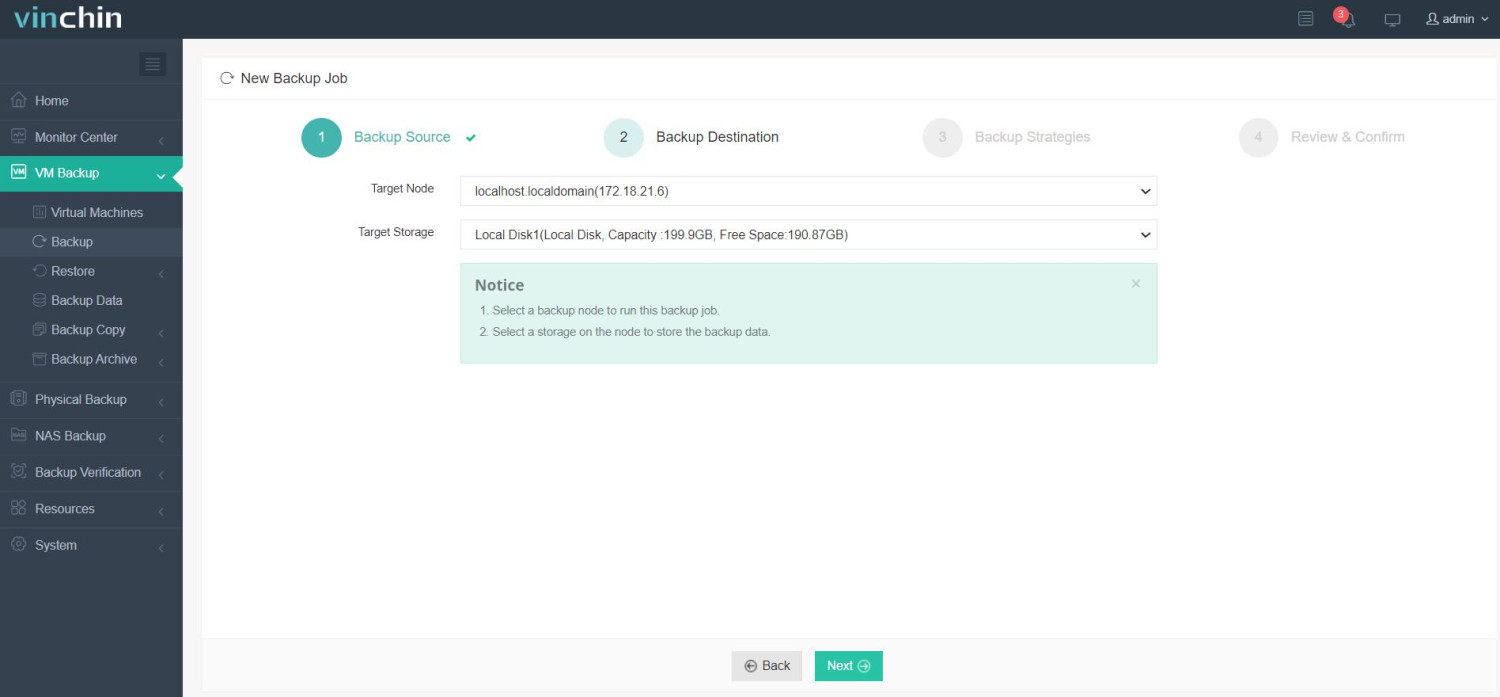
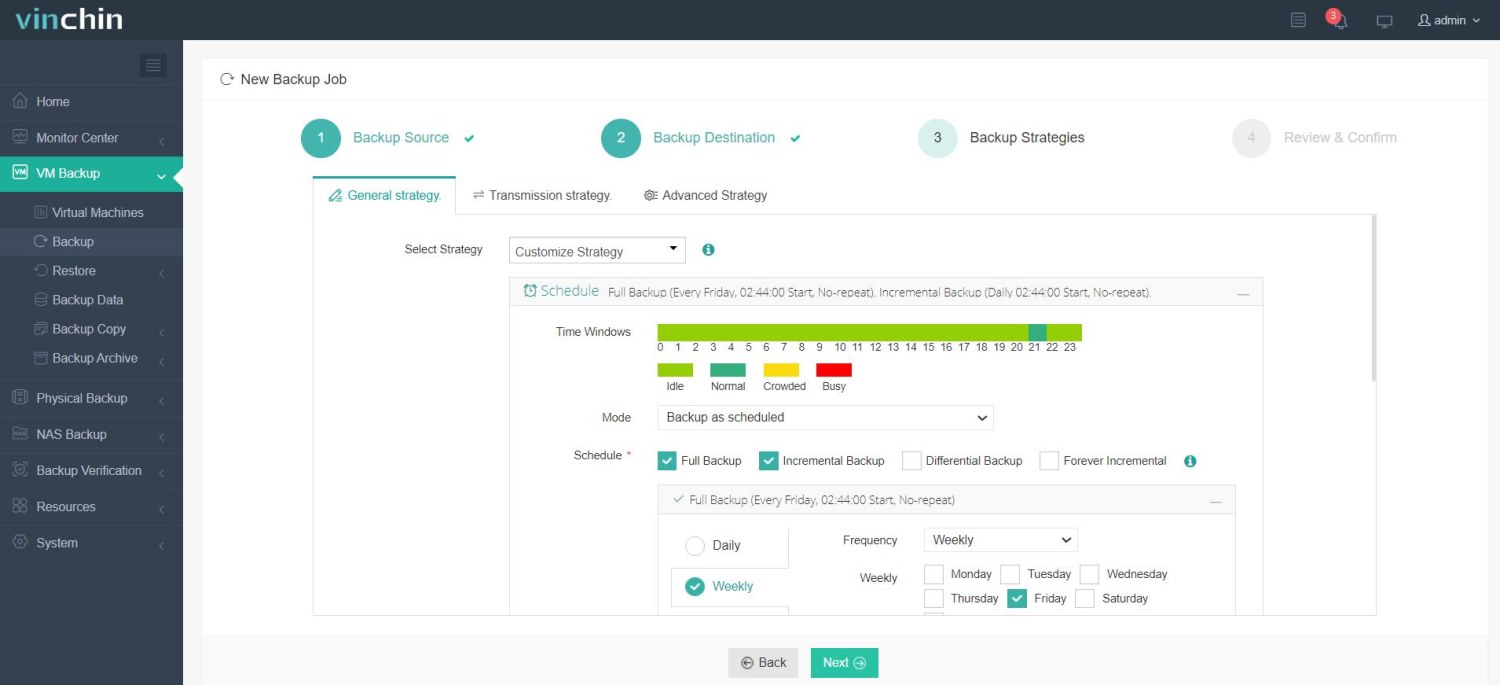
Once the VM is backed up, migrating it takes four steps:
1.Just select VMs on the host
2.Then select backup destination
3.Select strategies
4.Finally submit the job
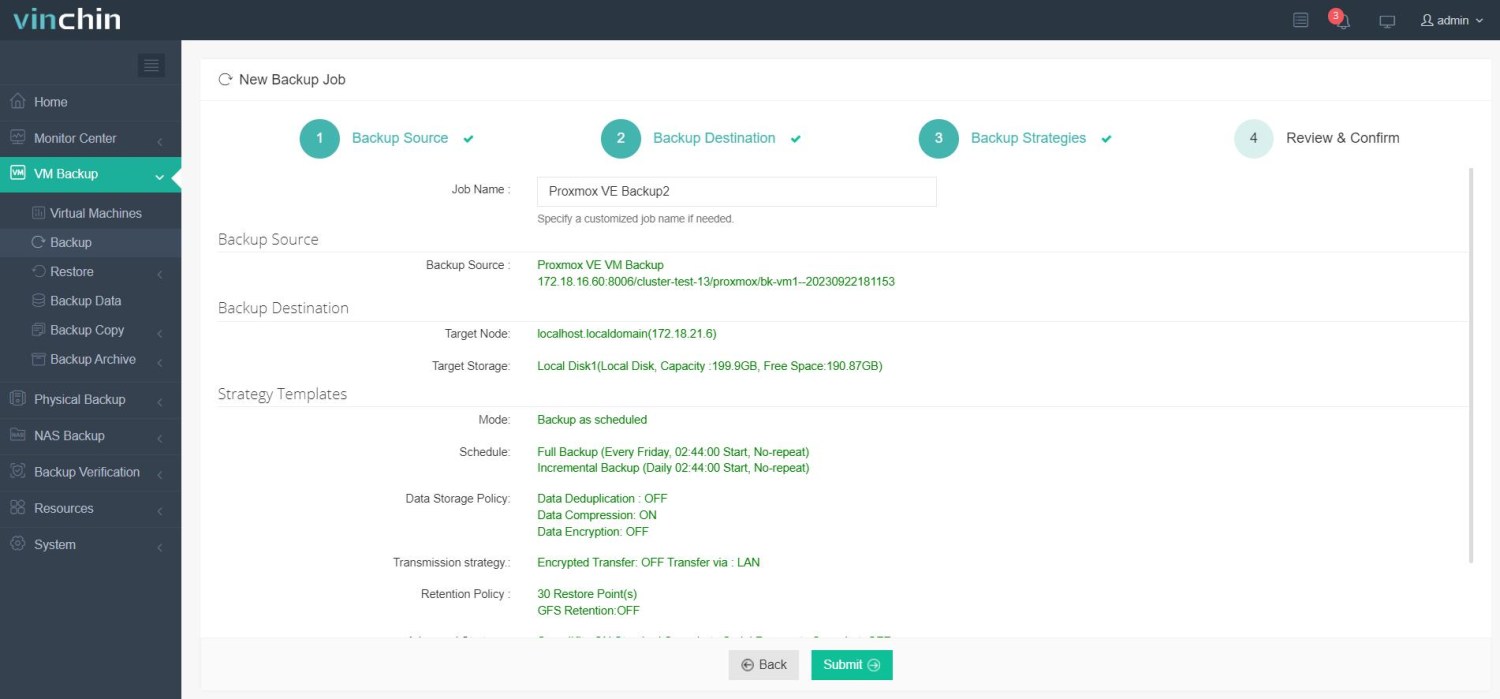
Vinchin Backup & Recovery not only ensures secure and efficient live VM backup during migration but also supports V2V migration, enabling seamless workload transfer across different virtualization platforms. This makes it an ideal solution for businesses undergoing infrastructure upgrades or platform transitions. Vinchin offers a free 60-day trial for users to experience the full functionality in a real-world setting. For more information, please contact Vinchin directly.
Proxmox Live Migration FAQs
Q1: Does Proxmox live migration require shared storage?
No, but it’s much faster with it. With shared storage, only the VM’s memory is copied. With local storage, add --with-local-disks and Proxmox VE copies the disks over the network as well, which can take a long time for large disks.
Q2: Can I live-migrate a VM to another cluster or a standalone node?
Not with regular live migration, which requires both nodes to be in the same cluster. Proxmox VE 7.3 and later include an experimental qm remote-migrate command that migrates a VM to another cluster using an API token. For production use, a backup-and-restore approach is the safer option.
Q3: Can LXC containers be live-migrated?
No. Containers use restart migration: pct migrate <ctid> <target-node> --restart. The container is stopped, moved and started again, which causes a short outage.
Q4: How long does the VM pause during live migration?
Usually well under a second, often a few tens of milliseconds. The total migration time depends on the VM’s memory size, how fast it changes memory, and the network speed.
Q5: What’s the difference between live migration and offline migration?
Live (online) migration moves a running VM with almost no downtime. Offline migration moves a stopped VM; it’s simpler and works when live migration isn’t possible, for example with passthrough devices.
Q6: How much bandwidth do I need?
1 Gbps works for small VMs, but a dedicated 10 Gbps or faster network is strongly recommended for production, especially for VMs with a lot of memory or local disks.
Conclusion
Proxmox live migration lets you move running VMs between cluster nodes for maintenance and load balancing without downtime. Make sure the nodes are in the same cluster, use shared storage or migrate local disks, choose a CPU type every node supports, and give migration its own fast network.
For migrations beyond the cluster, and to protect your VMs before major changes, Vinchin Backup & Recovery adds agentless backup and cross-platform recovery. Try it free for 60 days.