VMware vSphere ถูกใช้อย่างแพร่หลายในบริษัทต่างๆ โดยให้แพลตฟอร์มเสมือนจริงที่แข็งแกร่งเพื่อใช้ทรัพยากรฮาร์ดแวร์บนเซิร์ฟเวอร์จริงได้อย่างเต็มที่ และไฮเปอร์ไวเซอร์ ESXi ของมันได้รับการชื่นชมอย่างมากจากผู้ใช้งาน
เมื่อเทคโนโลยีการจำลองเสมือนทำลายข้อจำกัดของสภาพแวดล้อมไอทีแบบดั้งเดิม ก็ยังนำมาซึ่งความท้าทายใหม่ๆ ในการดูแลรักษาระบบไอที ผู้ดูแลระบบไอทีควรดำเนินการสำรองข้อมูลเซิร์ฟเวอร์จริงต่อไป หรือควรหานวัตกรรมใหม่เพื่อสำรองข้อมูลเครื่องเสมือน ESXi?
การสำรองข้อมูลเครื่องเสมือน ESXi เทียบกับการสำรองข้อมูลโฮสต์
ก่อนที่เซิร์ฟเวอร์ทางกายภาพจะถูกทำให้เป็นเสมือน ผู้ดูแลระบบไอทีจำเป็นต้องสำรองข้อมูลเพียงแค่ใช้วิธีแบบดั้งเดิม แต่ในปัจจุบันการกู้คืนเซิร์ฟเวอร์ทั้งเครื่องเพื่อซ่อมเครื่องเสมือนบางเครื่องนั้นไม่เหมาะสมต่อการกู้ภัยพิบัติ เพราะอาจส่งผลกระทบต่อเครื่องเสมือนอื่นๆ ที่ทำงานอยู่ปกติ
นอกจากนี้ยังเป็นการยากที่จะสำรองข้อมูลทั้งหมดบนโฮสต์เสมือนจริง เนื่องจาก ESXi เป็นไฮเพอร์ไวเซอร์ชนิดที่ 1 ซึ่งหมายความว่าไม่มีระบบปฏิบัติการให้โซลูชันแบบดั้งเดิมติดตั้งเอเจนต์สำรองข้อมูลได้ ผู้ดูแลระบบไอทีบางคนจะ สำรองค่าการตั้งค่า ESXi แต่คนส่วนใหญ่กลับมองว่าไม่จำเป็น
วิธีที่มีประสิทธิภาพที่สุดในการปกป้องข้อมูลและความต่อเนื่องของธุรกิจในสภาพแวดล้อมเสมือน ยังคงเป็นการสำรองข้อมูลเครื่องเสมือน (VMs) บนโฮสต์ ESXi เพื่อให้ในกรณีที่เกิดความล้มเหลวของเครื่องเสมือน ผู้ดูแลระบบไอทีสามารถกู้คืนเครื่องเสมือนเดี่ยวได้โดยไม่กระทบต่อเครื่องอื่นๆ
การสำรองข้อมูลเครื่องเสมือน ESXi ด้วยสคริปต์ PowerShell ทำได้อย่างไร?
เพื่อจัดการเครื่องเสมือน คุณสามารถติดตั้ง vCenter ในสภาพแวดล้อมเสมือนและ ส่งออกเครื่องเสมือน ESXi เป็นการสำรองข้อมูล
เมื่อติดตั้ง vCenter แล้ว คุณยังสามารถรันสคริปต์ PowerShell เพื่อสำรองข้อมูลเครื่องเสมือนตามกำหนดเวลาได้อีกด้วย
ส่วนนี้จะแนะนำวิธีการเขียนสคริปต์ 3 ไฟล์ ได้แก่ Starter.ps1, _Configuration.ps1 และ Backup-VM.ps1 จากนั้นคุณจำเป็นต้องวางไฟล์เหล่านี้ในโครงสร้างไดเรกทอรีดังต่อไปนี้:
│ Backup-VM.ps1
│ Starter.ps1
│
└─vCenter01
_Configuration.ps1
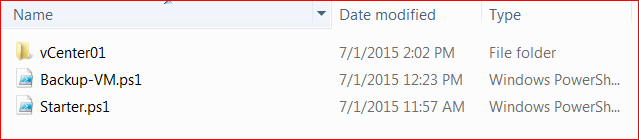
คำอธิบายฟังก์ชันการทำงานของสคริปต์:
Starter.ps1 - Invoked by task scheduler, in its path, it will scan all _Configuration.ps1 files, and launch Backup-VM.ps1 asynchronously.
Backup-VM.ps1 - Owns a sole parameter called "-vCenterFolder", pointing to a directory of _Configuration.ps1.
_Configuration.ps1 - Configuration file, any number of it is ok, based on the contents, do different VM backup jobs on different vCenter servers.
เนื้อหาและคำอธิบายสคริปต์:
Starter.ps1
# Enter directory of script
Set-Location (Get-Item $MyInvocation.MyCommand.Definition).Directory

# Scan all _Configuration.ps1 files
Get-ChildItem -Filter '_Configuration.ps1' -Recurse | %{
    # Launch Backup-VM.ps1 and pass _Configuration.ps1's path in
    Start-Process -FilePath 'powershell.exe' -ArgumentList @('-File', 'Backup-VM.ps1', '-vCenterFolder', "`"$($_.DirectoryName)`"")
}
_Configuration.ps1
$Enable = $true

# Below is a sample to backup VMs
# VM - the VM name in vCenter
# Host - VMHost name in vCenter
# Datastore - Datastore name in vCenter in Host
<#
Sample:
$Entries = @(
@{VM = 'VMName01'; Host = 'TargetESXiServerName02'; Datastore = 'TargetESXiServerName02:storage1'; Reserve = 1;},
@{VM = 'VMName02'; Host = 'TargetESXiServerName01'; Datastore = 'TargetESXiServerName01:storage2'; Reserve = 1;}
)
#>

# Actual data filled in
$Entries = @(

)

# vCenter server name or IP address
$vCenter = 'vCenter01'

# Mail setting part, only there are errors needs manual work will be triggered. normal backup job will not trigger the alert.
$From =  "$($env:COMPUTERNAME)@test.com"
$To = "AlertNeedsToSend@test.com"
$Subject = "VMs backup completed with errors - $vCenter"
$SmtpServer = 'mailgateway'
Backup-VM.ps1 - ตัดสินใจโดยอัตโนมัติว่าจะใช้วิธีสำรองข้อมูลแบบใด หาก VM ใช้ VDS (vSphere Distributed Switch) สคริปต์จะเลือกการสำรองข้อมูลผ่าน API หาก VM ใช้ vSphere Standard Switch แบบปกติ สคริปต์สามารถใช้ New-VM ในการโคลน VM ได้ (หลังจากใช้ VDS แล้ว New-VM จะล้มเหลว เว้นแต่เซิร์ฟเวอร์ ESXi ต้นทางและปลายทางจะมีการตั้งค่า VDS เหมือนกัน)
PARAM(
    [parameter(Mandatory=$true)]
    [string]$vCenterFolder
)

# Enter directory of _Configuration.ps1
Set-Location -Path $vCenterFolder

$Date = Get-Date
$strDate = $Date.ToString("yyyy-MM-dd")
$strLogFile = "${strDate}.log"

# Import _Configuration.ps1 variables
. '.\_Configuration.ps1'

# Define a logging function
function Add-Log
{
    PARAM(
        [String]$Path,
        [String]$Value,
        [String]$Type = 'Info'
    )
    $Type = $Type.ToUpper()
    $Date = Get-Date
    Write-Host "$($Date.ToString('[HH:mm:ss] '))[$Type] $Value" -ForegroundColor $(
        switch($Type)
        {
            'WARNING' {'Yellow'}
            'Error' {'Red'}
            default {'White'}
        }
    )
    if($Path){
        Add-Content -LiteralPath $Path -Value "$($Date.ToString('[HH:mm:ss] '))[$Type] $Value" -ErrorAction:SilentlyContinue
    }
}

Add-Log -Path $strLogFile -Value 'New backup started'
# Whether the configuration is enabled or not
if(!$Enable)
{
    Add-Log -Path $strLogFile -Value 'Repository disabled'
    exit
}

# $vCenter is necessary, without it, script doesn't know where to connect to
if(!$vCenter)
{
    Add-Log -Path $strLogFile -Value 'vCenter variable is null, can not continue' -Type Error
    $Alert = $true
}
else
{
    Add-Log -Path $strLogFile -Value "vCenter: [$vCenter]"
}

# Looking for necessary snapin, early version of PowerCli has no snapin for VDS, output some information to ensure the environment of the script
if(!(Get-PSSnapin -Name '*VMware.VimAutomation.Vds*' -Registered -ErrorAction:SilentlyContinue))
{
    Add-Log -Path $strLogFile -Value 'This script is built from [VMware vSphere PowerCLI 5.5], suggest to run on the version' -Type Error
    Add-Log -Path $strLogFile -Value 'PSSnapin [VMware.VimAutomation.Vds] is not found, which could cause backup failure' -Type Error
    Add-Log -Path $strLogFile -Value 'Installer path: [ServerVMwarevSphereVMware-PowerCLI-5.5.0-1295336.exe]' -Type Info
    exit
}

# Add snapin
if(!(Get-PSSnapin '*vmware*' -ErrorAction:SilentlyContinue))
{
    Add-PSSnapin *vmware*
    if(!$?)
    {
        Add-Log -Path $strLogFile -Value 'Failed to add vmware pssnapin' -Type Error
        Add-Log -Path $strLogFile -Value $Error[0] -Type Error
        exit
    }
}

# Connect to vCenter,if error, set $Alert to $true to trigger alert at last
Connect-VIServer -Server $vCenter -Force
if(!$?)
{
    Add-Log -Path $strLogFile -Value 'Failed to connect to vCenter, cause:' -Type Error
    Add-Log -Path $strLogFile -Value $Error[0] -Type Error
    $Alert = $true
}

$Tasks = @()
# Loop every VM backup item
foreach($e in $Entries)
{
    Add-Log -Path $strLogFile -Value "Start doing backup for: [$($e.VM)]"
    # Add a new VM name as "%OLDVMName%_ScriptBackup_%CurrentDate%"
    $VMNew = "$($e.VM)_ScriptBackup_$strDate"
    $e.NewVM = $VMNew
    $VM = $null
    $VM = @(Get-VM -Name $e.VM -ErrorAction:SilentlyContinue)
    if(!$VM)
    {
        Add-Log -Path $strLogFile -Value 'Capture none VM, does the VM exists?' -Type Warning
        continue
    }
    if($VM.Count -ge 2)
    {
        Add-Log -Path $strLogFile -Value "Capture [$($VM.Count)] VM, duplicated VMs?: [$(($VM | %{$_.Id}) -join '], [')]" -Type Warning
        continue
    }
    $VM = $VM[0]

    # only one VM captured, no confuse to script
    $VMHost = $null
    $VMHost = @(Get-VMHost -Name $e.Host -ErrorAction:SilentlyContinue)
    if(!$VMHost)
    {
        Add-Log -Path $strLogFile -Value "Capture none VMHost, does the VMHost exists?: [$($e.Host)]" -Type Warning
        continue
    }
    if($VMHost.Count -ge 2)
    {
        Add-Log -Path $strLogFile -Value "Capture [$($VMHost.Count)] VMHost, duplicated VMHosts?: [$(($VMHost | %{$_.Id}) -join '], [')]" -Type Warning
        continue
    }
    $VMHost = $VMHost[0]

    # only one VMHost captured, no confuse to script
    $Datastore = $null
    $Datastore = @($VMHost | Get-Datastore -Name $e.Datastore -ErrorAction:SilentlyContinue)
    if(!$Datastore)
    {
        Add-Log -Path $strLogFile -Value "Capture none Datastore, does the Datastore exists on VMHost?: [$($e.Datastore)]" -Type Warning
        continue
    }
    if($Datastore.Count -ge 2)
    {
        Add-Log -Path $strLogFile -Value "Capture [$($Datastore.Count)] Datastore, duplicated Datastores?: [$(($Datastore | %{$_.Id}) -join '], [')]" -Type Warning
        continue
    }
    $Datastore = $Datastore[0]

    # only one Datastore captured, no confuse to script
    Add-Log -Path $strLogFile -Value "INFO[OLDName][NewName][Host][Datastore]: [$($VM.Name)][$VMNew][$($VMHost.Name)][$($Datastore.Name)]"

    # Whether the VM is using VDS
    $VDS = $null
    $VDS = $VM | Get-VDSwitch -ErrorAction:SilentlyContinue
    if(!$VDS)
    {
        # if VDS is not placed, use New-VM to clone
        Add-Log -Path $strLogFile -Value 'VDSwitch not found on the VM, use commandlet [New-VM] to clone'
        $Task = $null
        $Task = New-VM -Name $VMNew -VM $VM -VMHost $VMHost -Datastore $Datastore -RunAsync -ErrorAction:SilentlyContinue
        if(!$?)
        {
            Add-Log -Path $strLogFile -Value 'New-VM failed, cause:' -Type Warning
            Add-Log -Path $strLogFile -Value $Error[0] -Type Warning
            continue
        }
        Add-Log -Path $strLogFile -Value "Task launched: [$($Task.Id)]"
        $Tasks += $Task.Id
    }
    else
    {
        # using VDS, use API to clone
        Add-Log -Path $strLogFile -Value 'VDSwitch found on the VM, need to use 2nd way to clone VM'
        Add-Log -Path $strLogFile -Value "VDS [Name][KEY]: [$(($VDS | %{$_.Name}) -join ';')][$(($VDS | %{$_.Key}) -join ';')]"
        $TargetVDS = $null
        $TargetVDS = @($VMHost | Get-VDSwitch -ErrorAction:SilentlyContinue)
        # on target VMHost search VDS, if target ESXi has no VDS, clone will fail
        if(!$TargetVDS)
        {
            Add-Log -Path $strLogFile -Value 'Target VMHost server has no VDSwitch, VM which uses a VDS is unable to clone to the VMHost' -Type Warning
            continue
        }
        $TargetVDS = $TargetVDS[-1]
        # capture VDS and pick the one owns most number of ports
        $TargetVDSGroup = @($TargetVDS | Get-VDPortgroup | Sort-Object NumPorts)[-1]
        Add-Log -Path $strLogFile -Value "Target VDS randomly picked [Name][Key]: [$($TargetVDS.Name)][$($TargetVDS.Key)]"

        # API nesessary, use default resource pool of ESXi server is fine
        $Pool = $null
        $Pool = @($VMHost | Get-ResourcePool)[0]
        if(!$Pool)
        {
            Add-Log -Path $strLogFile -Value 'No resource pool found from VMHost, please use Get-ResourcePool to find resource pool on the VMhost' -Type Warning
            continue
        }

        # Capture VM's network adapter, change it to use VDS on target ESXi
        $VMNic = $null
        $VMNic = $VM.ExtensionData.Config.Hardware.Device | ?{$_.DeviceInfo.Label -imatch 'Network adapter'}
        if($VMNic.Count -ge 2)
        {
            Add-Log -Path $strLogFile -Value 'The VM has more than 2 network adapters, not supported' -Type Warning
            continue
        }
        $VMNicBacking = $VMNic.Backing
        $VMNicBacking.Port.SwitchUuid = $TargetVDS.Key
        $VMNicBacking.Port.PortgroupKey = $TargetVDSGroup.Key
        $VMNicBacking.Port.PortKey = ''
        $VMNicBacking.Port.ConnectionCookie = ''

        # API necessary
        $spec = New-Object VMware.Vim.VirtualMachineCloneSpec
        $spec.Config = New-Object VMware.Vim.VirtualMachineConfigSpec
        $nicDev = New-Object VMware.Vim.VirtualDeviceConfigSpec
        $nicDev.Operation = 'edit'
        $nicDev.Device = $VMNic
        $nicDev.Device.Backing = $VMNicBacking
        $spec.Config.DeviceChange = $nicDev
        $spec.Config.DeviceChange[0].Device.Backing.Port.PortKey = ''
        $spec.Location = New-Object VMware.Vim.VirtualMachineRelocateSpec
        $spec.Location.Host = $VMHost.ExtensionData.MoRef
        $spec.Location.Datastore = $Datastore.ExtensionData.MoRef
        $spec.Location.Pool = $Pool.ExtensionData.MoRef
        $spec.PowerOn = $false
        $spec.Template = $false

        Add-Log -Path $strLogFile -Value 'Trying to get datacenter object, this could potentially cause a dead loop!'
        # to get the $Folder for API, must get datacenter of ESXi first
        $Datacenter = $VMHost.Parent
        while($Datacenter.Id -notmatch 'Datacenter')
        {
            $Datacenter = $Datacenter.Parent
        }
        # API necessary
        $Folder = $Datacenter | Get-Folder -Name 'Discovered virtual machine'
        Add-Log -Path $strLogFile -Value 'Did not fail into a dead loop!'

        # use API to launch clone task
        $Task = $null
        $Task = $VM.ExtensionData.CloneVM_Task($Folder.ExtensionData.MoRef, $VMNew, $spec)
        if(!$?)
        {
            Add-Log -Path $strLogFile -Value 'CloneVM_Task failed, cause:' -Type Warning
            Add-Log -Path $strLogFile -Value $Error[0] -Type Warning
            continue
        }
        Add-Log -Path $strLogFile -Value "Task launched: [$($Task.Type)-$($Task.Value)]"
        $Tasks += "$($Task.Type)-$($Task.Value)"
    }
}

$Tasks = @($Tasks | ?{$_})
Add-Log -Path $strLogFile -Value "Waiting for tasks to complete, count: [$($Tasks.Count)]"
while($Tasks)
{
    # clone is running asynchronously, so script needs to trace all tasks every 5 minutes
    # The sleep time better not exceed 15 minutes, due to vCenter will clean completed tasks after 15 minutes
    # when debugging, change the time to 10 seconds is fine
    Start-Sleep -Seconds 300
    $Tasks = Get-Task -Id $Tasks -ErrorAction:SilentlyContinue
    if(!$?)
    {
        Add-Log -Path $strLogFile -Value 'Failed to refresh Task states, cause:' -Type Warning
        Add-Log -Path $strLogFile -Value $Error[0] -Type Warning
    }
    $Tasks = @(
        $Tasks | %{
            if($_.State -ne 'Running')
            {
                Add-Log -Path $strLogFile -Value "Task completed [ID][State]: [$($_.Id)][$($_.State)]"
                if($_.State -eq 'Error')
                {
                    Add-Log -Path $strLogFile -Value $_.ExtensionData.Info.Error.LocalizedMessage -Type Warning
                }
            }
            else
            {
                Add-Log -Path $strLogFile -Value "Task running [ID][% Complete]: [$($_.Id)][$($_.PercentComplete)%]"
                $_.Id
            }
        }
    )
}

# script will start verification for VM backups after all Tasks done
Add-Log -Path $strLogFile -Value 'Verification start'
foreach($e in $Entries)
{
    if((Get-VM -Name $e.NewVM -ErrorAction:SilentlyContinue) -and $?)
    {
        # Backup VM found in vCenter, suggest the backup was succeed
        Add-Log -Path $strLogFile -Value "[VM][NewVM]: [$($e.VM)][$($e.NewVM)] -- New VM found in vCenter"
        if($e.Reserve)
        {
            # If Reserve's valud is set, script will find all backups for the VM, and remove addtionals
            $VMBackups = $null
            $VMBackupsRemoval = $null
            $VMBackups = Get-VM -Name "$($e.VM)_ScriptBackup_*" | ?{$_.Name -imatch '_ScriptBackup_d{4}-d{2}-d{2}$'} -ErrorAction:SilentlyContinue
            $VMBackups = @($VMBackups | Sort-Object 'Name')
            Add-Log -Path $strLogFile -Value "Old VM backups captured: [$($VMBackups.Count)][$(($VMBackups | %{$_.Name}) -join ';')]"
            $i = $VMBackups.Count - $e.Reserve
            if($i -le 0)
            {
                $i = 0
                Add-Log -Path $strLogFile -Value 'No old backups available to be removeds'
            }
            if($i -gt 0)
            {
                Add-Log -Path $strLogFile -Value "VM old backups can be removed count: [$i]"
                $VMBackupsRemoval = $VMBackups[0..(--$i)]
                Remove-VM -VM $VMBackupsRemoval -DeletePermanently -Confirm:$false
            }
        }
    }
    else
    {
        # backup VM not found in vCenter which means backup failed, better do nothing
        Add-Log -Path $strLogFile -Value "[VM][NewVM]: [$($e.VM)][$($e.NewVM)] -- New VM not found in vCenter, backup failure?" -Type Warning
        $Alert = $true
    }
}

Add-Log -Path $strLogFile -Value 'All done!'

# If there is error needs manual work, email will be triggered
if($Alert)
{
    Send-MailMessage -To $To -From $From -SmtpServer $SmtpServer -Subject $Subject -Attachments $strLogFile
    if(!$?)
    {
        Add-Log -Path $strLogFile -Value 'Failed to send email, cause:' -Type Warning
        Add-Log -Path $strLogFile -Value $Error[0] -Type Warning
    }
}
การสำรองข้อมูล ESXi VM ด้วยซอฟต์แวร์สำรองข้อมูลระดับองค์กรทำอย่างไร?
สคริปต์ให้ทางออกในการสำรองข้อมูล ESXi VM แบบฟรี แต่จริงๆ แล้วไม่เหมาะสำหรับการกู้คืนภัยพิบัติในองค์กร เนื่องจากไม่ใช่โซลูชันการสำรองข้อมูลที่ครอบคลุม และไม่ได้ให้ทางออกในการกู้คืนเครื่องเสมือนอย่างรวดเร็ว บริษัทควรใช้โซลูชันที่มีความเป็นมืออาชีพมากกว่านี้
Vinchin Backup & Recovery เป็นโซลูชันสำรองข้อมูลระดับมืออาชีพสำหรับองค์กรที่ได้รับการยืนยันจาก VMware ซึ่งรองรับการสำรองข้อมูลในระดับเกสต์สำหรับ VMware vSphere
ใช้เวลาเพียงไม่กี่นาทีในการติดตั้งในสภาพแวดล้อมเสมือน จากนั้นคอนโซลเว็บที่ใช้งานง่ายจะช่วยให้คุณสร้างงานสำรองข้อมูลด้วยกลยุทธ์ที่ต้องการได้อย่างสะดวก
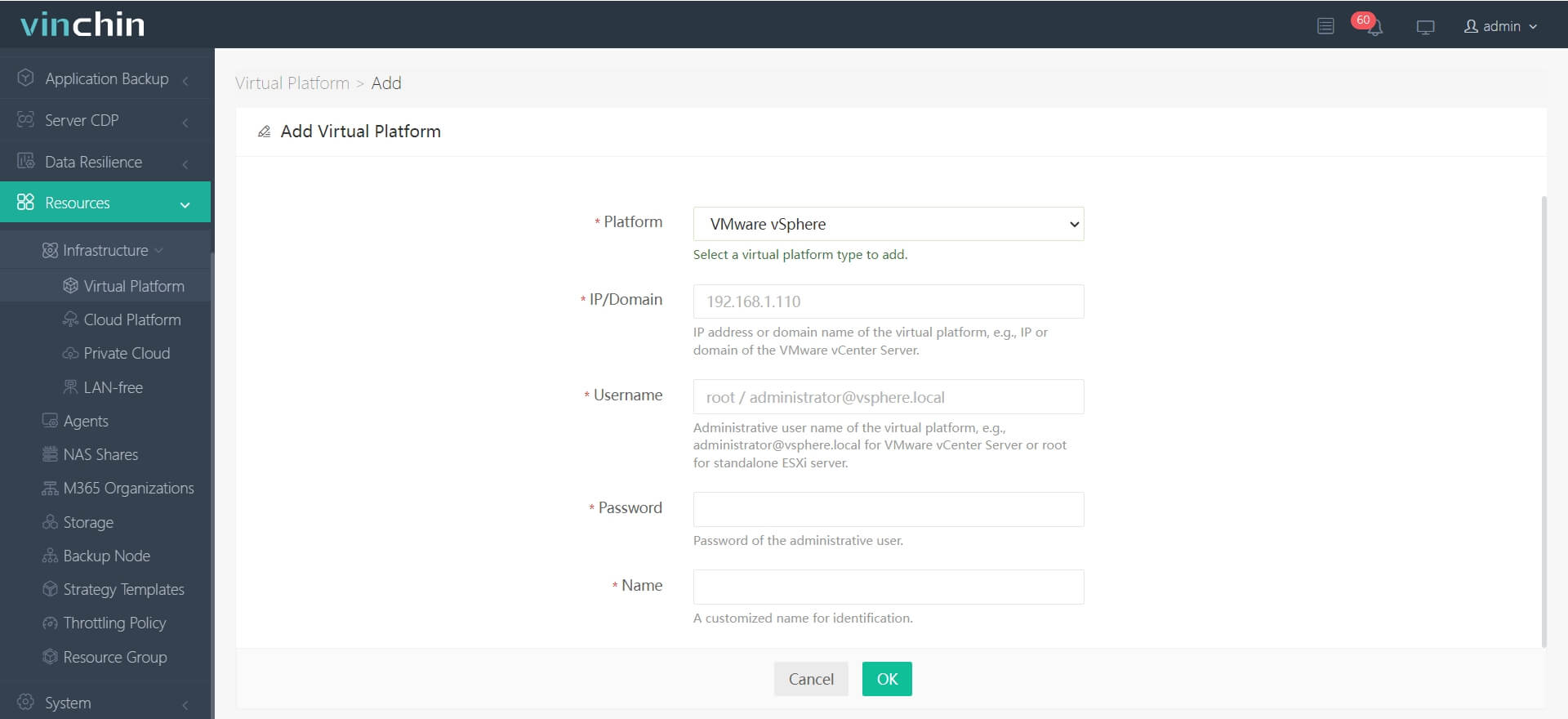
1. เพิ่มโฮสต์ ESXi ด้วยข้อมูลประจำตัวเพื่อสำรองข้อมูลเครื่องเสมือนบนโฮสต์นั้นโดยไม่ต้องใช้เอเจนต์
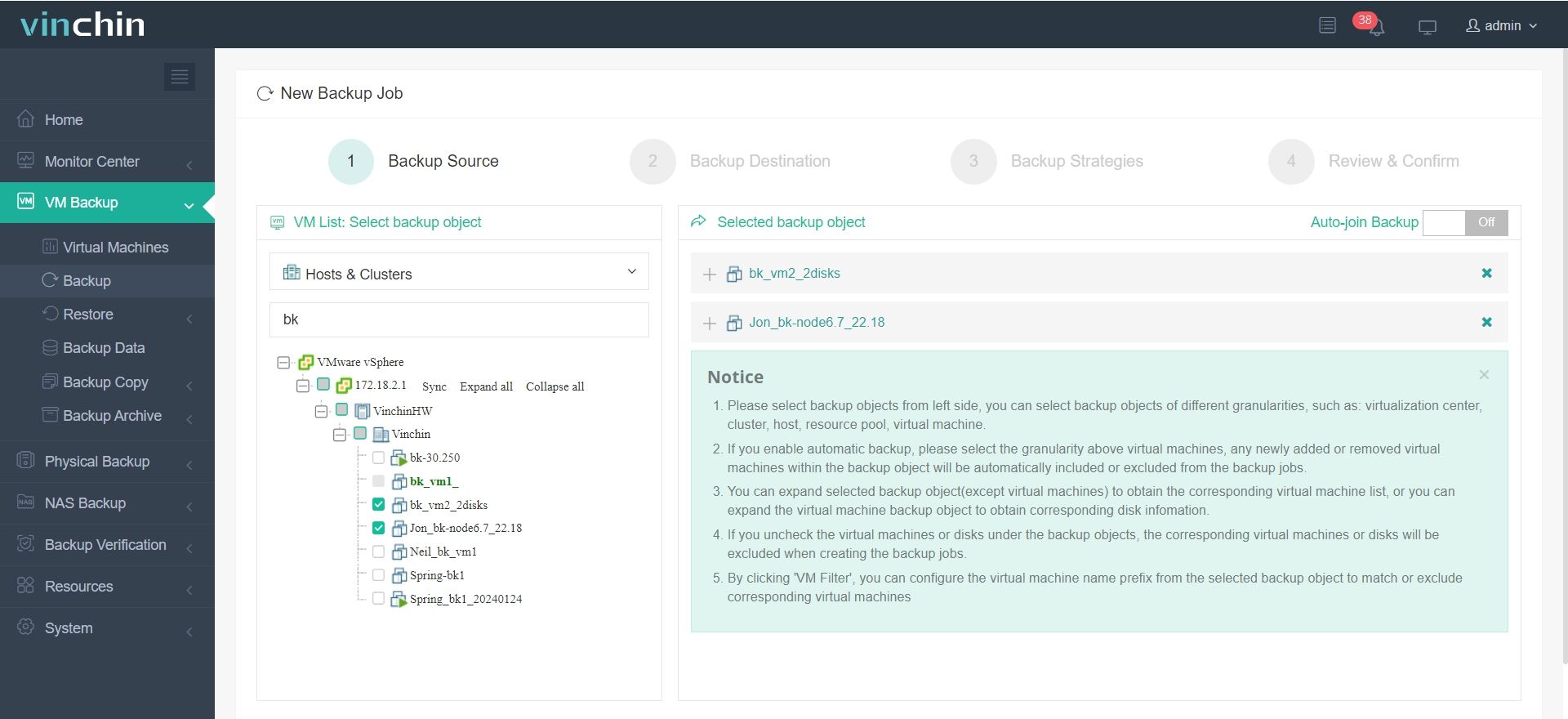
2. เลือกโฮสต์ ESXi แล้วเลือก VMs บนโฮสต์นั้น
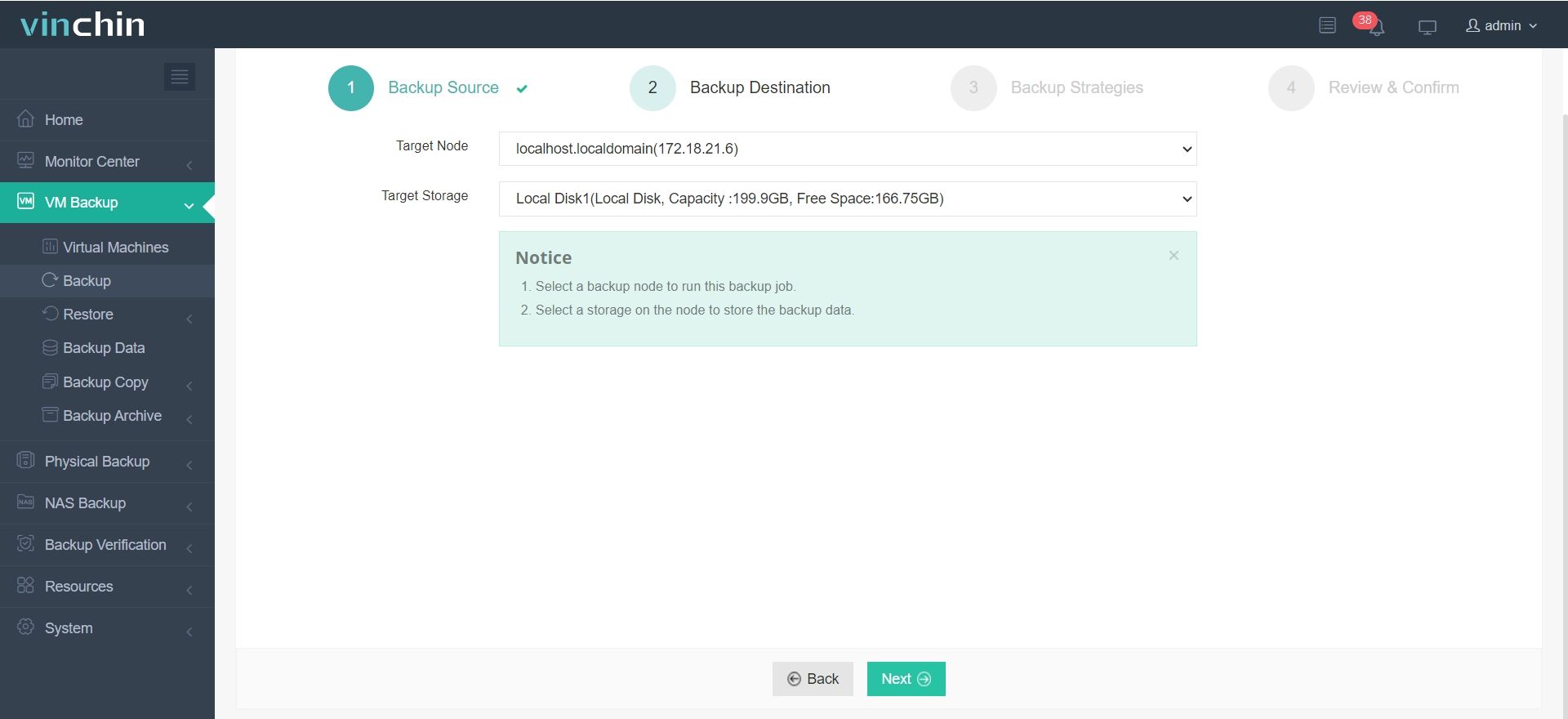
3. เลือกที่จัดเก็บข้อมูลสำรอง
4. เลือกกลยุทธ์การสำรองข้อมูล เช่น การสำรองข้อมูลแบบเพิ่มเติม คอมเพรสชันข้อมูล BitDetector เป็นต้น เพื่อลดขนาดของข้อมูลสำรอง การเข้ารหัสข้อมูลเพื่อความปลอดภัยของข้อมูล และการถ่ายโอนแบบไม่ใช้ LAN เพื่อลดผลกระทบต่อสภาพแวดล้อมการผลิต
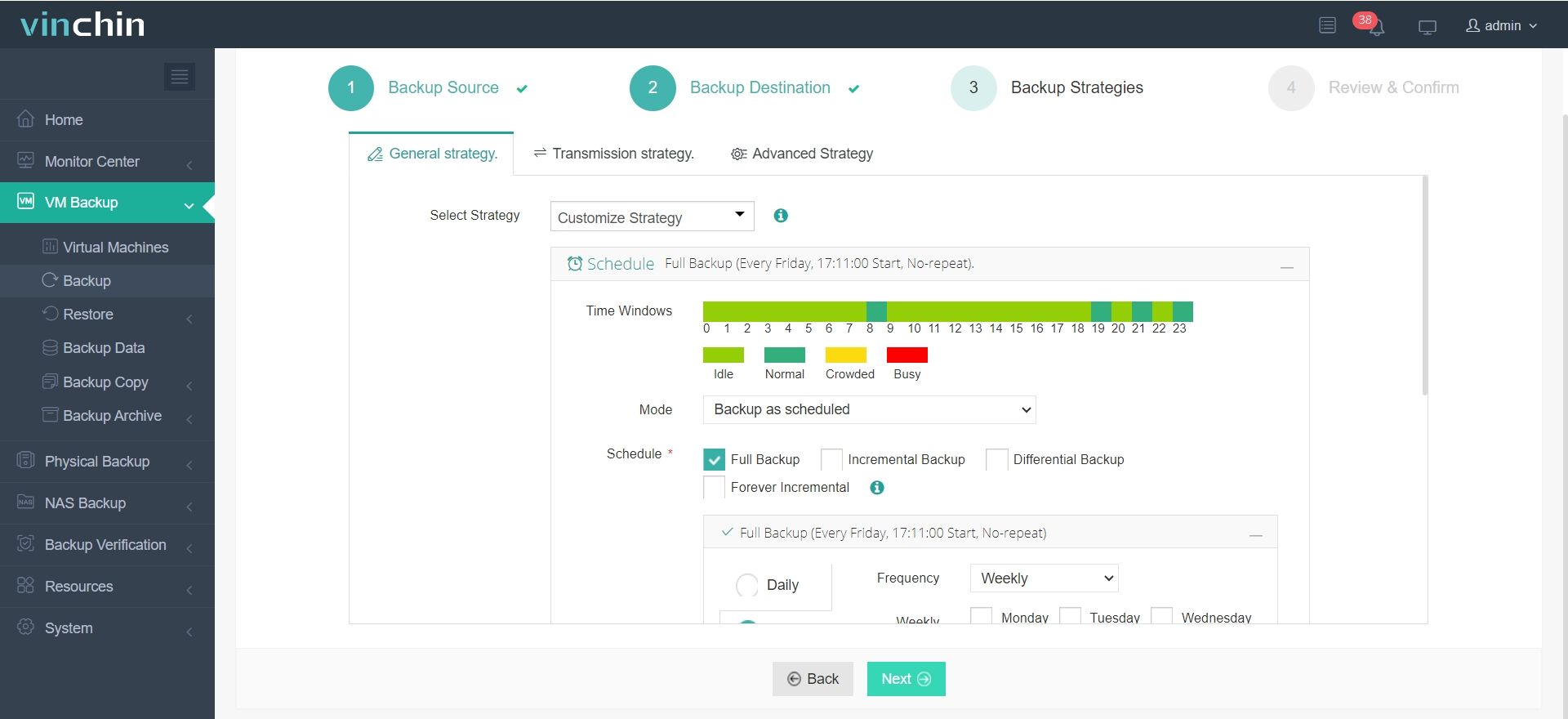
5. ทบทวนงานสำรองข้อมูลและส่ง
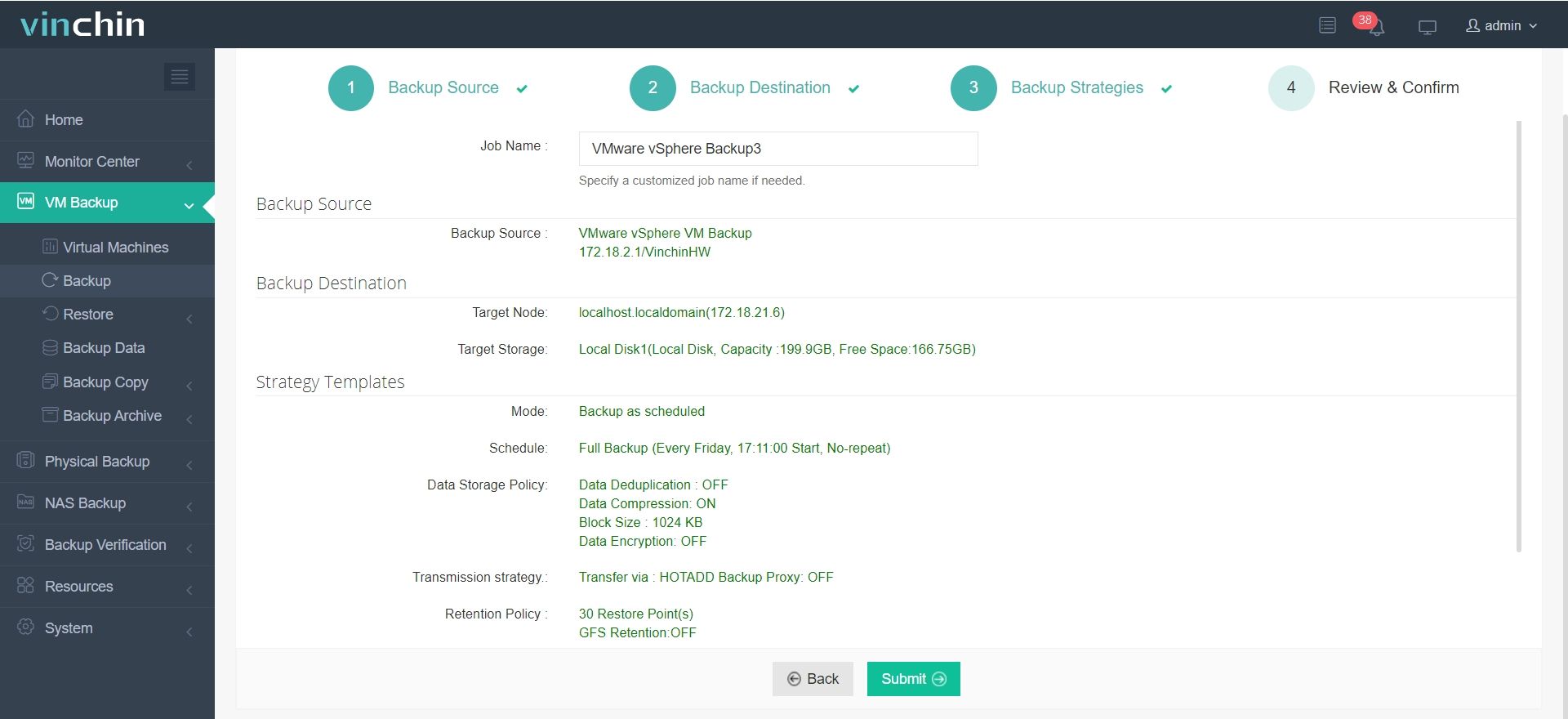
เพื่ออำนวยความสะดวกในการกู้คืนภัยพิบัติ Vinchin การกู้คืนทันที สามารถช่วยให้คุณกู้คืนเครื่องเสมือนที่ล้มเหลวจากข้อมูลสำรองได้ทันทีภายใน 15 วินาที และเพื่อจัดการสภาพแวดล้อมแบบมัลติไฮเปอร์ไวเซอร์ได้ดียิ่งขึ้น คุณสามารถ กู้คืนเครื่องเสมือน ESXi ไปยังโฮสต์อื่น เช่น XenServer และ RHV และในทางกลับกันได้
Vinchin Backup & Recovery ได้รับการคัดเลือกจากบริษัทต่างๆ กว่าพันแห่ง และคุณก็สามารถเริ่มต้นใช้งานทดลองใช้งานฟรีแบบครบชุดเป็นเวลา 60 วัน ได้ที่นี่เช่นกัน นอกจากนี้ ติดต่อเรา แจ้งความต้องการของคุณ แล้วคุณจะได้รับโซลูชันที่เหมาะสมกับคุณ เราได้สร้างความร่วมมือกับบริษัทชั้นนำทั่วโลก ดังนั้นหากคุณต้องการทำธุรกิจในพื้นที่ คุณสามารถเลือกหุ้นส่วนท้องถิ่น ได้ที่นี่
การสำรองข้อมูล ESXi VM ด้วยสคริปต์ คำถามที่พบบ่อย
Q1: ต้องมีสิทธิ์พิเศษในการรันสคริปต์สำรองข้อมูล ESXi ใช่ไหม?
A1: ใช่ คุณต้องมีบัญชี ESXi ที่มีสิทธิ์เพียงพอในการเข้าถึงและส่งออก VM
Q2: สคริปต์สามารถสำรองข้อมูลเครื่องเสมือนหลายเครื่องพร้อมกันได้ไหม?
A2: ได้ คุณสามารถวนลูปชื่อ VM ในสคริปต์เพื่อสำรองข้อมูล VM หลายเครื่องโดยอัตโนมัติได้
Q3: สคริปต์จัดการสแนปชอตของเครื่องเสมือนไหม?
A3: สคริปต์ส่วนใหญ่ใช้ภาพถ่ายเพื่อให้มั่นใจว่าการสำรองข้อมูลมีความสม่ำเสมอก่อนที่จะส่งออกไฟล์ VM
สรุป
ESXi สามารถจำลองเซิร์ฟเวอร์ทางกายภาพแบบเบสเมทัลเพื่อให้บริษัทสามารถใช้ทรัพยากรฮาร์ดแวร์ได้อย่างมีประสิทธิภาพมากขึ้น เพื่อสำรองข้อมูลบนเซิร์ฟเวอร์ บริษัทสามารถสำรอง VM ทุกเครื่องไว้ เพื่อเมื่อ VM เครื่องใดเครื่องหนึ่งล้มเหลว การกู้คืน VM ที่ล้มเหลวจะไม่ส่งผลกระทบต่อ VM อื่นๆ
นอกจากการส่งออก VM ออกจาก vCenter ด้วยตนเองแล้ว ยังมีวิธีการรันสคริปต์เพื่อสำรองข้อมูลเครื่องเสมือน ESXi ที่มีตัวเลือกเพิ่มเติมอีกด้วย
นอกจากนี้ยังมีทางเลือกที่ดีกว่าสคริปต์อีกด้วย Vinchin Backup & Recovery เป็นโซลูชันสำรองข้อมูลระดับองค์กรที่เชี่ยวชาญสำหรับ VMware ESXi VMs และให้การปกป้องสภาพแวดล้อมเสมือนได้อย่างครอบคลุมมากขึ้นด้วยการใช้งานที่ง่าย อย่าพลาดทดลองใช้ฟรี