O VMware vSphere é amplamente utilizado em empresas, fornecendo uma plataforma de virtualização robusta para aproveitar plenamente os recursos de hardware em servidores físicos, e seu hipervisor ESXi é altamente elogiado pelos usuários.
Quando a tecnologia de virtualização quebra as limitações do ambiente tradicional de TI, também traz novos desafios na manutenção de TI. Os administradores de TI devem continuar fazendo backup do servidor físico ou devem encontrar uma nova solução para fazer backup das VMs do ESXi?
Cópia de segurança da VM ESXi vs cópia de segurança do anfitrião
Antes da virtualização dos servidores físicos, os administradores de TI apenas precisavam fazer a sua cópia de segurança com soluções tradicionais, mas agora restaurar todo o servidor para corrigir uma determinada VM não é bom para a recuperação de desastres, porque isso pode afetar as VMs que estão a funcionar bem.
Além disso, é difícil fazer backup de todos os dados em um host virtualizado porque o ESXi é um hipervisor do tipo 1, o que significa que não há um sistema operacional para a solução tradicional instalar um agente de backup. Alguns administradores de TI irão fazer backup da configuração do ESXi, mas muitas pessoas acham isso desnecessário.
A maneira mais eficaz de proteger dados e a continuidade dos negócios em um ambiente virtual ainda é fazer o backup das VMs no host ESXi, para que, em caso de falha da VM, os administradores de TI possam recuperar uma única VM sem afetar as demais.
Como fazer backup de VM ESXi com scripts do PowerShell?
Para gerenciar máquinas virtuais, você pode implantar o vCenter no ambiente virtual e manualmente exportar as VMs ESXi como backup de dados.
Com o vCenter implantado, você também pode executar scripts do PowerShell para fazer backup da VM conforme agendado.
Esta seção irá orientá-lo a escrever 3 scripts: Starter.ps1, _Configuration.ps1 e Backup-VM.ps1. Depois disso, você precisará colocá-los na estrutura de diretórios abaixo:
│ Backup-VM.ps1
│ Starter.ps1
│
└─vCenter01
_Configuration.ps1
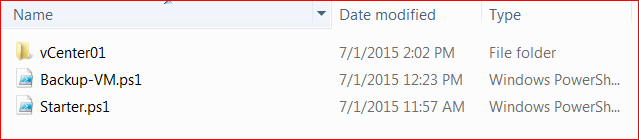
Explicação das funcionalidades do script:
Starter.ps1 - Invoked by task scheduler, in its path, it will scan all _Configuration.ps1 files, and launch Backup-VM.ps1 asynchronously.
Backup-VM.ps1 - Owns a sole parameter called "-vCenterFolder", pointing to a directory of _Configuration.ps1.
_Configuration.ps1 - Configuration file, any number of it is ok, based on the contents, do different VM backup jobs on different vCenter servers.
Conteúdo e descrição do script:
Starter.ps1
# Enter directory of script
Set-Location (Get-Item $MyInvocation.MyCommand.Definition).Directory

# Scan all _Configuration.ps1 files
Get-ChildItem -Filter '_Configuration.ps1' -Recurse | %{
    # Launch Backup-VM.ps1 and pass _Configuration.ps1's path in
    Start-Process -FilePath 'powershell.exe' -ArgumentList @('-File', 'Backup-VM.ps1', '-vCenterFolder', "`"$($_.DirectoryName)`"")
}
_Configuration.ps1
$Enable = $true

# Below is a sample to backup VMs
# VM - the VM name in vCenter
# Host - VMHost name in vCenter
# Datastore - Datastore name in vCenter in Host
<#
Sample:
$Entries = @(
@{VM = 'VMName01'; Host = 'TargetESXiServerName02'; Datastore = 'TargetESXiServerName02:storage1'; Reserve = 1;},
@{VM = 'VMName02'; Host = 'TargetESXiServerName01'; Datastore = 'TargetESXiServerName01:storage2'; Reserve = 1;}
)
#>

# Actual data filled in
$Entries = @(

)

# vCenter server name or IP address
$vCenter = 'vCenter01'

# Mail setting part, only there are errors needs manual work will be triggered. normal backup job will not trigger the alert.
$From =  "$($env:COMPUTERNAME)@test.com"
$To = "AlertNeedsToSend@test.com"
$Subject = "VMs backup completed with errors - $vCenter"
$SmtpServer = 'mailgateway'
Backup-VM.ps1 - Avalia automaticamente qual método de backup usar; se a VM utiliza VDS (vSphere Distributed Switch), o script escolherá o backup via API; se a VM utiliza um vSphere Standard Switch normal, o script pode usar o New-VM para clonar a VM. (Após o uso do VDS, o New-VM falhará, a menos que os servidores ESXi original e de destino tenham as mesmas configurações de VDS)
PARAM(
    [parameter(Mandatory=$true)]
    [string]$vCenterFolder
)

# Enter directory of _Configuration.ps1
Set-Location -Path $vCenterFolder

$Date = Get-Date
$strDate = $Date.ToString("yyyy-MM-dd")
$strLogFile = "${strDate}.log"

# Import _Configuration.ps1 variables
. '.\_Configuration.ps1'

# Define a logging function
function Add-Log
{
    PARAM(
        [String]$Path,
        [String]$Value,
        [String]$Type = 'Info'
    )
    $Type = $Type.ToUpper()
    $Date = Get-Date
    Write-Host "$($Date.ToString('[HH:mm:ss] '))[$Type] $Value" -ForegroundColor $(
        switch($Type)
        {
            'WARNING' {'Yellow'}
            'Error' {'Red'}
            default {'White'}
        }
    )
    if($Path){
        Add-Content -LiteralPath $Path -Value "$($Date.ToString('[HH:mm:ss] '))[$Type] $Value" -ErrorAction:SilentlyContinue
    }
}

Add-Log -Path $strLogFile -Value 'New backup started'
# Whether the configuration is enabled or not
if(!$Enable)
{
    Add-Log -Path $strLogFile -Value 'Repository disabled'
    exit
}

# $vCenter is necessary, without it, script doesn't know where to connect to
if(!$vCenter)
{
    Add-Log -Path $strLogFile -Value 'vCenter variable is null, can not continue' -Type Error
    $Alert = $true
}
else
{
    Add-Log -Path $strLogFile -Value "vCenter: [$vCenter]"
}

# Looking for necessary snapin, early version of PowerCli has no snapin for VDS, output some information to ensure the environment of the script
if(!(Get-PSSnapin -Name '*VMware.VimAutomation.Vds*' -Registered -ErrorAction:SilentlyContinue))
{
    Add-Log -Path $strLogFile -Value 'This script is built from [VMware vSphere PowerCLI 5.5], suggest to run on the version' -Type Error
    Add-Log -Path $strLogFile -Value 'PSSnapin [VMware.VimAutomation.Vds] is not found, which could cause backup failure' -Type Error
    Add-Log -Path $strLogFile -Value 'Installer path: [ServerVMwarevSphereVMware-PowerCLI-5.5.0-1295336.exe]' -Type Info
    exit
}

# Add snapin
if(!(Get-PSSnapin '*vmware*' -ErrorAction:SilentlyContinue))
{
    Add-PSSnapin *vmware*
    if(!$?)
    {
        Add-Log -Path $strLogFile -Value 'Failed to add vmware pssnapin' -Type Error
        Add-Log -Path $strLogFile -Value $Error[0] -Type Error
        exit
    }
}

# Connect to vCenter,if error, set $Alert to $true to trigger alert at last
Connect-VIServer -Server $vCenter -Force
if(!$?)
{
    Add-Log -Path $strLogFile -Value 'Failed to connect to vCenter, cause:' -Type Error
    Add-Log -Path $strLogFile -Value $Error[0] -Type Error
    $Alert = $true
}

$Tasks = @()
# Loop every VM backup item
foreach($e in $Entries)
{
    Add-Log -Path $strLogFile -Value "Start doing backup for: [$($e.VM)]"
    # Add a new VM name as "%OLDVMName%_ScriptBackup_%CurrentDate%"
    $VMNew = "$($e.VM)_ScriptBackup_$strDate"
    $e.NewVM = $VMNew
    $VM = $null
    $VM = @(Get-VM -Name $e.VM -ErrorAction:SilentlyContinue)
    if(!$VM)
    {
        Add-Log -Path $strLogFile -Value 'Capture none VM, does the VM exists?' -Type Warning
        continue
    }
    if($VM.Count -ge 2)
    {
        Add-Log -Path $strLogFile -Value "Capture [$($VM.Count)] VM, duplicated VMs?: [$(($VM | %{$_.Id}) -join '], [')]" -Type Warning
        continue
    }
    $VM = $VM[0]

    # only one VM captured, no confuse to script
    $VMHost = $null
    $VMHost = @(Get-VMHost -Name $e.Host -ErrorAction:SilentlyContinue)
    if(!$VMHost)
    {
        Add-Log -Path $strLogFile -Value "Capture none VMHost, does the VMHost exists?: [$($e.Host)]" -Type Warning
        continue
    }
    if($VMHost.Count -ge 2)
    {
        Add-Log -Path $strLogFile -Value "Capture [$($VMHost.Count)] VMHost, duplicated VMHosts?: [$(($VMHost | %{$_.Id}) -join '], [')]" -Type Warning
        continue
    }
    $VMHost = $VMHost[0]

    # only one VMHost captured, no confuse to script
    $Datastore = $null
    $Datastore = @($VMHost | Get-Datastore -Name $e.Datastore -ErrorAction:SilentlyContinue)
    if(!$Datastore)
    {
        Add-Log -Path $strLogFile -Value "Capture none Datastore, does the Datastore exists on VMHost?: [$($e.Datastore)]" -Type Warning
        continue
    }
    if($Datastore.Count -ge 2)
    {
        Add-Log -Path $strLogFile -Value "Capture [$($Datastore.Count)] Datastore, duplicated Datastores?: [$(($Datastore | %{$_.Id}) -join '], [')]" -Type Warning
        continue
    }
    $Datastore = $Datastore[0]

    # only one Datastore captured, no confuse to script
    Add-Log -Path $strLogFile -Value "INFO[OLDName][NewName][Host][Datastore]: [$($VM.Name)][$VMNew][$($VMHost.Name)][$($Datastore.Name)]"

    # Whether the VM is using VDS
    $VDS = $null
    $VDS = $VM | Get-VDSwitch -ErrorAction:SilentlyContinue
    if(!$VDS)
    {
        # if VDS is not placed, use New-VM to clone
        Add-Log -Path $strLogFile -Value 'VDSwitch not found on the VM, use commandlet [New-VM] to clone'
        $Task = $null
        $Task = New-VM -Name $VMNew -VM $VM -VMHost $VMHost -Datastore $Datastore -RunAsync -ErrorAction:SilentlyContinue
        if(!$?)
        {
            Add-Log -Path $strLogFile -Value 'New-VM failed, cause:' -Type Warning
            Add-Log -Path $strLogFile -Value $Error[0] -Type Warning
            continue
        }
        Add-Log -Path $strLogFile -Value "Task launched: [$($Task.Id)]"
        $Tasks += $Task.Id
    }
    else
    {
        # using VDS, use API to clone
        Add-Log -Path $strLogFile -Value 'VDSwitch found on the VM, need to use 2nd way to clone VM'
        Add-Log -Path $strLogFile -Value "VDS [Name][KEY]: [$(($VDS | %{$_.Name}) -join ';')][$(($VDS | %{$_.Key}) -join ';')]"
        $TargetVDS = $null
        $TargetVDS = @($VMHost | Get-VDSwitch -ErrorAction:SilentlyContinue)
        # on target VMHost search VDS, if target ESXi has no VDS, clone will fail
        if(!$TargetVDS)
        {
            Add-Log -Path $strLogFile -Value 'Target VMHost server has no VDSwitch, VM which uses a VDS is unable to clone to the VMHost' -Type Warning
            continue
        }
        $TargetVDS = $TargetVDS[-1]
        # capture VDS and pick the one owns most number of ports
        $TargetVDSGroup = @($TargetVDS | Get-VDPortgroup | Sort-Object NumPorts)[-1]
        Add-Log -Path $strLogFile -Value "Target VDS randomly picked [Name][Key]: [$($TargetVDS.Name)][$($TargetVDS.Key)]"

        # API nesessary, use default resource pool of ESXi server is fine
        $Pool = $null
        $Pool = @($VMHost | Get-ResourcePool)[0]
        if(!$Pool)
        {
            Add-Log -Path $strLogFile -Value 'No resource pool found from VMHost, please use Get-ResourcePool to find resource pool on the VMhost' -Type Warning
            continue
        }

        # Capture VM's network adapter, change it to use VDS on target ESXi
        $VMNic = $null
        $VMNic = $VM.ExtensionData.Config.Hardware.Device | ?{$_.DeviceInfo.Label -imatch 'Network adapter'}
        if($VMNic.Count -ge 2)
        {
            Add-Log -Path $strLogFile -Value 'The VM has more than 2 network adapters, not supported' -Type Warning
            continue
        }
        $VMNicBacking = $VMNic.Backing
        $VMNicBacking.Port.SwitchUuid = $TargetVDS.Key
        $VMNicBacking.Port.PortgroupKey = $TargetVDSGroup.Key
        $VMNicBacking.Port.PortKey = ''
        $VMNicBacking.Port.ConnectionCookie = ''

        # API necessary
        $spec = New-Object VMware.Vim.VirtualMachineCloneSpec
        $spec.Config = New-Object VMware.Vim.VirtualMachineConfigSpec
        $nicDev = New-Object VMware.Vim.VirtualDeviceConfigSpec
        $nicDev.Operation = 'edit'
        $nicDev.Device = $VMNic
        $nicDev.Device.Backing = $VMNicBacking
        $spec.Config.DeviceChange = $nicDev
        $spec.Config.DeviceChange[0].Device.Backing.Port.PortKey = ''
        $spec.Location = New-Object VMware.Vim.VirtualMachineRelocateSpec
        $spec.Location.Host = $VMHost.ExtensionData.MoRef
        $spec.Location.Datastore = $Datastore.ExtensionData.MoRef
        $spec.Location.Pool = $Pool.ExtensionData.MoRef
        $spec.PowerOn = $false
        $spec.Template = $false

        Add-Log -Path $strLogFile -Value 'Trying to get datacenter object, this could potentially cause a dead loop!'
        # to get the $Folder for API, must get datacenter of ESXi first
        $Datacenter = $VMHost.Parent
        while($Datacenter.Id -notmatch 'Datacenter')
        {
            $Datacenter = $Datacenter.Parent
        }
        # API necessary
        $Folder = $Datacenter | Get-Folder -Name 'Discovered virtual machine'
        Add-Log -Path $strLogFile -Value 'Did not fail into a dead loop!'

        # use API to launch clone task
        $Task = $null
        $Task = $VM.ExtensionData.CloneVM_Task($Folder.ExtensionData.MoRef, $VMNew, $spec)
        if(!$?)
        {
            Add-Log -Path $strLogFile -Value 'CloneVM_Task failed, cause:' -Type Warning
            Add-Log -Path $strLogFile -Value $Error[0] -Type Warning
            continue
        }
        Add-Log -Path $strLogFile -Value "Task launched: [$($Task.Type)-$($Task.Value)]"
        $Tasks += "$($Task.Type)-$($Task.Value)"
    }
}

$Tasks = @($Tasks | ?{$_})
Add-Log -Path $strLogFile -Value "Waiting for tasks to complete, count: [$($Tasks.Count)]"
while($Tasks)
{
    # clone is running asynchronously, so script needs to trace all tasks every 5 minutes
    # The sleep time better not exceed 15 minutes, due to vCenter will clean completed tasks after 15 minutes
    # when debugging, change the time to 10 seconds is fine
    Start-Sleep -Seconds 300
    $Tasks = Get-Task -Id $Tasks -ErrorAction:SilentlyContinue
    if(!$?)
    {
        Add-Log -Path $strLogFile -Value 'Failed to refresh Task states, cause:' -Type Warning
        Add-Log -Path $strLogFile -Value $Error[0] -Type Warning
    }
    $Tasks = @(
        $Tasks | %{
            if($_.State -ne 'Running')
            {
                Add-Log -Path $strLogFile -Value "Task completed [ID][State]: [$($_.Id)][$($_.State)]"
                if($_.State -eq 'Error')
                {
                    Add-Log -Path $strLogFile -Value $_.ExtensionData.Info.Error.LocalizedMessage -Type Warning
                }
            }
            else
            {
                Add-Log -Path $strLogFile -Value "Task running [ID][% Complete]: [$($_.Id)][$($_.PercentComplete)%]"
                $_.Id
            }
        }
    )
}

# script will start verification for VM backups after all Tasks done
Add-Log -Path $strLogFile -Value 'Verification start'
foreach($e in $Entries)
{
    if((Get-VM -Name $e.NewVM -ErrorAction:SilentlyContinue) -and $?)
    {
        # Backup VM found in vCenter, suggest the backup was succeed
        Add-Log -Path $strLogFile -Value "[VM][NewVM]: [$($e.VM)][$($e.NewVM)] -- New VM found in vCenter"
        if($e.Reserve)
        {
            # If Reserve's valud is set, script will find all backups for the VM, and remove addtionals
            $VMBackups = $null
            $VMBackupsRemoval = $null
            $VMBackups = Get-VM -Name "$($e.VM)_ScriptBackup_*" | ?{$_.Name -imatch '_ScriptBackup_d{4}-d{2}-d{2}$'} -ErrorAction:SilentlyContinue
            $VMBackups = @($VMBackups | Sort-Object 'Name')
            Add-Log -Path $strLogFile -Value "Old VM backups captured: [$($VMBackups.Count)][$(($VMBackups | %{$_.Name}) -join ';')]"
            $i = $VMBackups.Count - $e.Reserve
            if($i -le 0)
            {
                $i = 0
                Add-Log -Path $strLogFile -Value 'No old backups available to be removeds'
            }
            if($i -gt 0)
            {
                Add-Log -Path $strLogFile -Value "VM old backups can be removed count: [$i]"
                $VMBackupsRemoval = $VMBackups[0..(--$i)]
                Remove-VM -VM $VMBackupsRemoval -DeletePermanently -Confirm:$false
            }
        }
    }
    else
    {
        # backup VM not found in vCenter which means backup failed, better do nothing
        Add-Log -Path $strLogFile -Value "[VM][NewVM]: [$($e.VM)][$($e.NewVM)] -- New VM not found in vCenter, backup failure?" -Type Warning
        $Alert = $true
    }
}

Add-Log -Path $strLogFile -Value 'All done!'

# If there is error needs manual work, email will be triggered
if($Alert)
{
    Send-MailMessage -To $To -From $From -SmtpServer $SmtpServer -Subject $Subject -Attachments $strLogFile
    if(!$?)
    {
        Add-Log -Path $strLogFile -Value 'Failed to send email, cause:' -Type Warning
        Add-Log -Path $strLogFile -Value $Error[0] -Type Warning
    }
}
Como fazer backup de VM ESXi com software de backup corporativo?
O script oferece uma solução gratuita de backup de VM ESXi, mas na verdade não é adequado para a recuperação de desastres empresarial, pois não se trata de uma solução de backup abrangente e não fornece uma solução rápida de recuperação da VM. As empresas devem ter uma solução mais profissional.
Vinchin Backup & Recovery é uma solução profissional de backup corporativo verificada pelo VMware que suporta backup no nível do convidado para o VMware vSphere.
Demora apenas alguns minutos para implantar no ambiente virtual e, em seguida, um console da web fácil de usar ajudará você a criar facilmente uma tarefa de backup com as estratégias necessárias.
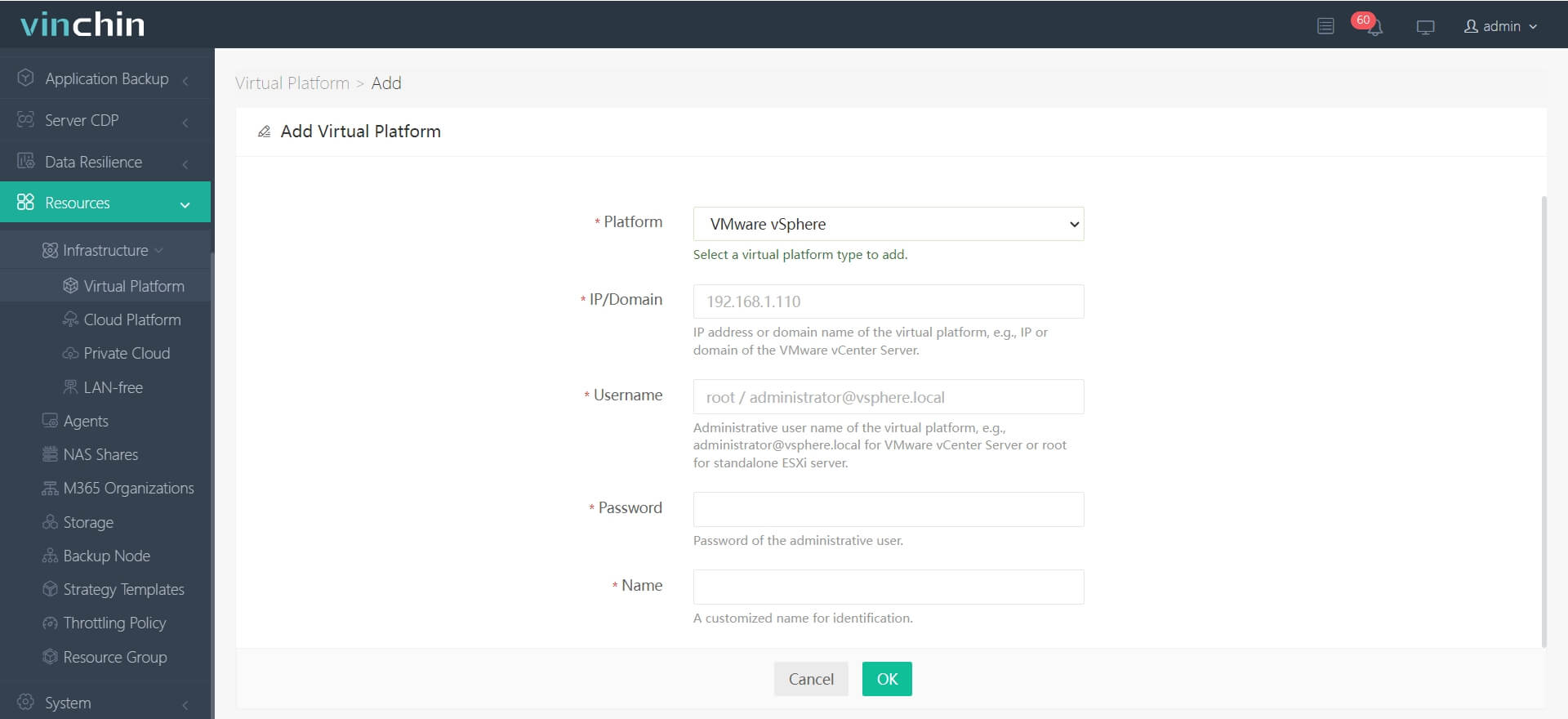
1. Adicione o host ESXi com suas credenciais para fazer backup das VMs nele sem agente
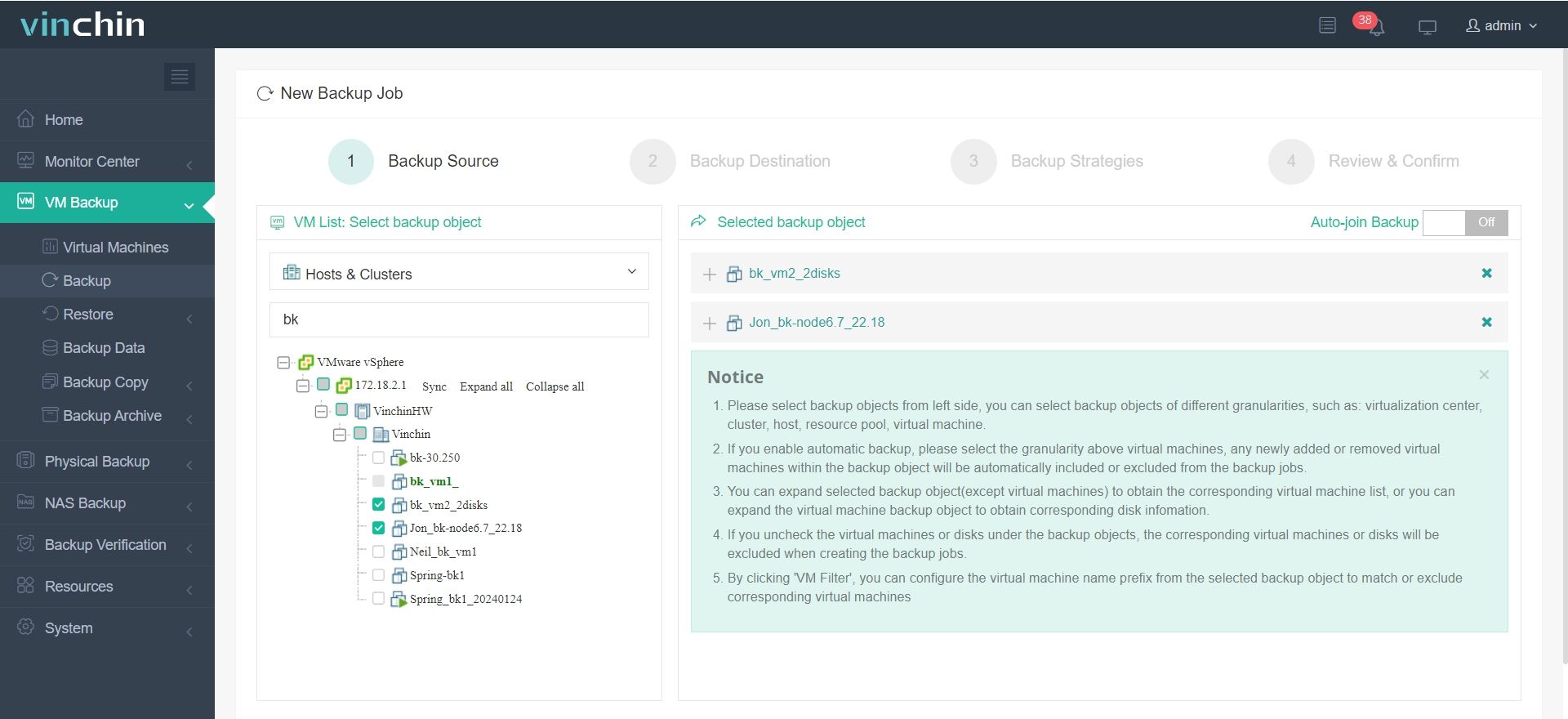
2. Selecione o host ESXi e depois selecione as VMs nele
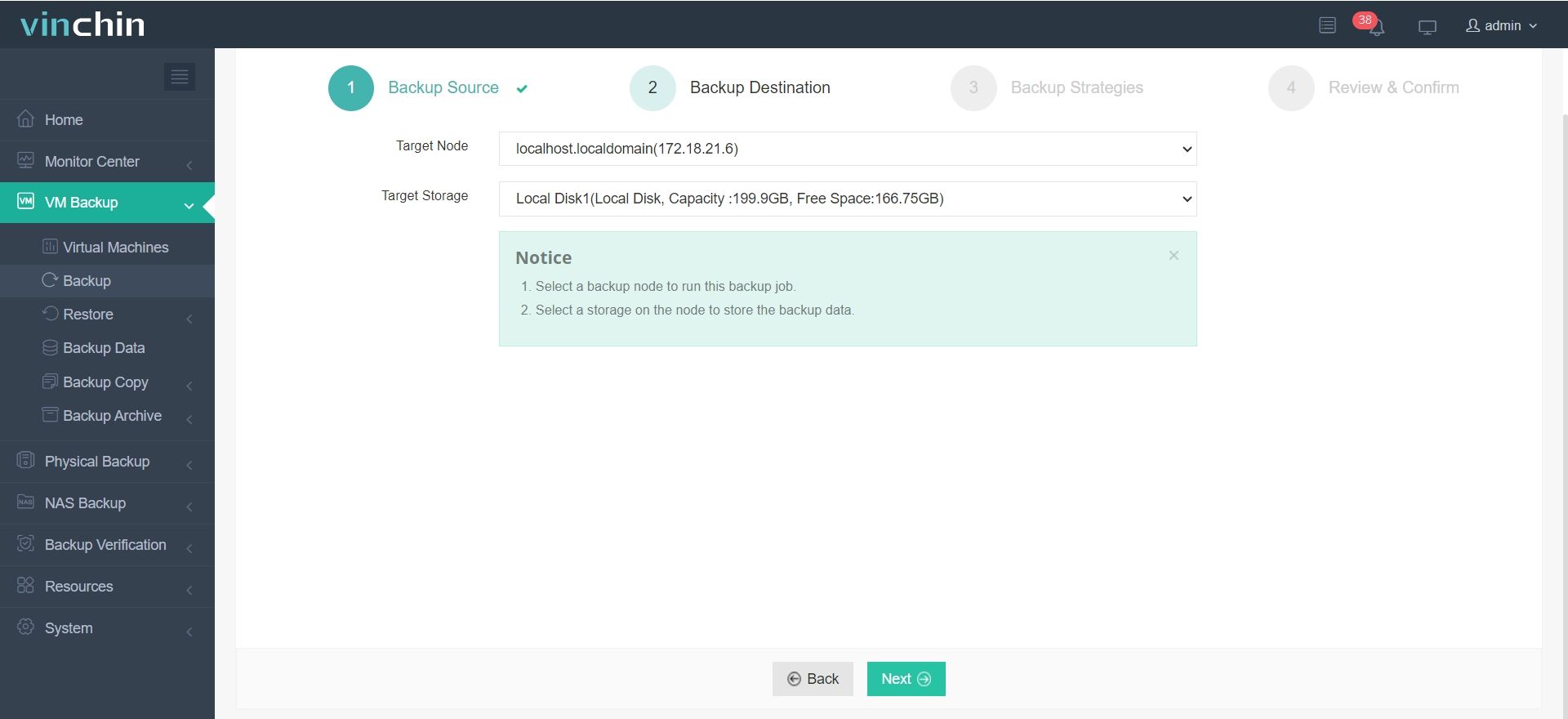
3. Selecione o armazenamento de backup
4. Selecione as estratégias de backup. Por exemplo, você terá backup incremental, compressão de dados, BitDetector, etc., para reduzir o tamanho do backup, criptografia de dados para segurança das informações e transferência sem uso de LAN para mitigar o impacto no ambiente de produção.
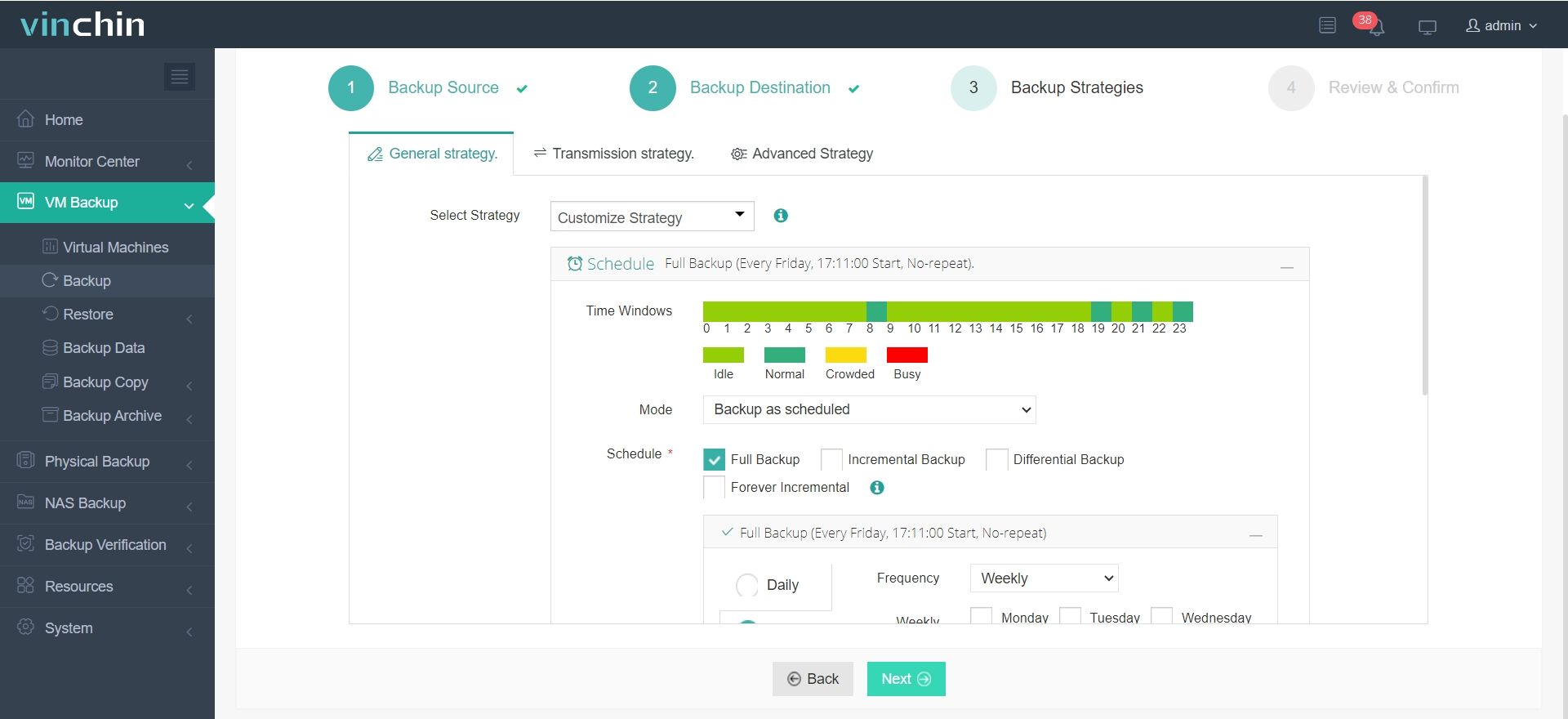
5. Basta revisar o trabalho de backup e enviar
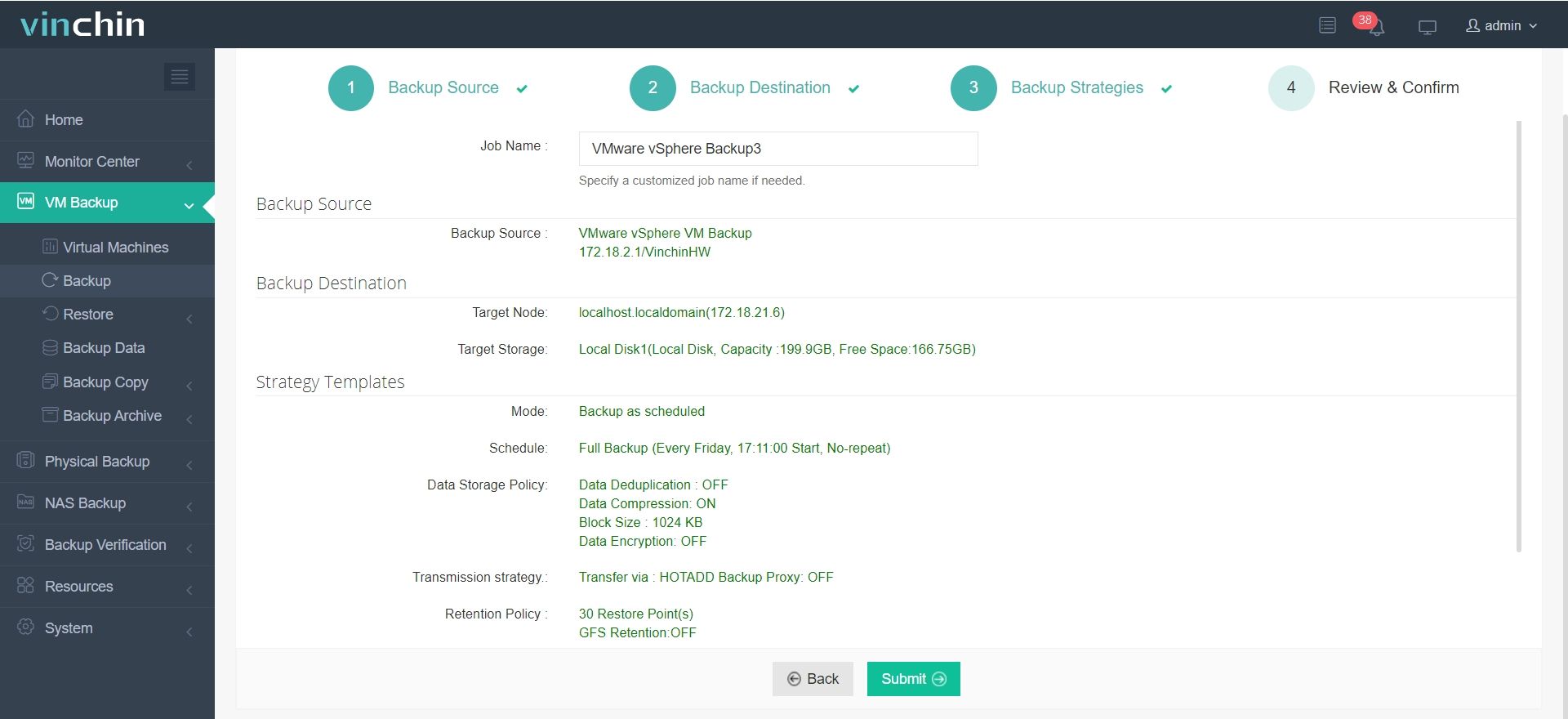
Para facilitar a recuperação de desastres, a Recuperação Instantânea da Vinchin permite recuperar instantaneamente uma VM inativa a partir do seu backup em 15 segundos e, para gerenciar melhor um ambiente multi-hipervisor, você pode recuperar uma VM ESXi em outro host, como XenServer e RHV, e vice-versa.
O Vinchin Backup & Recovery foi selecionado por milhares de empresas e você também pode iniciar aqui um teste gratuito de 60 dias com todos os recursos. Além disso, entre em contato conosco, deixe suas necessidades e receberá uma solução personalizada. Estabelecemos parcerias com empresas renomadas em todo o mundo, portanto, se desejar realizar negócios locais, você pode selecionar um parceiro local aqui.
Criando cópias de segurança de VMs ESXi com scripts - Perguntas frequentes
P1: Preciso de permissões especiais para executar scripts de backup ESXi?
A1: Sim, você precisa de uma conta ESXi com privilégios suficientes para acessar e exportar máquinas virtuais.
P2: O script pode fazer backup de várias máquinas virtuais de uma só vez?
A2: Sim, você pode percorrer os nomes das VMs no script para fazer backup de várias VMs automaticamente.
P3: O script trata os snapshots da máquina virtual?
A3: A maioria dos scripts usa instantâneos para garantir backups consistentes antes de exportar arquivos de VM.
Resumo
O ESXi pode virtualizar um servidor físico bare metal para permitir que empresas utilizem melhor os recursos de hardware disponíveis. Para fazer backup dos dados no servidor, as empresas podem fazer backup de cada máquina virtual, de modo que, quando determinada VM falhar, a recuperação dessa VM não afetará as demais.
Além da exportação manual da VM do vCenter, também existe a possibilidade de executar scripts para fazer backup da VM ESXi com mais opções.
Existe também uma solução melhor do que os scripts. O Vinchin Backup & Recovery é uma solução profissional de backup empresarial para VMs VMware ESXi e oferece uma proteção mais completa ao ambiente virtual com operação simples. Não perca o teste gratuito.